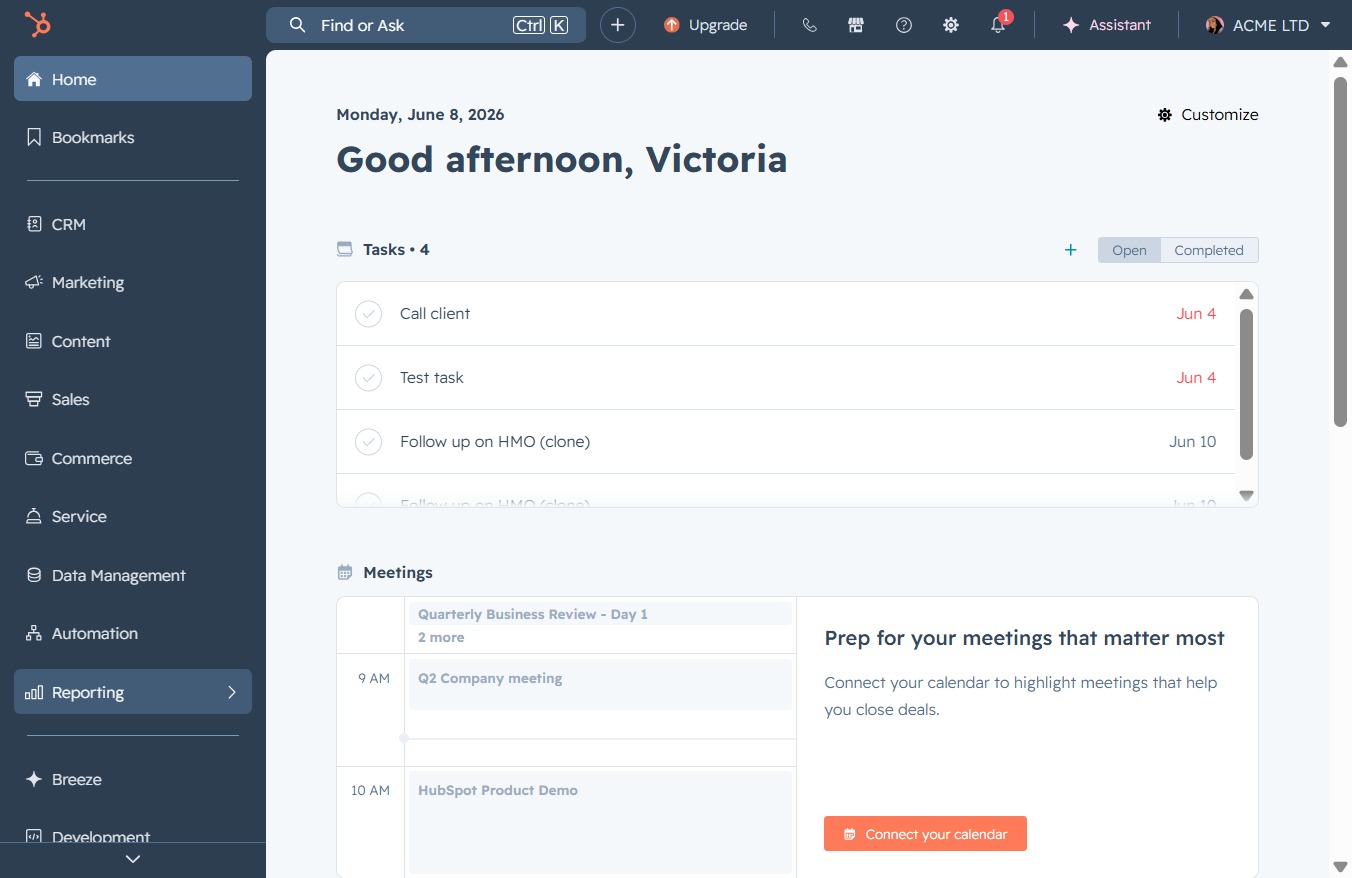
Click the Reporting section
This action opens the Reporting interface, allowing you to access and manage various reporting features and analytics within the application.
Loading screenshot…
100%
Generate a deals report in the reporting section by defining report parameters and selecting related templates for insightful analytics on your sales pipeline performance.
 viktoria
Generate a deals report in the reporting section by defining report parameters and selecting related templates for insightful analytics on your sales pipeline performance.
This action opens the Reporting interface, allowing you to access and manage various reporting features and analytics within the application.
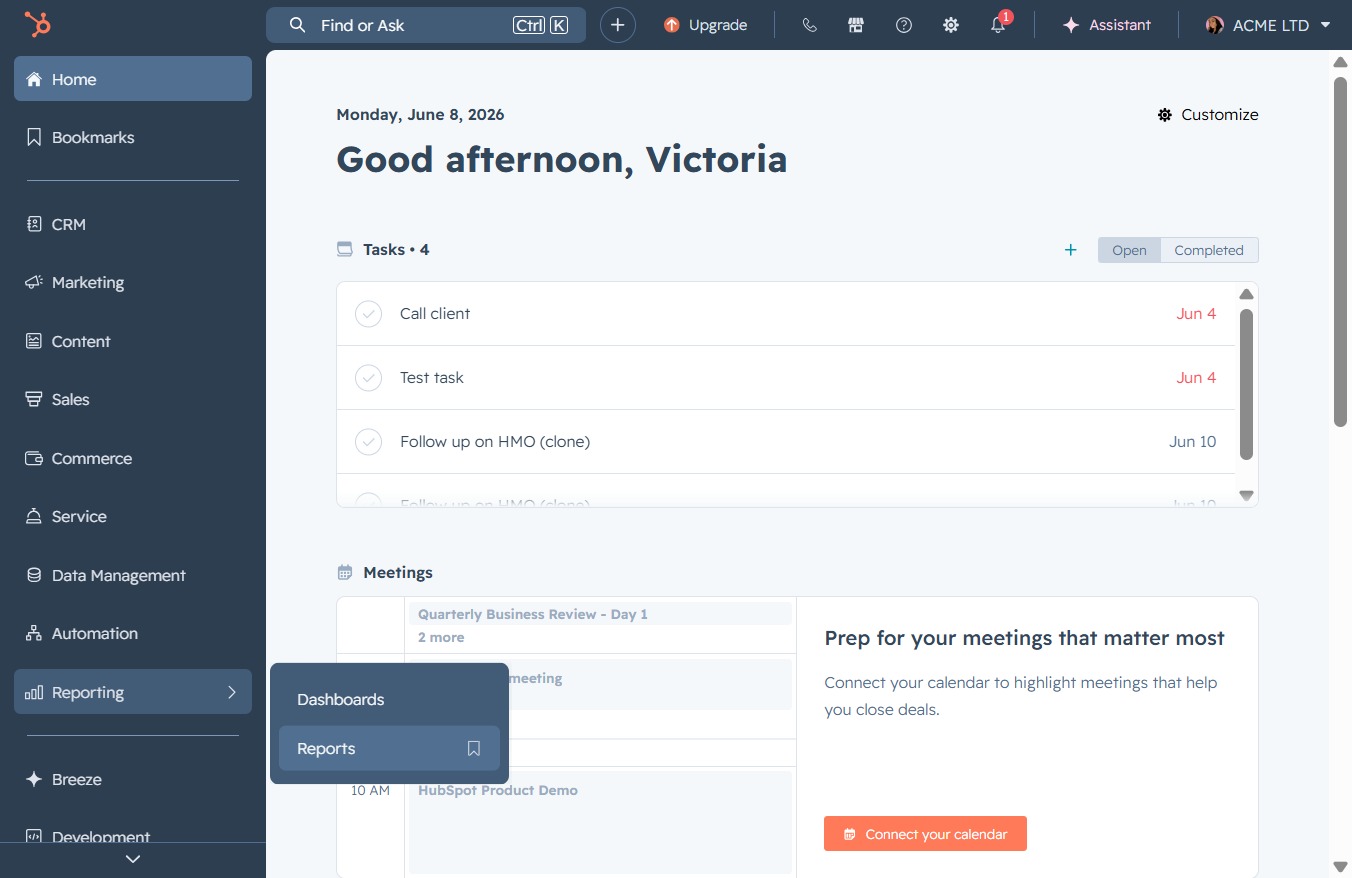
This action will navigate you to the Reports section, where you can view and manage your various reports and analytics.
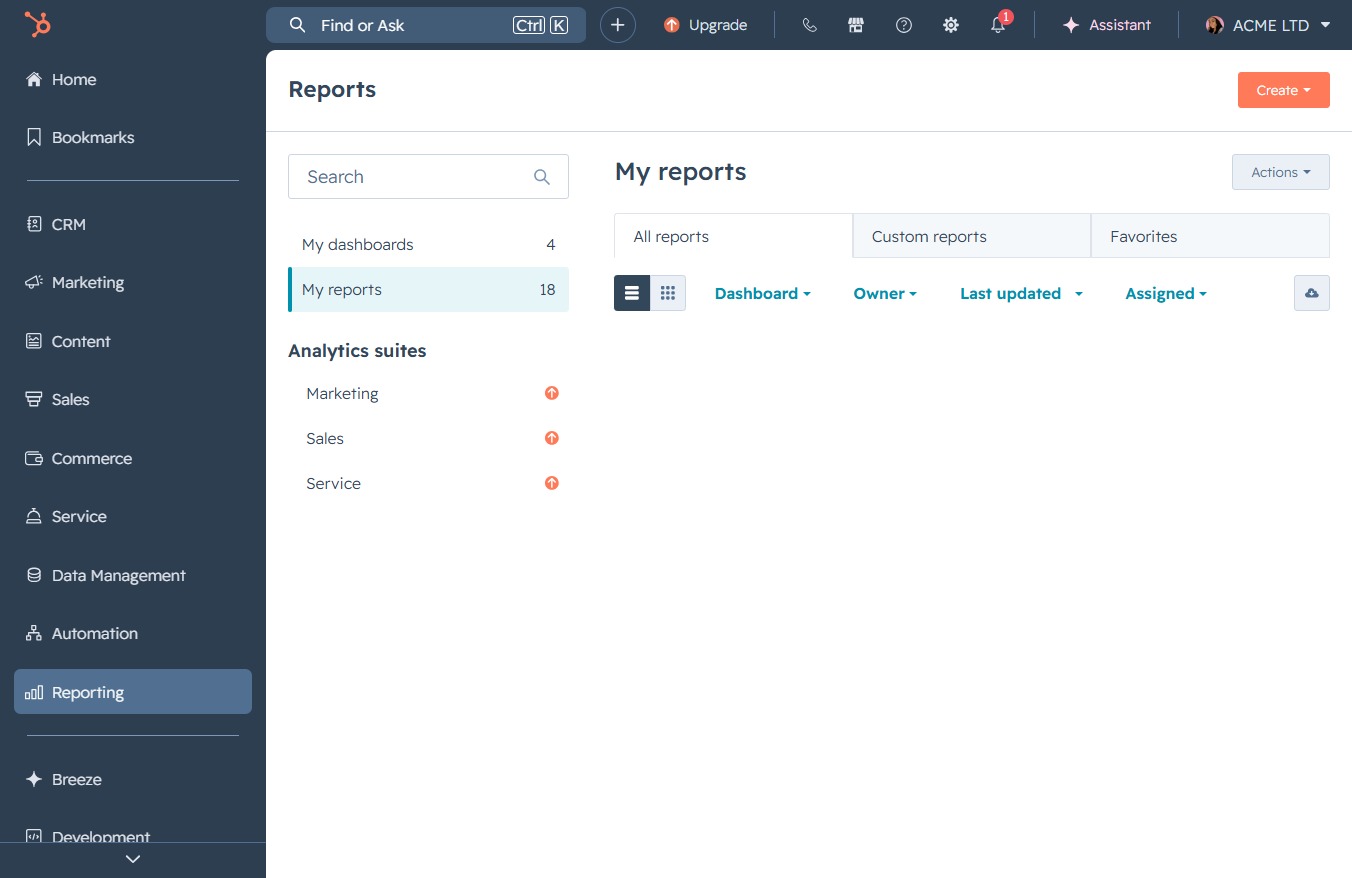
Clicking the 'Create' button allows you to initiate the process of generating a new report. This action will typically open a form or menu where you can specify the report's details.
This action will open a new interface allowing you to define the parameters and criteria for your report. You can customize the report to include specific data and visualizations that meet your needs.

After clicking this field, you can enter keywords to search for specific report templates related to your data needs. Use this feature to quickly access templates that match your criteria.
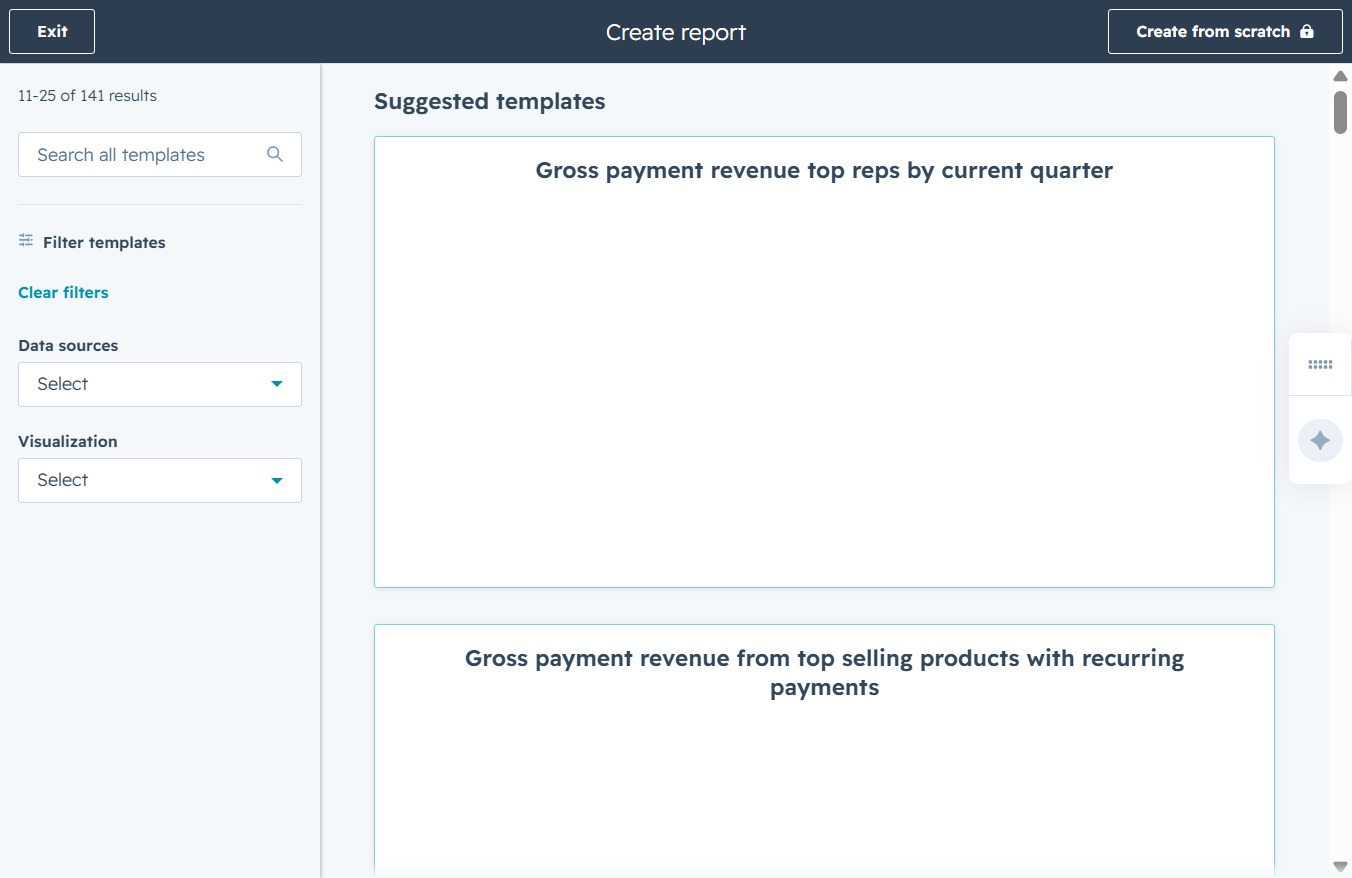
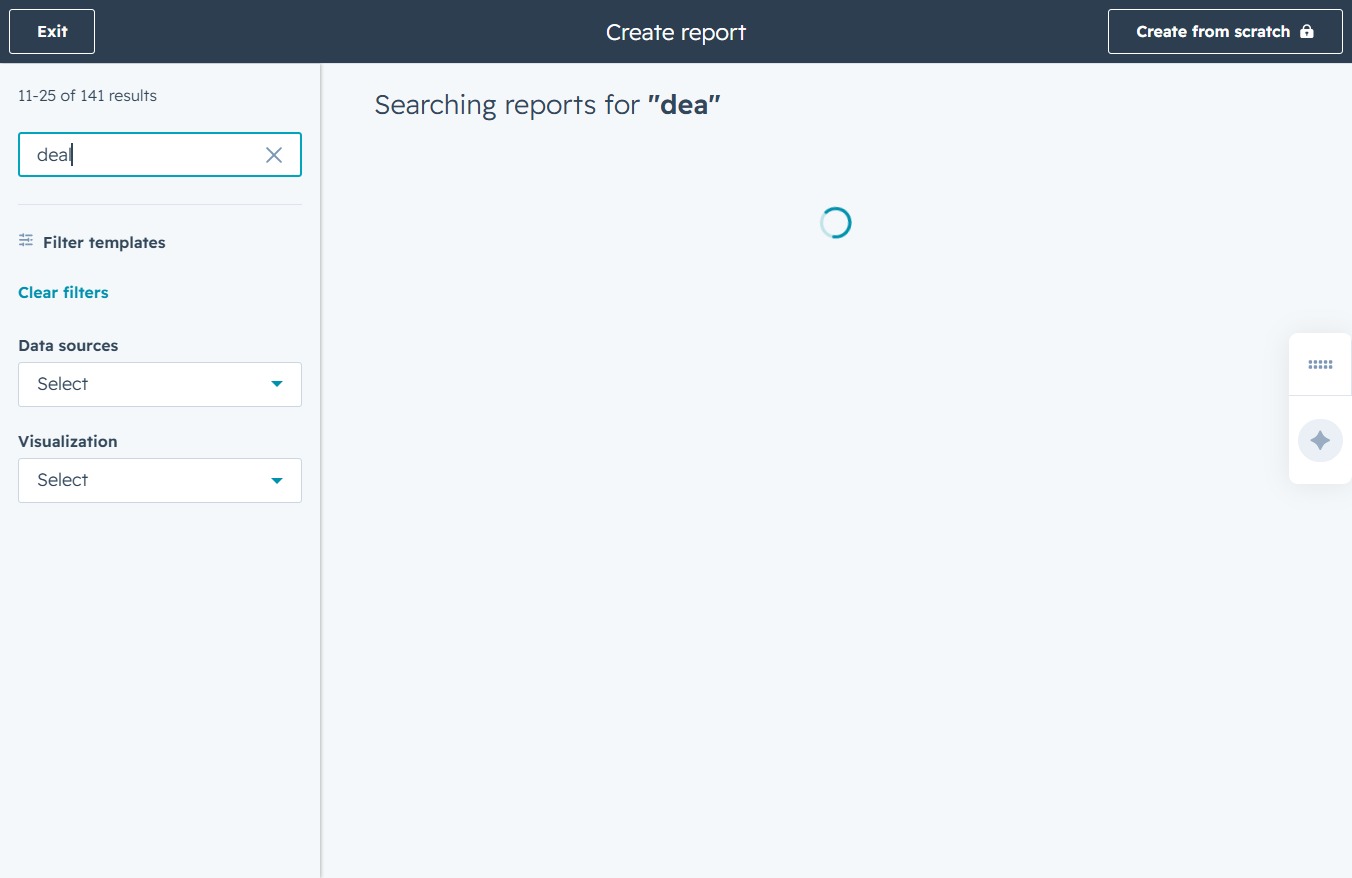
Entering 'deal' will filter the available templates to display those related to your search term. This allows you to find specific templates quickly for your report.
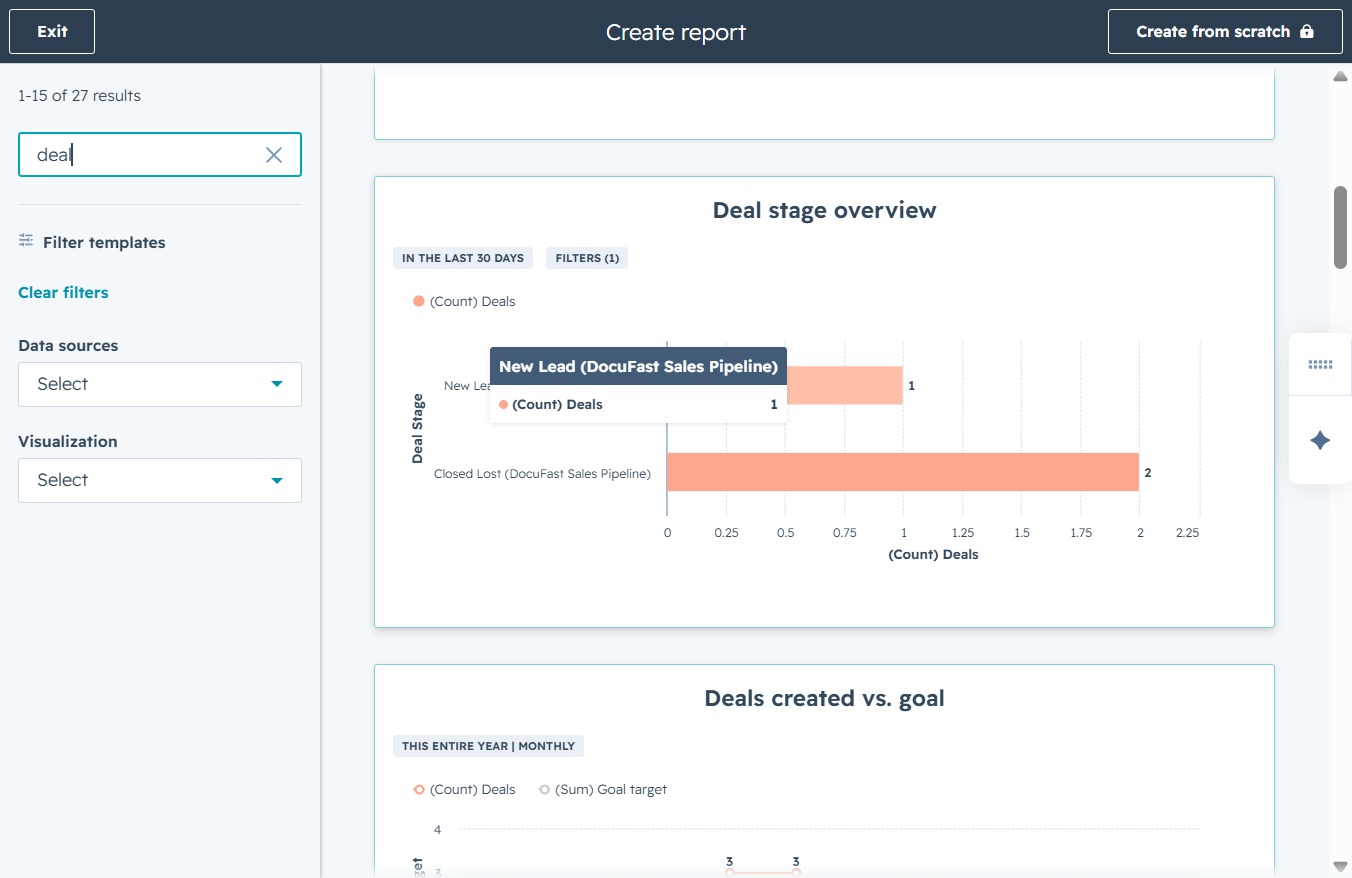
Selecting the 'New Lead (DocuFast Sales Pipeline)' item will provide you with detailed insights into the performance of your leads in the sales pipeline. This includes metrics and visualizations related to lead progress and status.
This action will save any changes made to the report configuration, ensuring that your adjustments are preserved for future access.
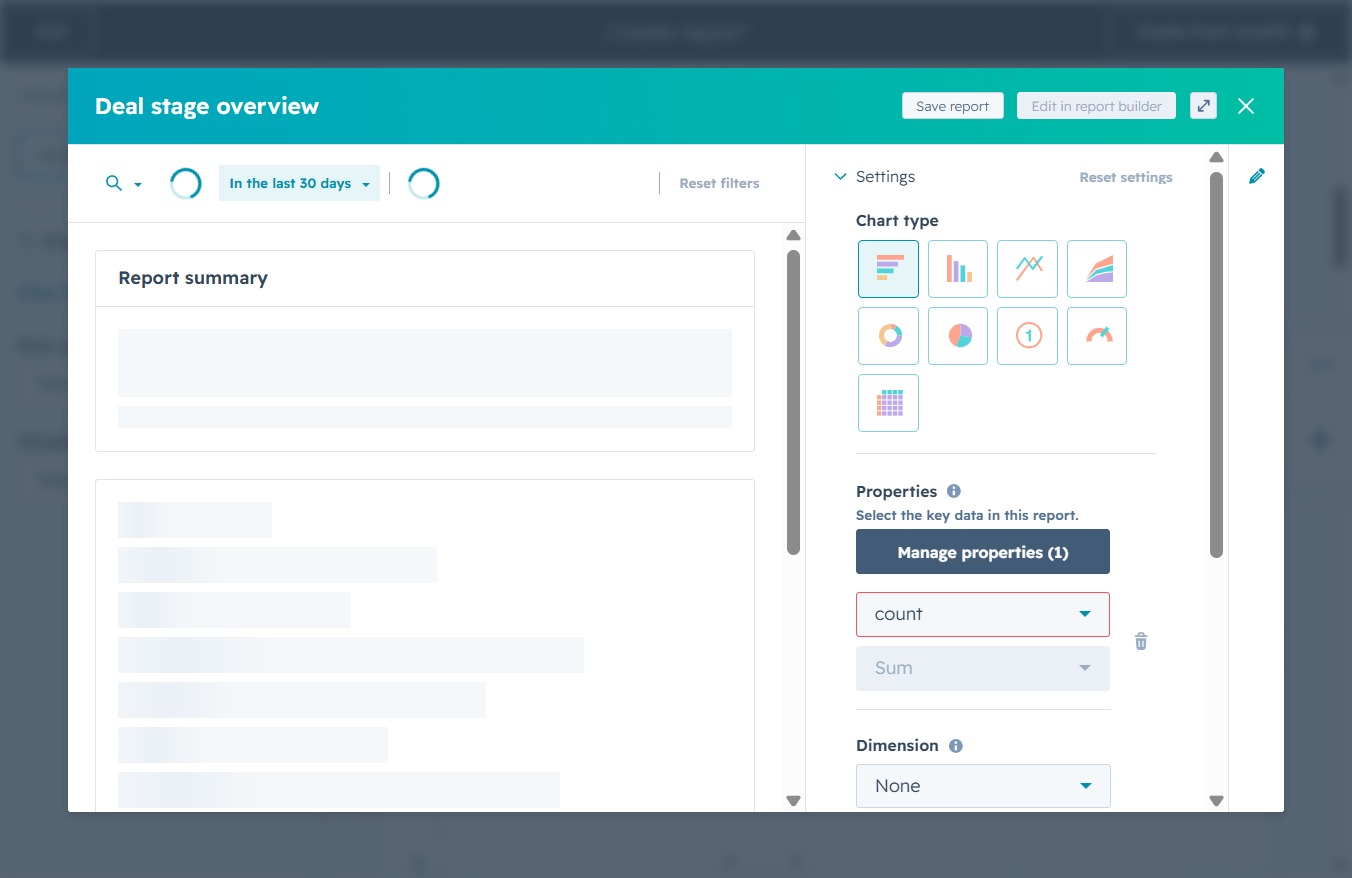
By clicking 'Next', you will proceed to the next step in saving your report, allowing you to finalize the options for adding it to a dashboard.
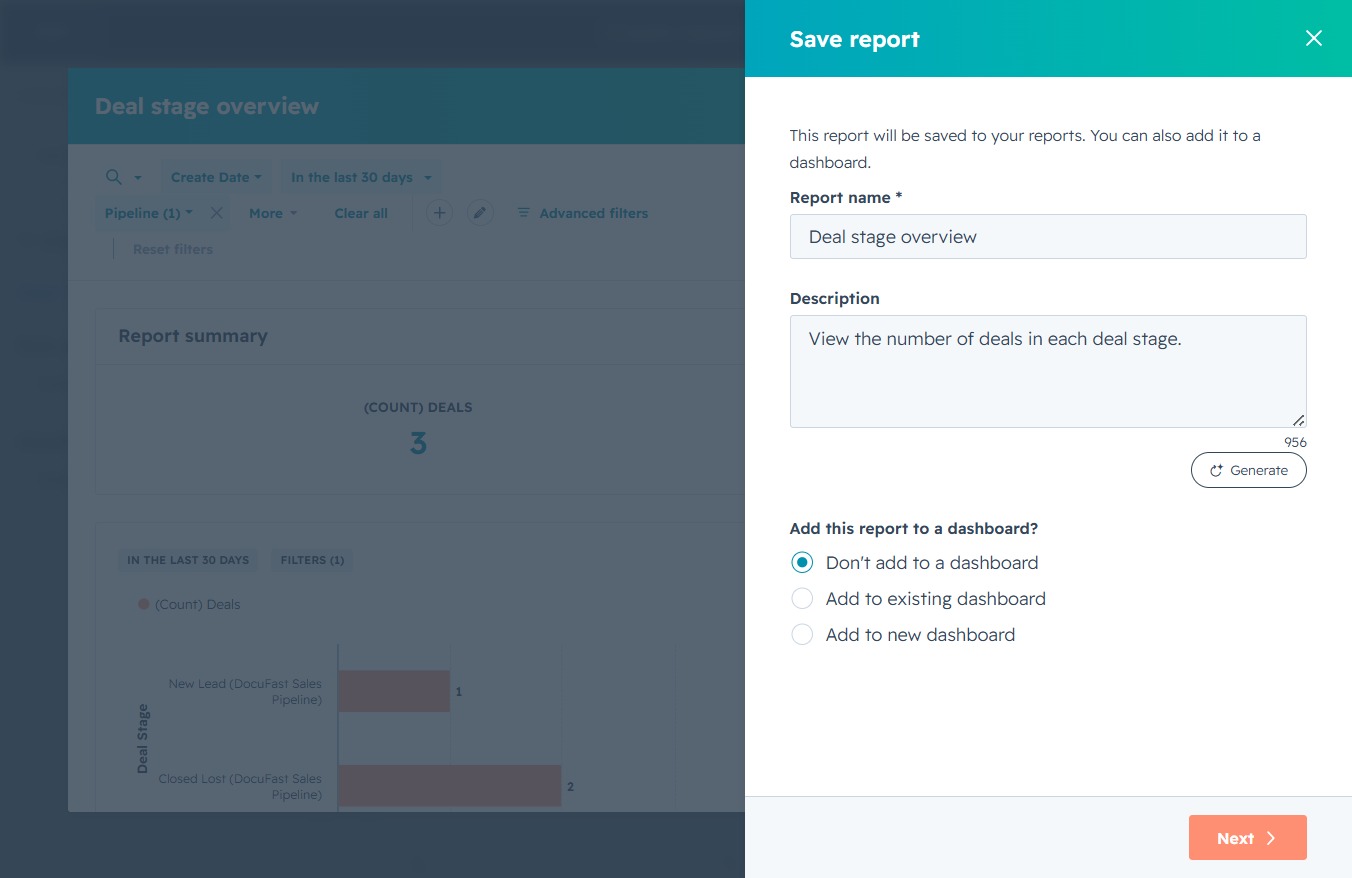
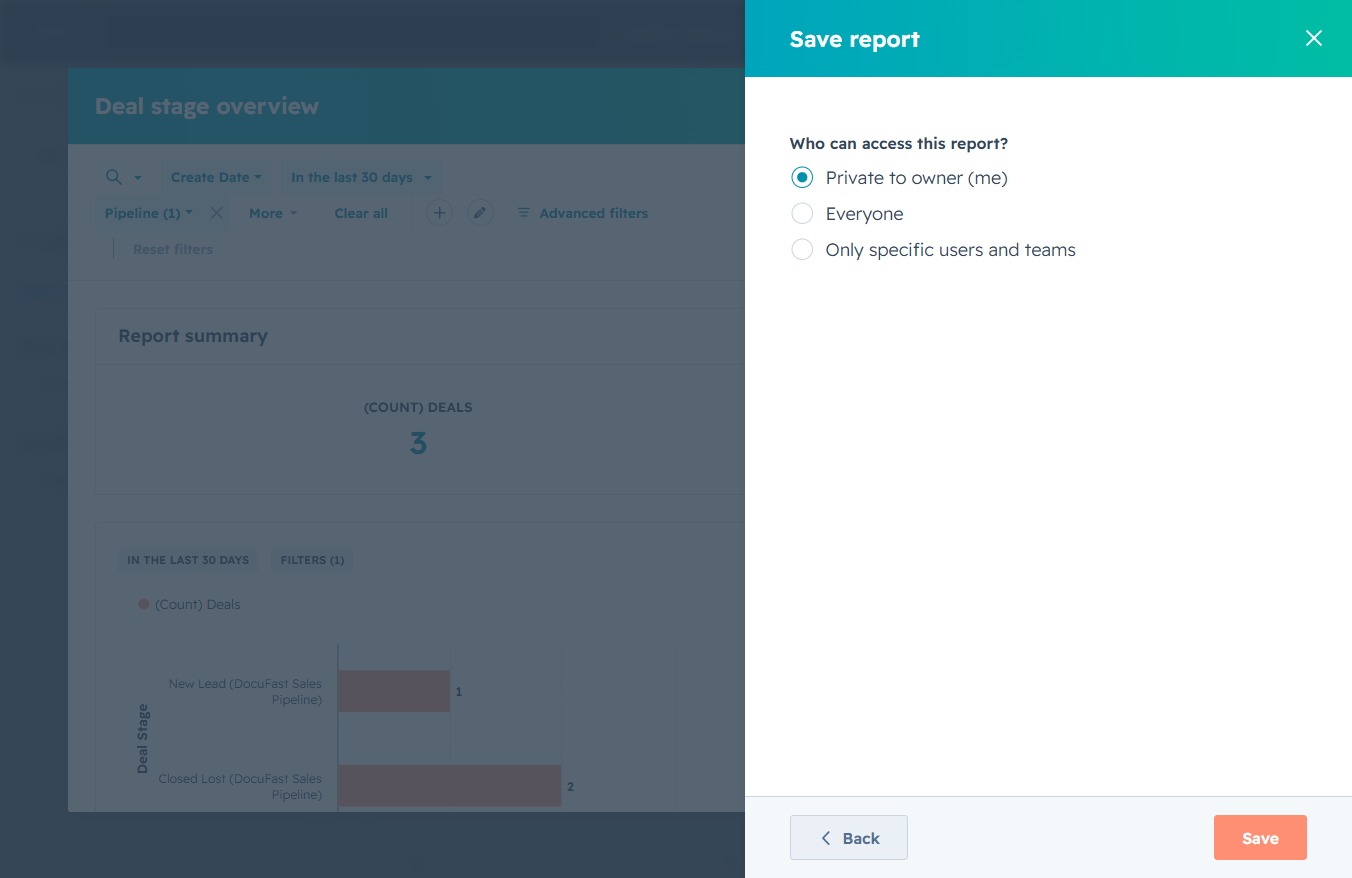
This action saves the current report settings and access permissions, ensuring that your choices regarding who can view or edit the report are applied.
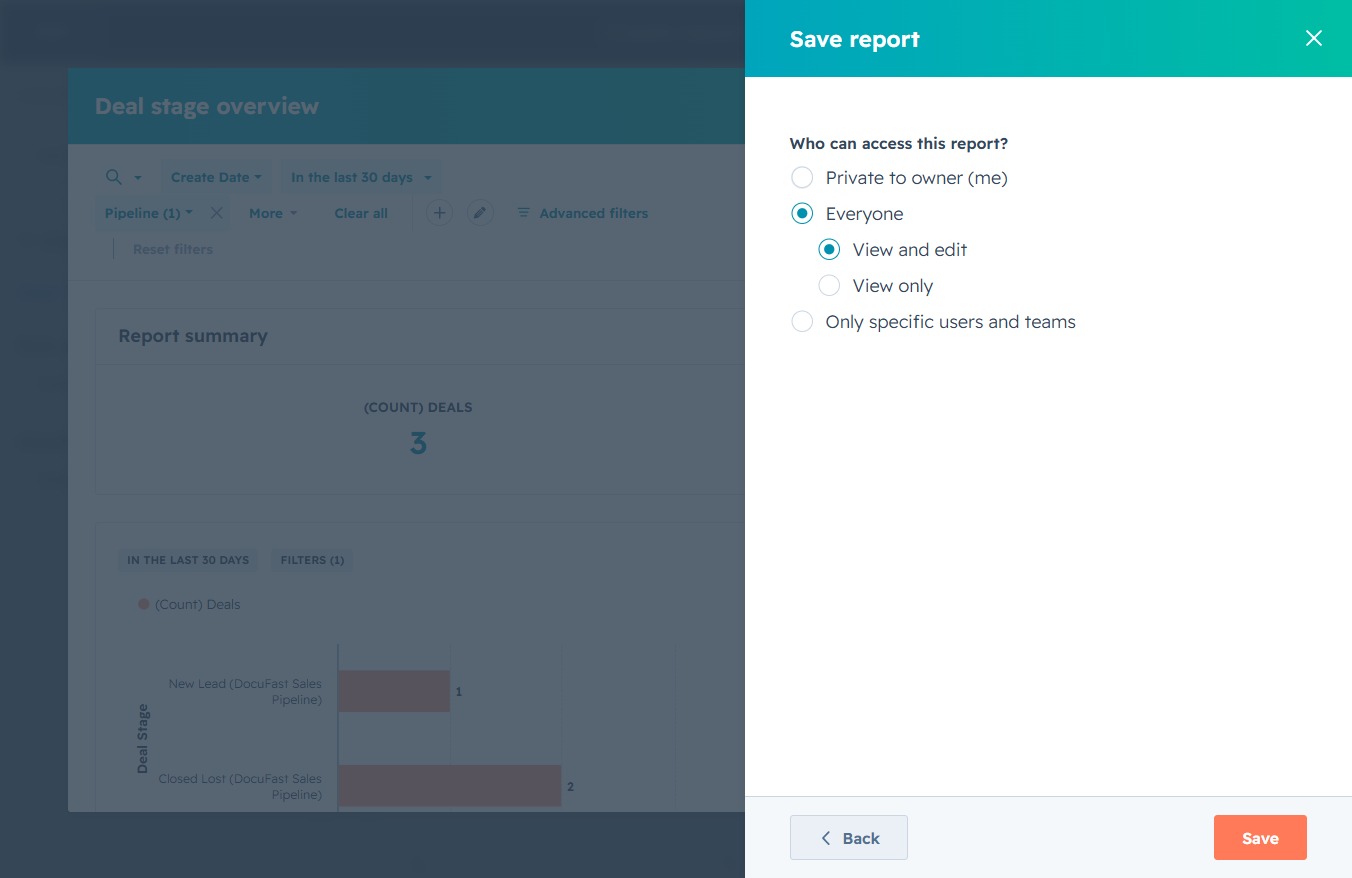
This action saves the current report settings and permissions you have selected. Ensure that the access options for the report are correctly configured before saving.