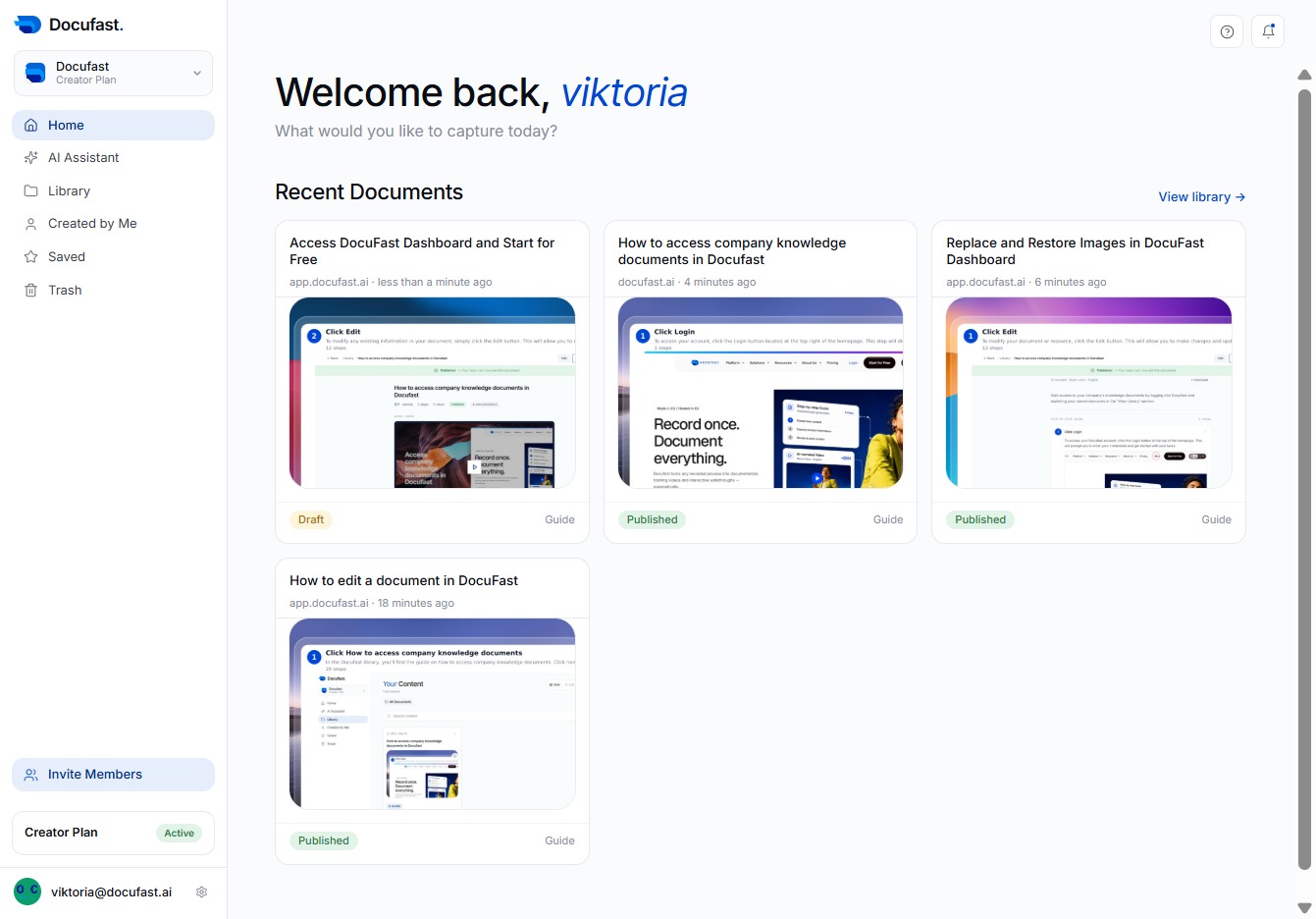
Export a PDF dashboard in DocuFast to share your customized documents, including adding logos and selecting page size and orientation for professional presentation.
viktoria
·10 steps·14 views·Published
Export a PDF dashboard in DocuFast to share your customized documents, including adding logos and selecting page size and orientation for professional presentation.
Step-by-step Guide10 steps
1
Click Replace and Restore Images
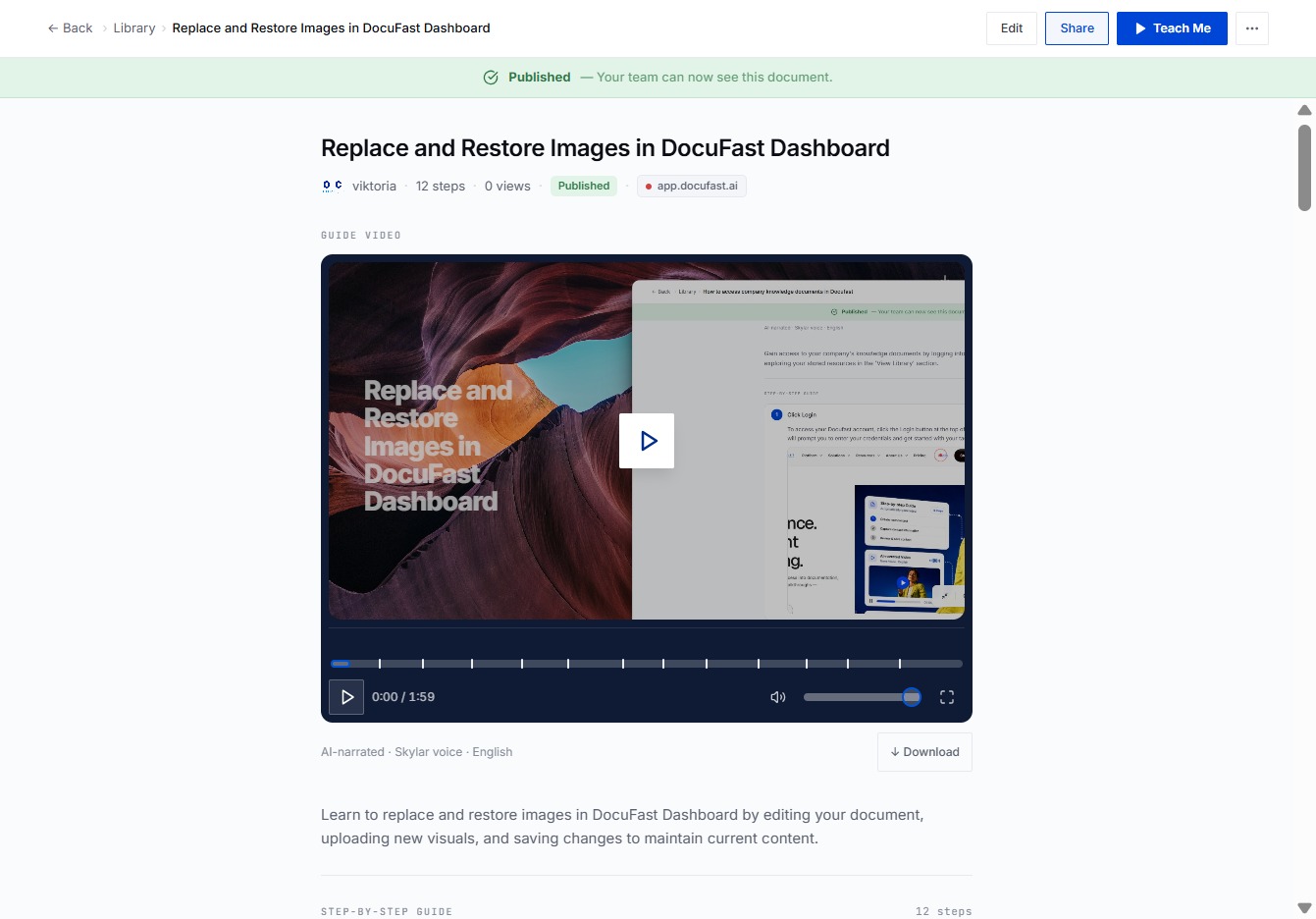
You can manage your images in the DocuFast Dashboard by selecting the 'Replace and Restore Images' option. This feature allows you to update images quickly and efficiently within your documents.
Loading screenshot…
100%
2
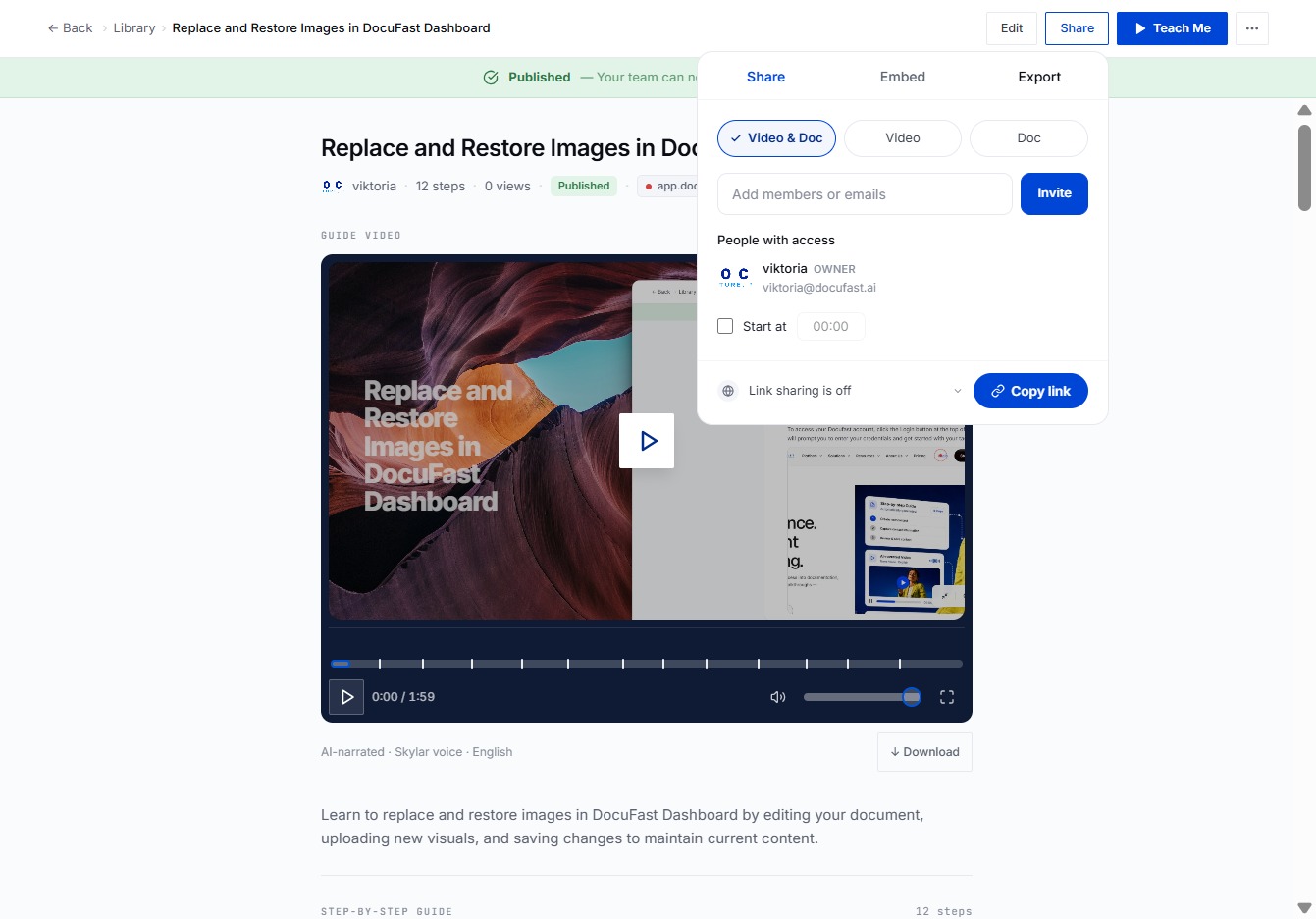
Click Share
To share your document, simply click the Share button. This allows you to easily send your content to others for collaboration or review.
Loading screenshot…
100%
3
Click Export
To save your current project, click the Export button. This allows you to download your work in the desired format for easy sharing and access outside of the platform.
Loading screenshot…
100%
4
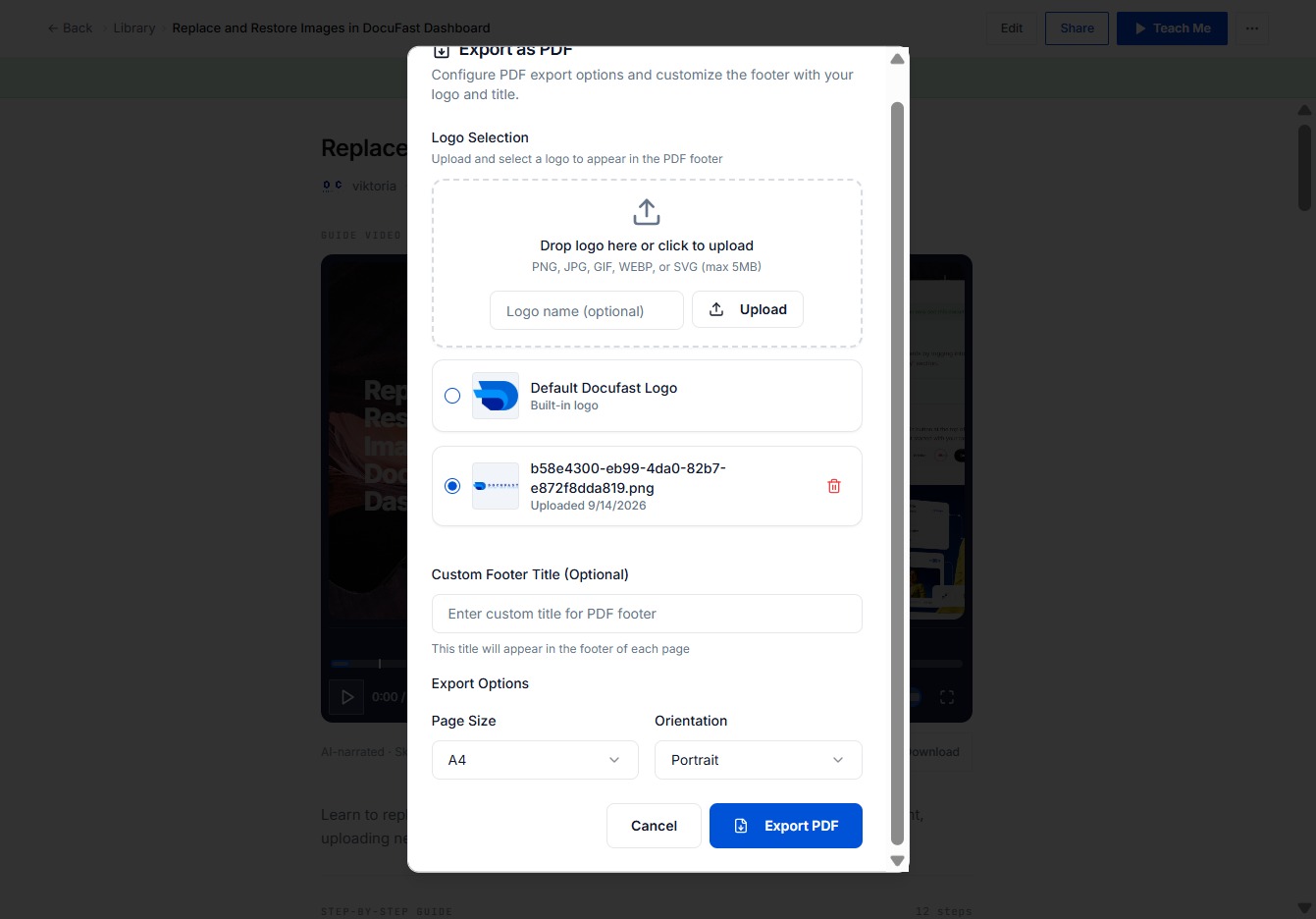
Click Export PDF
To save your work or share it in a portable format, select the Export PDF option. This allows you to generate a PDF version of your document for easy distribution or archiving.
Loading screenshot…
100%
5
Click Upload
In this step, you can add a logo for your PDF export by clicking the Upload button. This allows you to customize the footer with your branding, enhancing your document's professional appearance.
Loading screenshot…
100%
6
Click Upload
You can upload a logo for your PDF header by clicking the Upload button. This allows you to customize the appearance of your exported document, making it more personalized.
Loading screenshot…
100%
7
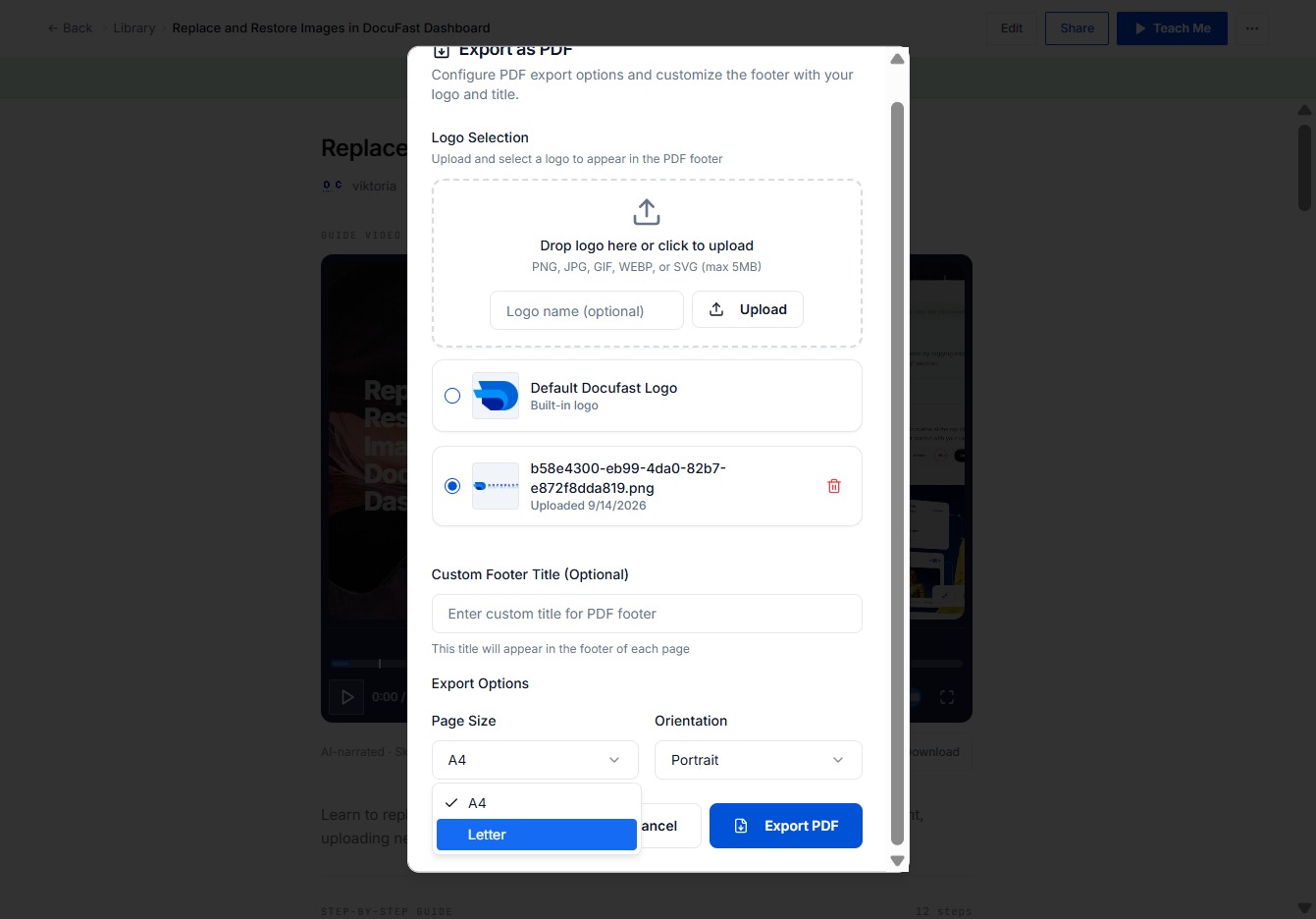
Click Letter
In this step, you select the 'Letter' page size from the export options. This ensures that your PDF is formatted correctly for letter-sized paper, making your document ready for printing or sharing.
Loading screenshot…
100%
8
Select Portrait Orientation
Here you can choose the Portrait orientation for your PDF export, which helps in formatting your document for optimal viewing, especially for content that needs a vertical layout.
Loading screenshot…
100%
9
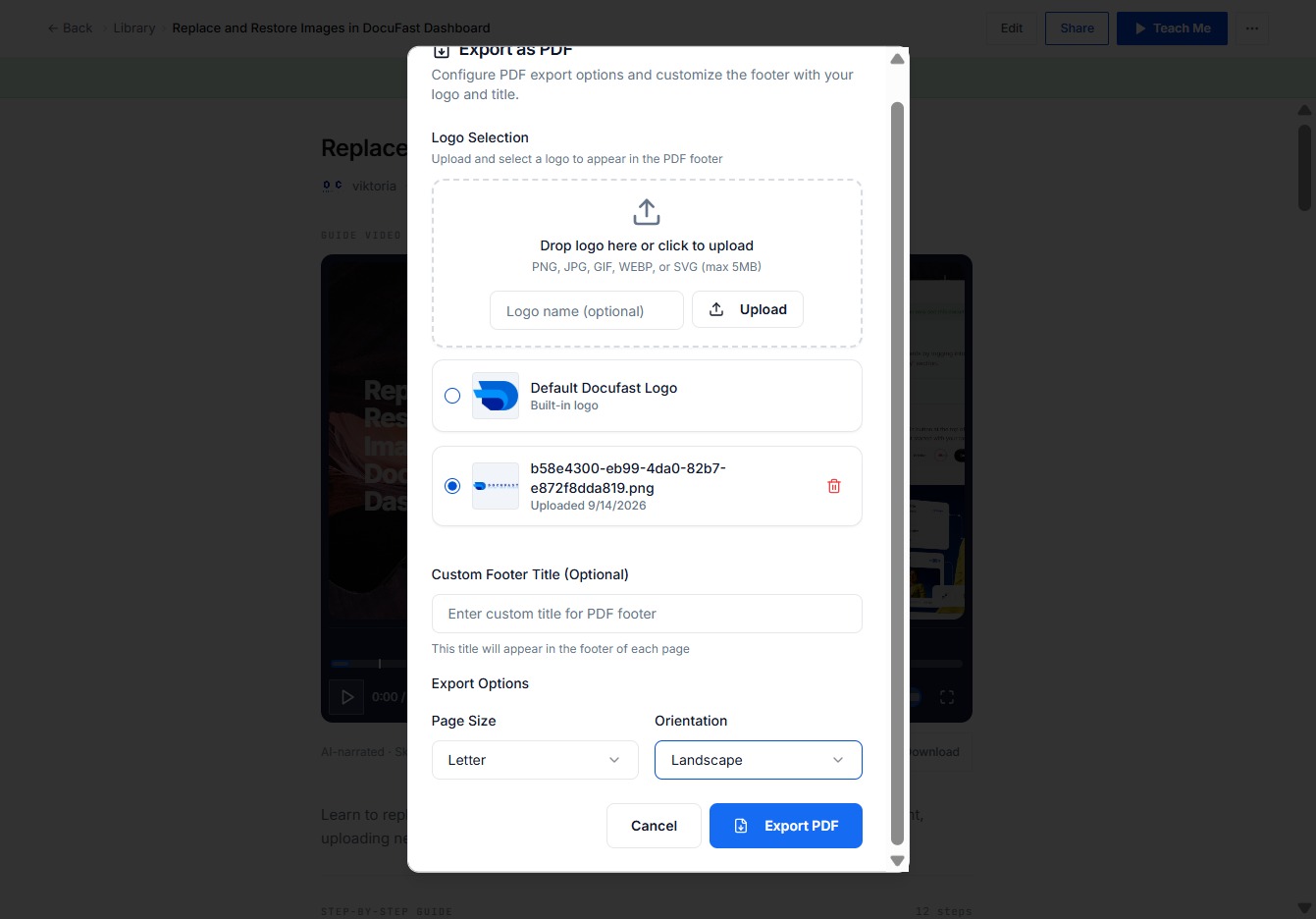
Select Landscape Orientation
Here, you can choose the Landscape orientation for your PDF export. This setting adjusts the layout, making it ideal for documents that require a wider format.
Loading screenshot…
100%
10
Click Export PDF
You'll use the Export PDF button to finalize your document settings. This action starts the process of generating a PDF, allowing you to configure essential export options and customize your document.