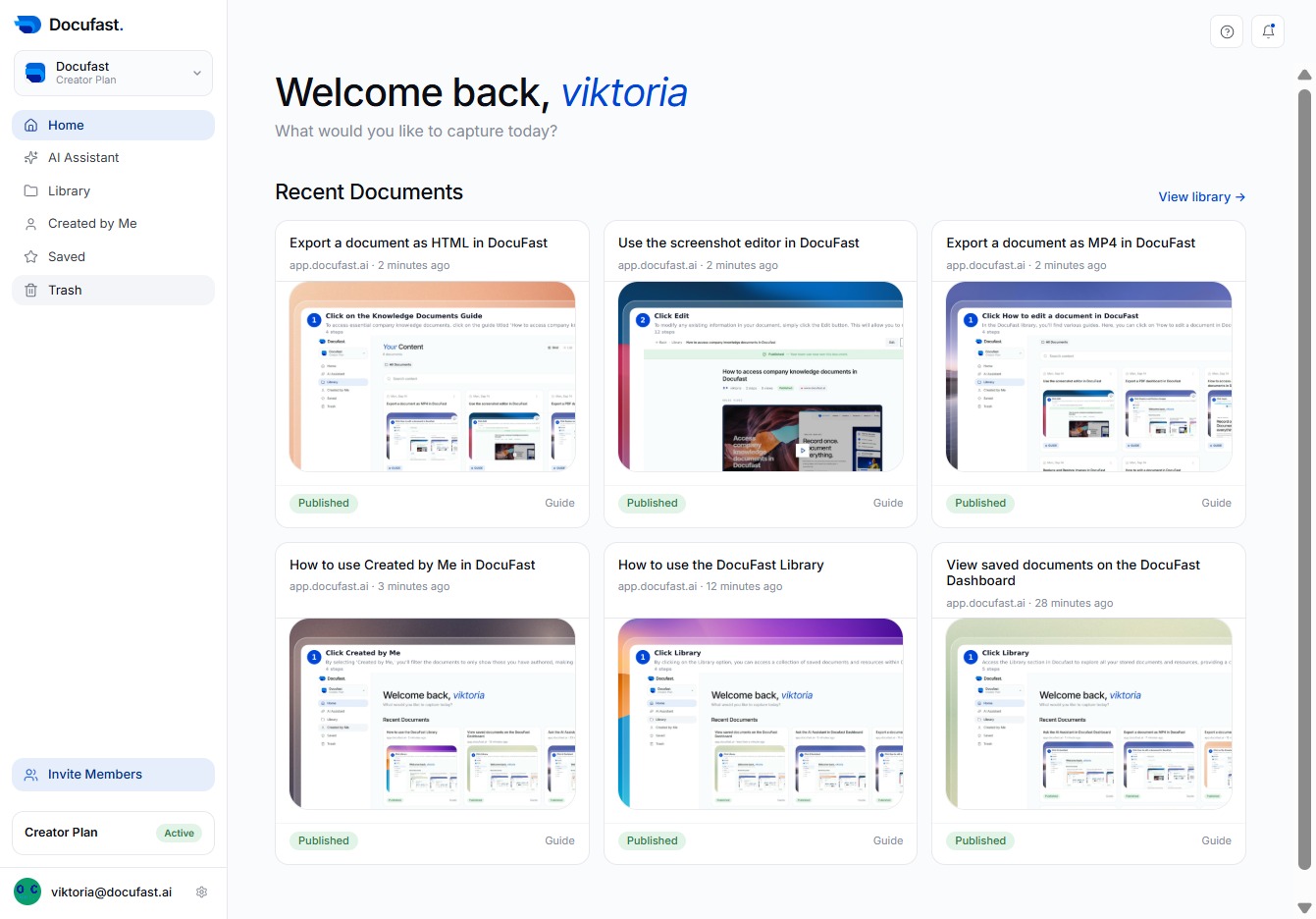
Click Trash
When you want to delete a document or item in Docufast, simply click the Trash icon to remove it from your recent documents list. Make sure you're ready to delete before confirming this action.
Loading screenshot…
100%
Delete unwanted documents in DocuFast by clicking the Trash icon, then permanently clear all items by navigating to /trash and confirming the 'Empty trash' action.
 viktoria
Delete unwanted documents in DocuFast by clicking the Trash icon, then permanently clear all items by navigating to /trash and confirming the 'Empty trash' action.
When you want to delete a document or item in Docufast, simply click the Trash icon to remove it from your recent documents list. Make sure you're ready to delete before confirming this action.
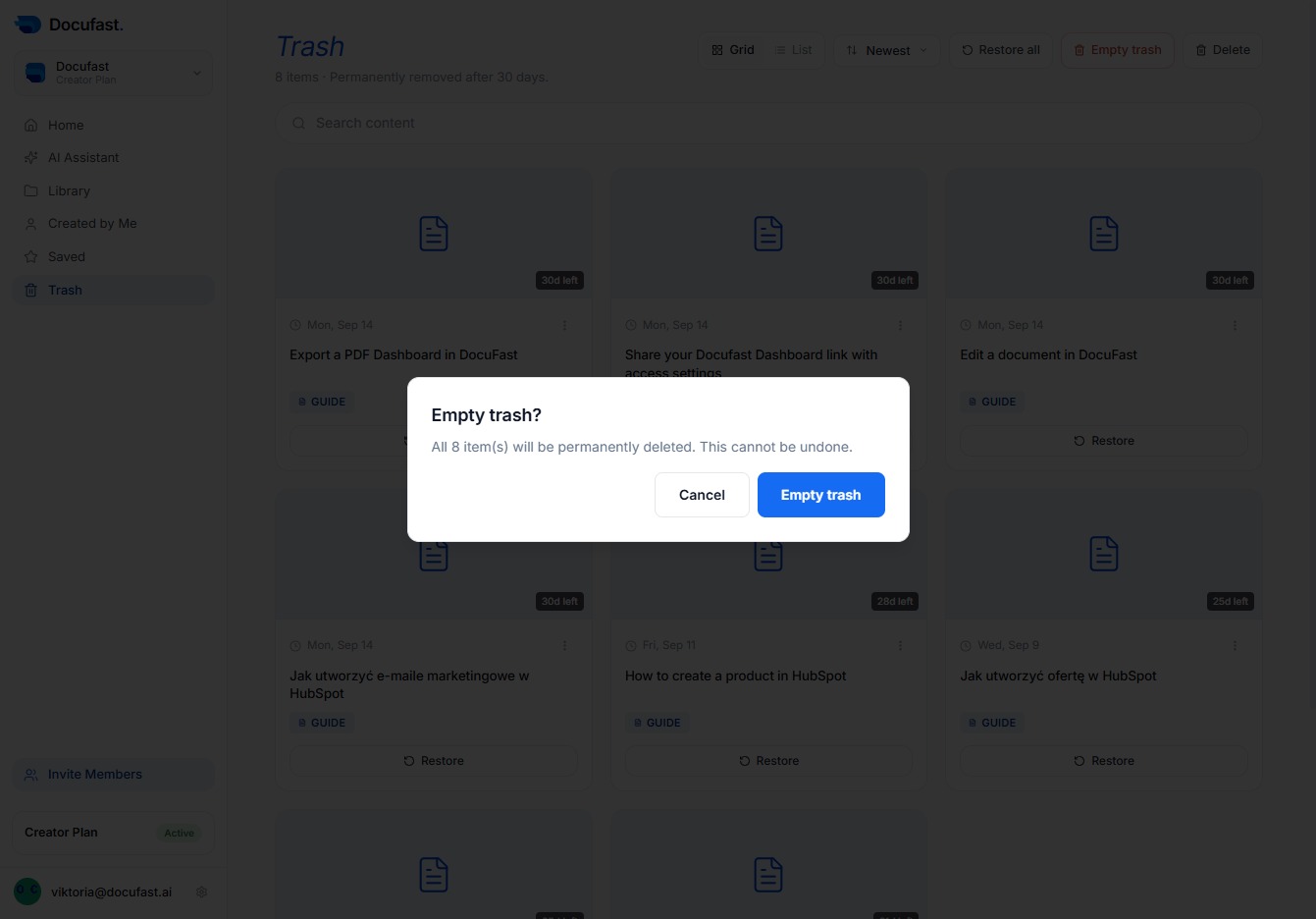
To permanently delete all items in your Trash, click the 'Empty trash' button. This action will clear out everything, ensuring your workspace remains organized.

Confirm that you want to permanently delete all items in the Trash. This action cannot be undone, so make sure you're ready to free up that space.