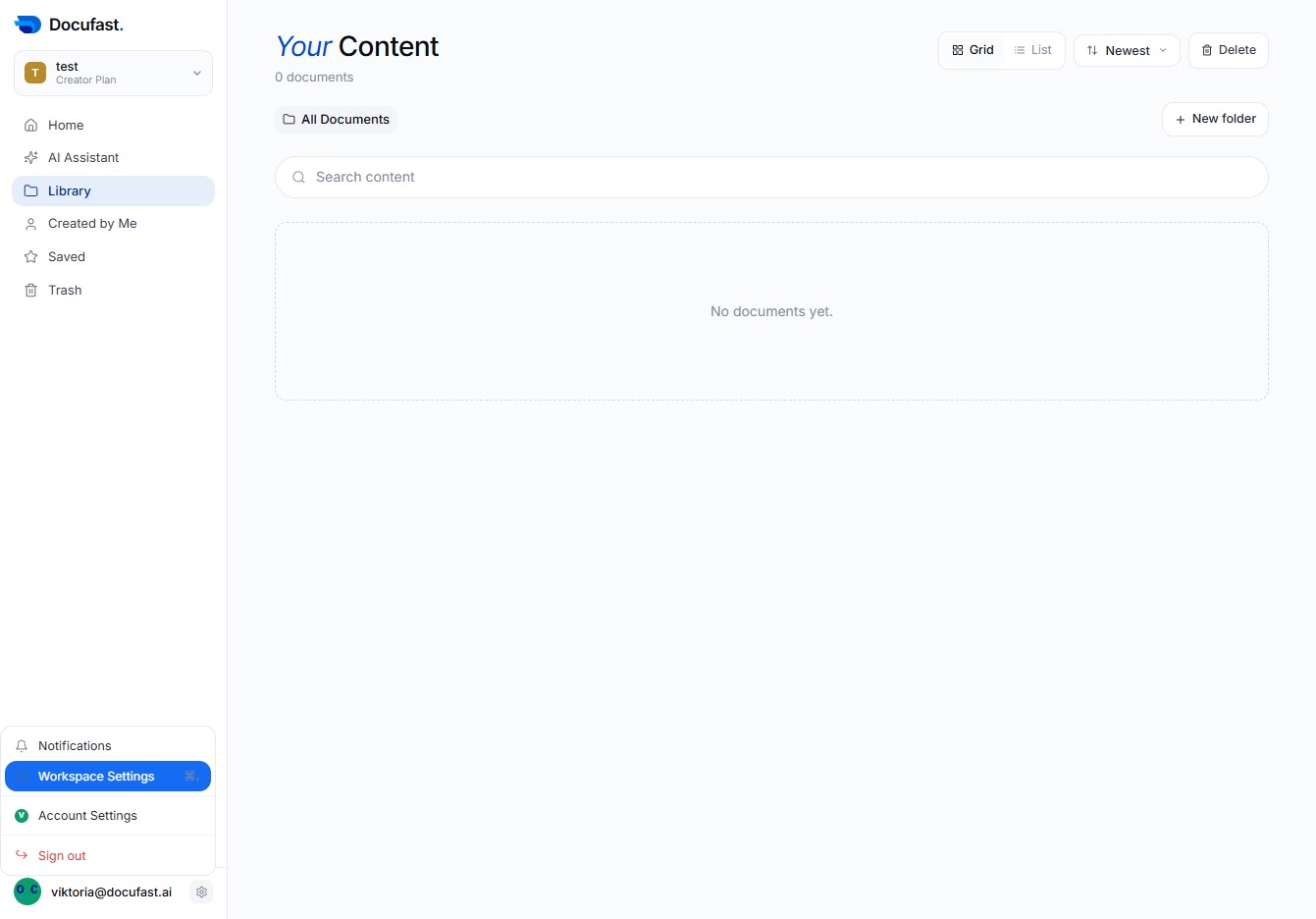
Click the Library Option
Access the Library section to view and manage your documents. This is where you'll find your saved files, making organization and retrieval straightforward.

Loading screenshot…
100%
Permanently delete a workspace in the Docufast Dashboard by accessing Workspace Settings, ensuring all associated documents and team access will be removed irrevocably.
 viktoria
Permanently delete a workspace in the Docufast Dashboard by accessing Workspace Settings, ensuring all associated documents and team access will be removed irrevocably.
Access the Library section to view and manage your documents. This is where you'll find your saved files, making organization and retrieval straightforward.
Navigate to the Workspace Settings to customize your preferences and configurations within Docufast. This section allows you to manage your workspace environment effectively.
You can remove an entire workspace by clicking the 'Delete Workspace' button. Be cautious, as this action will permanently delete all associated data and cannot be undone.

You’re about to delete your workspace. This action is permanent and cannot be undone, so make sure you're ready to remove all related content and access for your team.

Confirm the deletion of your workspace by clicking the 'Delete workspace' button. Be cautious, as this action is irreversible and will remove associated documents, members, and settings.
