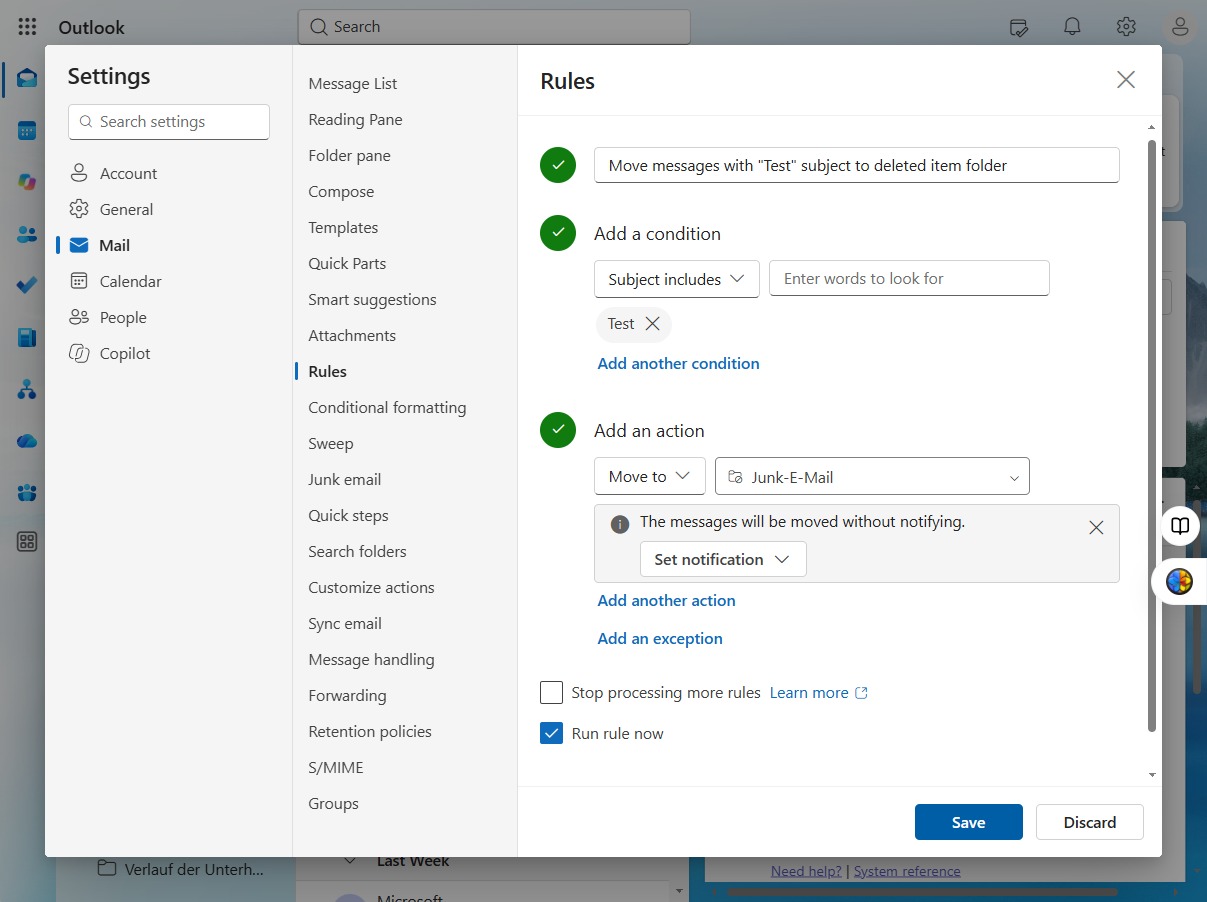
Click the Test Meeting
Select the 'Test Meeting' item to view its details and options.
Loading screenshot…
100%
Create and manage email rules in Outlook to automatically filter and organize incoming messages based on specified criteria, enhancing your inbox organization and efficiency.
Create and manage email rules in Outlook to automatically filter and organize incoming messages based on specified criteria, enhancing your inbox organization and efficiency.
Select the 'Test Meeting' item to view its details and options.
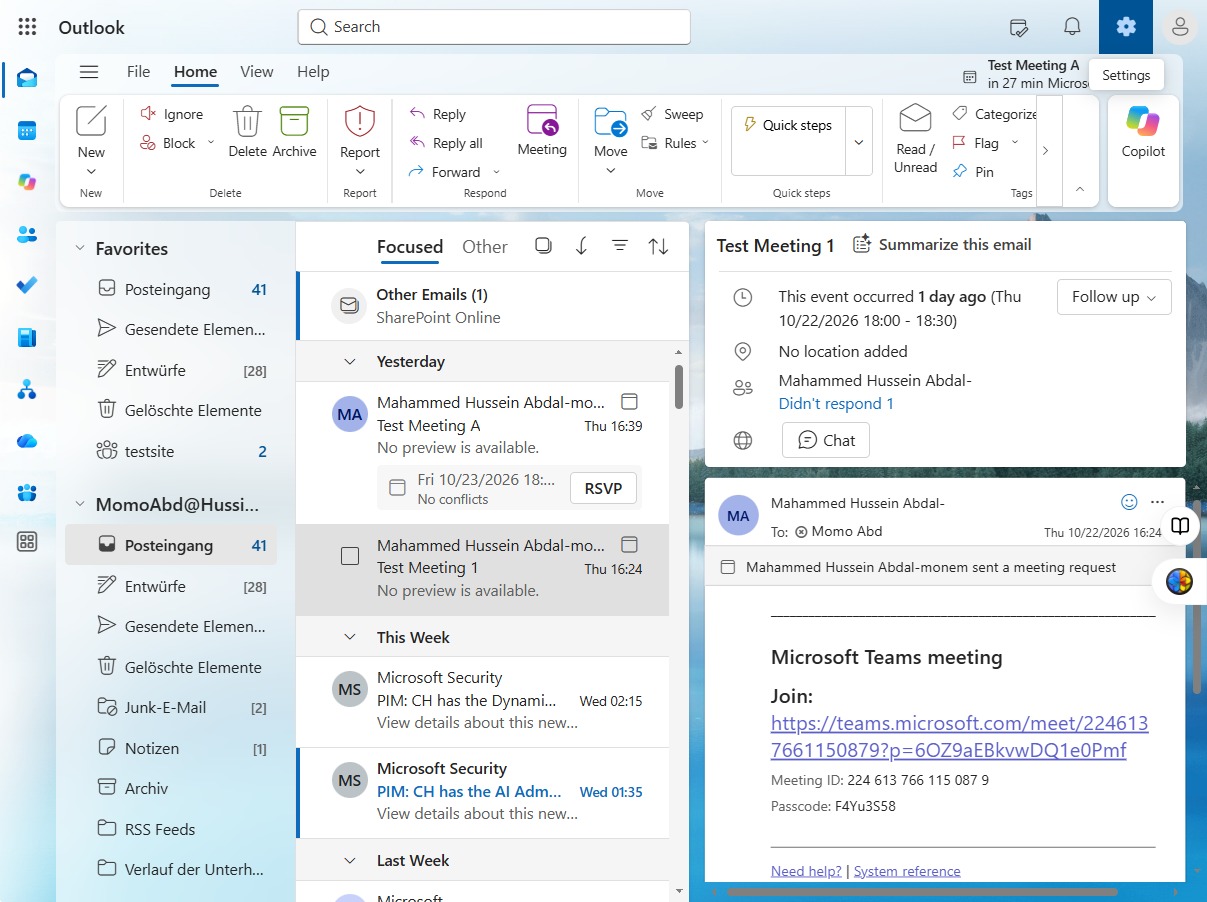
Select the 'Rules' section to manage your email automation and filtering options.
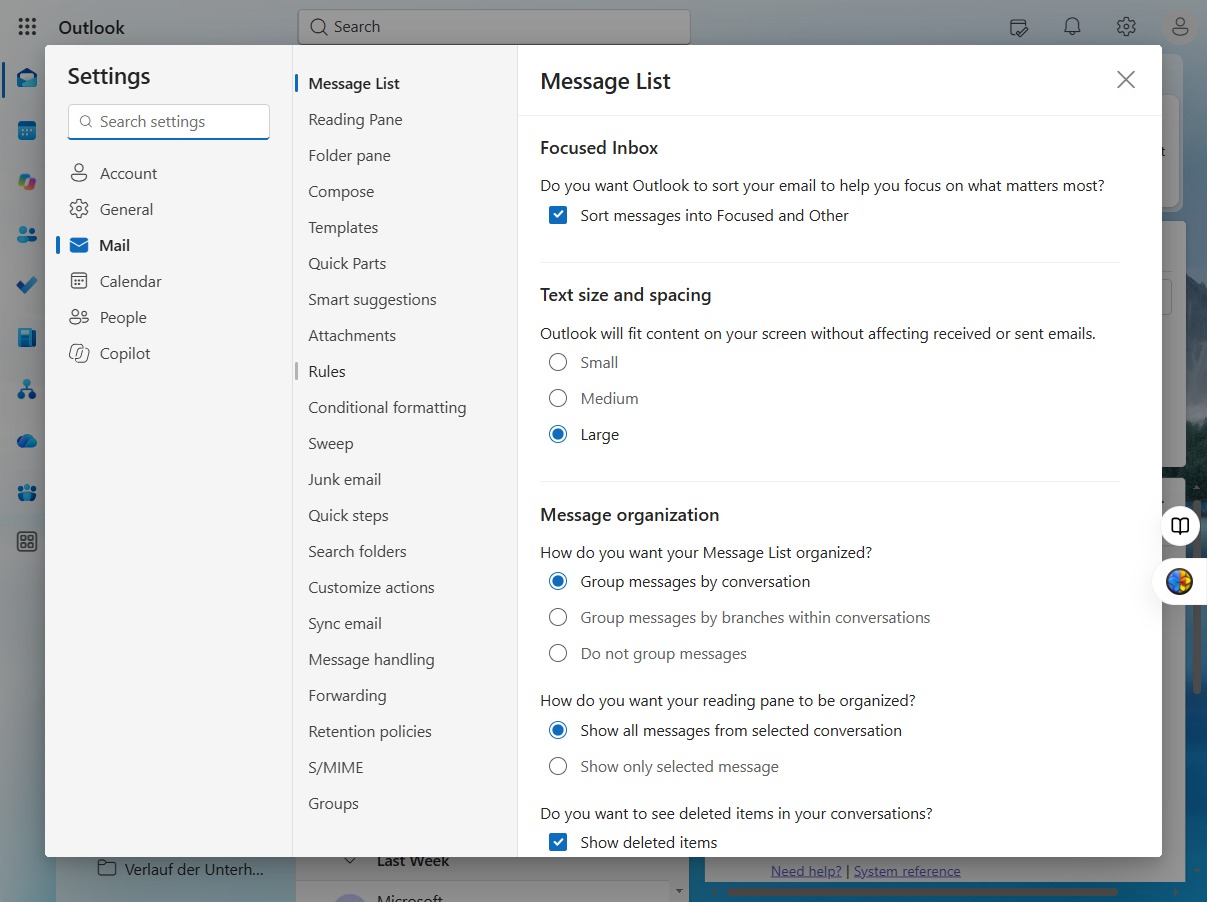
To create a new rule for managing incoming email messages, click the Add rule button.
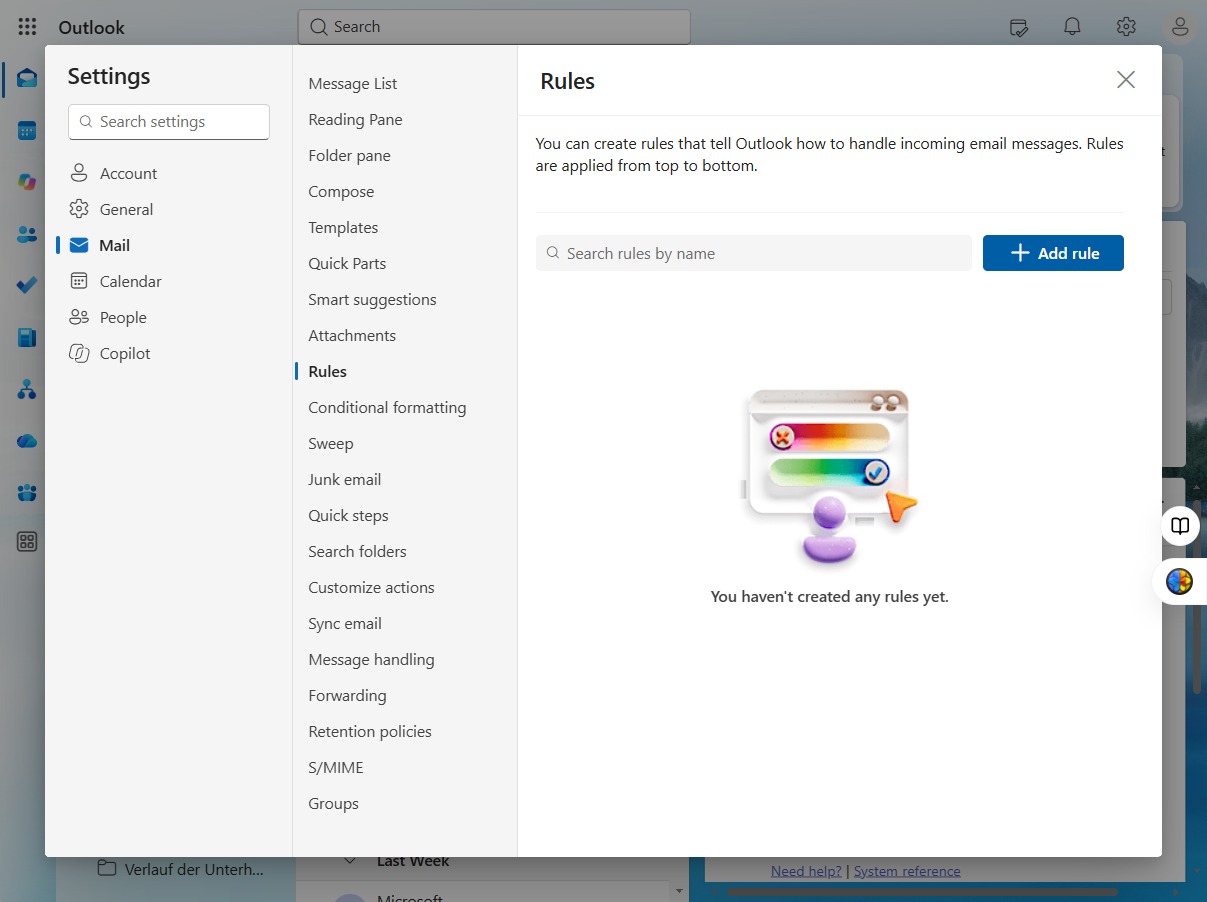
Type a name for your new rule in the input field.
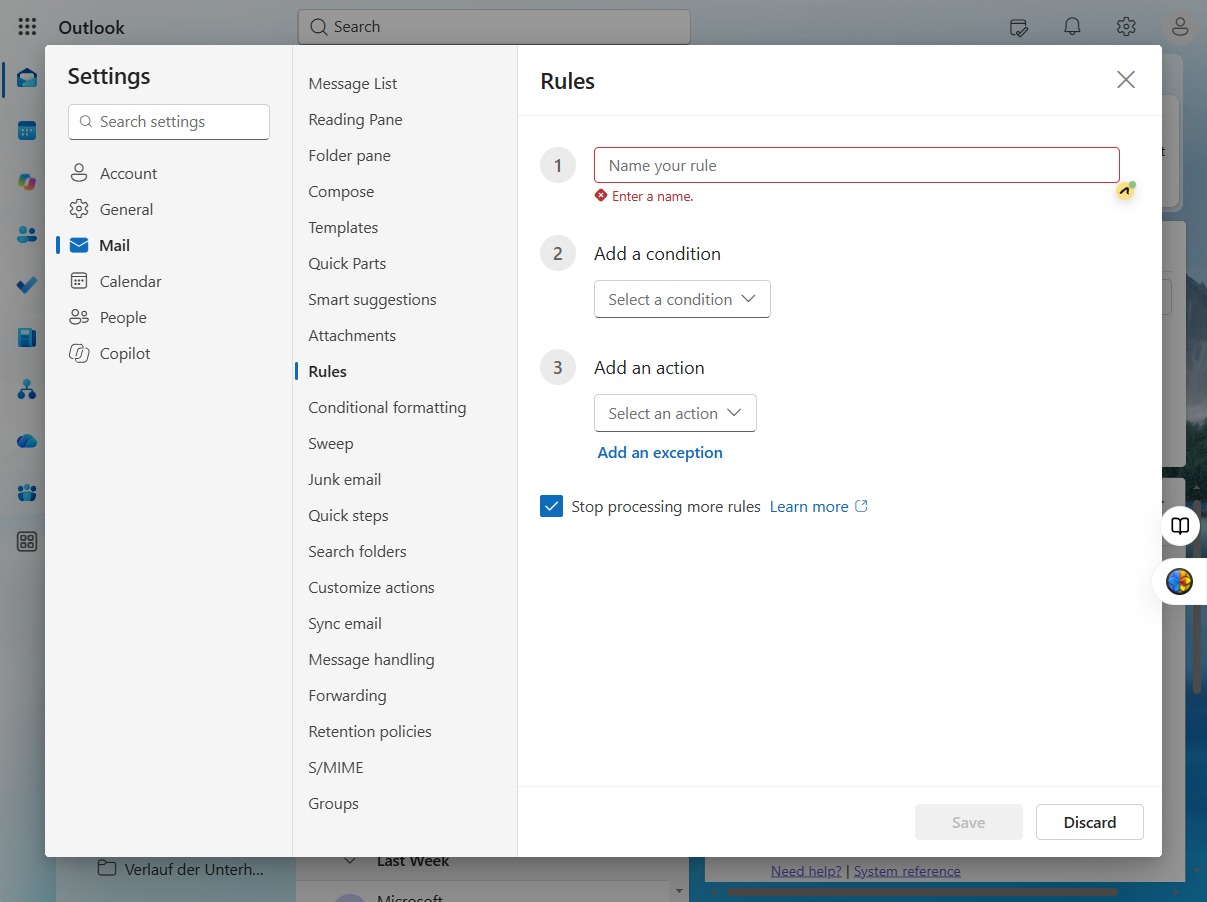
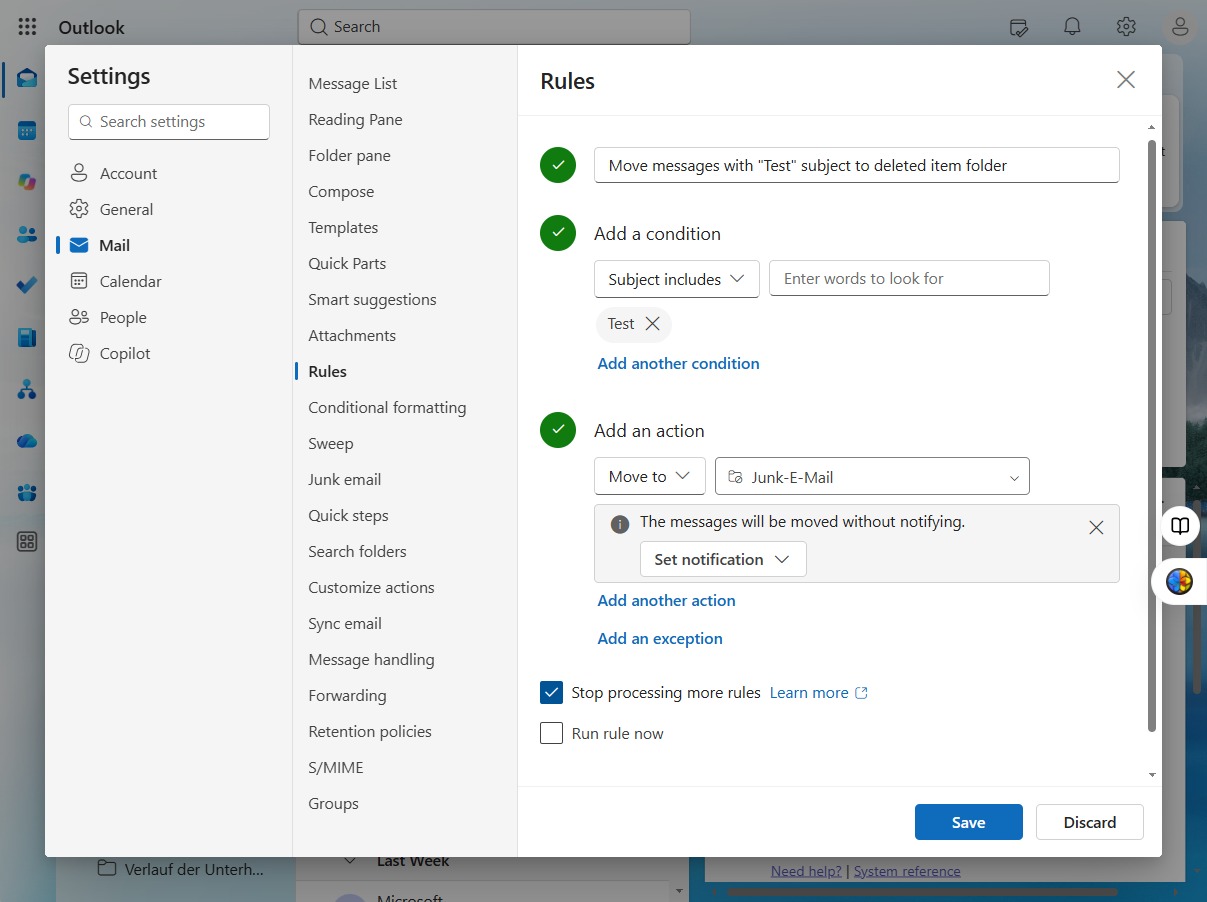
Enter a descriptive name for your rule, such as 'Move messages with "Test" subject to deleted item folder.' This identifies the automation action you are creating.
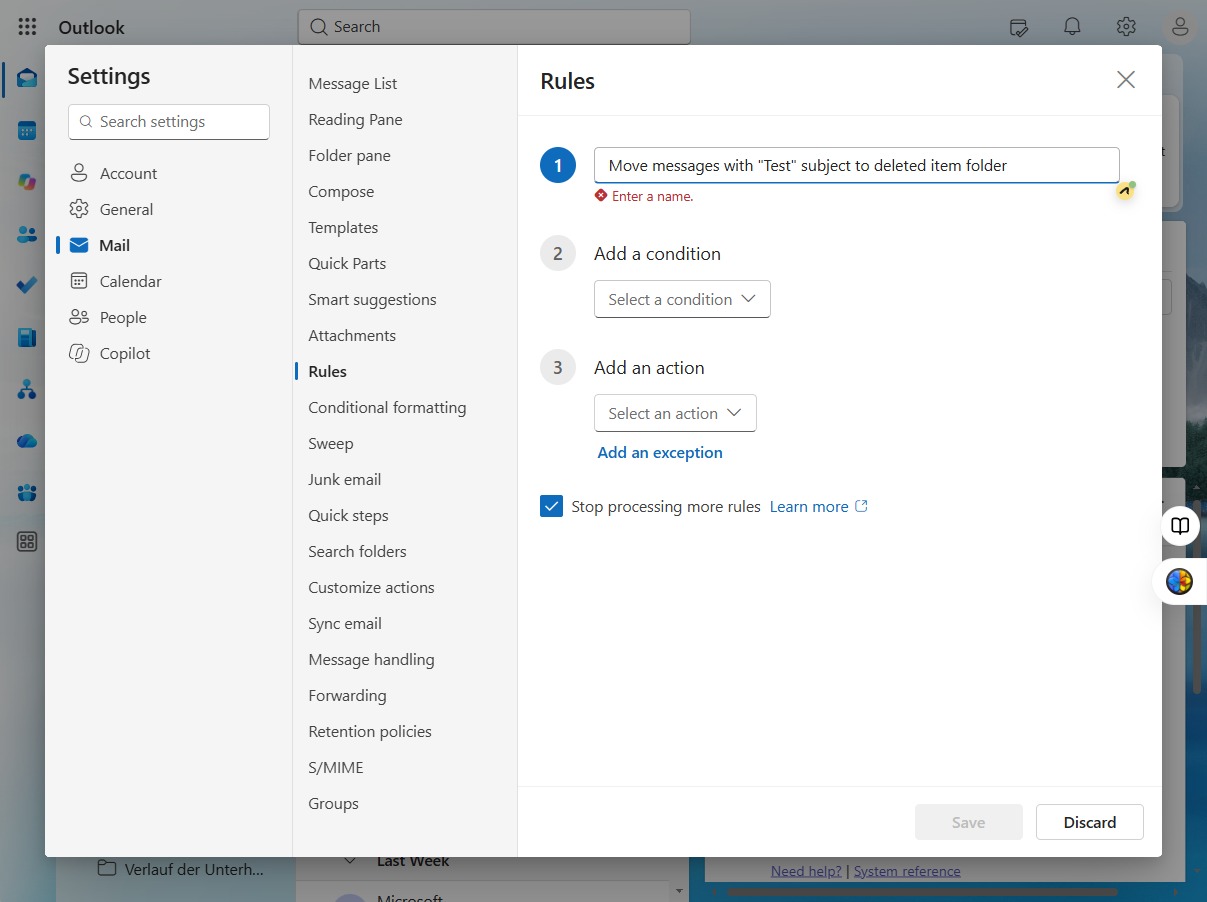
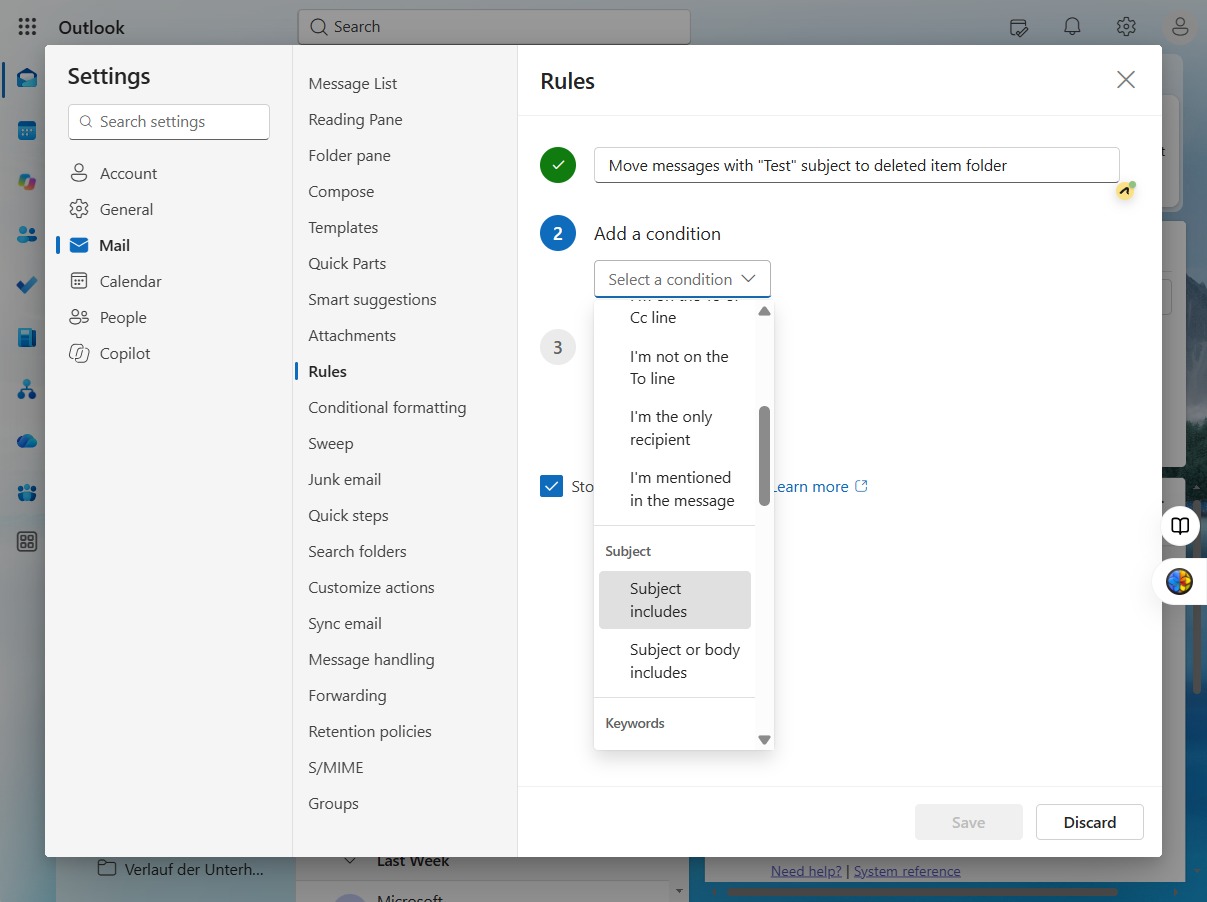
Choose a condition to apply to your rule in this workflow.
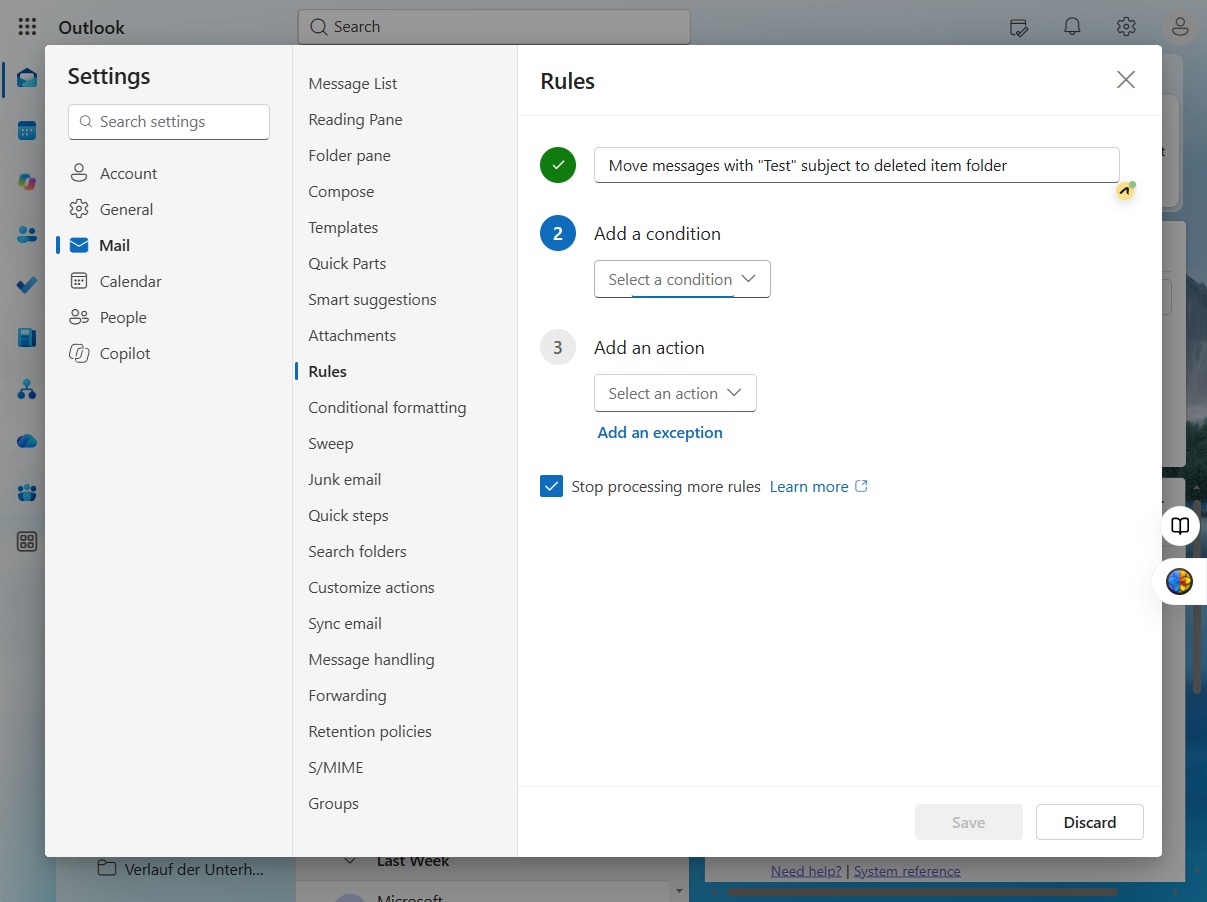
Choose the relevant condition for your rule from the options provided.
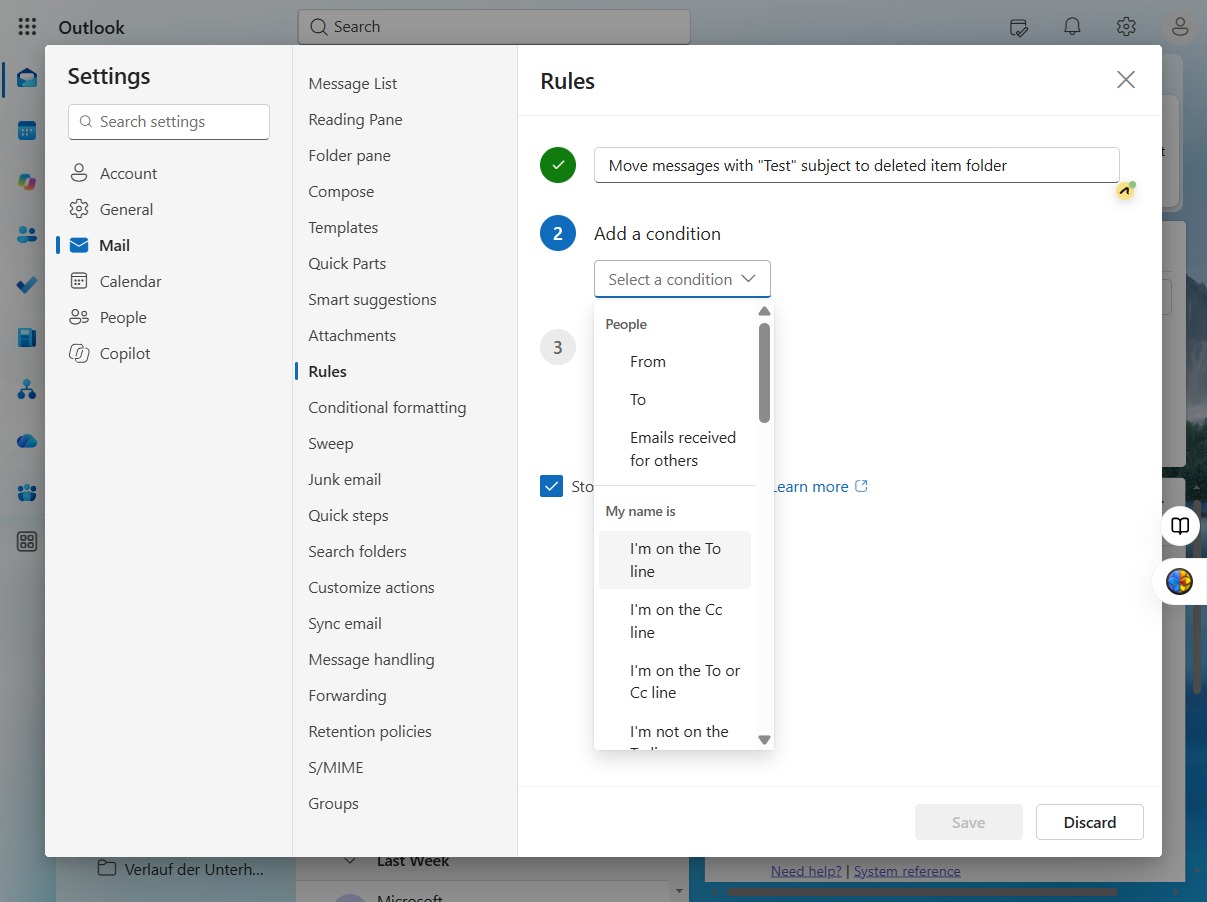
Select 'Subject includes' to specify the condition for message filtering.
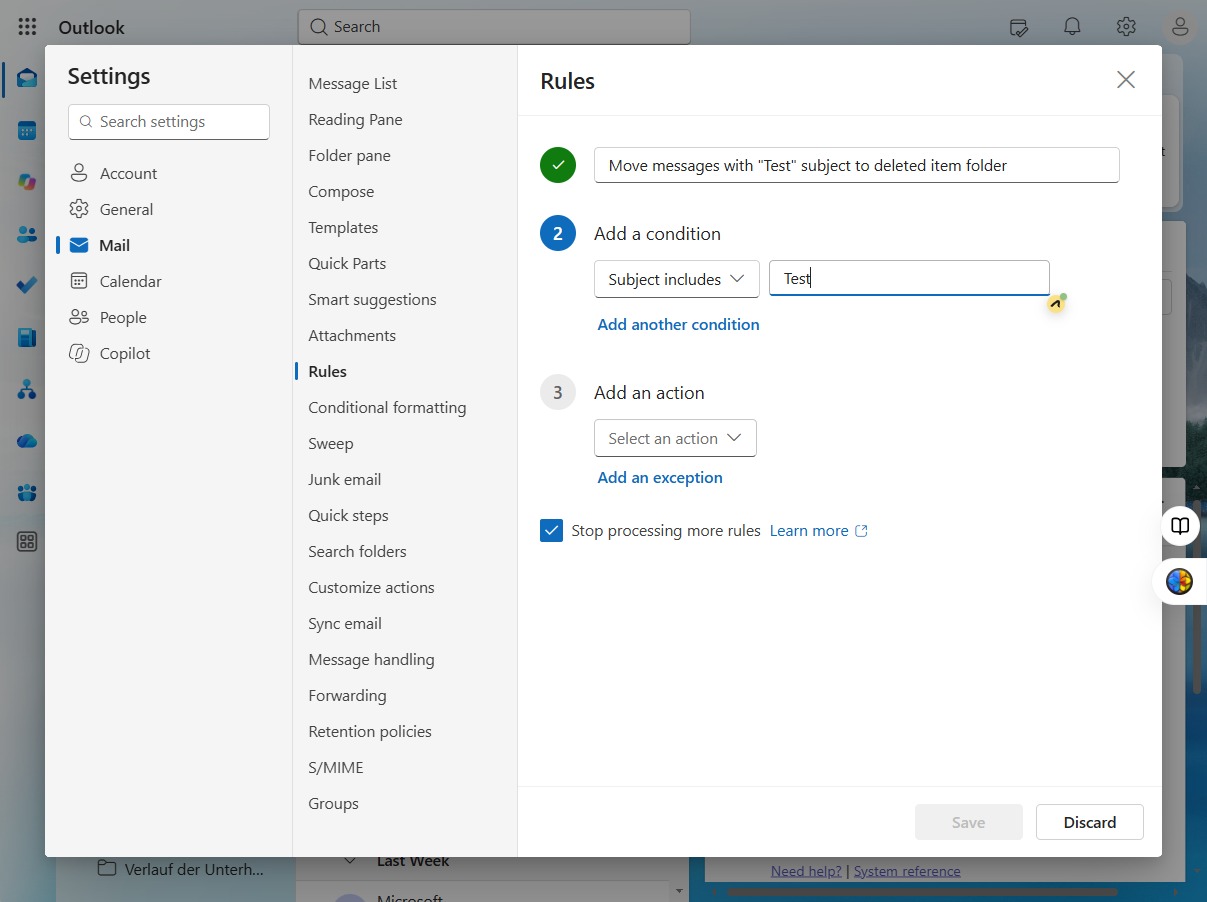
Input your desired keyword in the 'Enter words to look for' field to set specific search conditions.
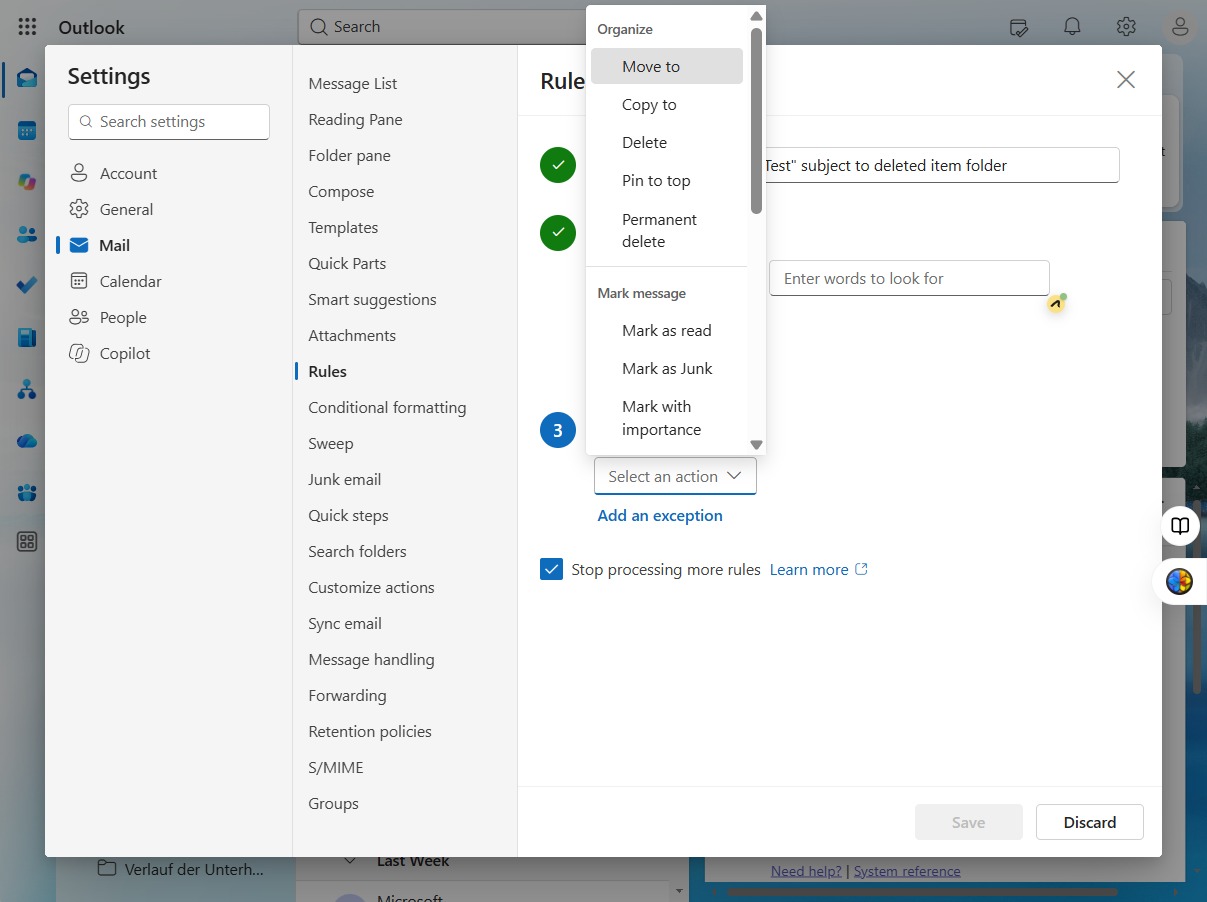
Choose the relevant action from the options available to customize your rule.
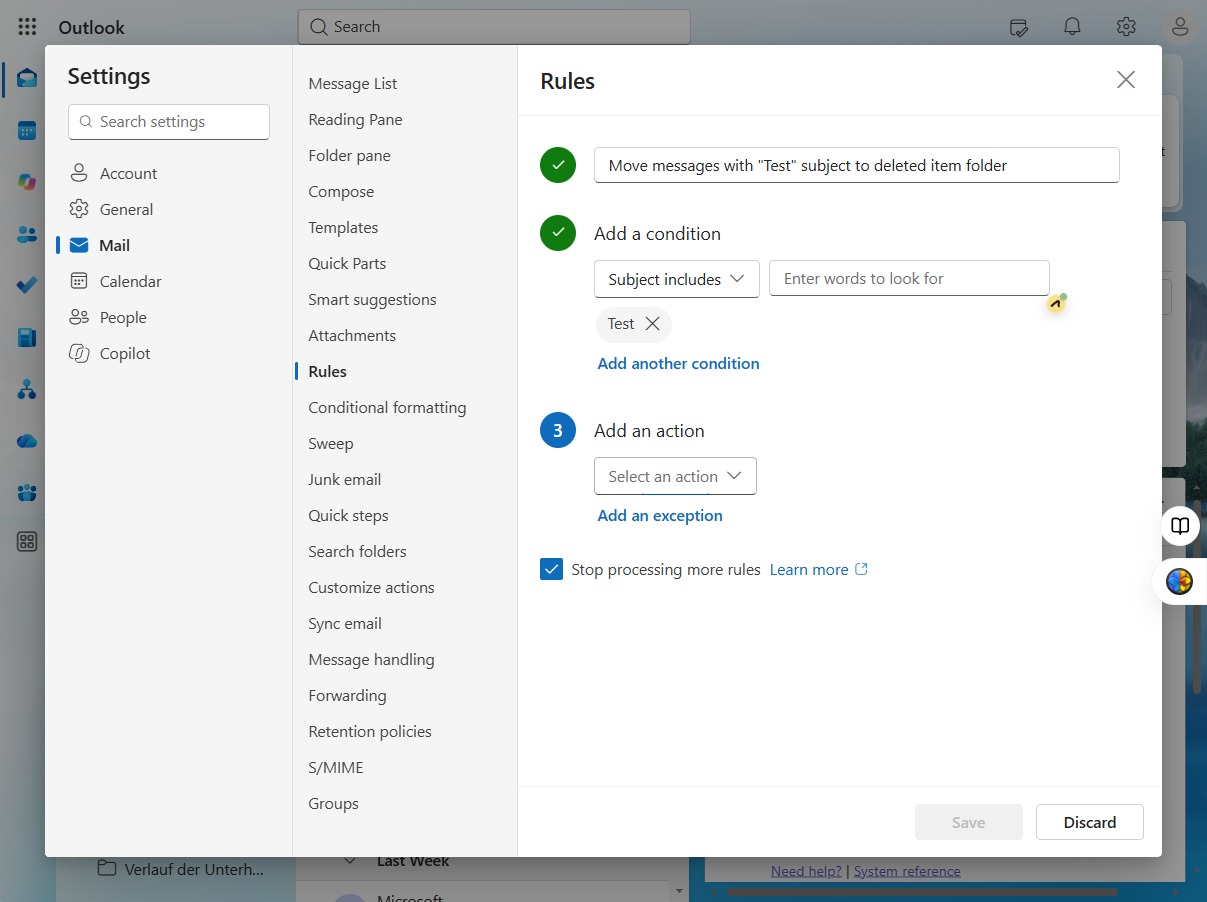
Here, you can choose the action to apply to the selected condition in your rules.
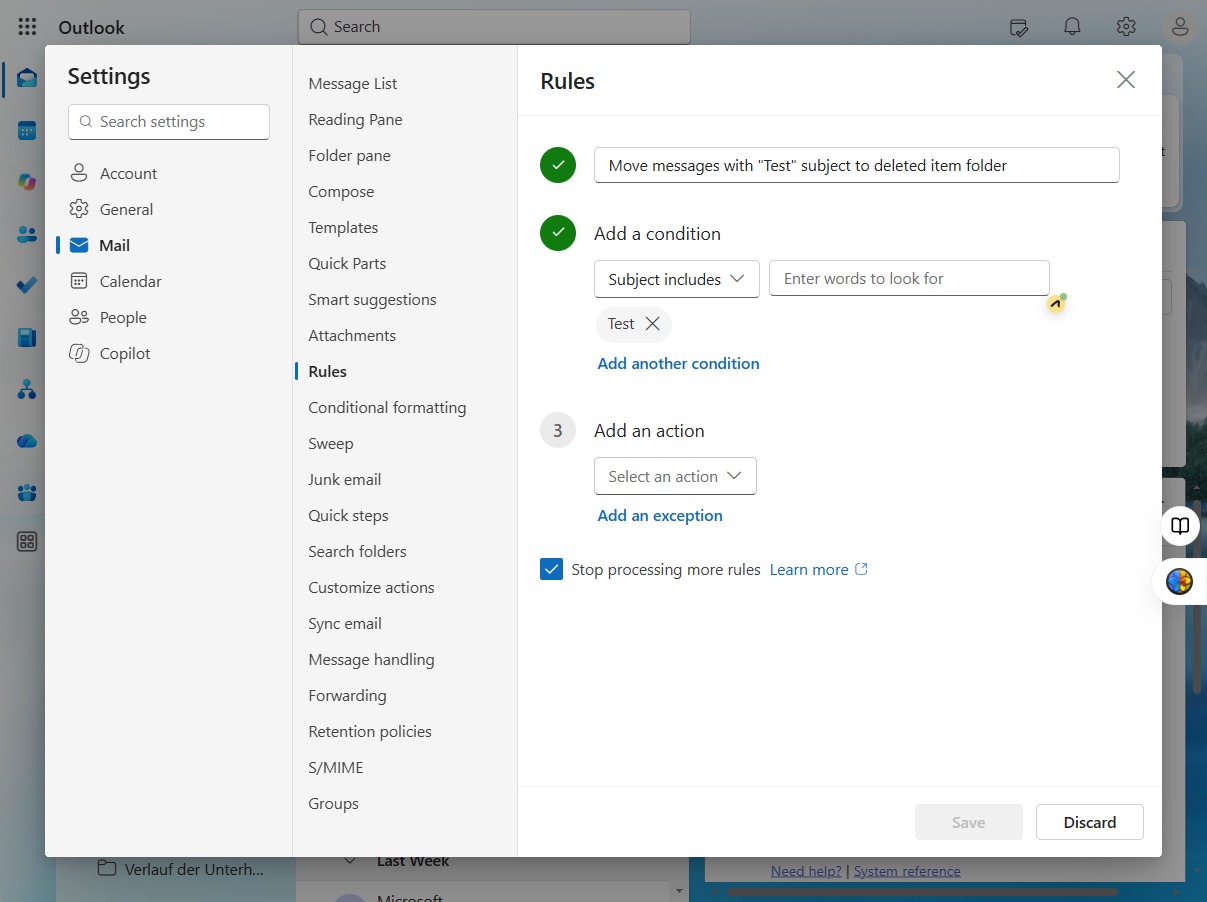
Choose the action you want to perform from the available options.
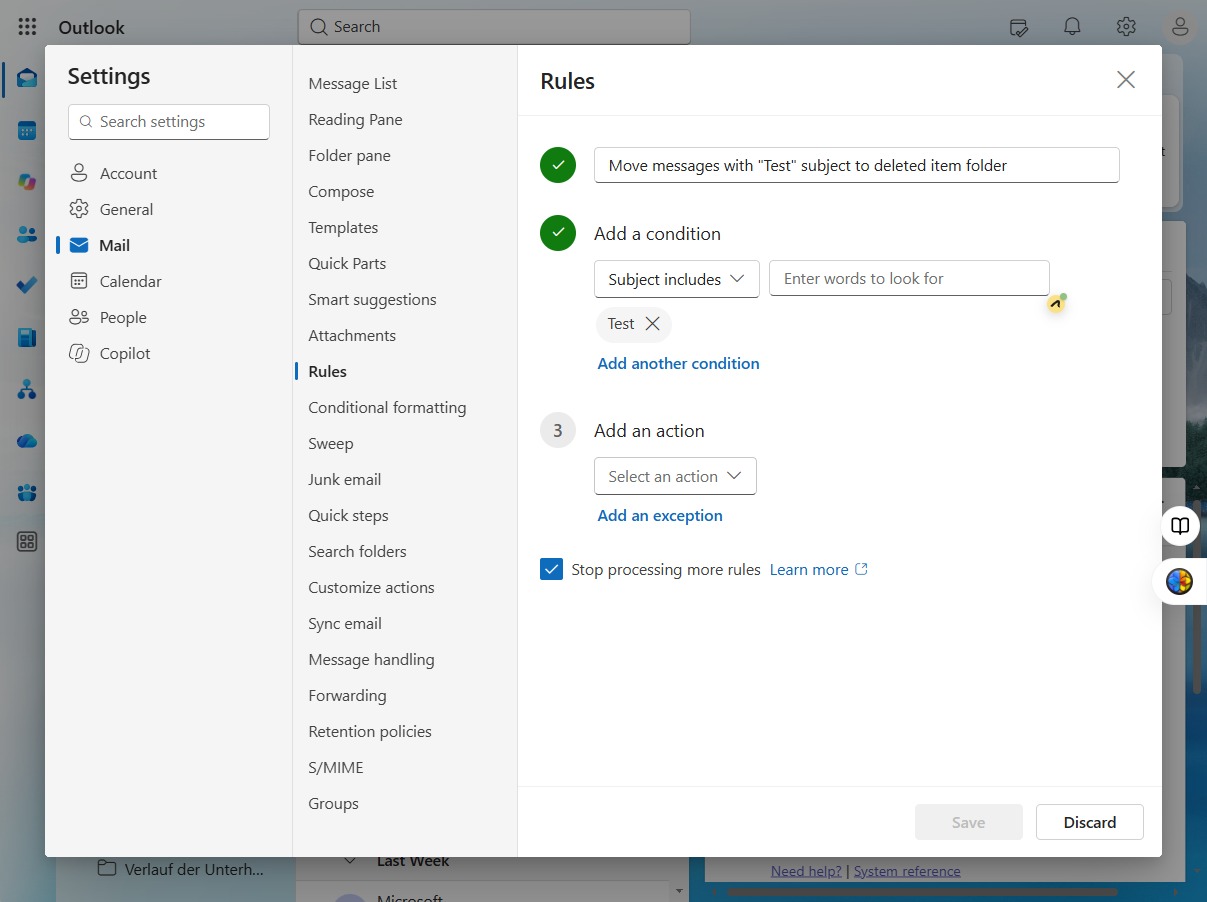
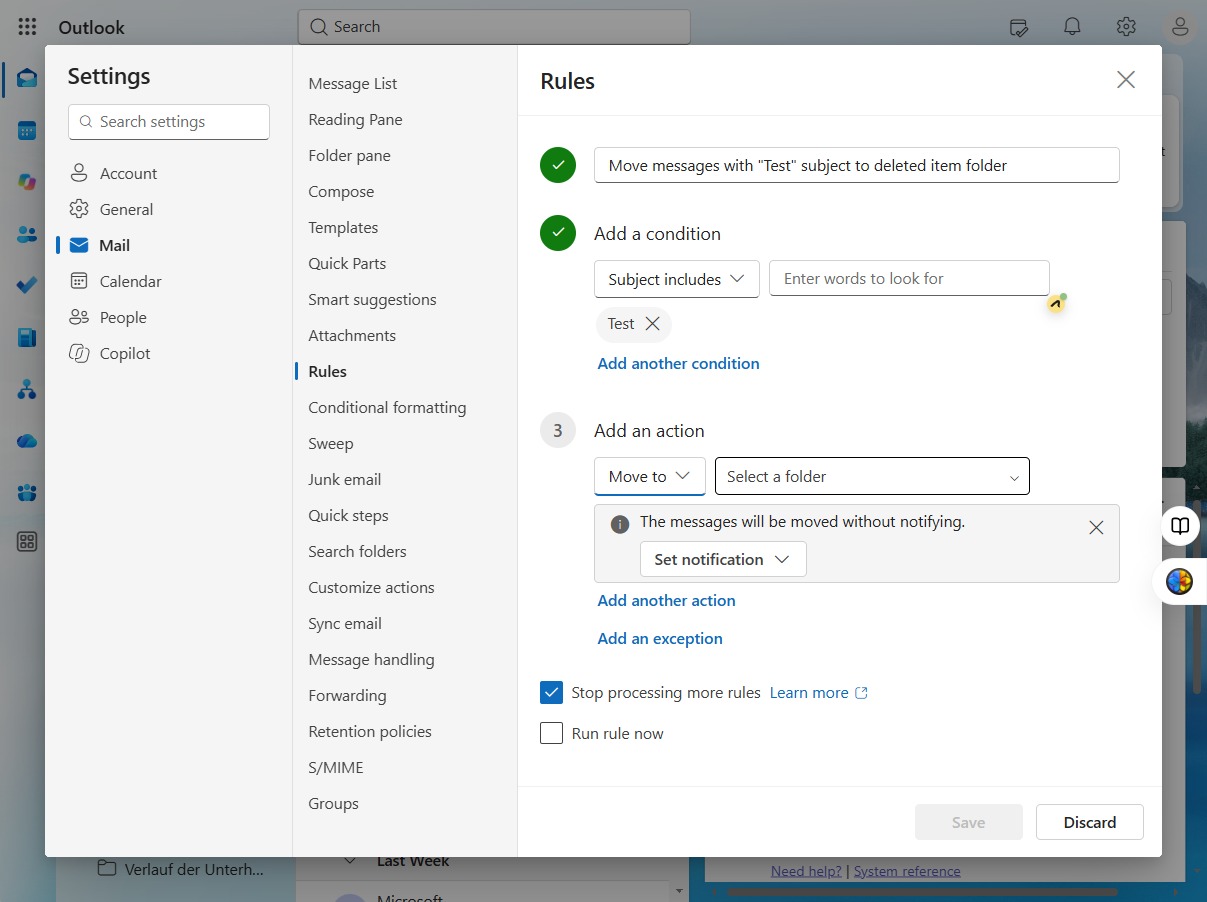
Select the 'Move to' option to organize your emails more effectively.
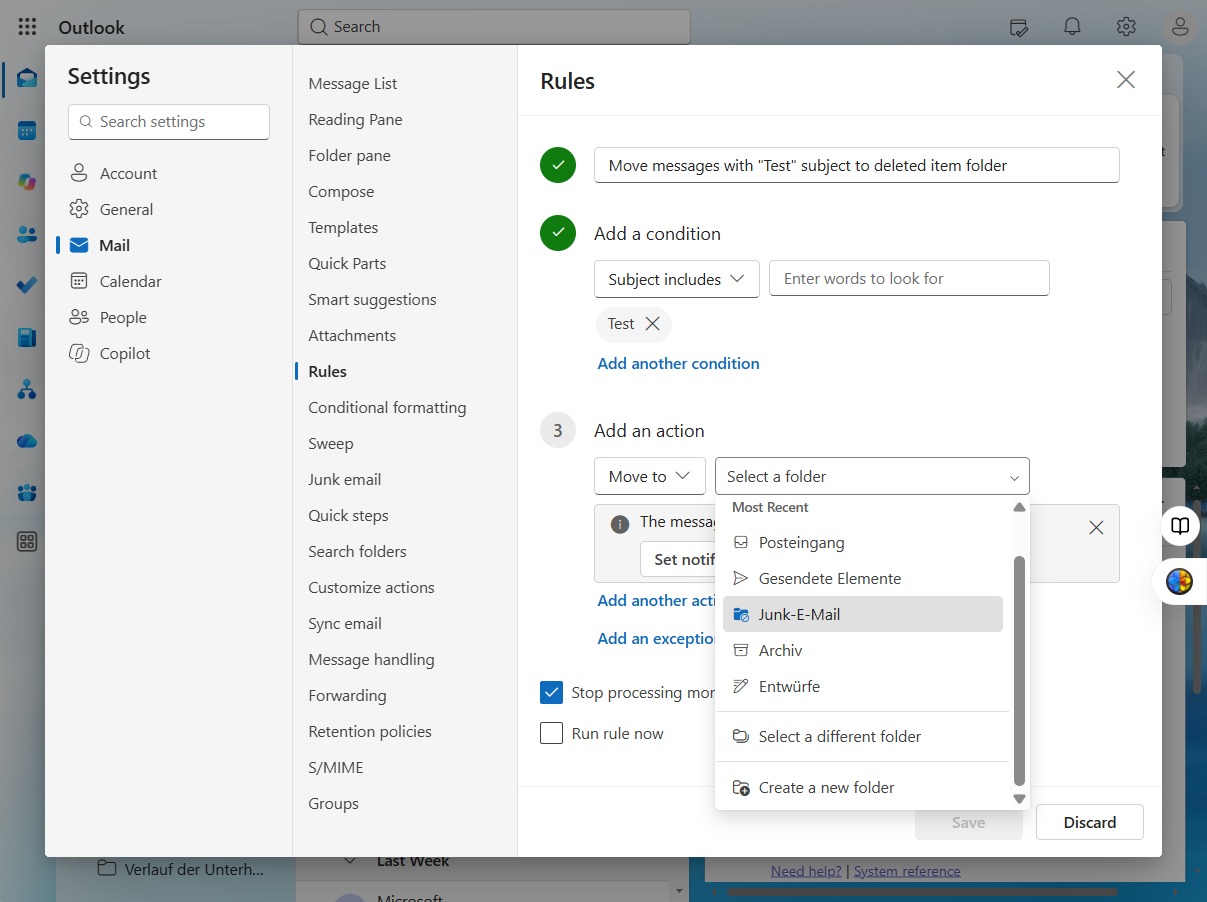
To set your rule, choose the folder where you want the messages to be moved.
Select the 'Junk-E-Mail' folder as the destination for moving messages.
Select the option to stop processing more rules, preventing further actions on this rule.
Select 'Run rule now' to immediately execute the configured rules on your selected items.
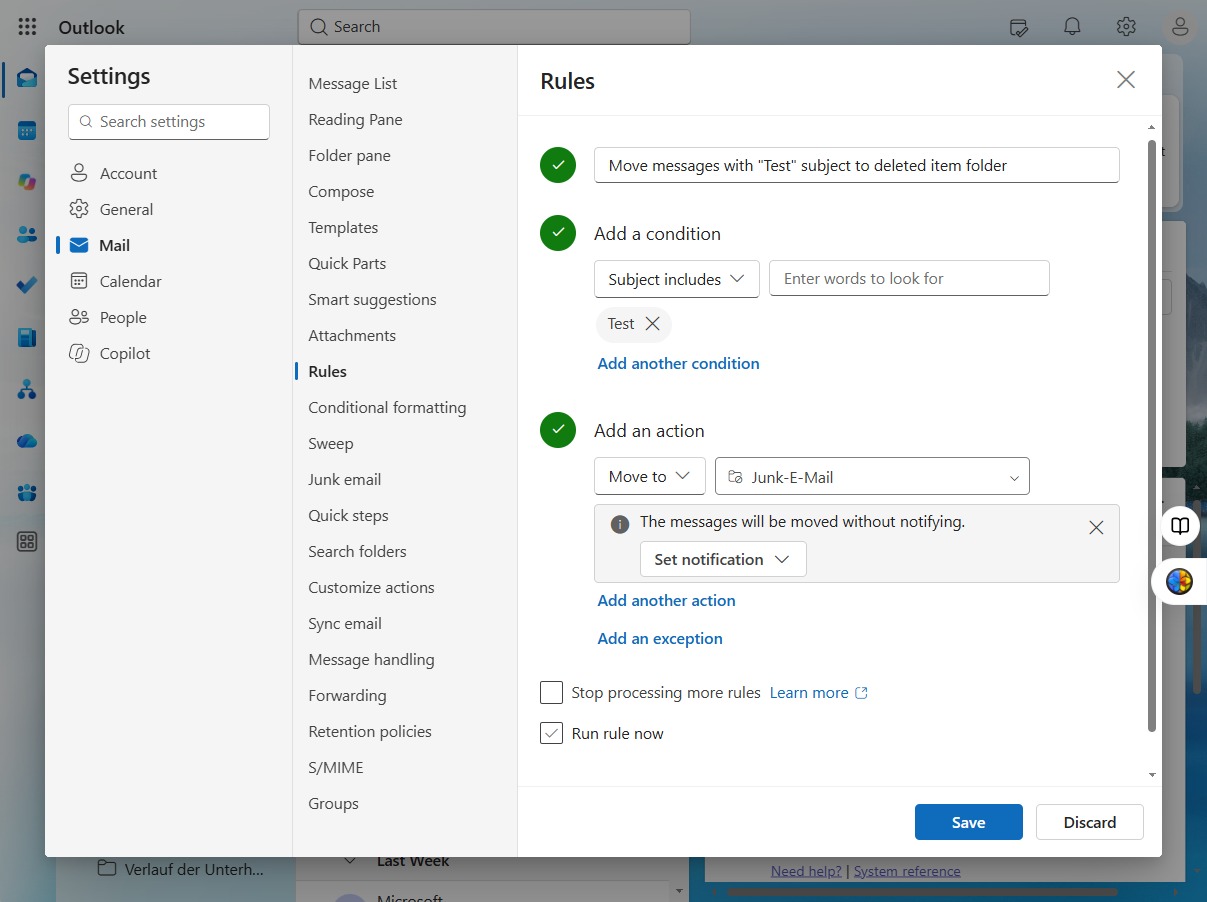
To apply your changes, click Save. This ensures that your rule is updated and ready for use.