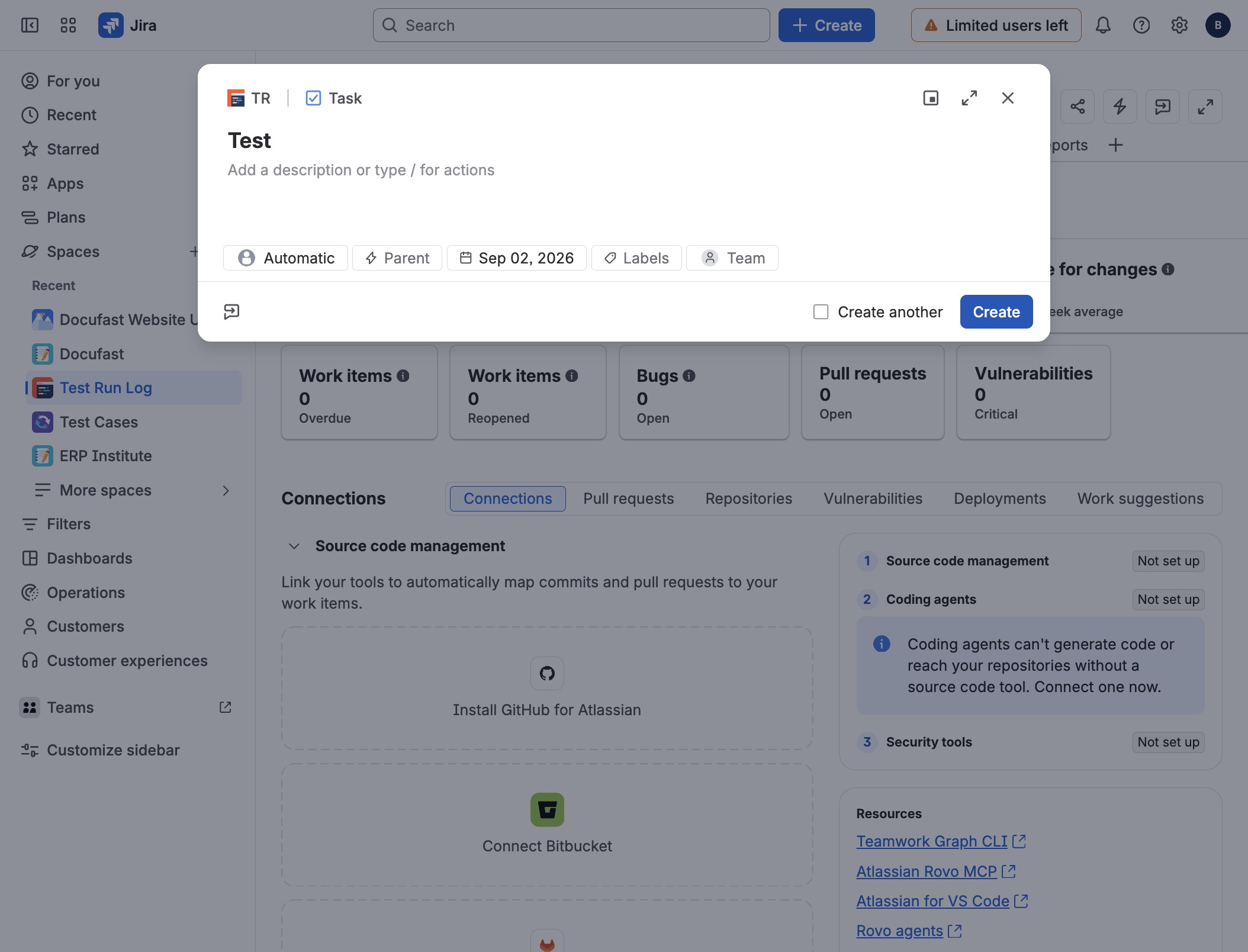
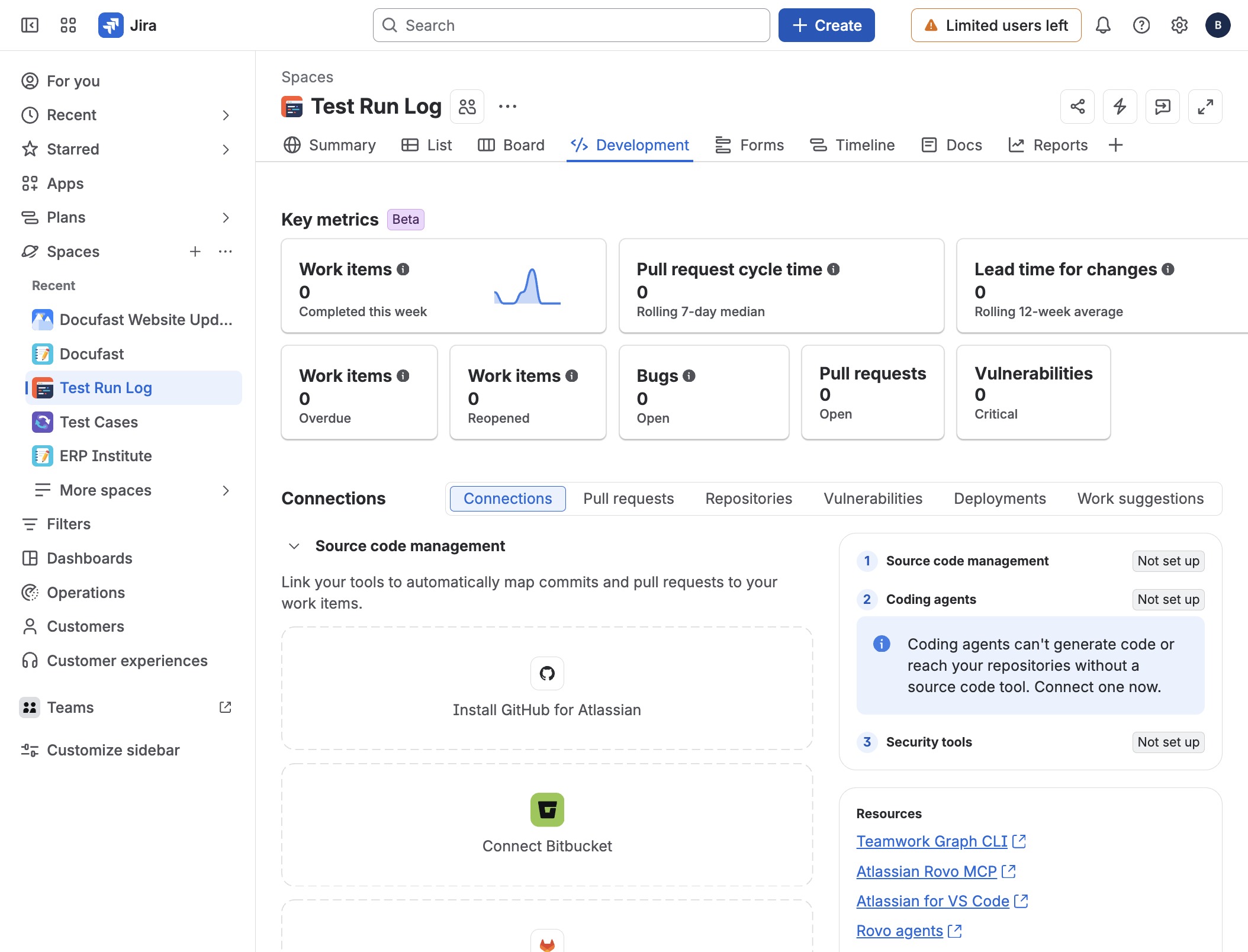
Click Test Run Log
Access the Test Run Log section in Jira, where you can view detailed information about your testing activities and metrics, helping you track progress and performance.
Loading screenshot…
100%
Create development tasks in Jira by accessing the Test Run Log, customizing your view, and filling in task details, including summary and due date, for effective project…
 brian.annan
Create development tasks in Jira by accessing the Test Run Log, customizing your view, and filling in task details, including summary and due date, for effective project management.
Access the Test Run Log section in Jira, where you can view detailed information about your testing activities and metrics, helping you track progress and performance.
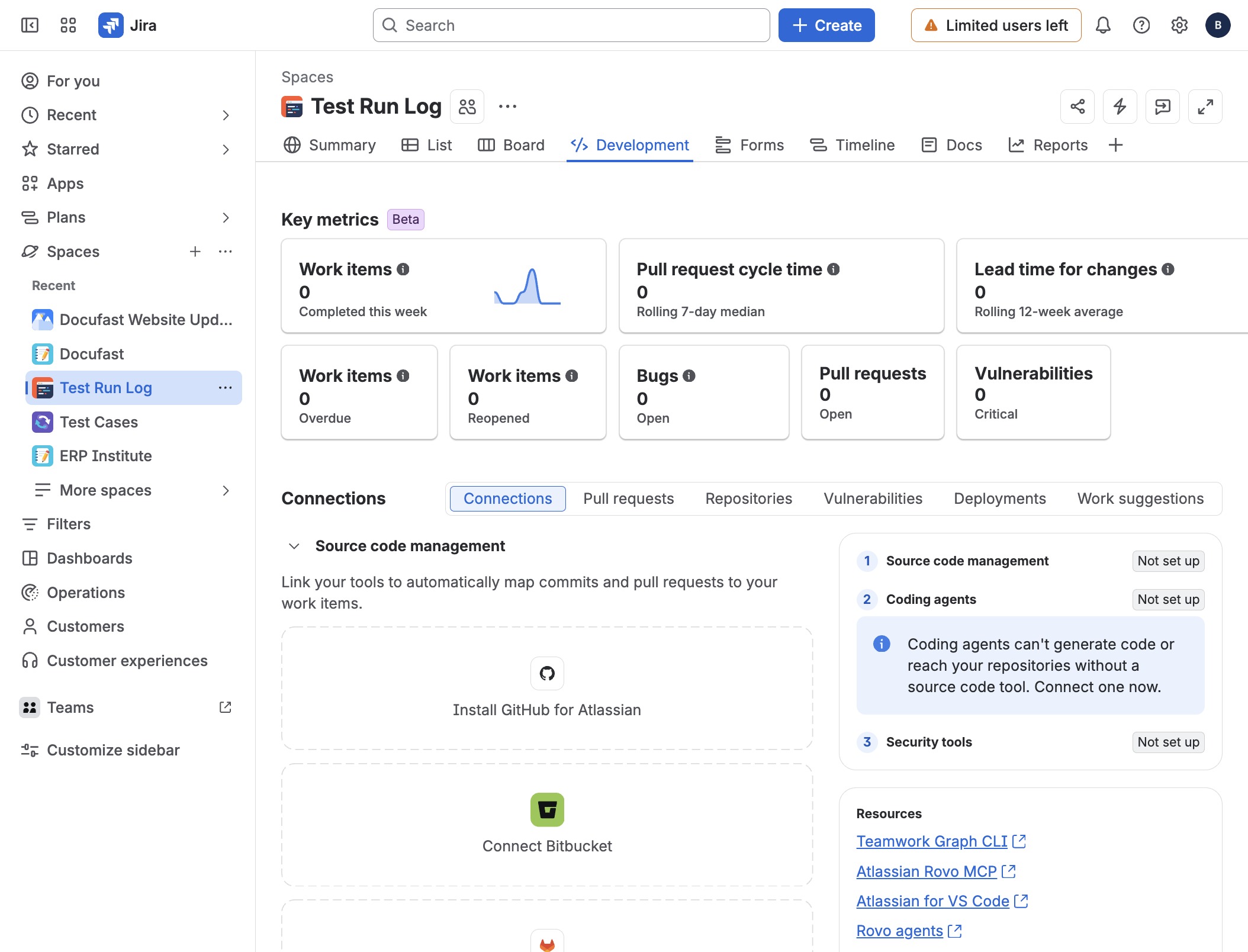
By clicking on the Filter option, you can customize your view in Jira to see only the items that meet your specific criteria, helping you focus on what's important.
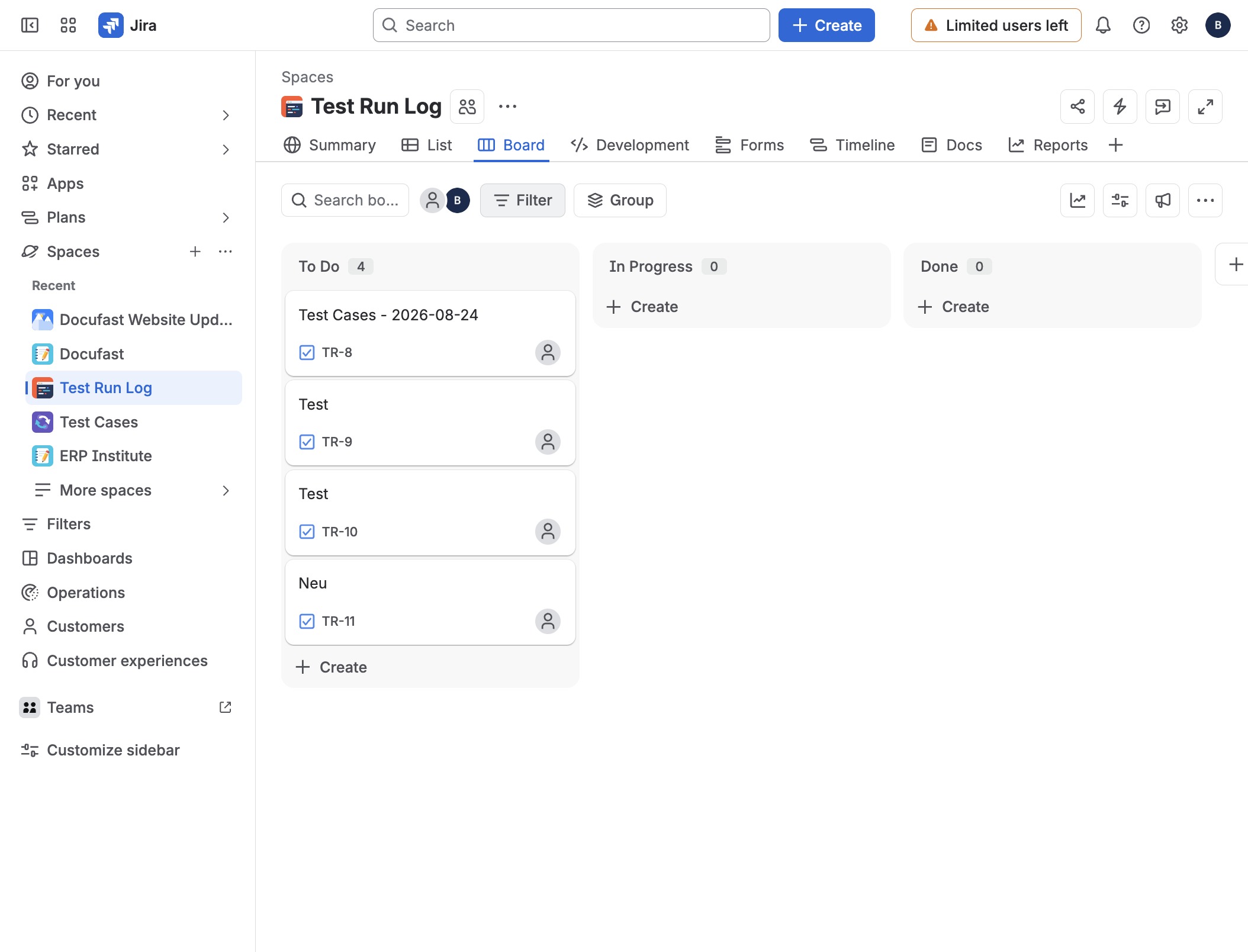
By selecting 'Development', you'll access the relevant section for tracking project progress and managing tasks related to development work in Jira.
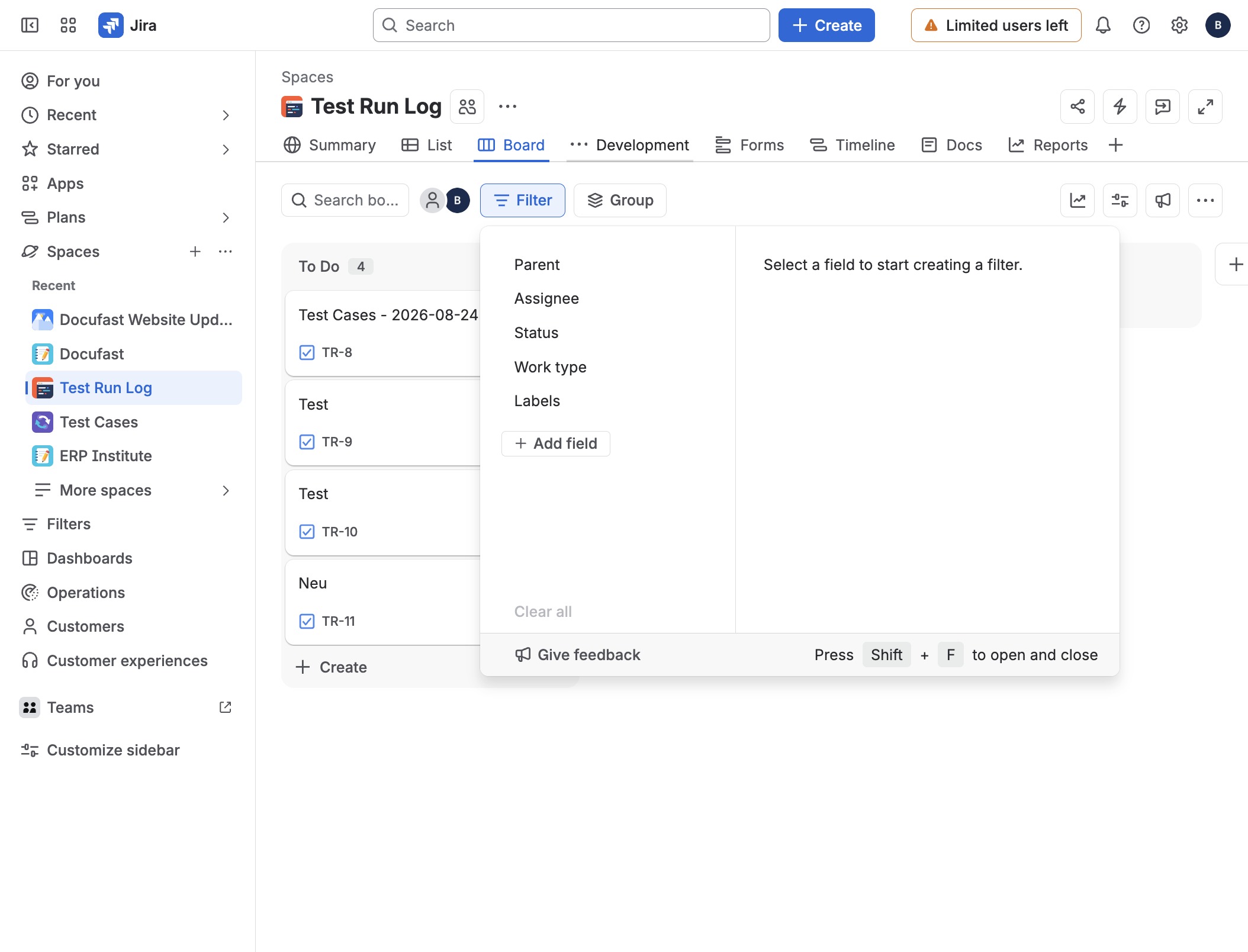
To initiate a new task or project, click the Create button located at the top right of your Jira interface. This action opens a form where you can input your new work item's details.
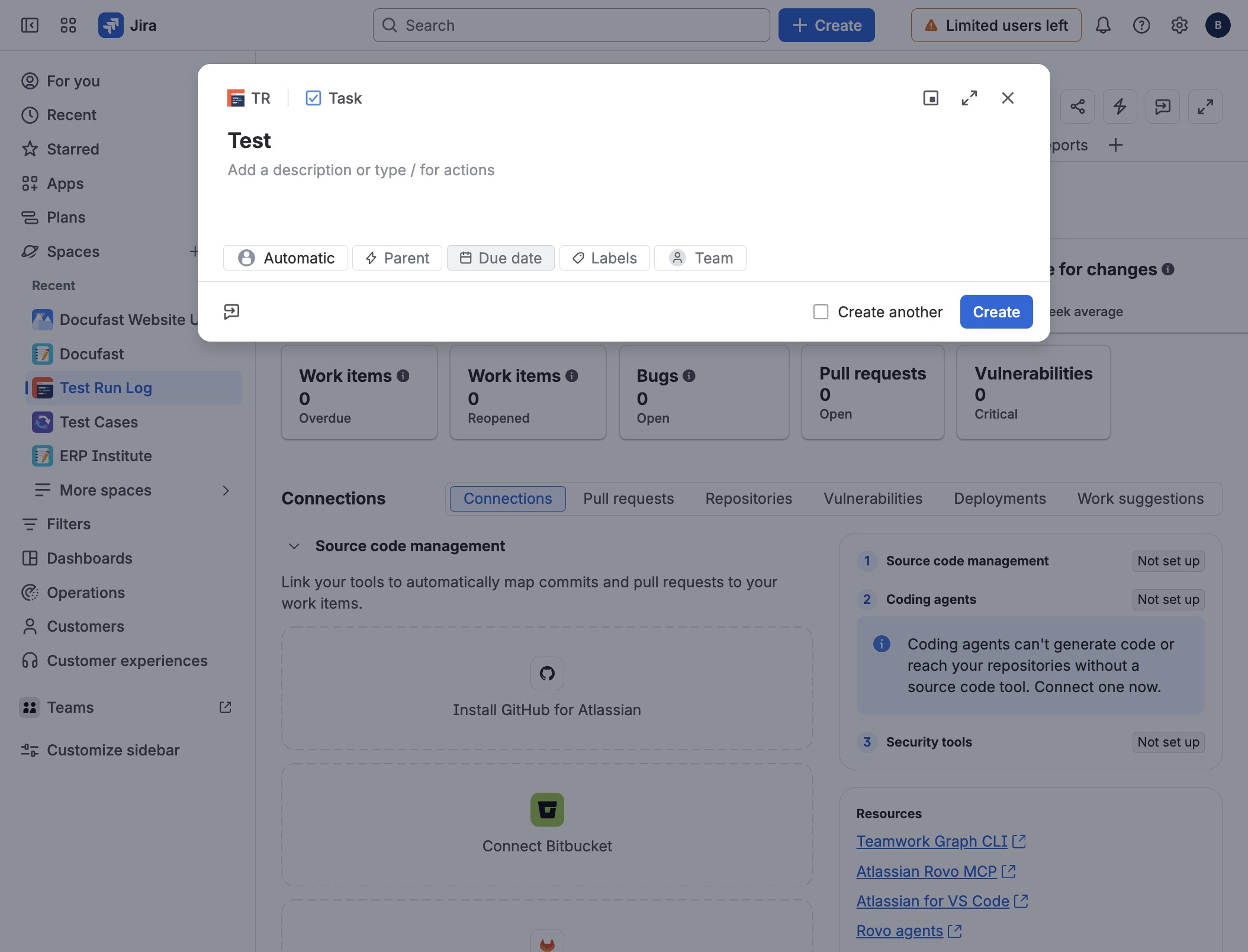
In the Summary field, start by typing your task title. Here, you’re label your task as "Test," which helps you organize and identify it easily within your Jira project.
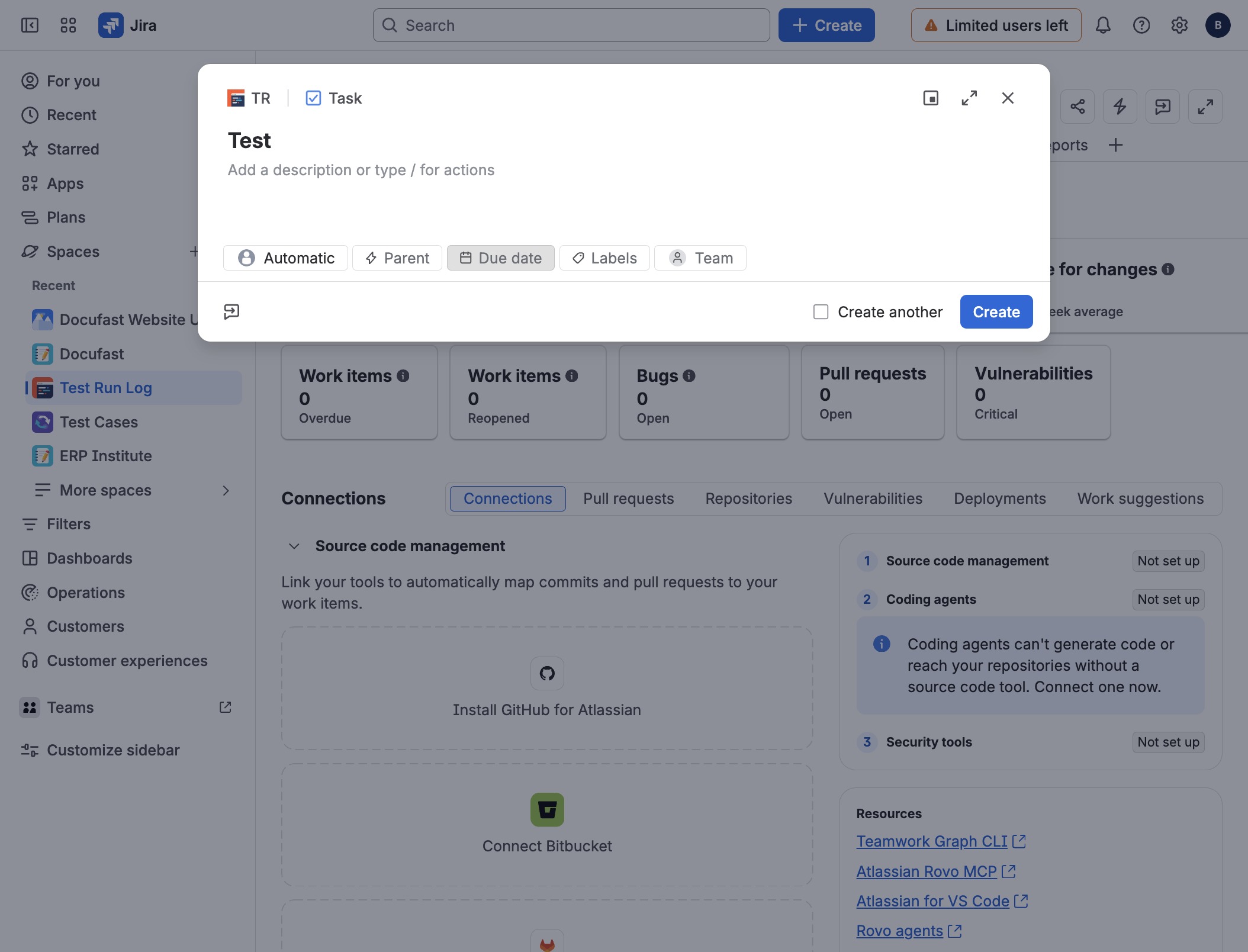
In this section, you can specify the due date for your task, ensuring that you stay on track and meet your deadlines effectively.
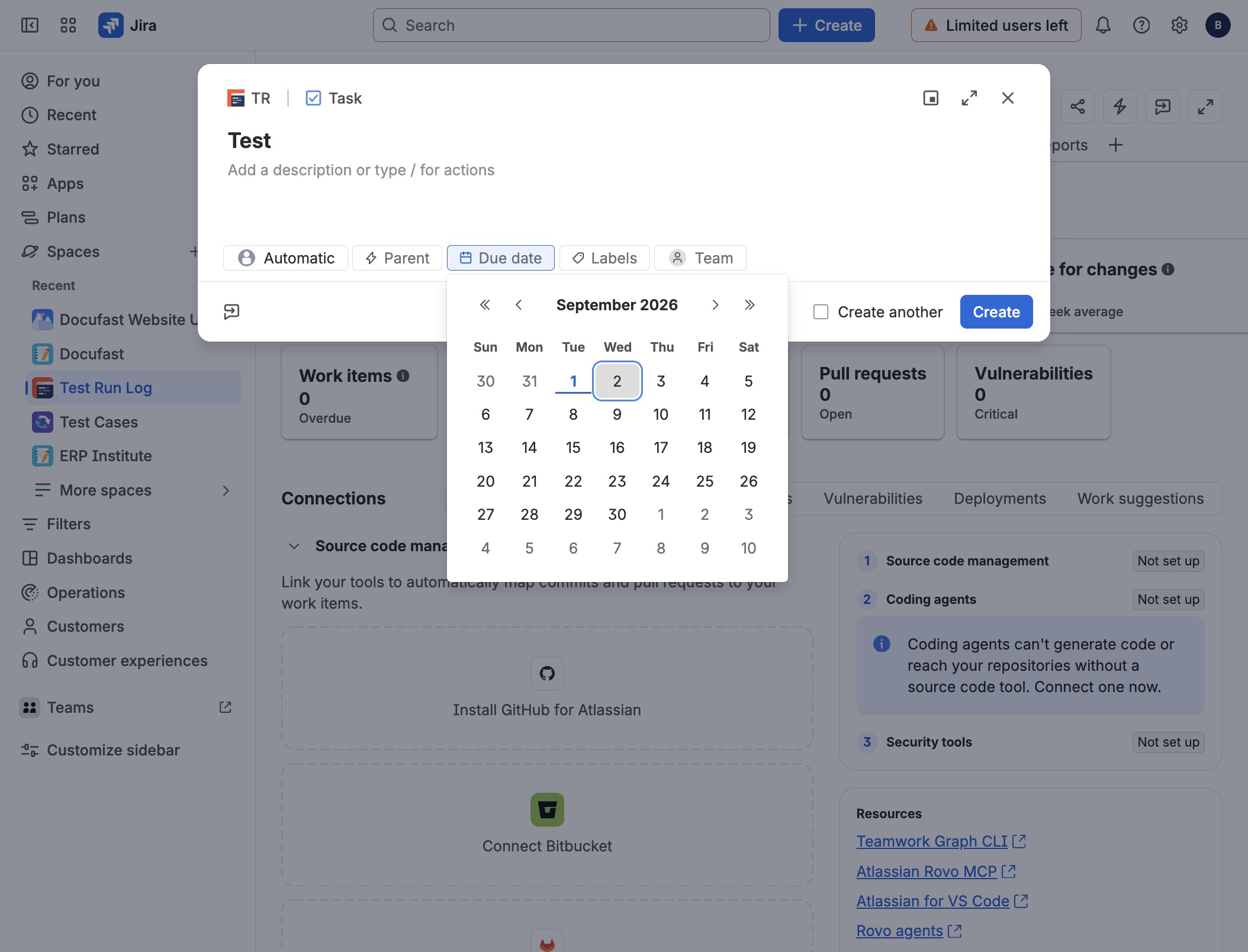
You'll choose the date for your task by clicking the date selector. This opens a calendar where you can see the days of the month and select your desired date easily.
You’re ready to add a new task. Click the Create button to open the task creation window, where you can input details like the title, description, and other important information.