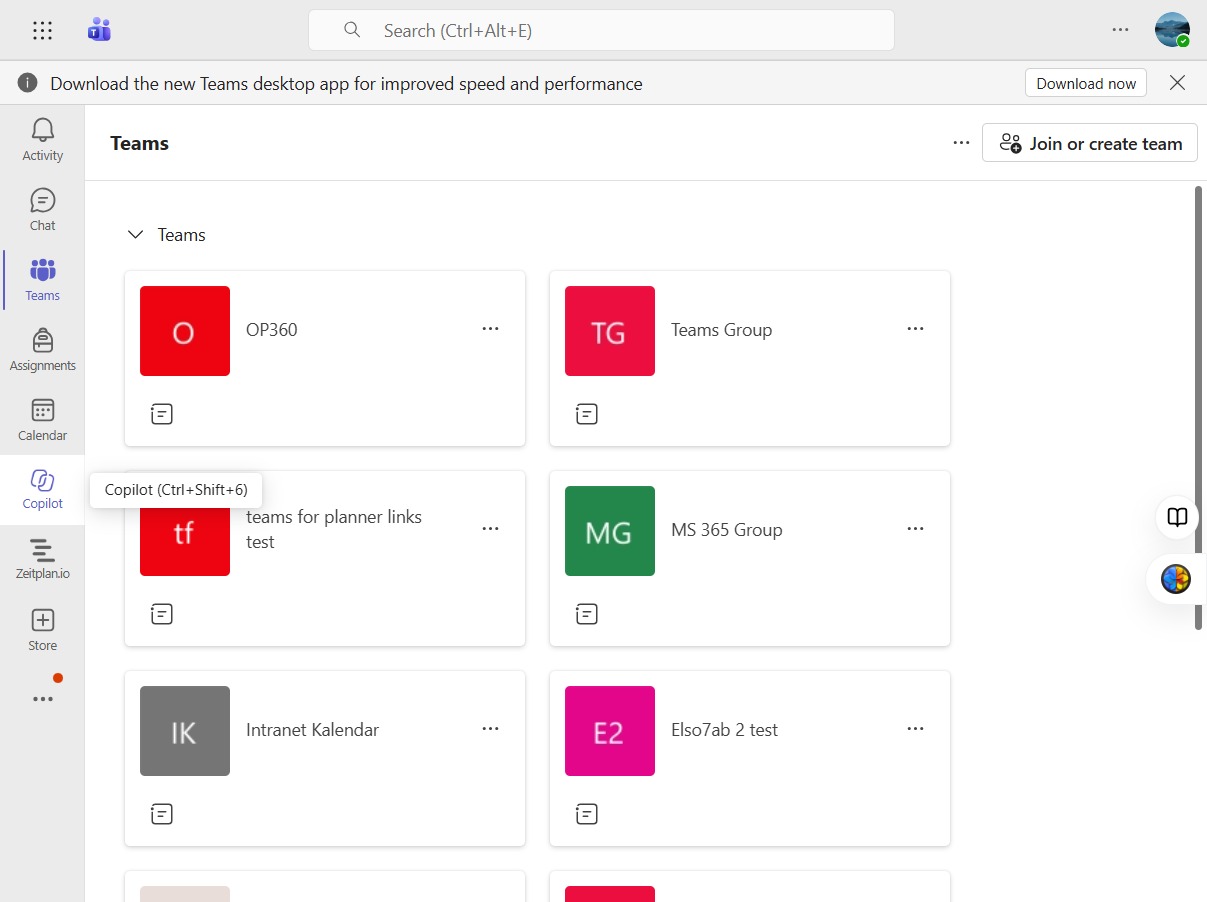
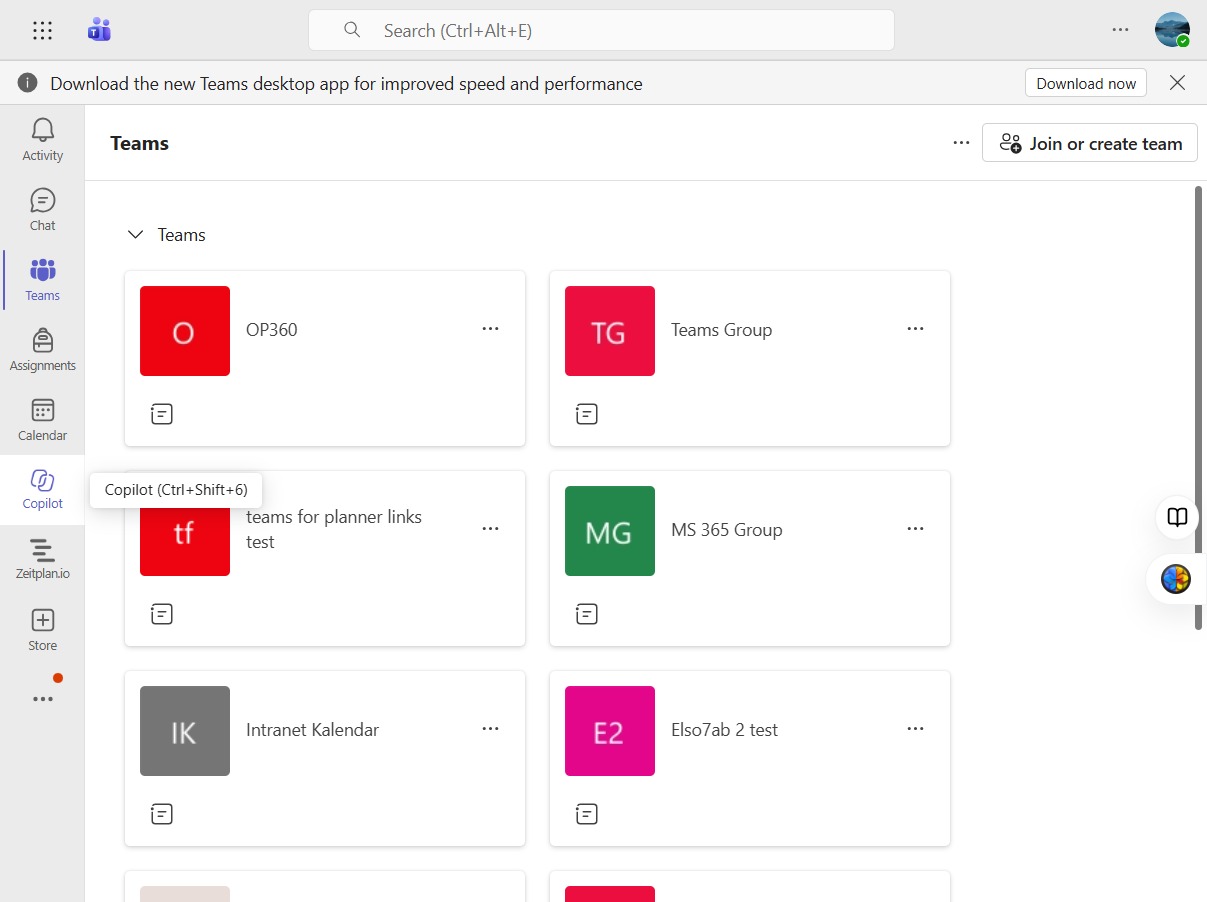
Click Copilot
Access the Copilot feature by clicking this button, which enables enhanced assistance within the Teams application for your workflow.
Loading screenshot…
100%
Use Microsoft Teams and the Planner application to create and manage plans and tasks, assign responsibilities, set deadlines, and collaborate effectively with your team.
Use Microsoft Teams and the Planner application to create and manage plans and tasks, assign responsibilities, set deadlines, and collaborate effectively with your team.
Access the Copilot feature by clicking this button, which enables enhanced assistance within the Teams application for your workflow.
Click the Copilot button to access AI assistance for enhanced collaboration and productivity within Teams.
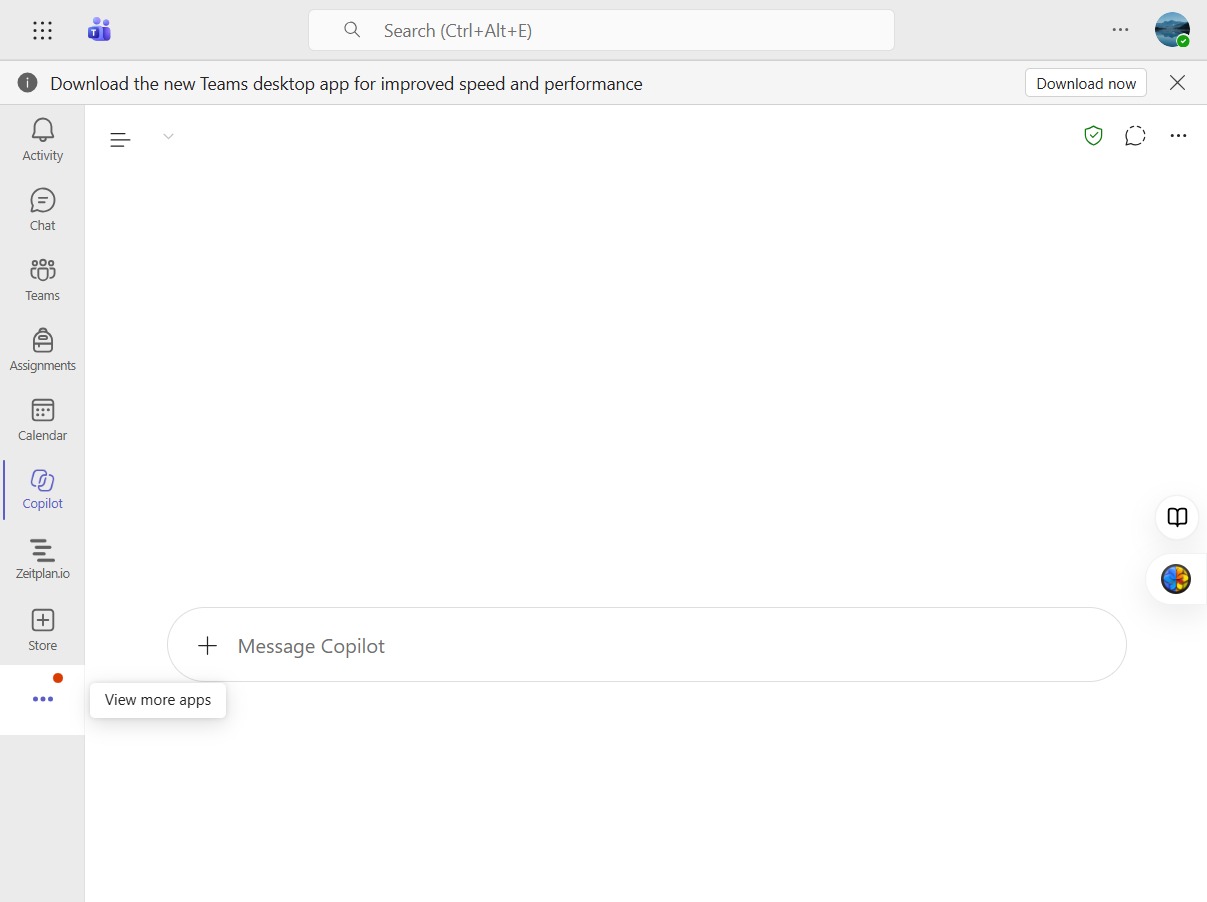
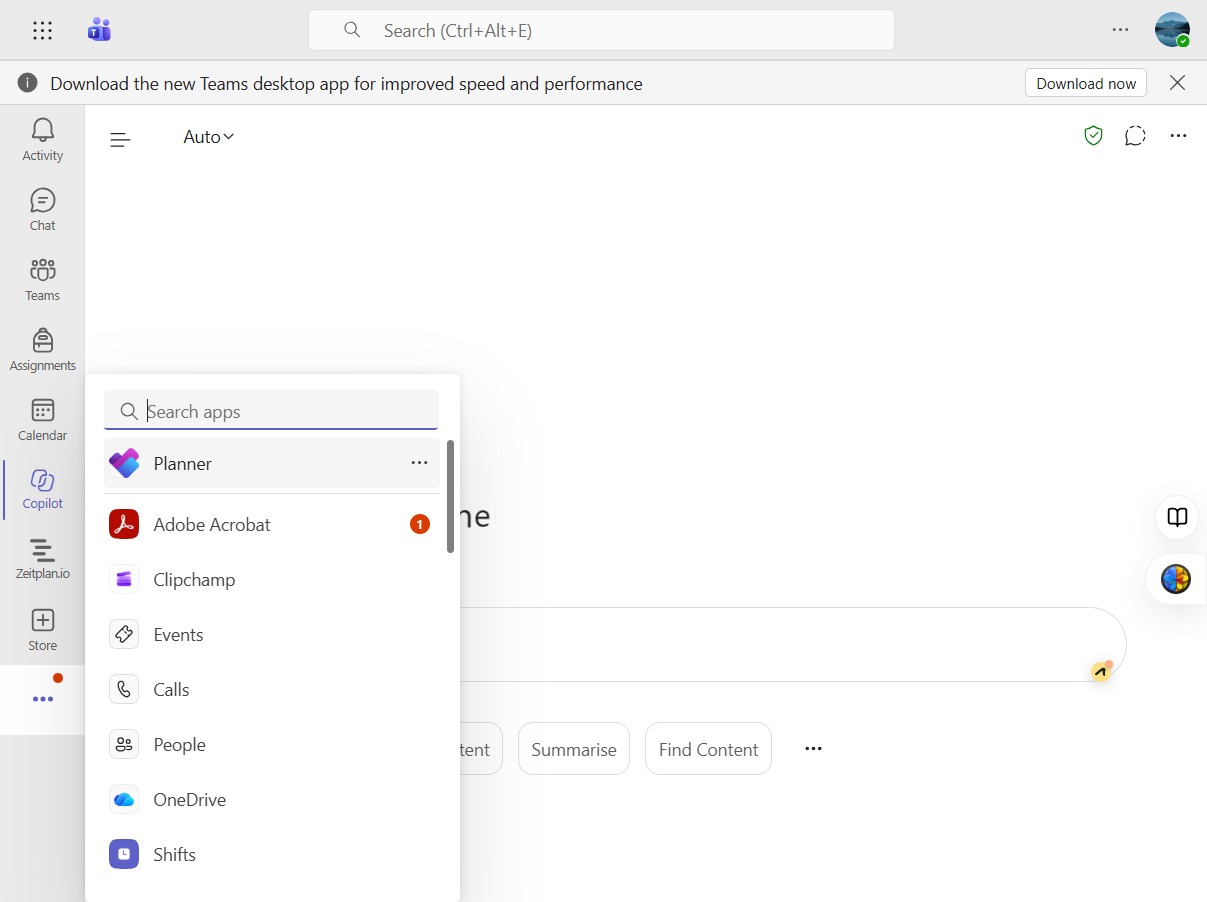
Discover additional applications available for use within Teams, enhancing your workflow and collaboration options.
Select 'Planner' from the list of applications to manage your tasks and projects efficiently.
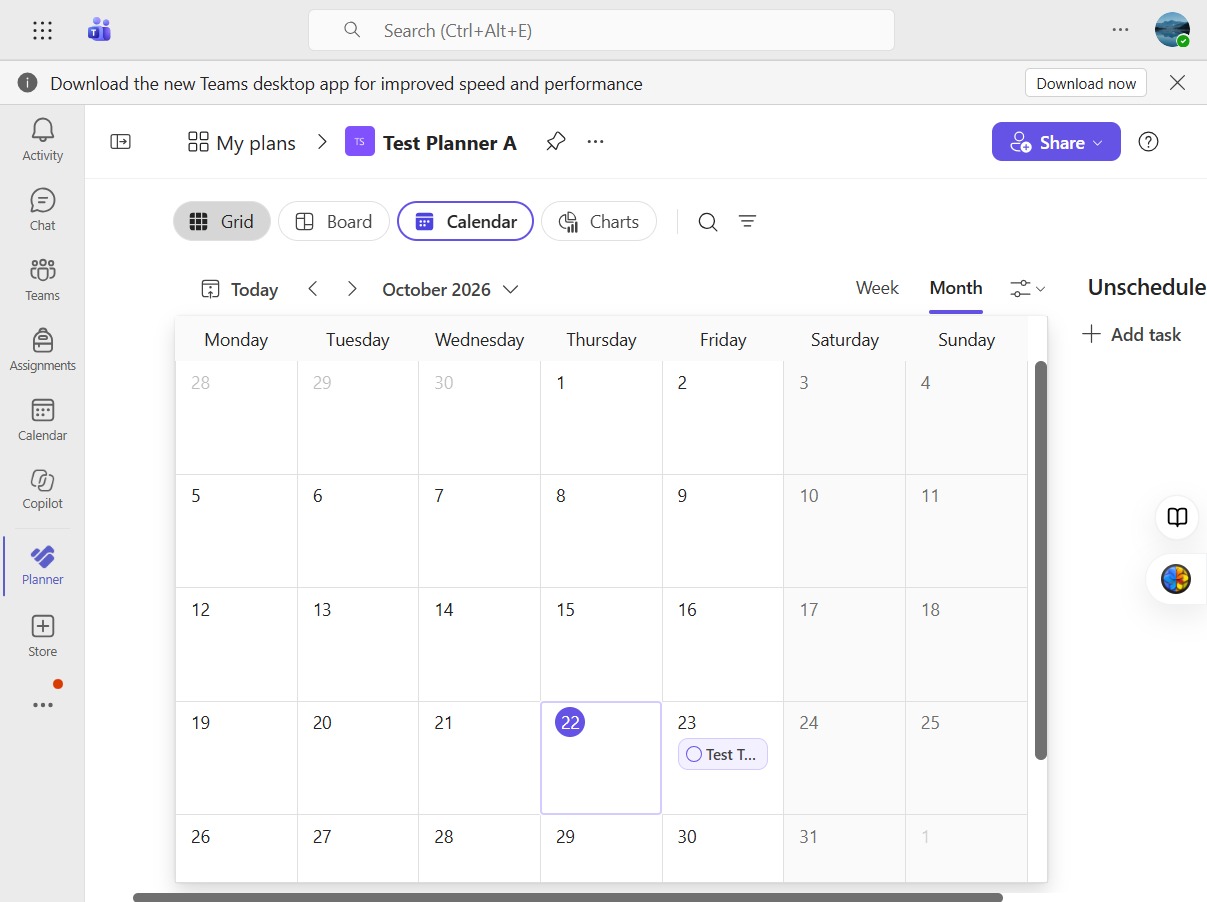
Select the Grid view to display your tasks and plans in a tabular format.
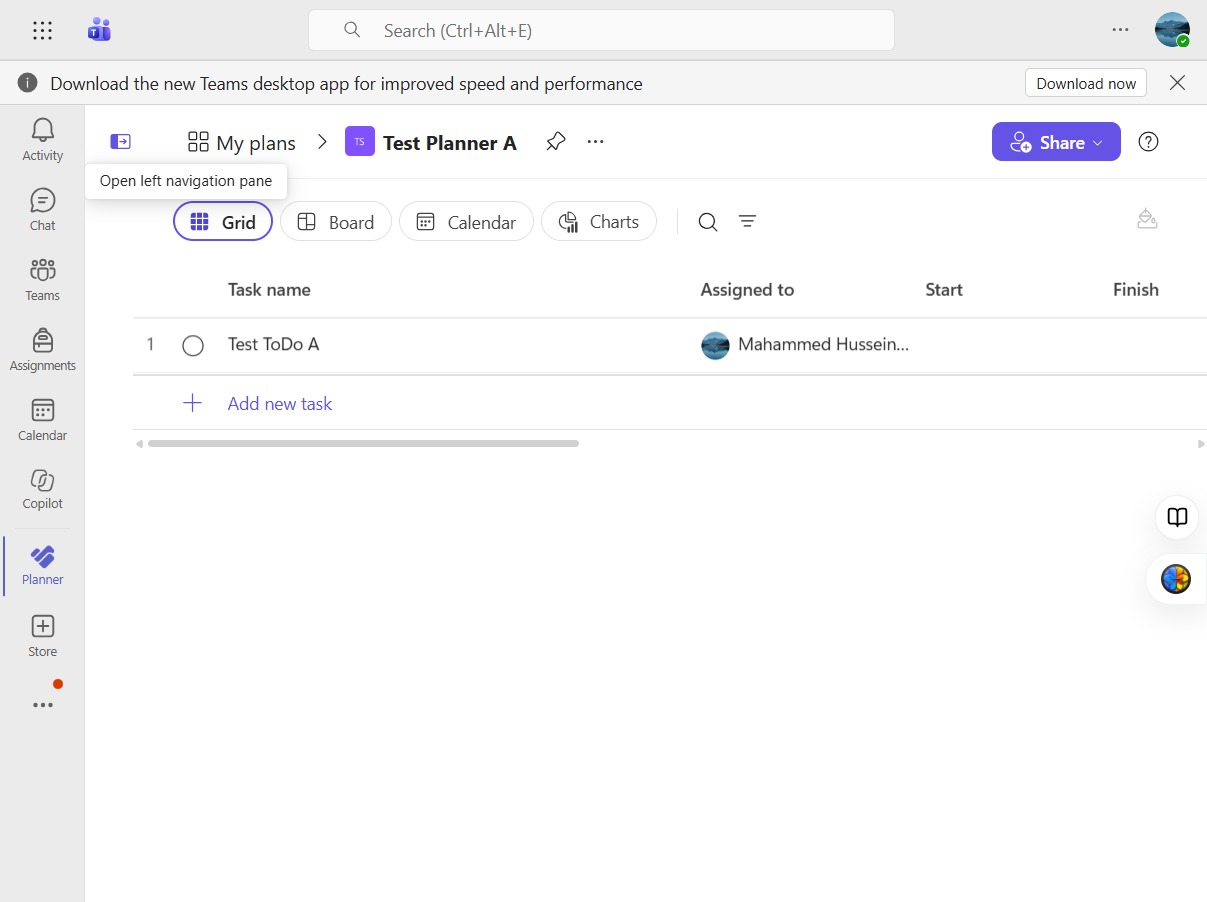
Click here to proceed with your task or action within the software.
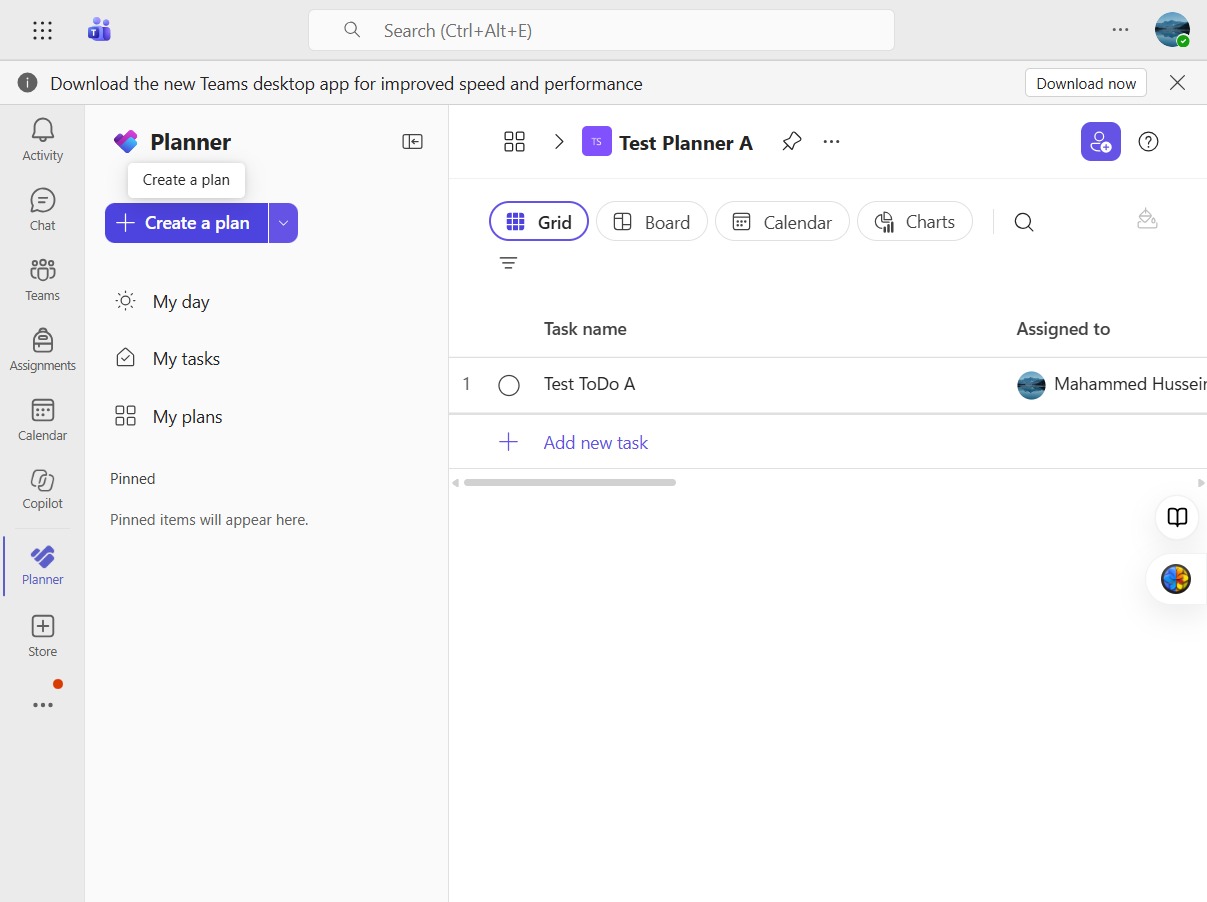
Select 'Create a plan' to start building your project. This option allows you to initiate a new planning process within the application.
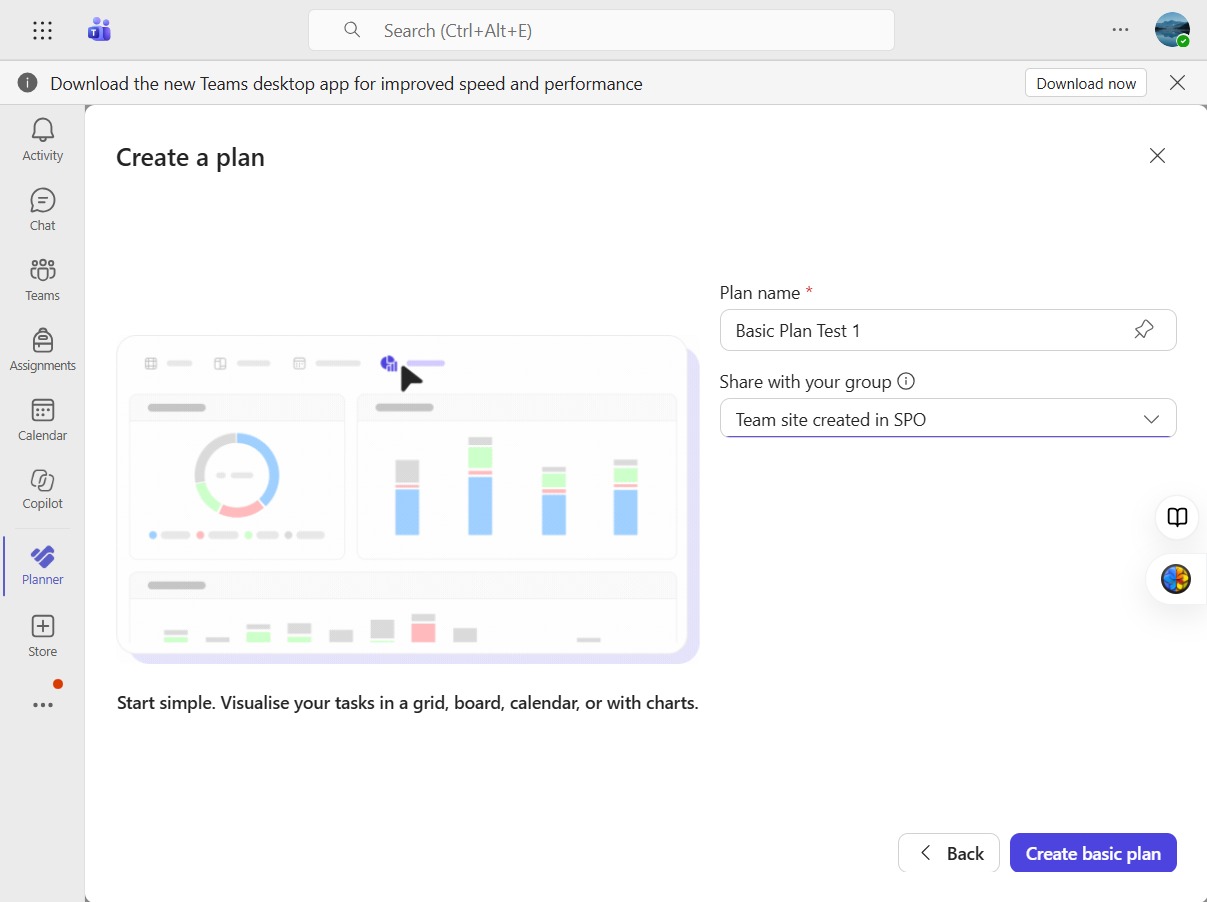
Now, click 'Create basic plan' to begin setting up your project with essential features.
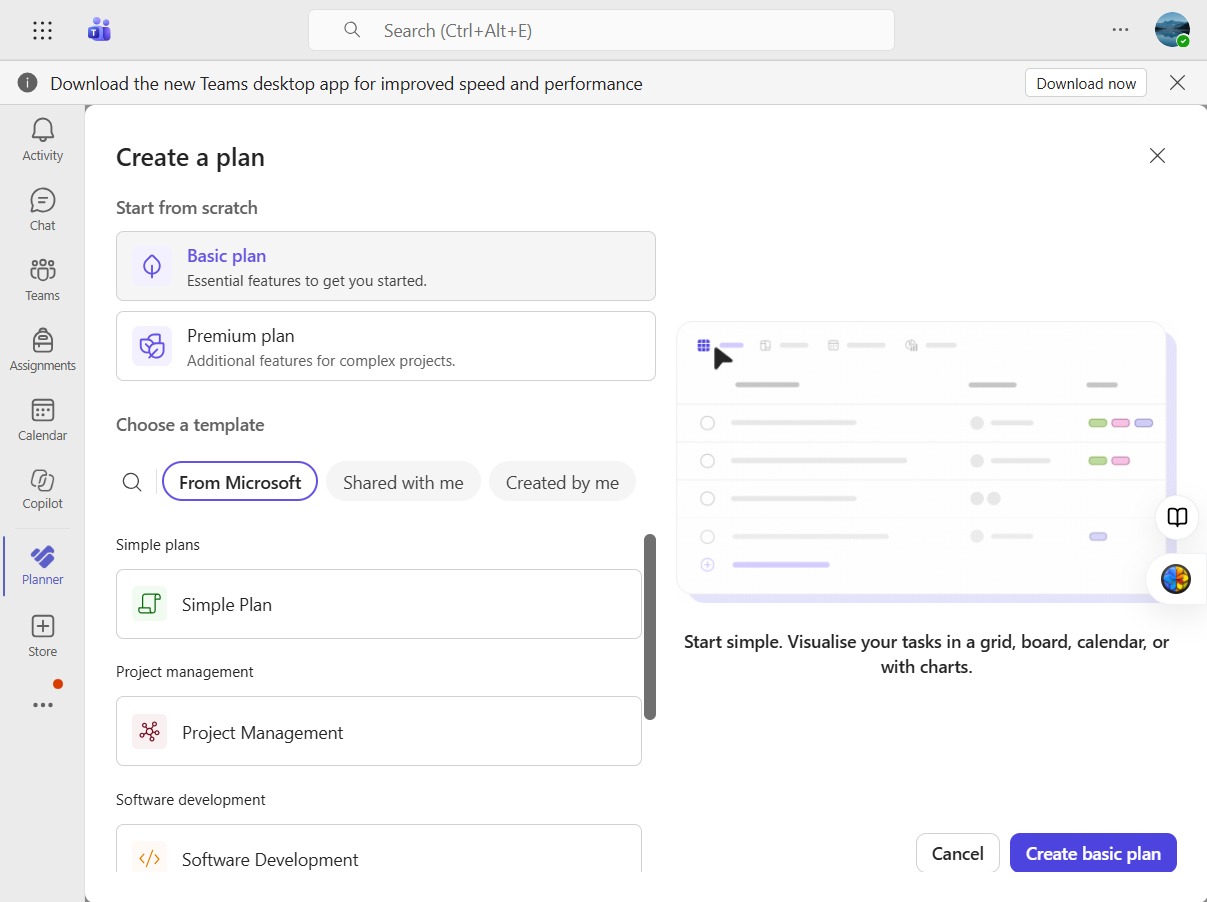
Enter the name of your plan in the designated field.
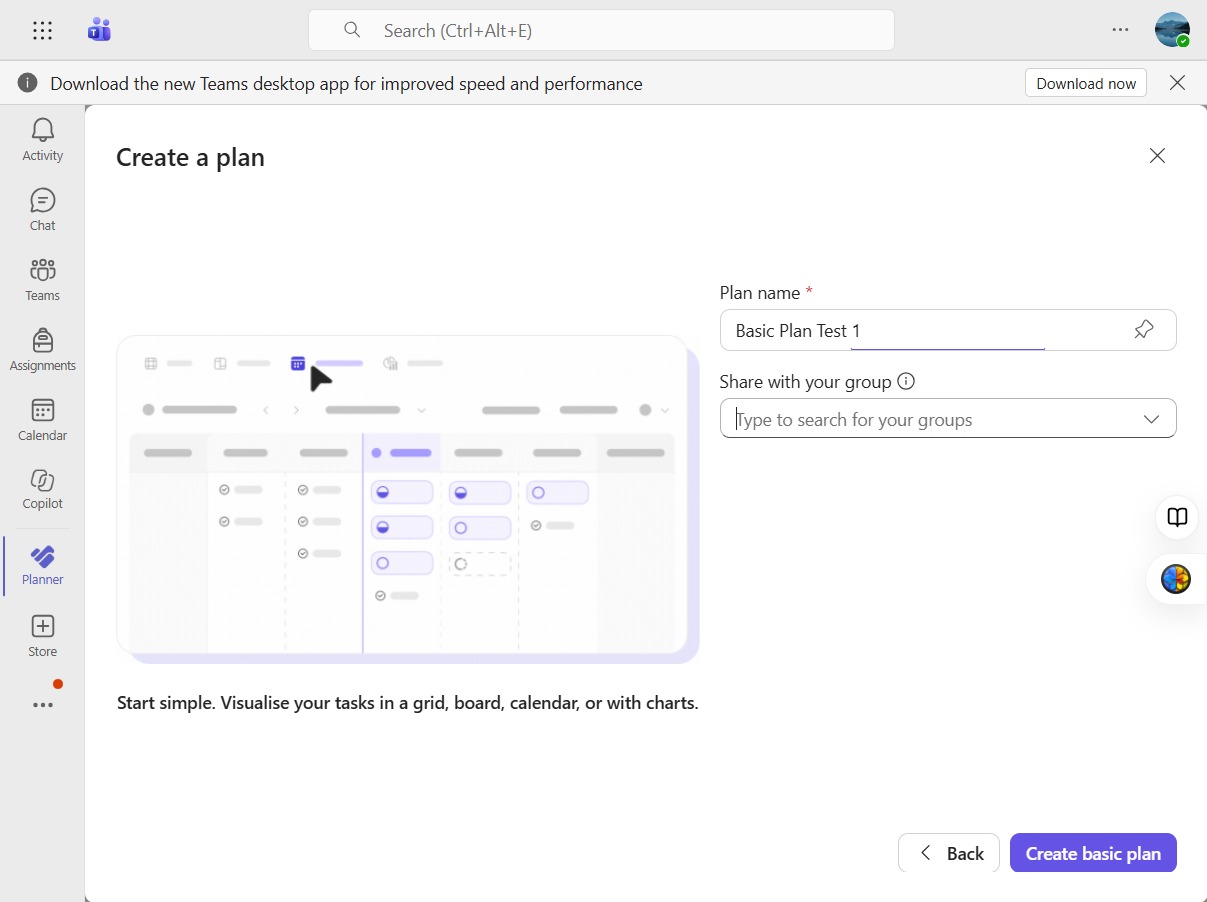
Click into the Group search box to find and select a group for sharing your plan.
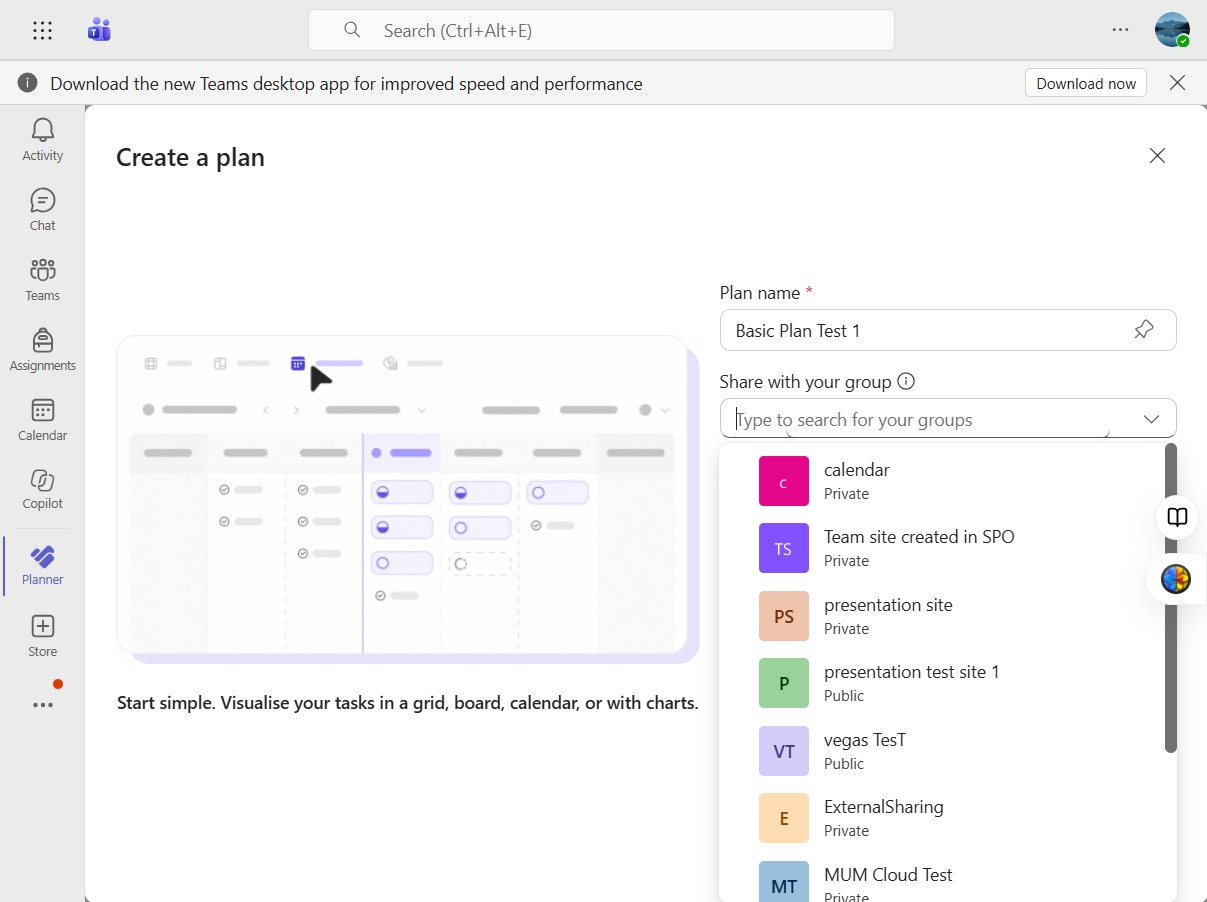
Select the 'Team site created in SPO' option to share your plan with the relevant team site.
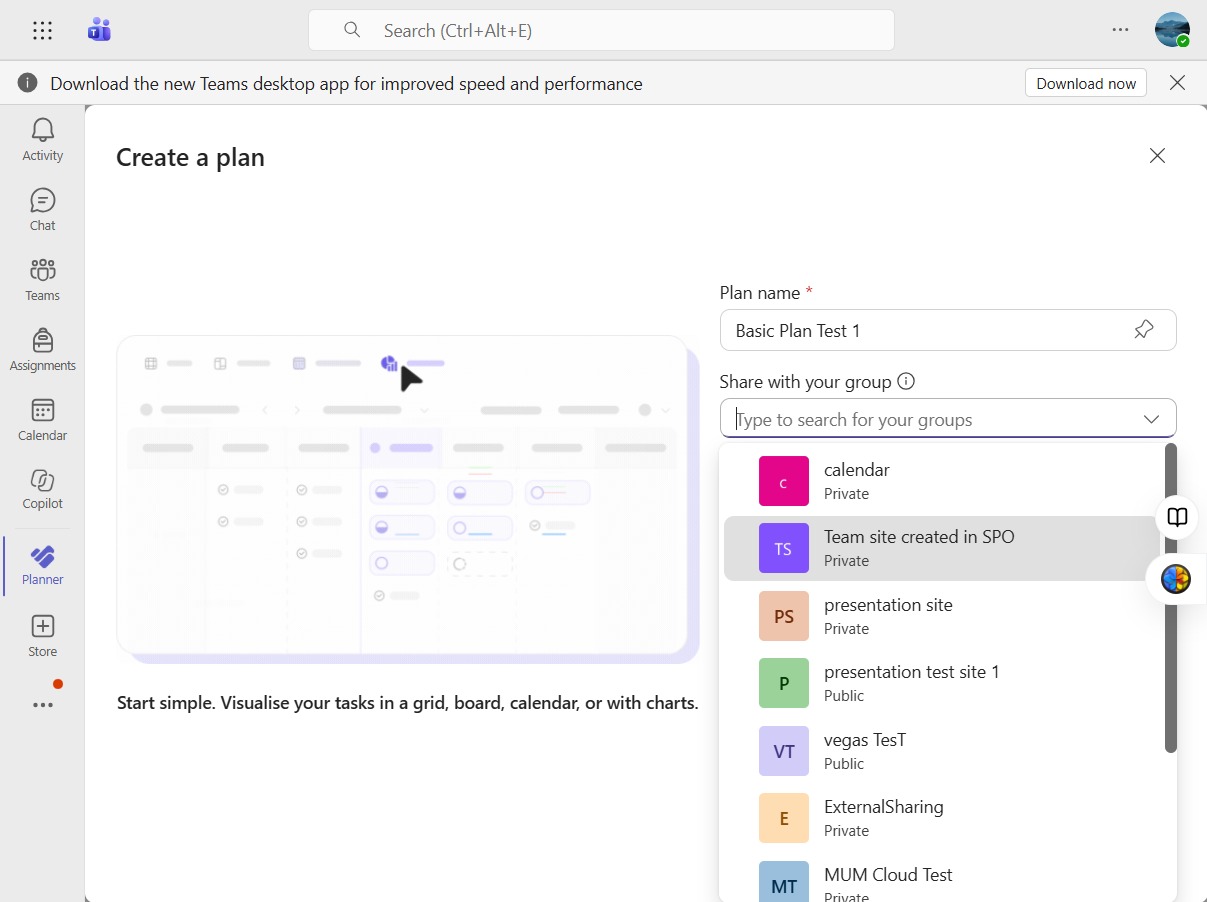
To proceed, click on the 'Create basic plan' button, which will finalize the creation of your plan.
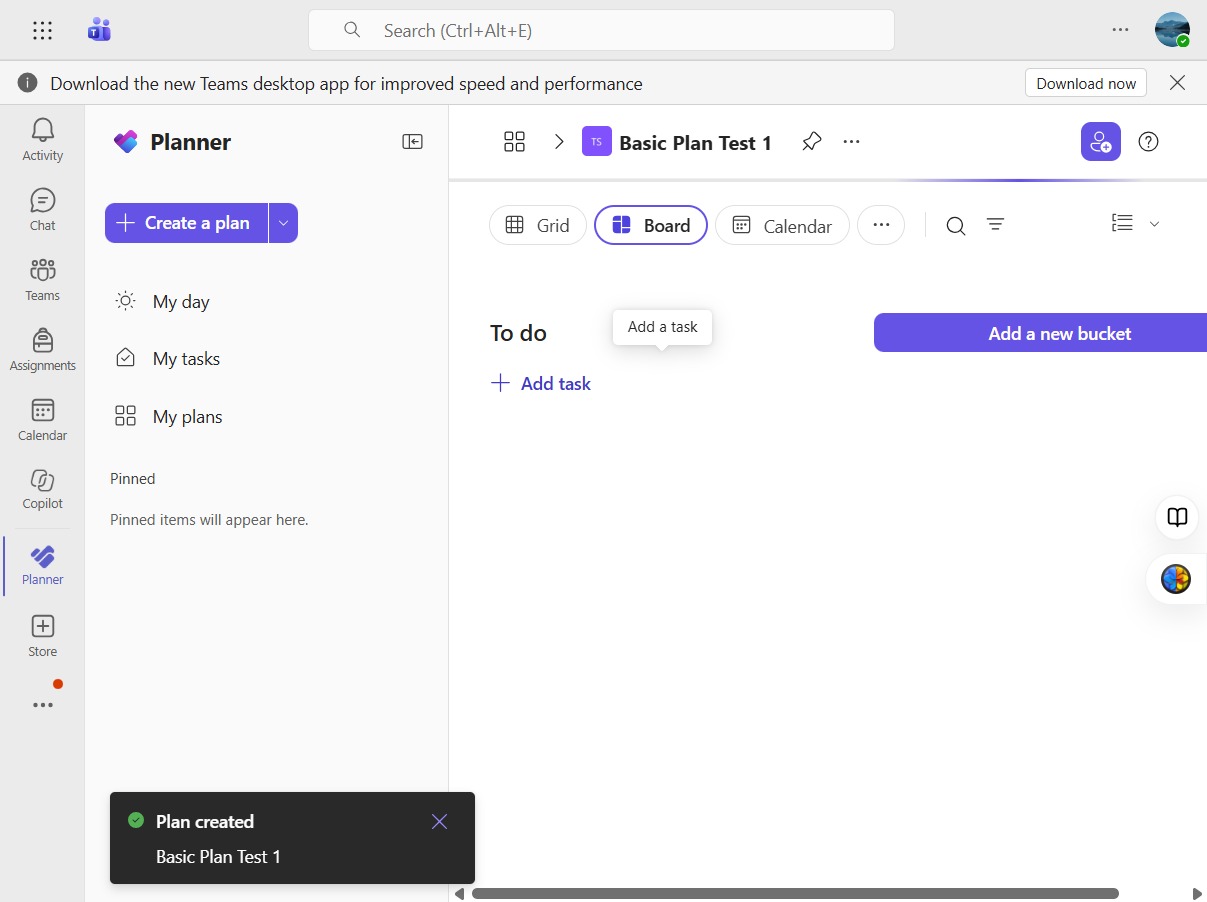
To create a new task, click on 'Add task' to get started.
Enter the name of the task you want to add here.
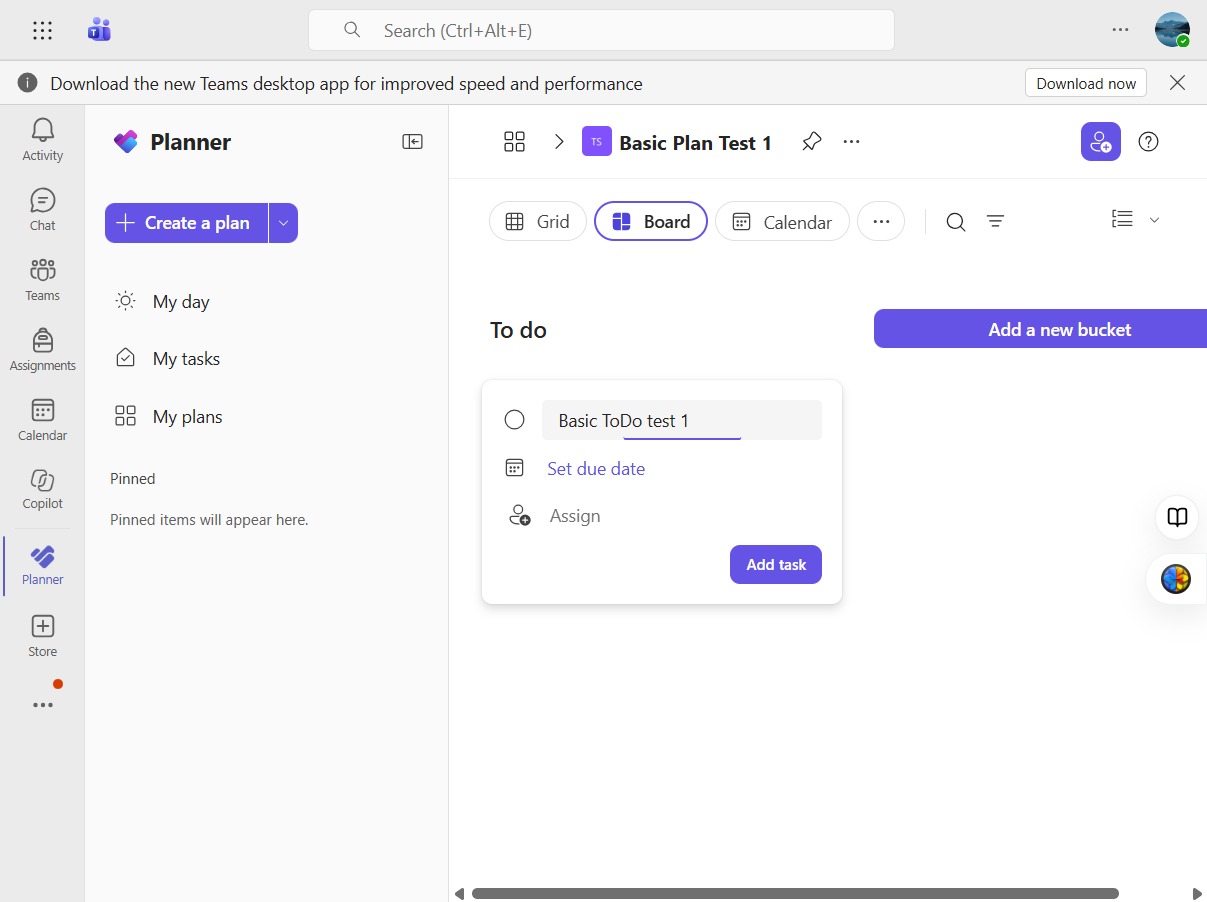
Select the due date option to specify a deadline for your task.
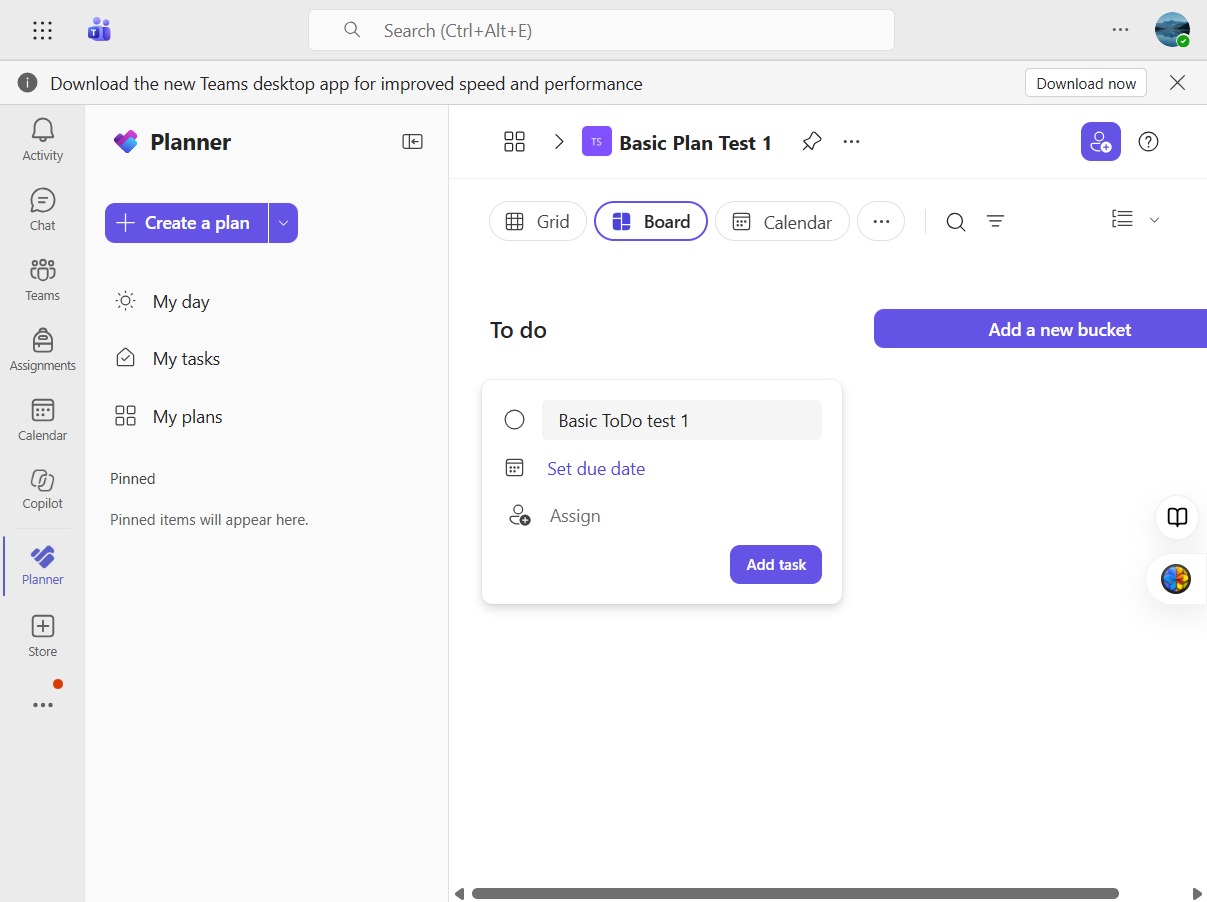
Select the due date to set the deadline for your task.
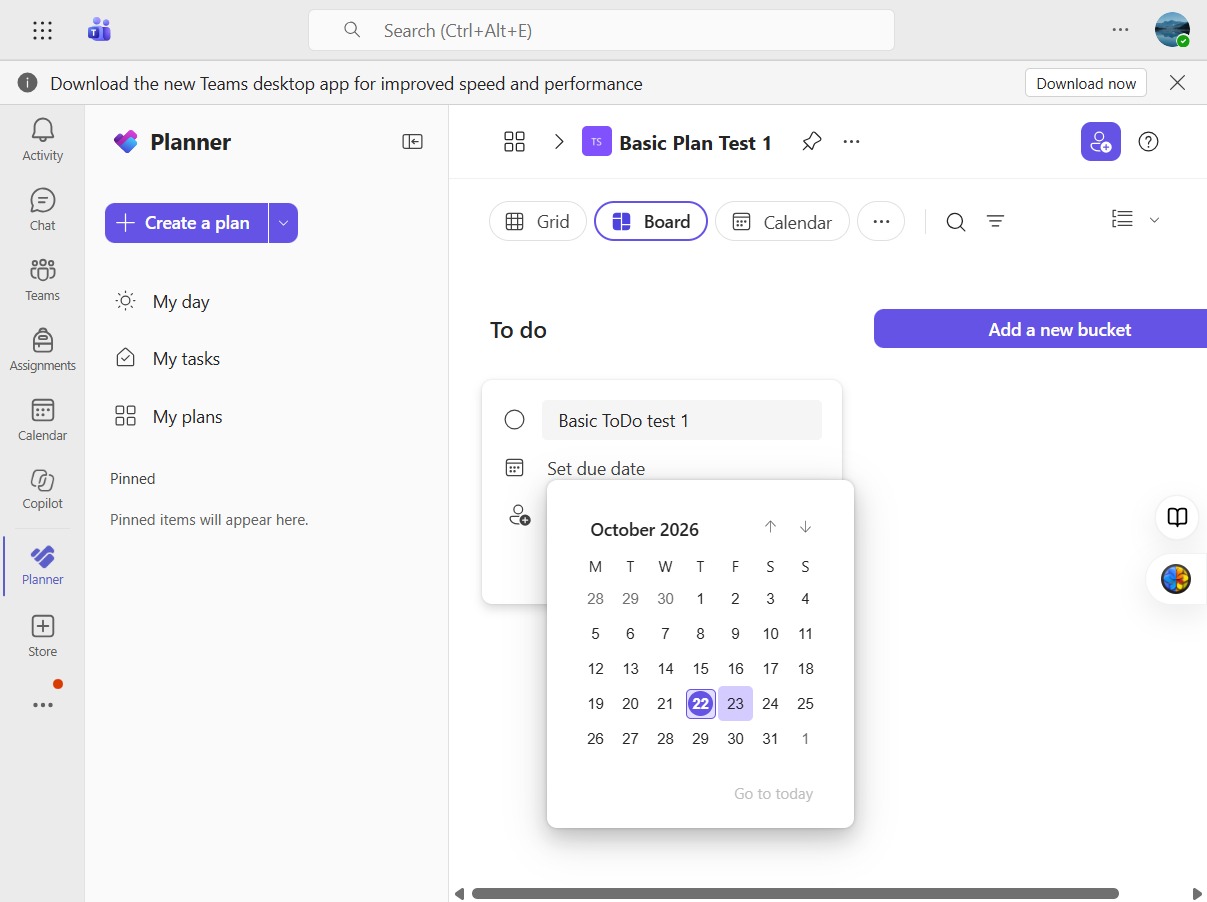
Select the Assign option to allocate a task to a team member.
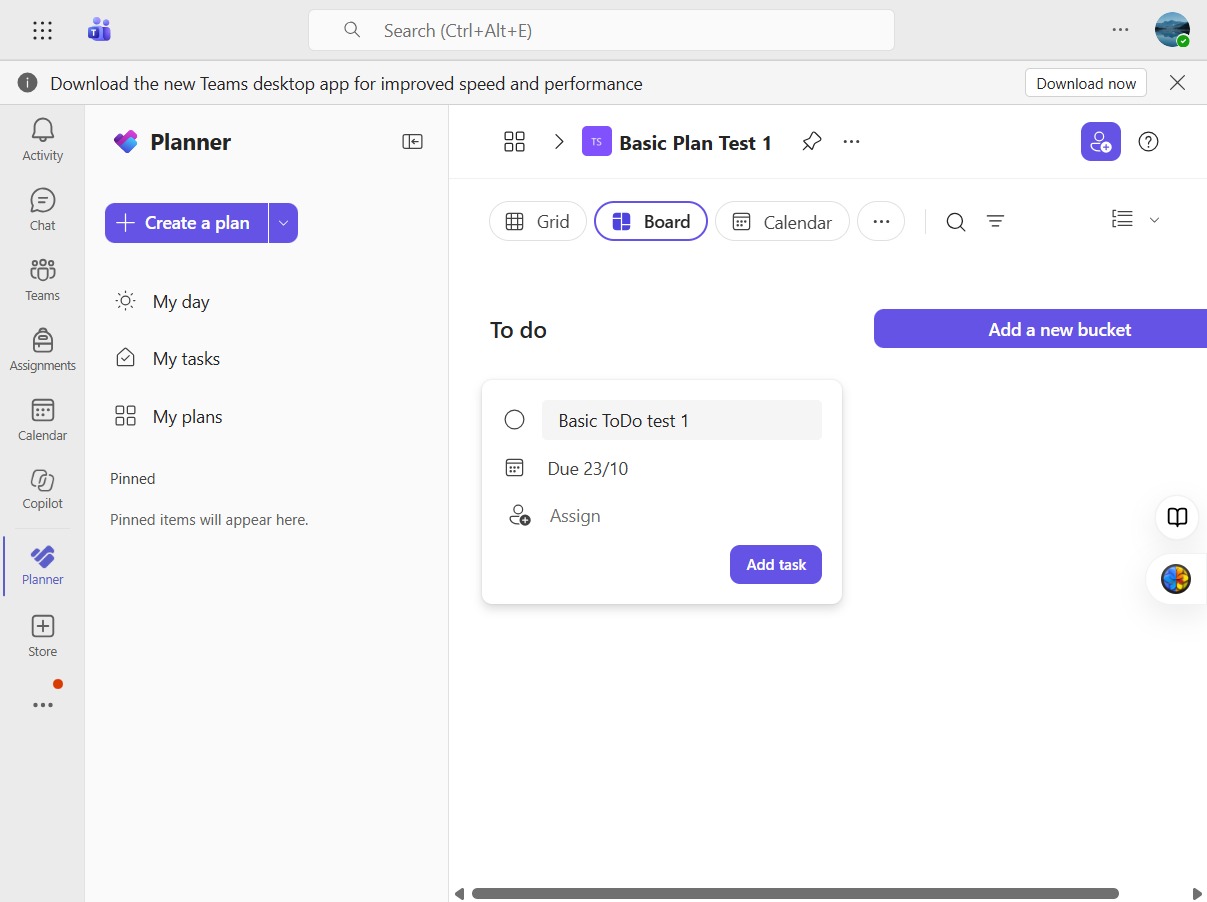
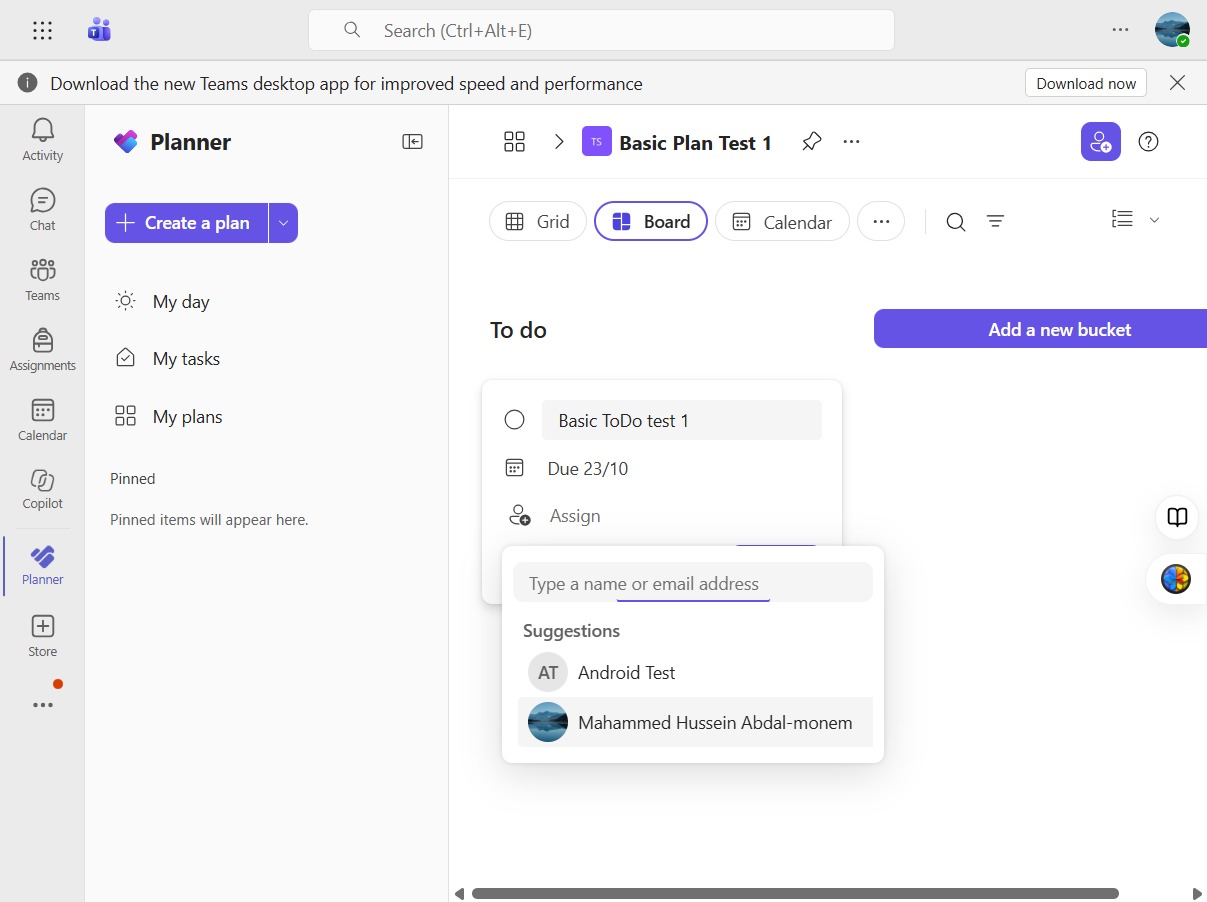
Choose the appropriate assignee from the suggestions list to assign the task.
Add a new bucket to your project for better organization of tasks.
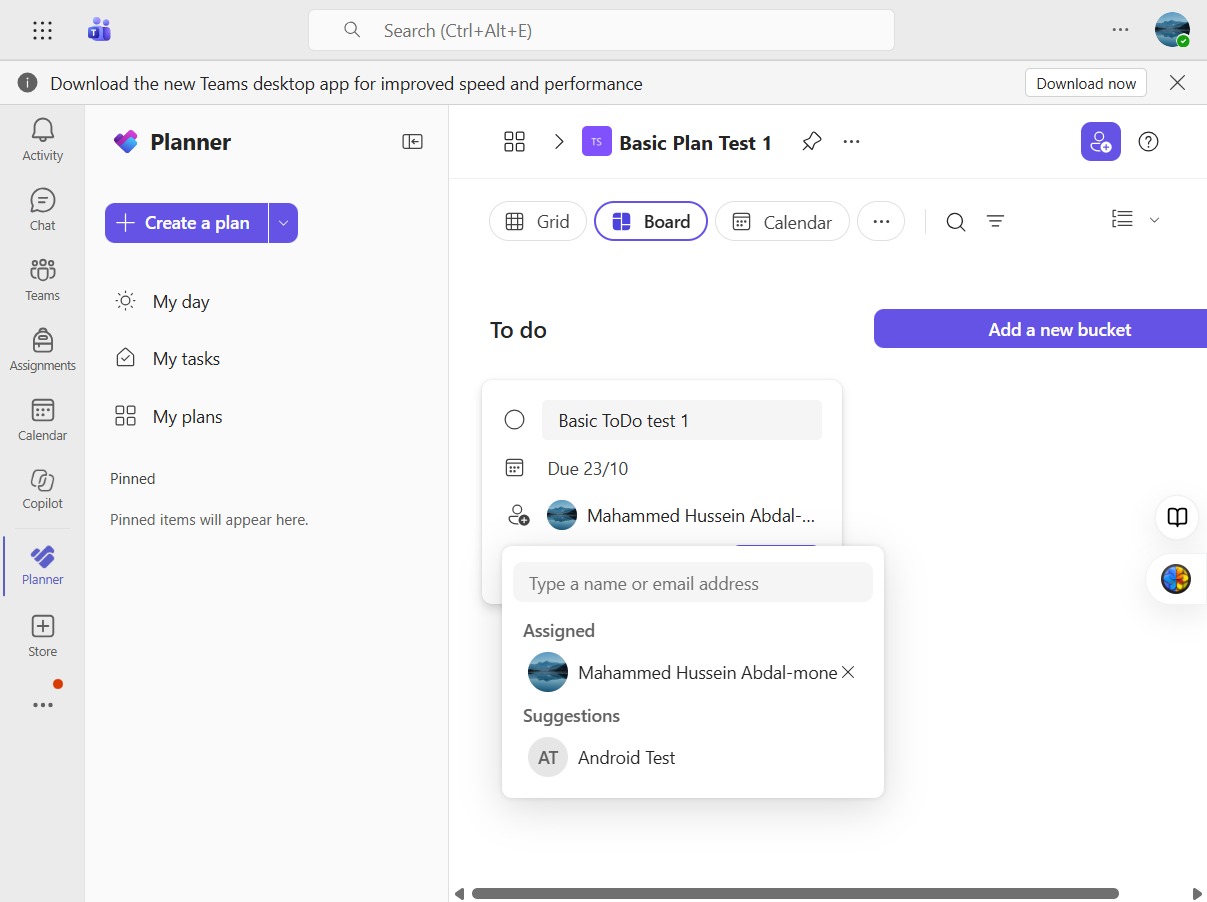
Click the 'Add task' button to create a new task in your planner.
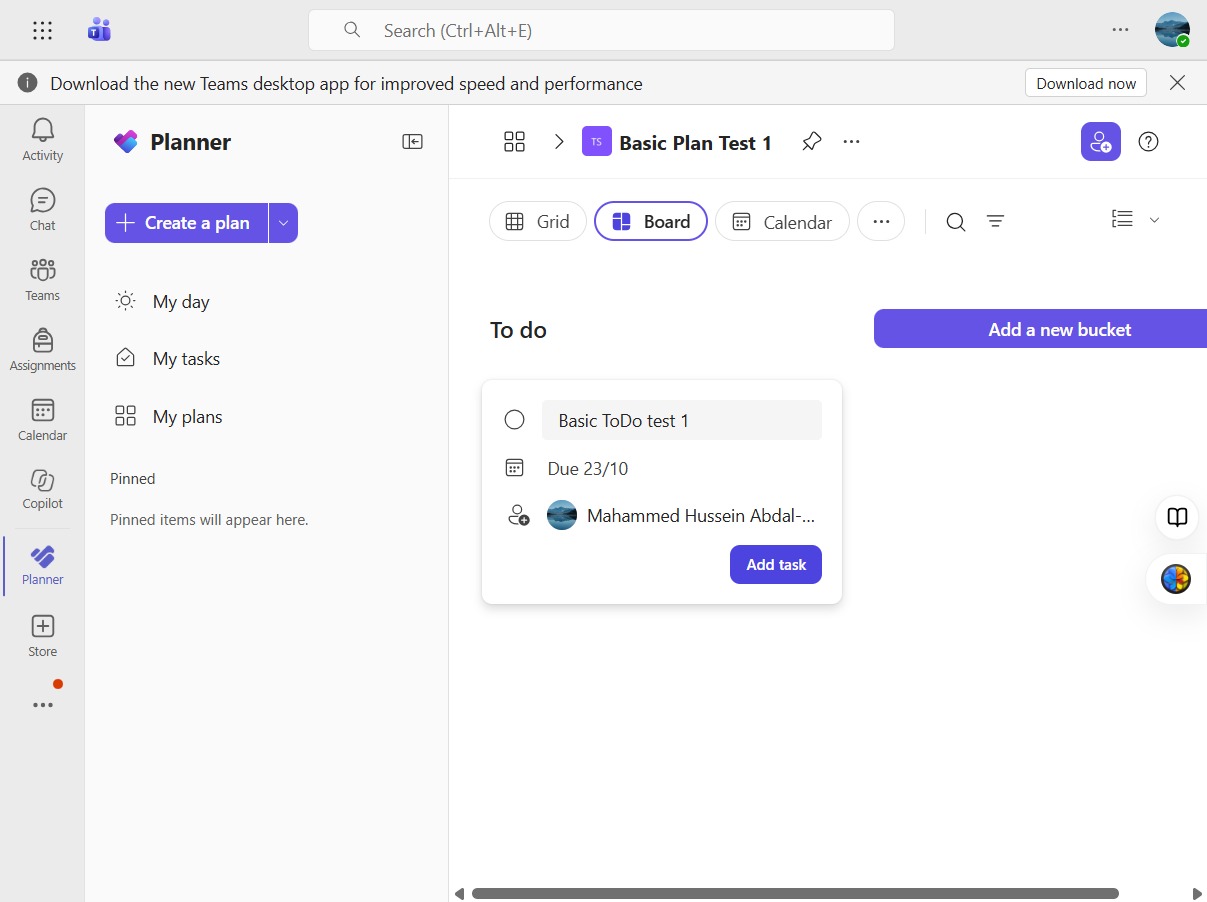
To proceed, click the designated area to continue with the workflow.
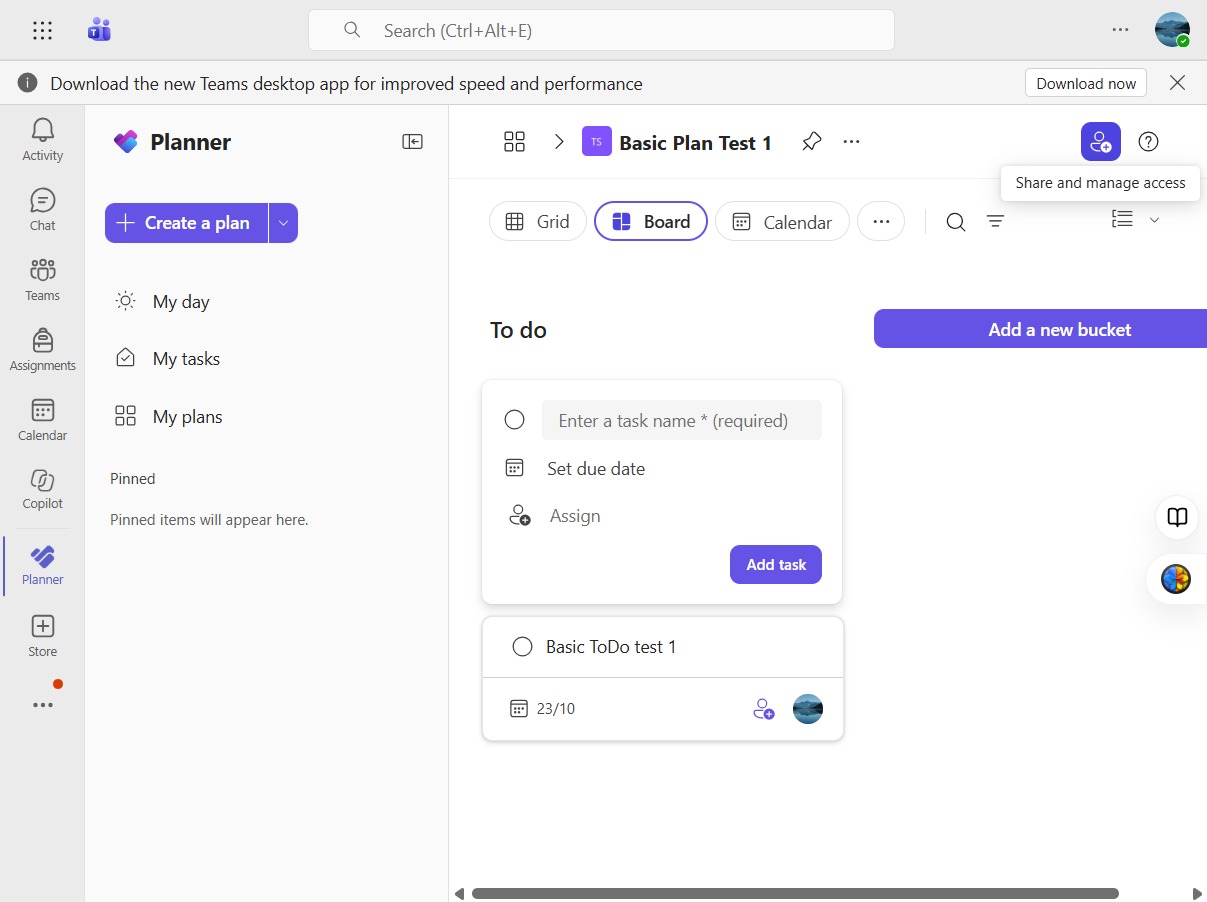
Select the Share option to distribute your plan with others, allowing for collaboration and updates.
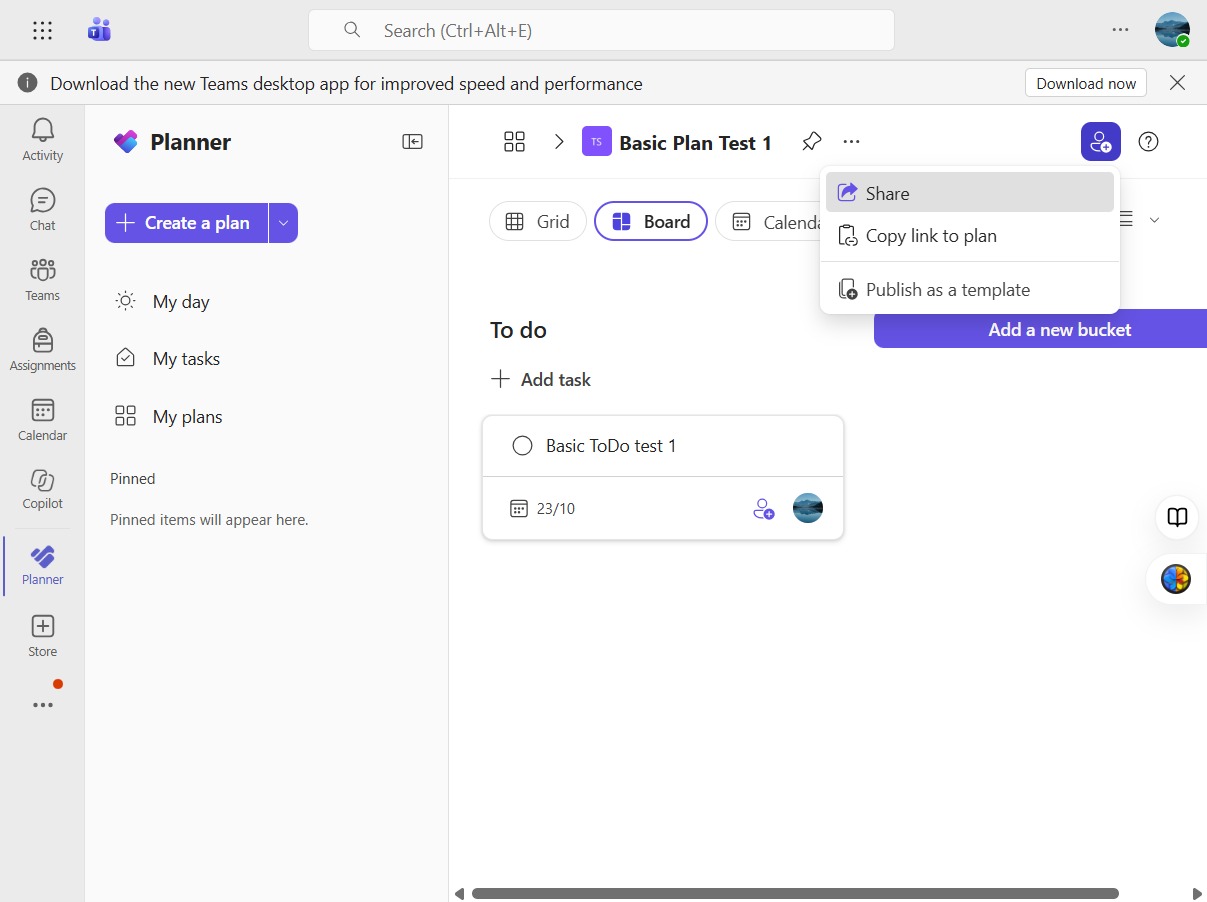
Click here to access further sharing options for your plan.
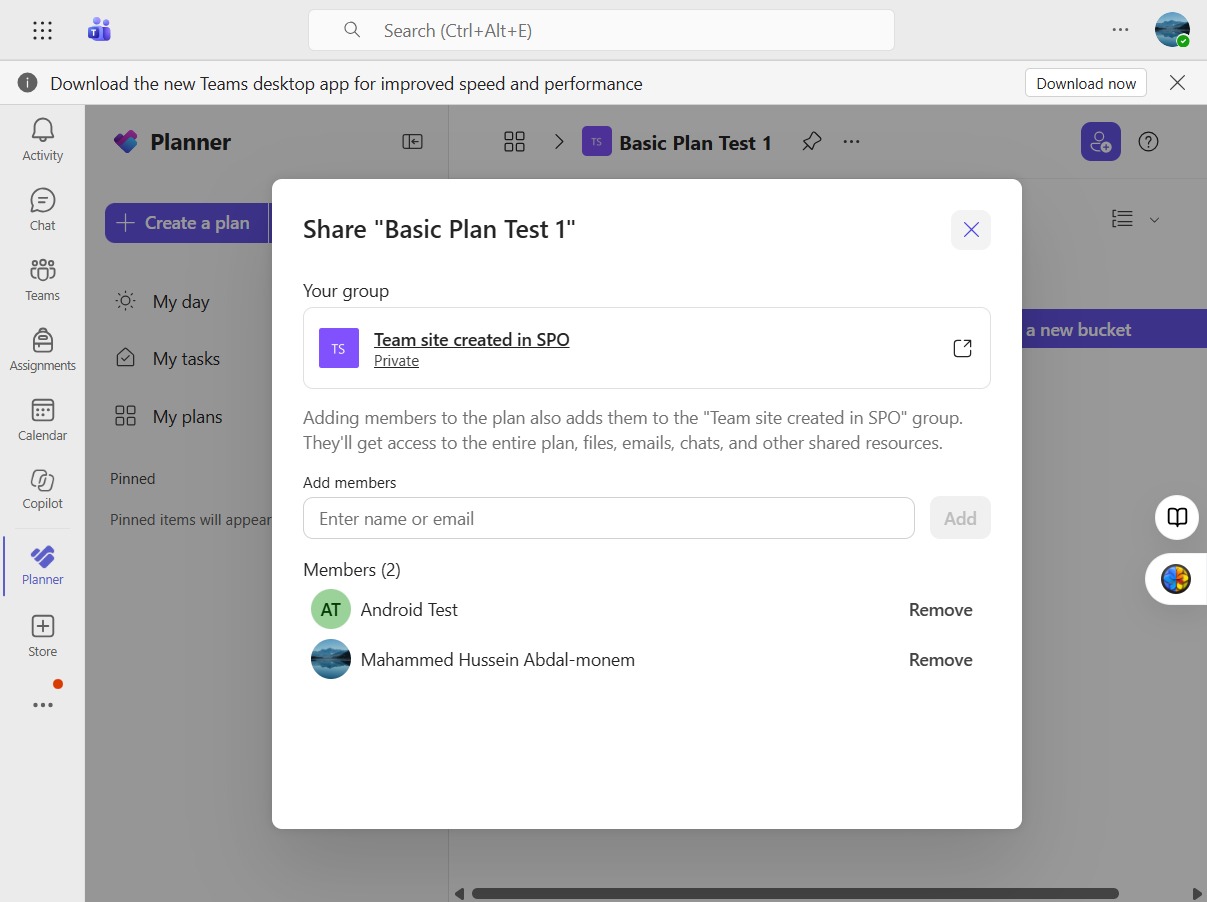
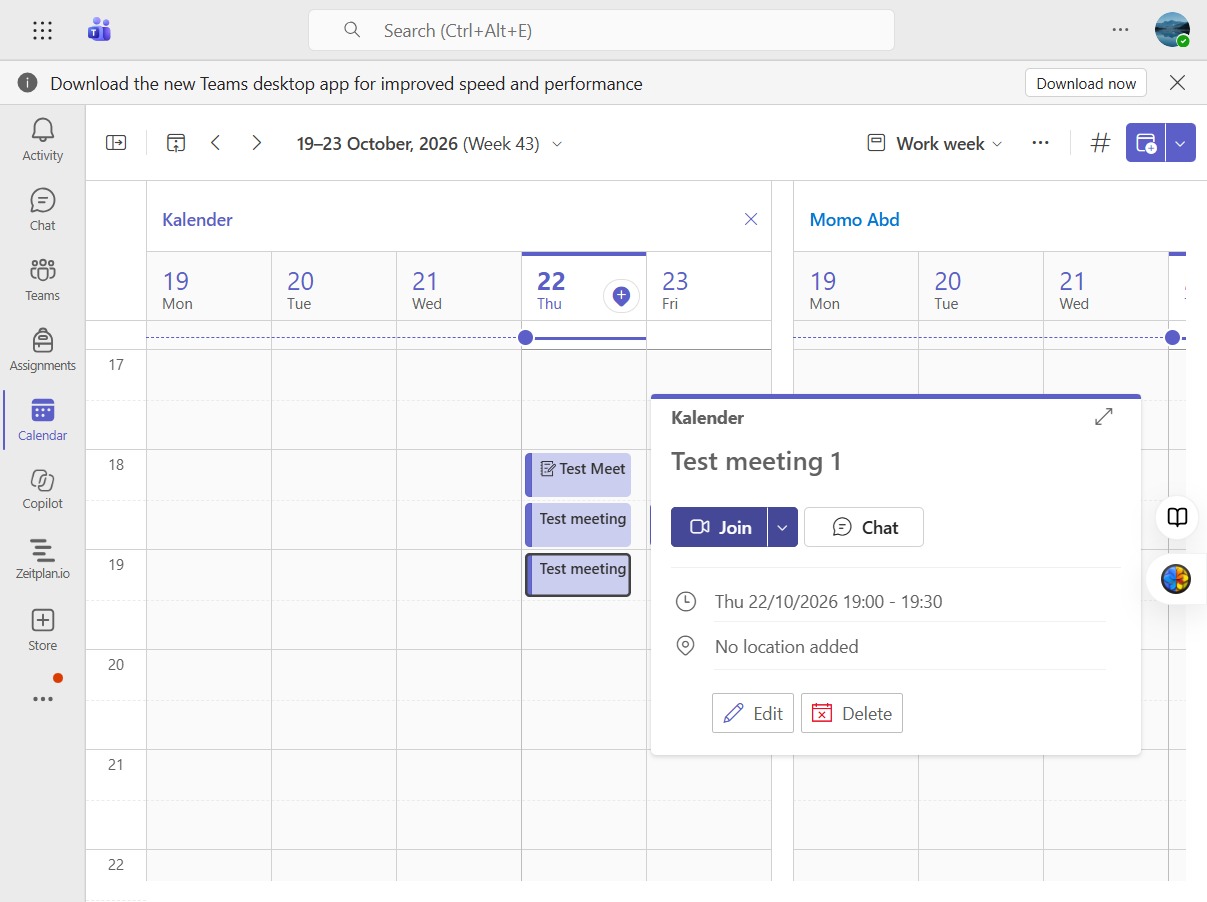
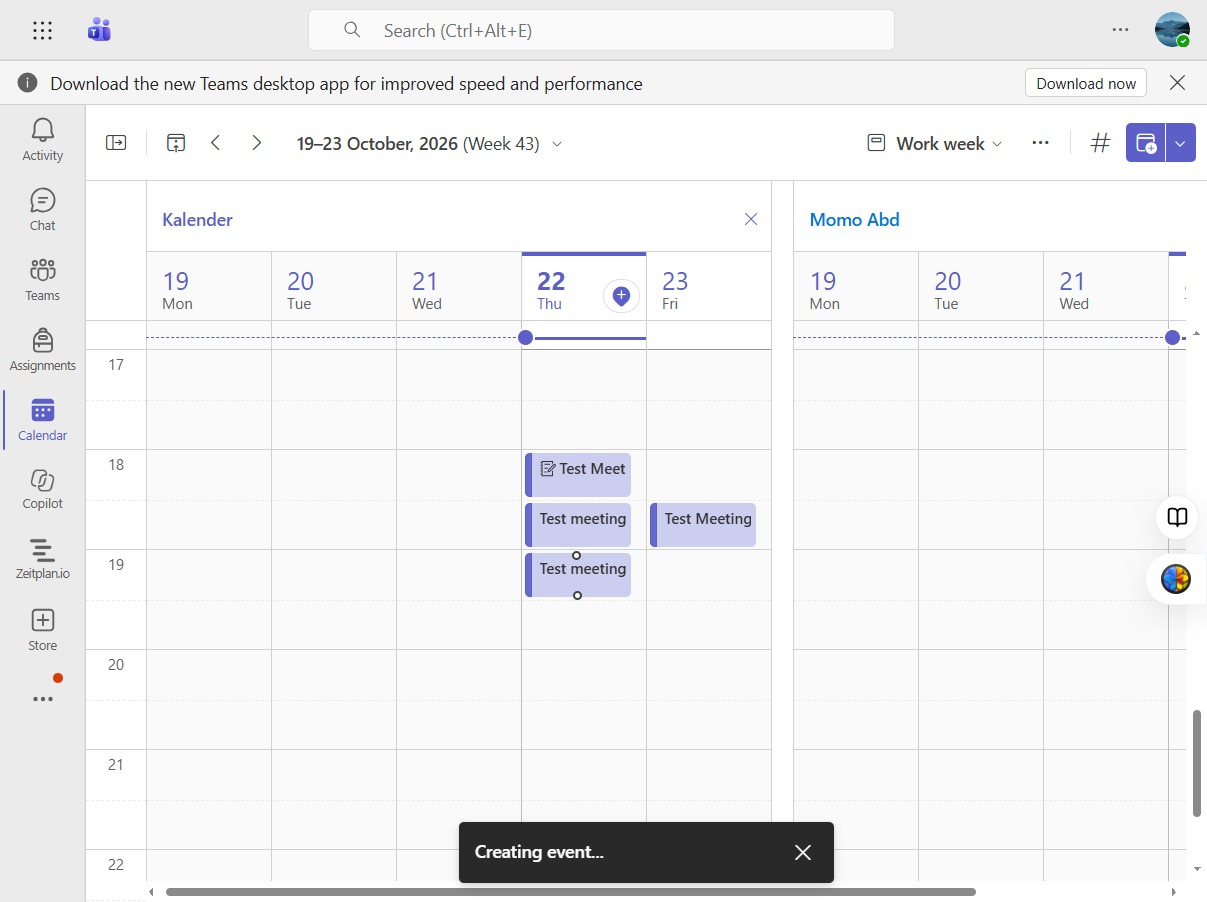
Access the calendar to view and manage scheduled tasks and events.
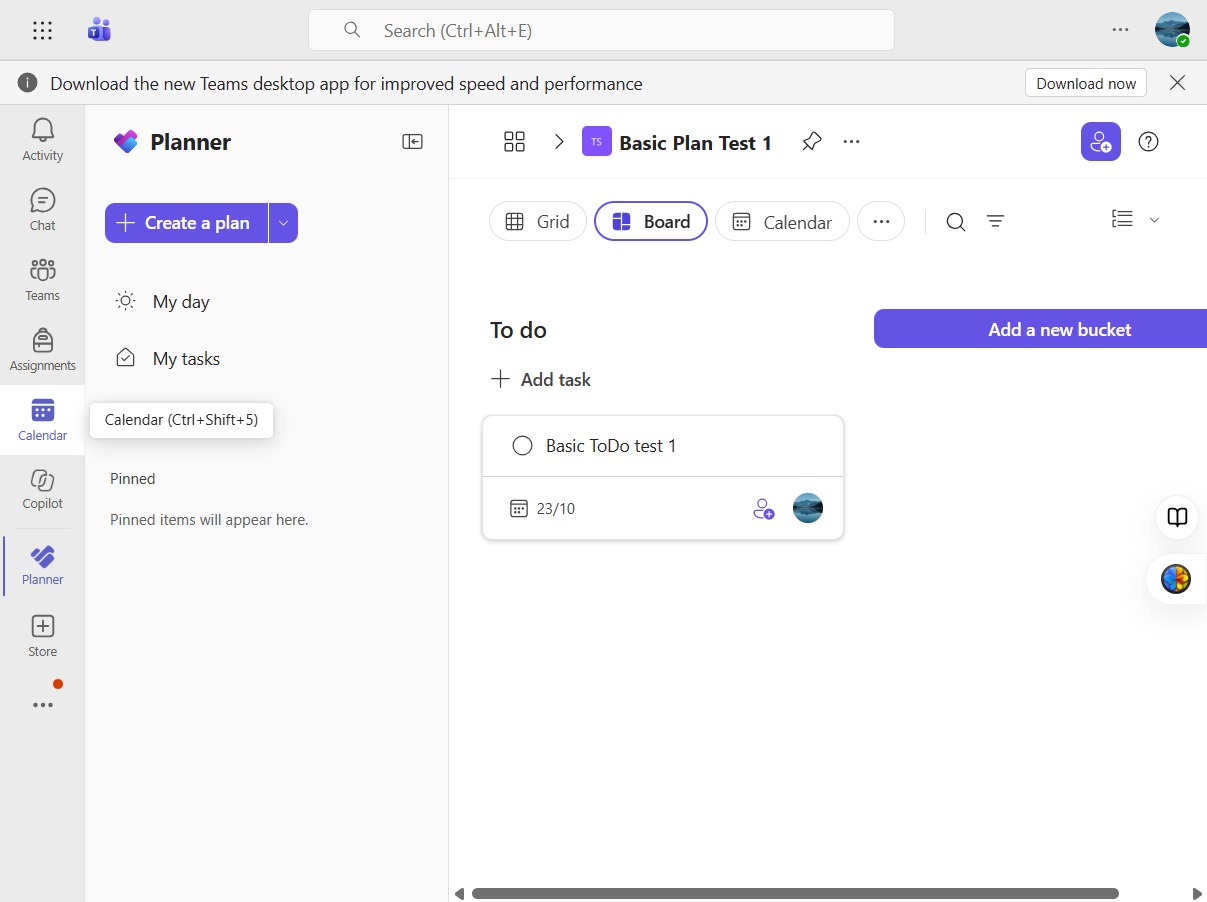
Choose the Test Meeting from your calendar to view more details.
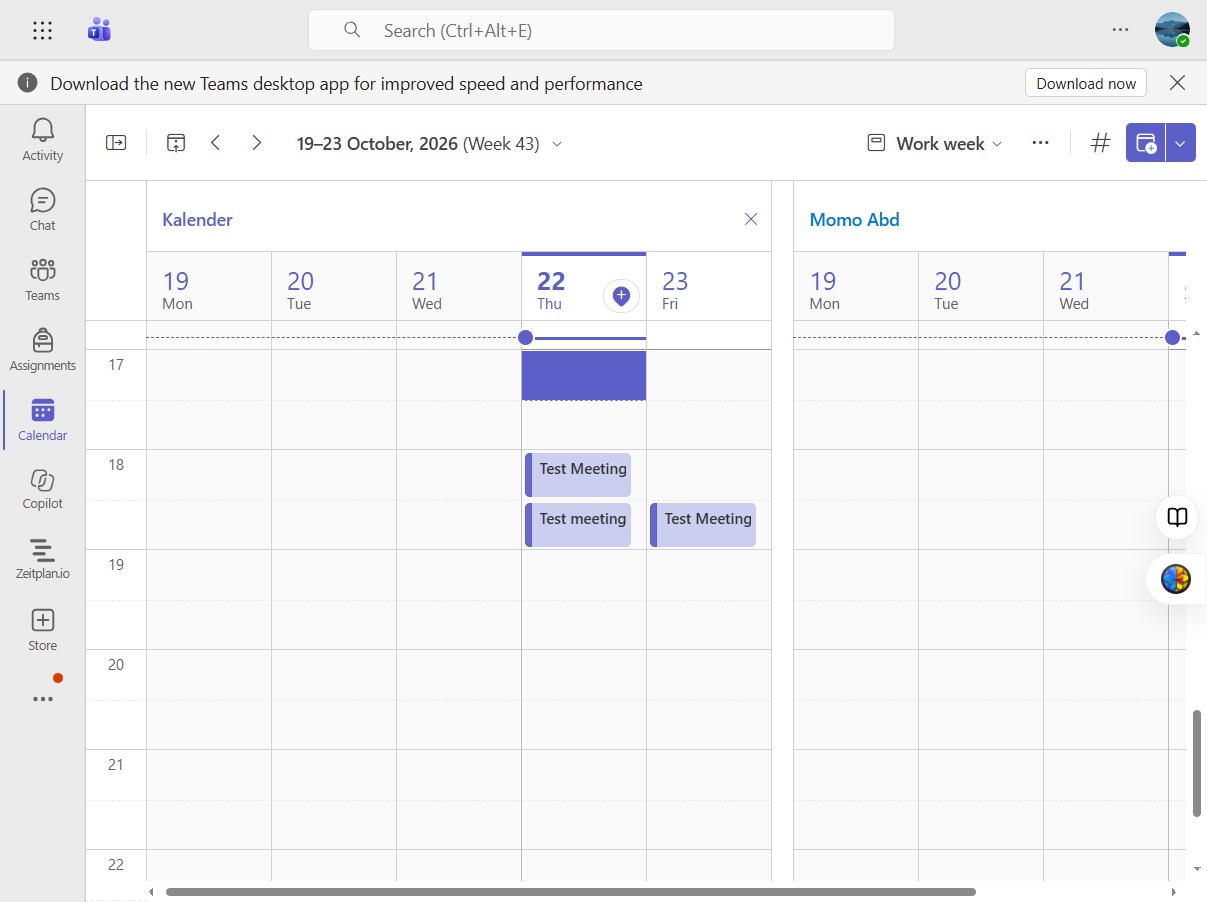
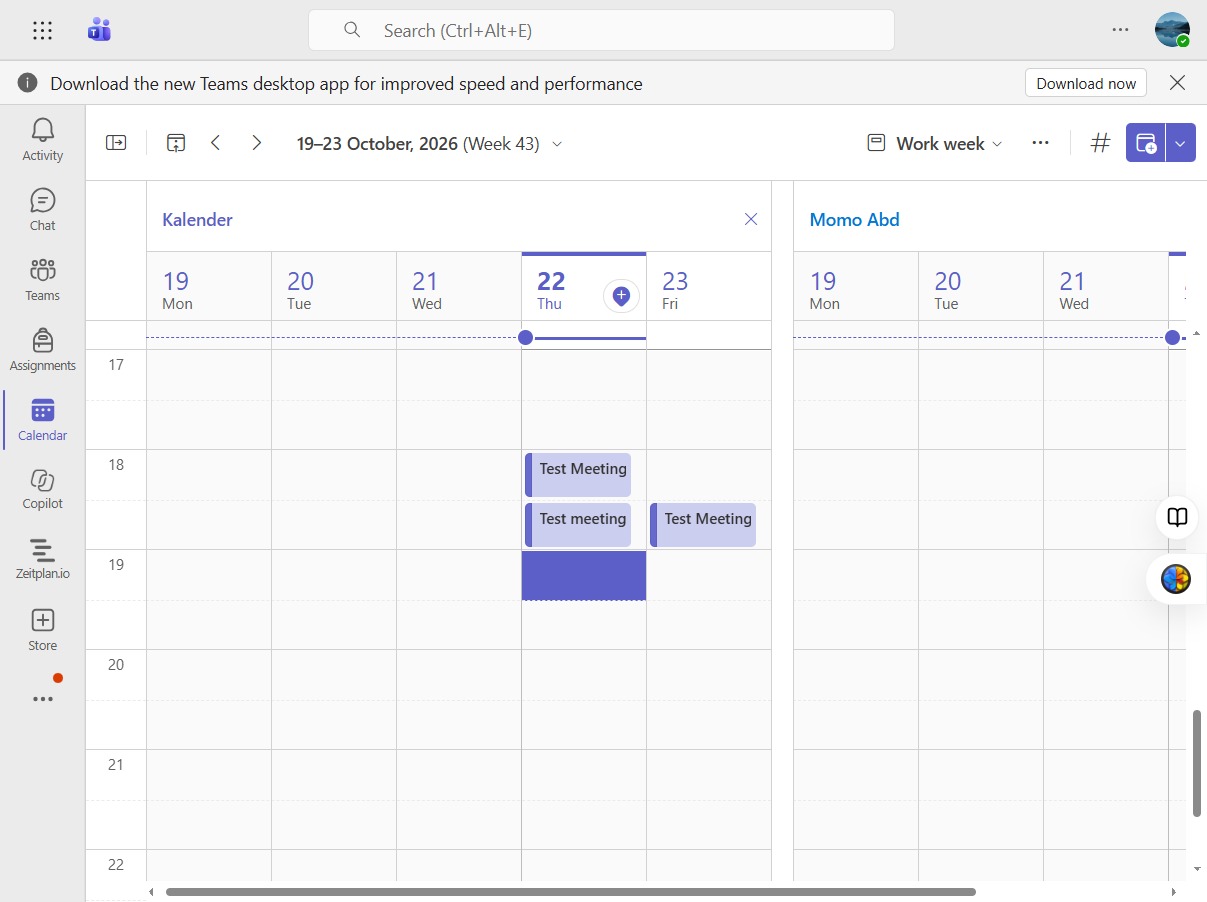
Choose the Test Meeting option from the calendar view to view details or edit.
Enter the title of your meeting in the 'Add title' field.
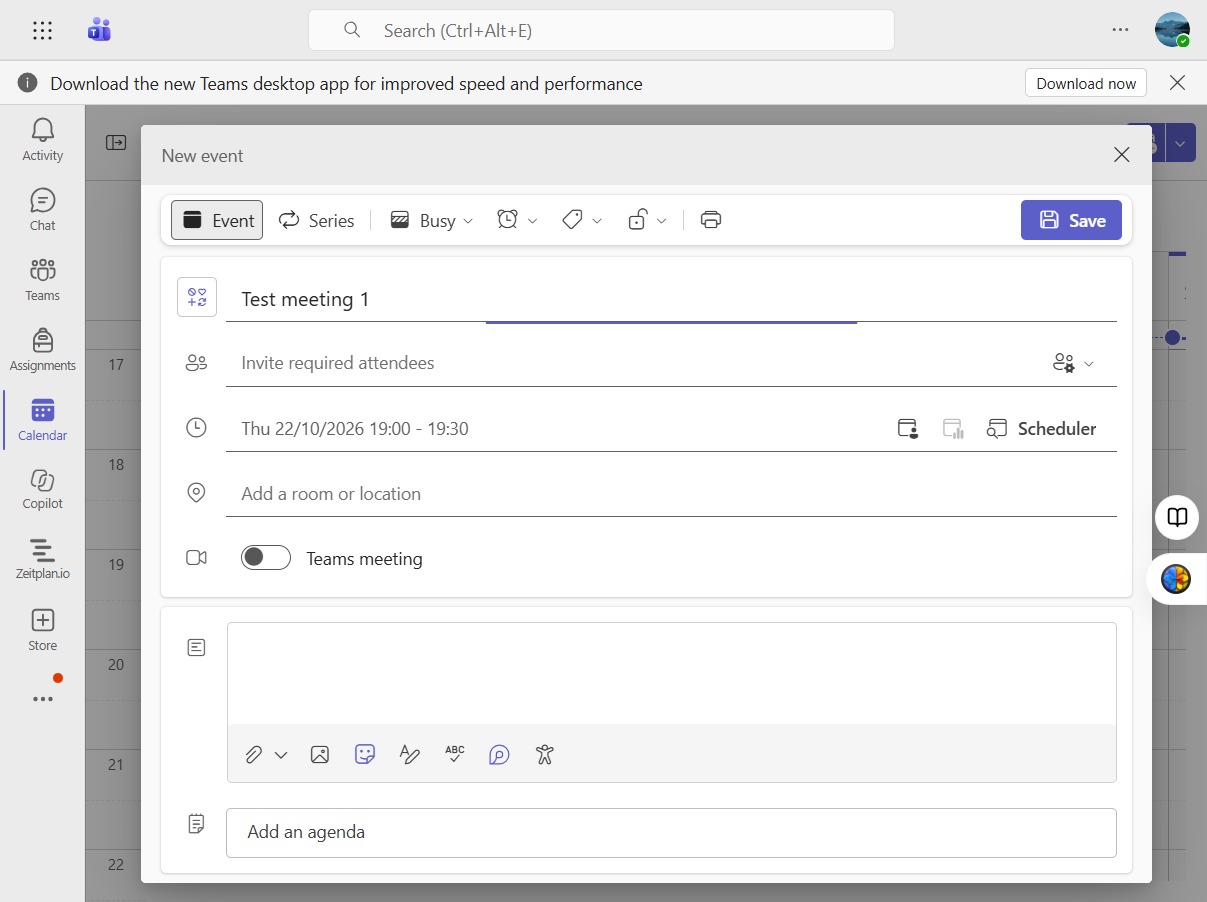
Choose the option to set this event as a Teams meeting, allowing for online participation.
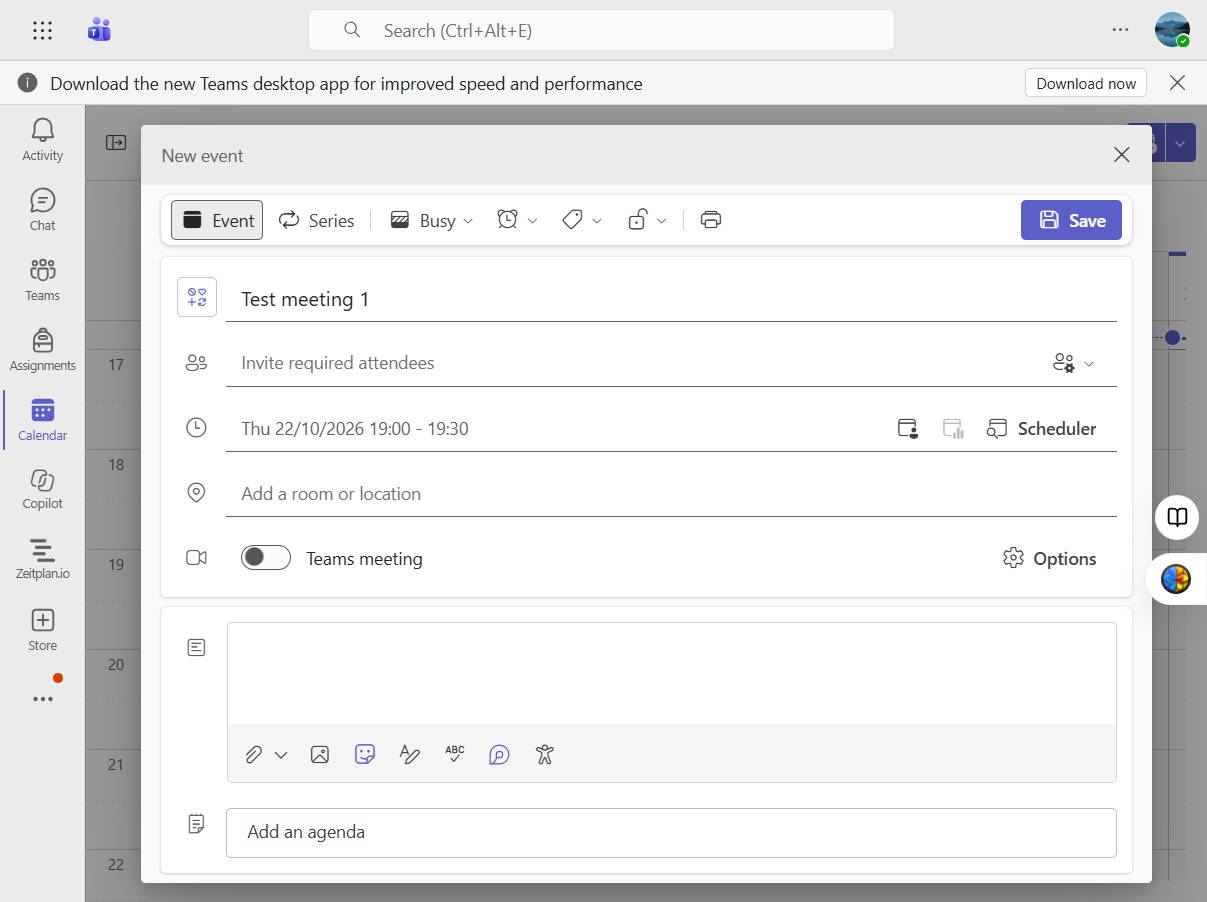
Click Save to confirm and store your event details.
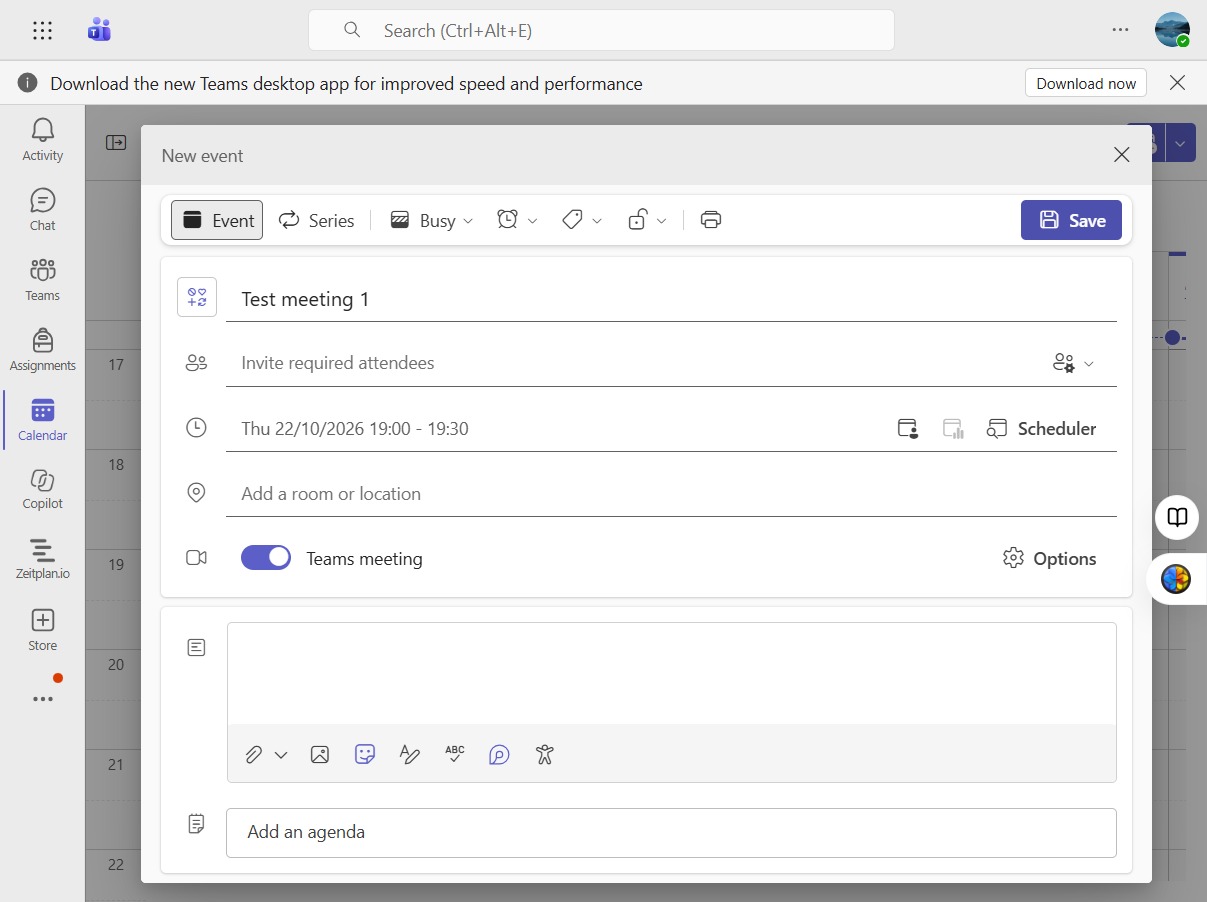
Select the test meeting to view or edit its details.
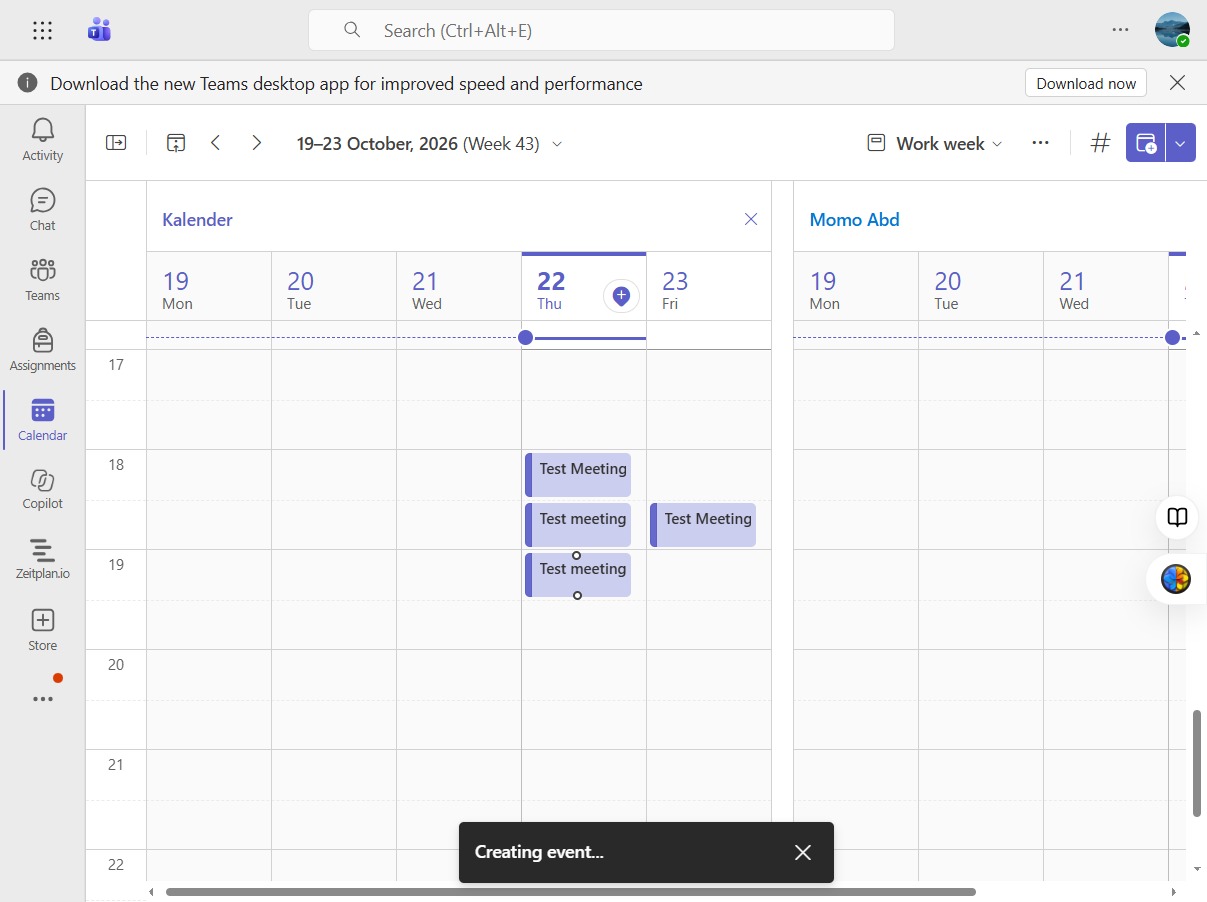
Choose the meeting titled 'Test Meeting 1' to view its details.
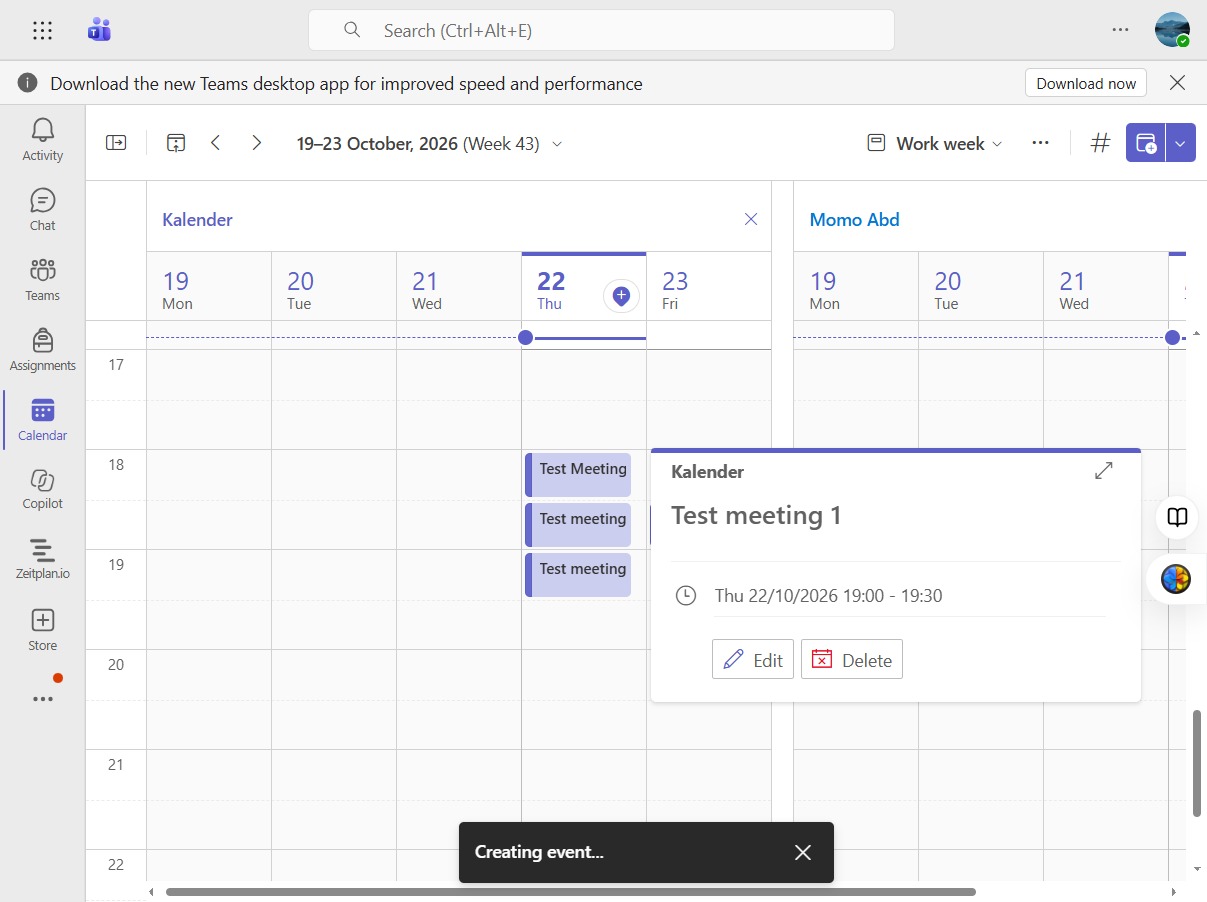
Select the 'Test meeting 1' event to view its details.
Select the 'Join' button to participate in the meeting.