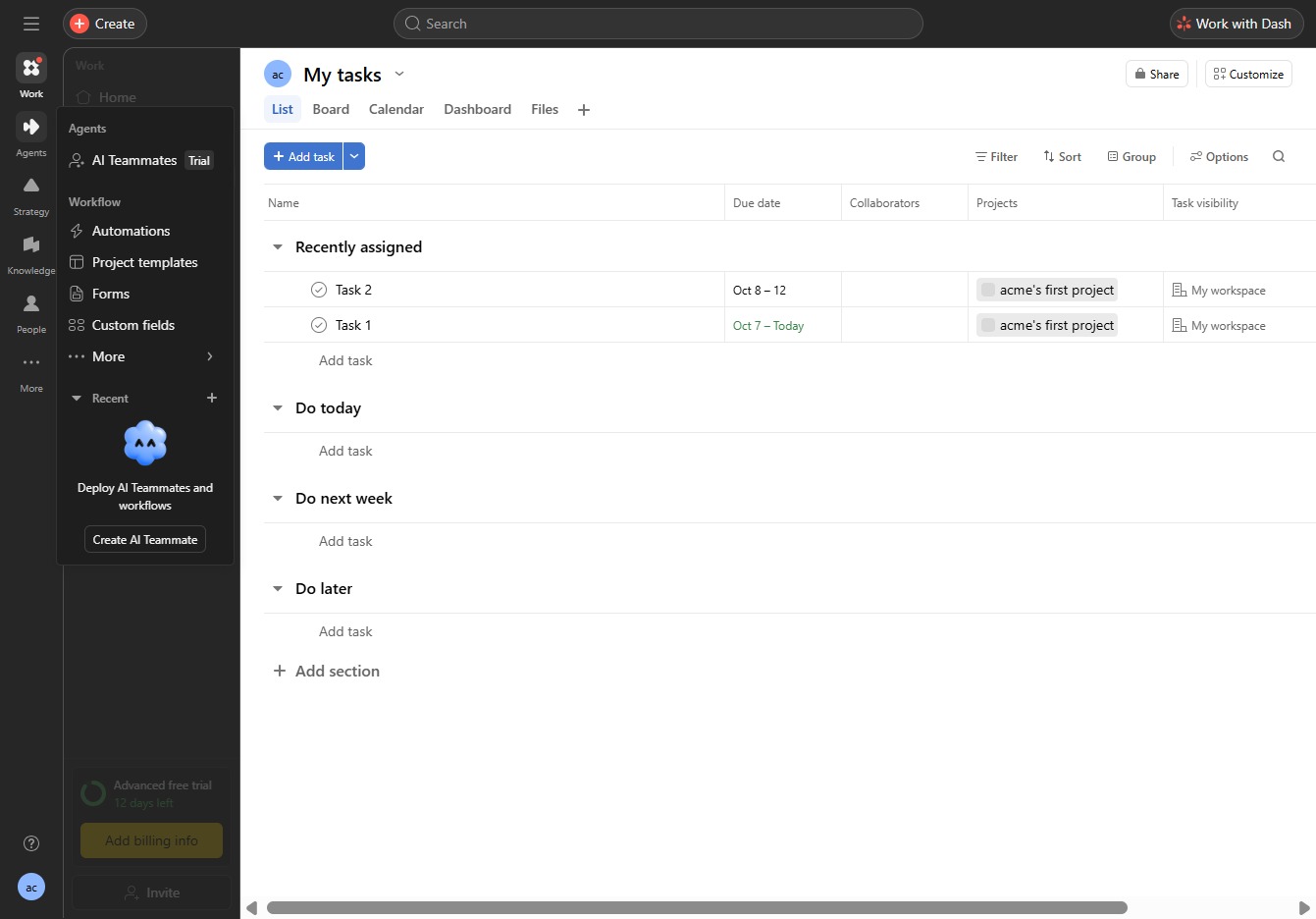
Click Automations
To access the automation settings, click on the Automations option. This section allows you to create and manage your automation workflows effectively.

Loading screenshot…
100%
Set up automations in Asana to streamline task assignments by creating project workflows, defining automation triggers, and categorizing tasks effectively based on your team’s…
 viktoria
Set up automations in Asana to streamline task assignments by creating project workflows, defining automation triggers, and categorizing tasks effectively based on your team’s needs.
To access the automation settings, click on the Automations option. This section allows you to create and manage your automation workflows effectively.
Error
Click on 'Agents' to access the agents section, where you can manage your team members and their tasks. TEST
Tip
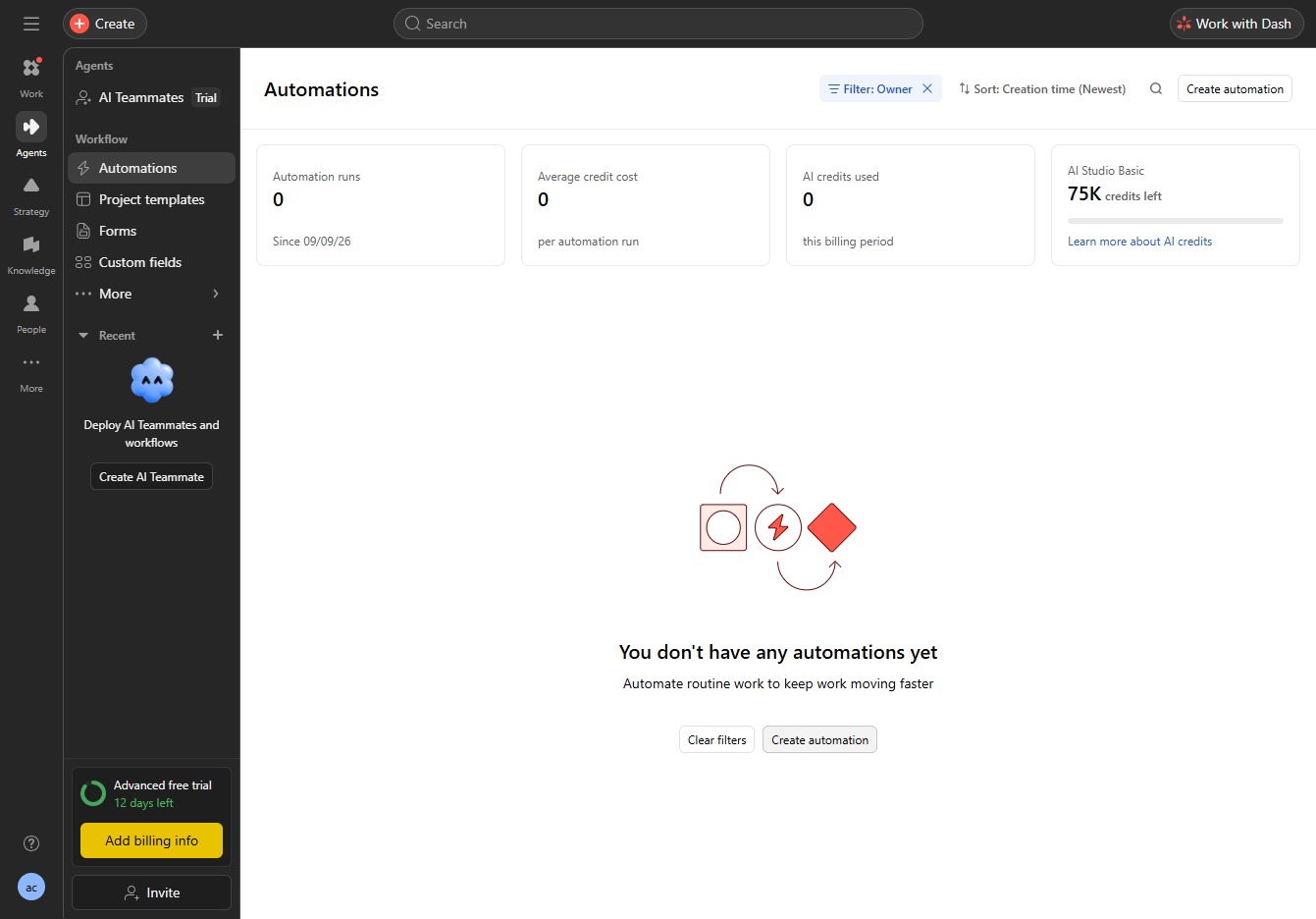
To begin setting up your automation, click 'Create automation'. This will open the automation configuration options.
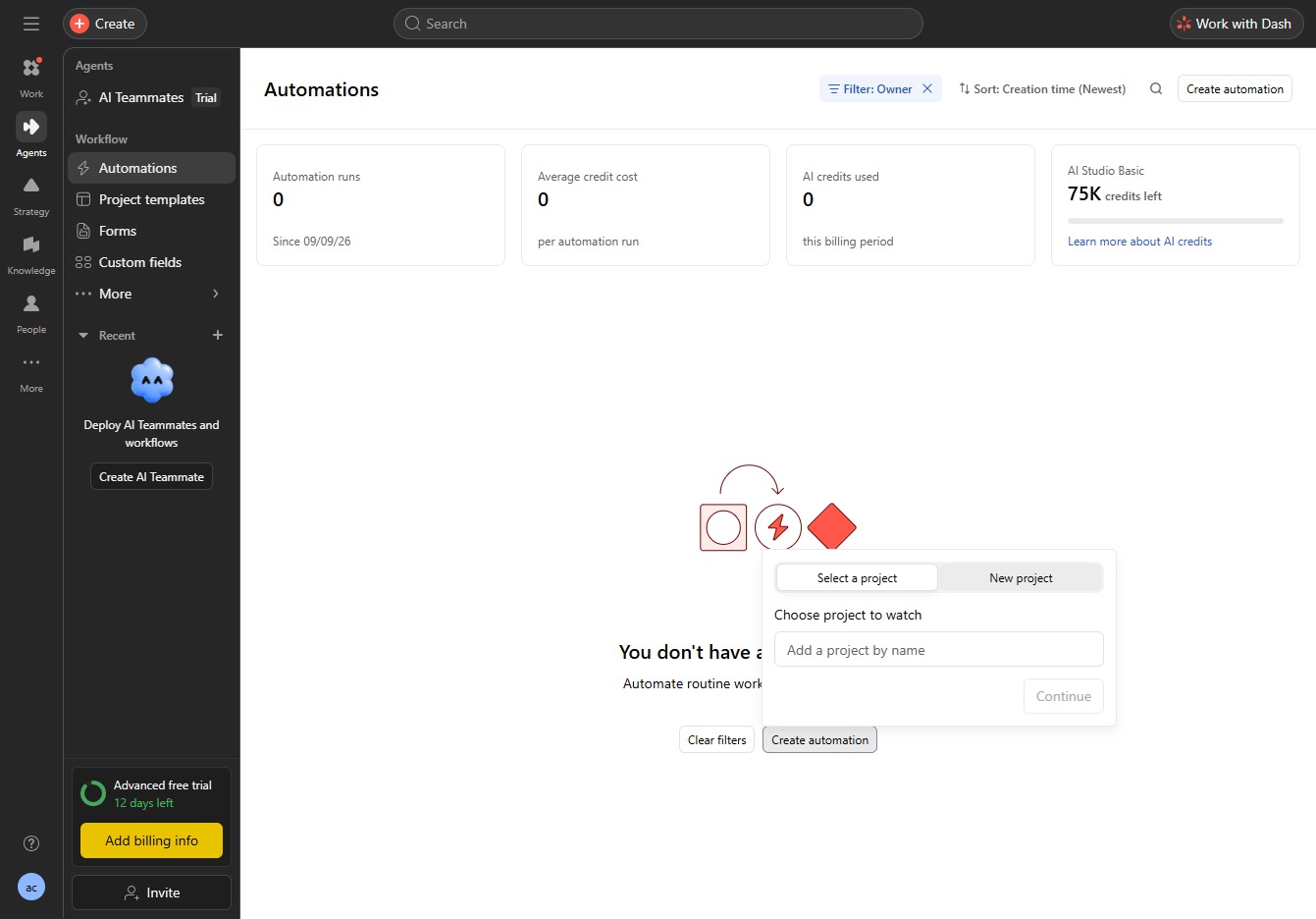
Select the 'New project' option to create a new project in your workflow.
Select 'Create a new project' to start setting up your project.
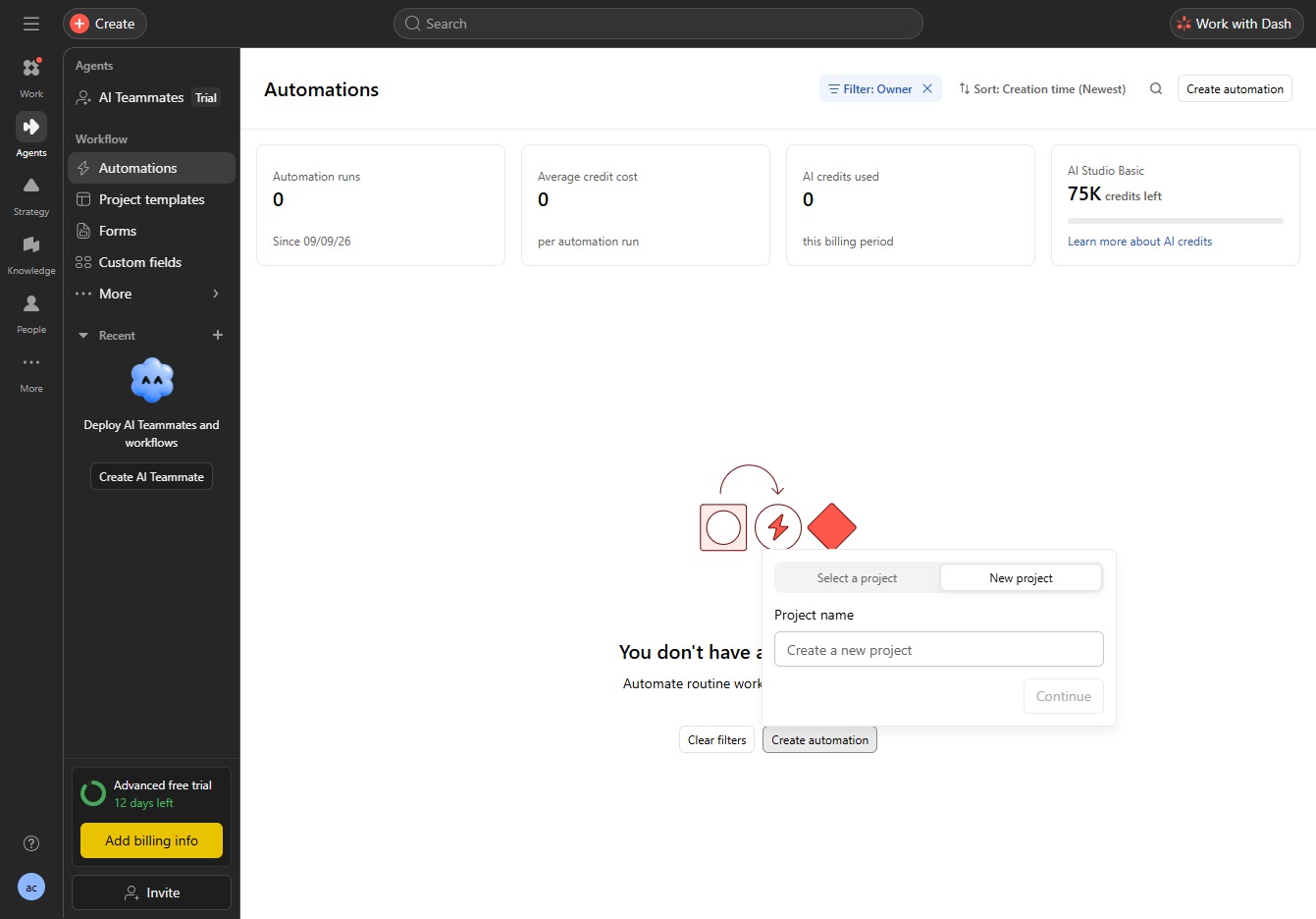
Enter the project name in the 'Create a new project' field.
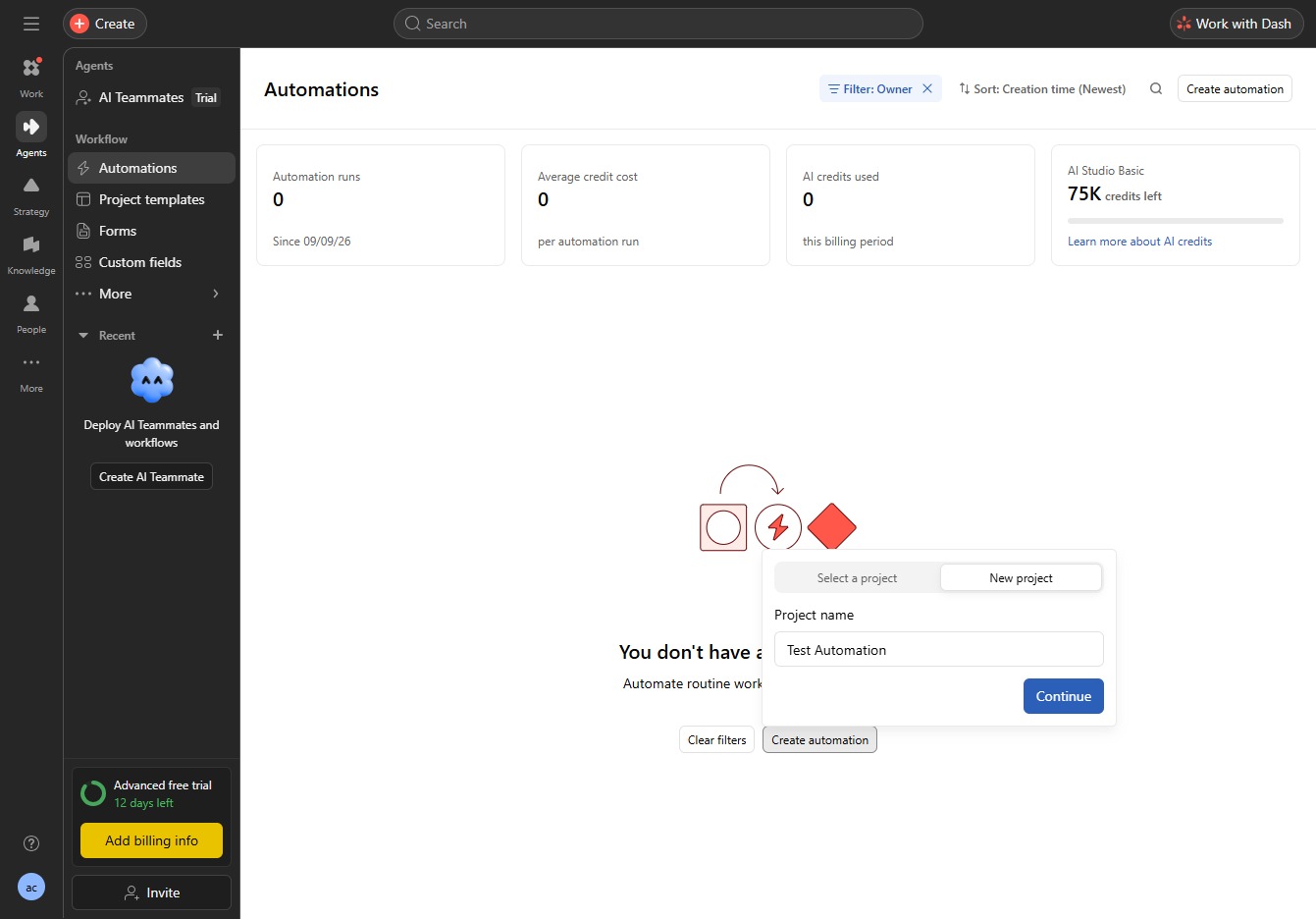
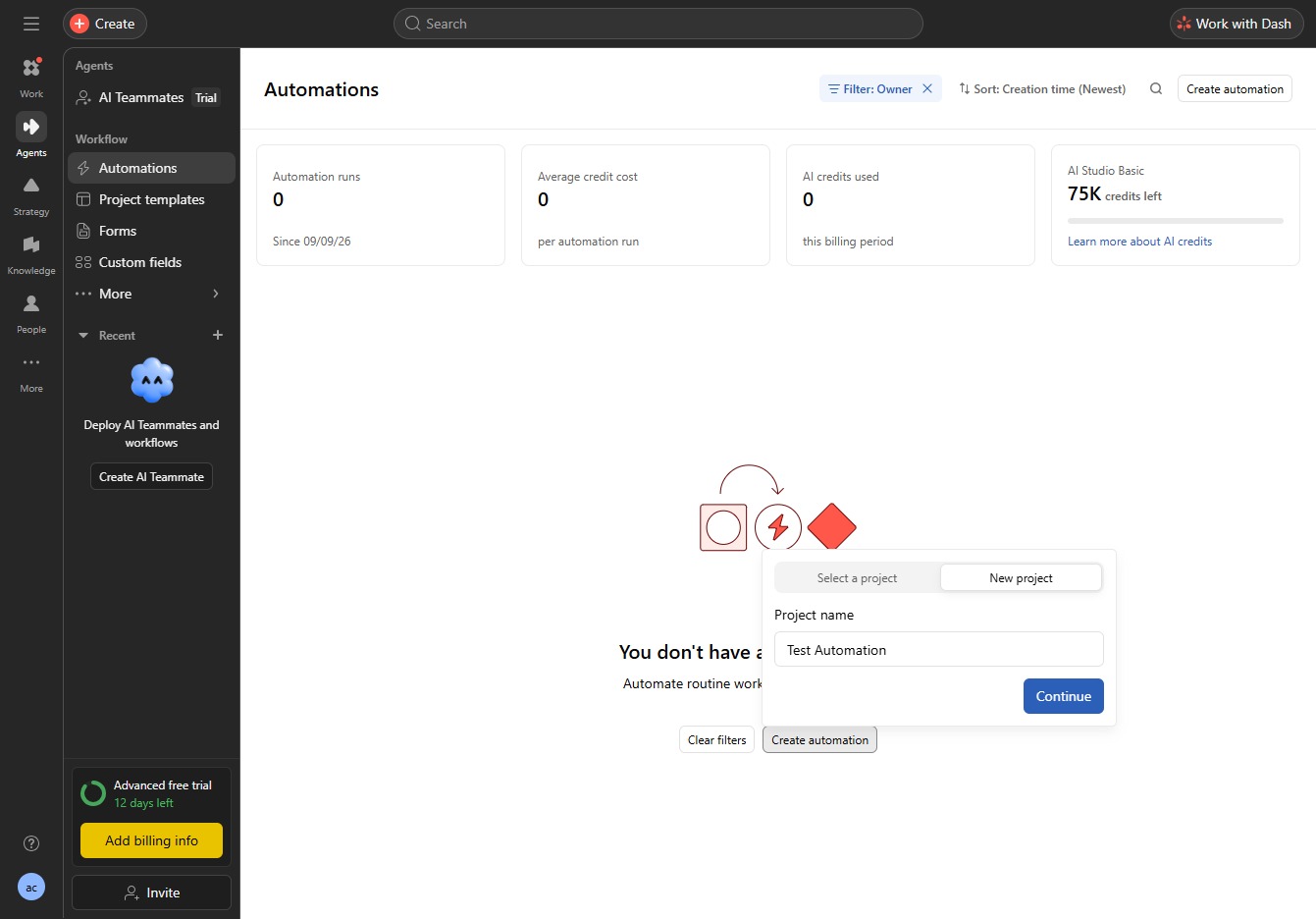
Select 'Continue' to proceed to the next step in your automation setup.
Select the prompt asking what you want to automate. This is where you can define the automation task you wish to set up.
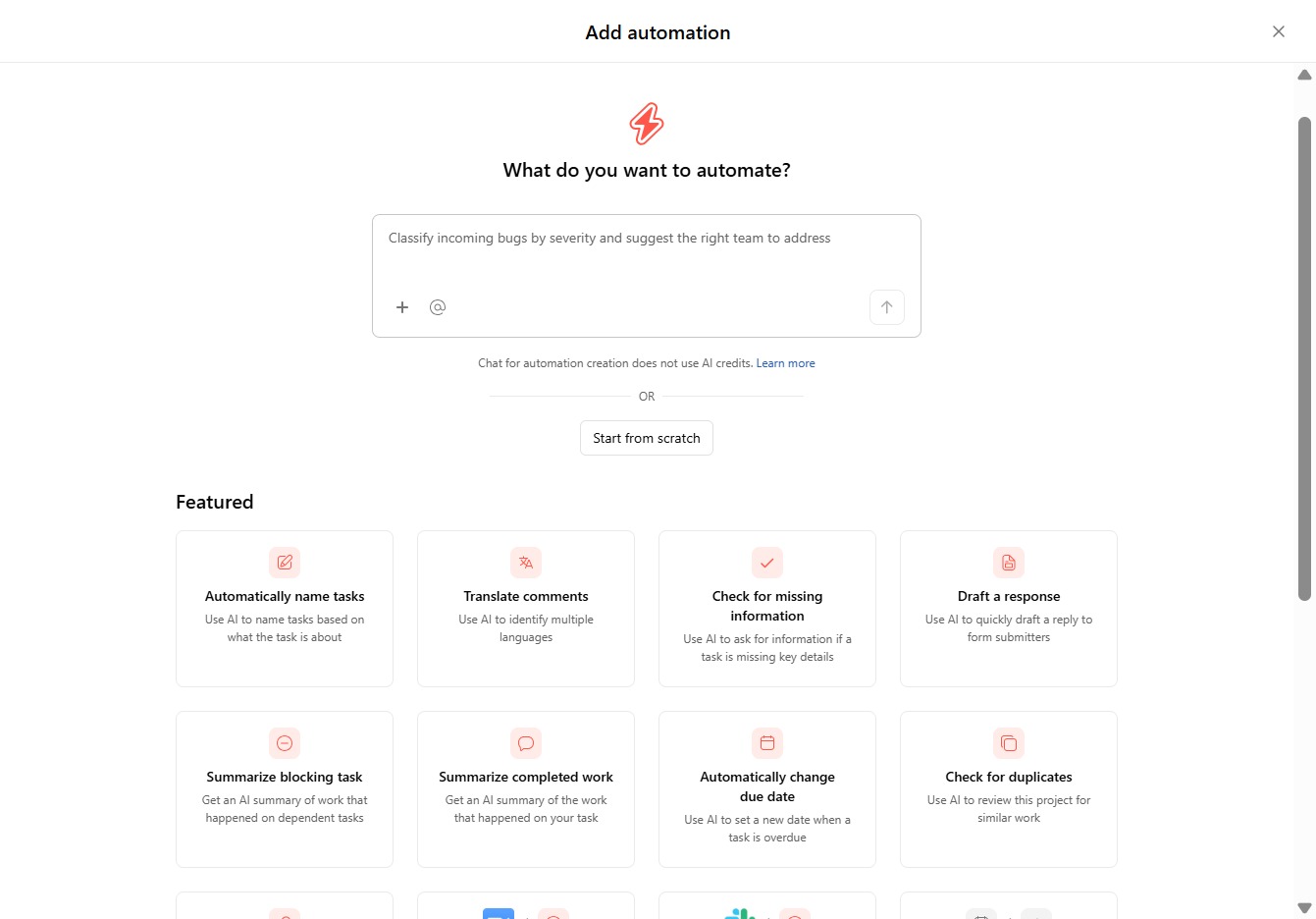
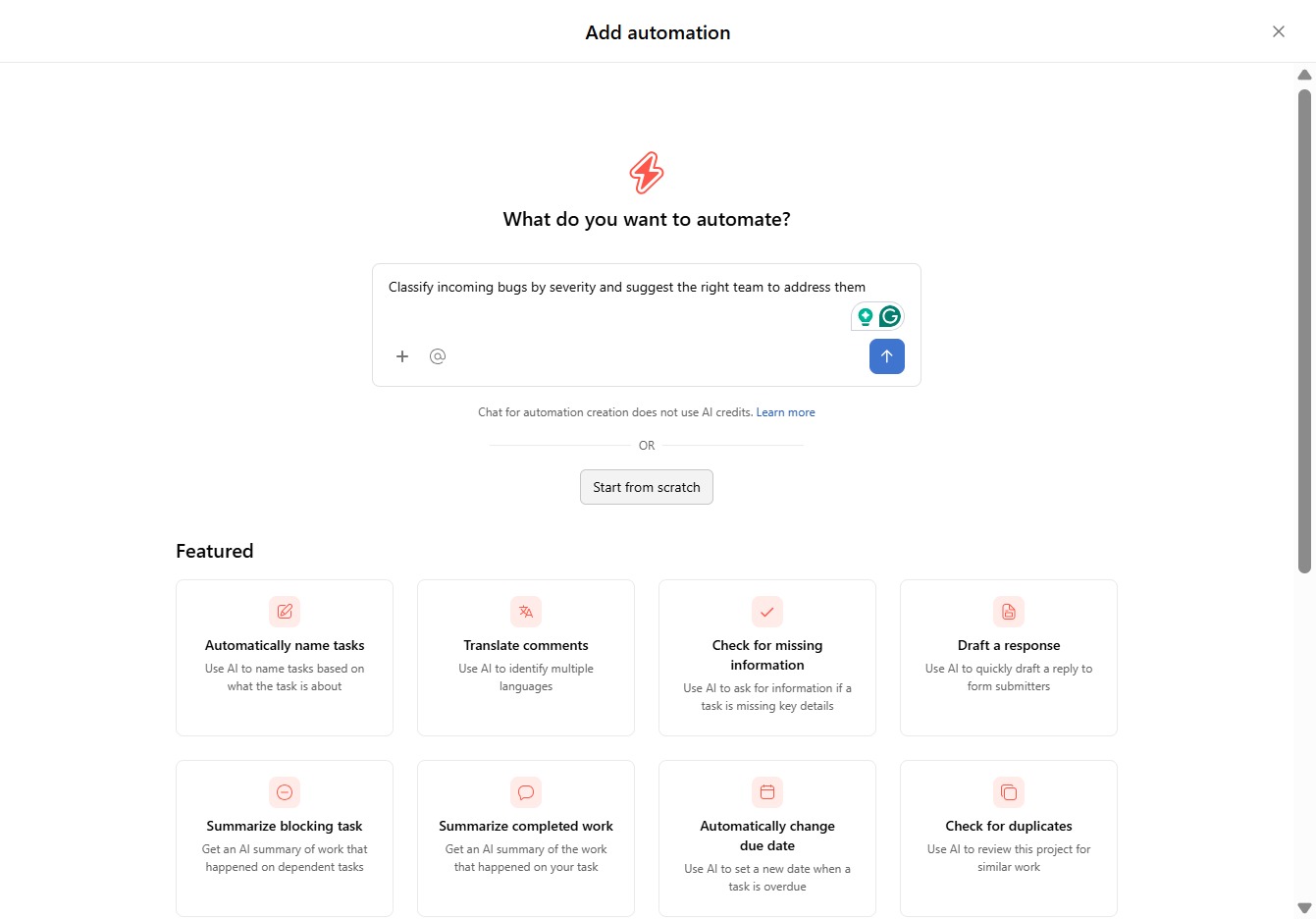
Enter the description of the automation you want to create in the 'What do you want to automate?' field.
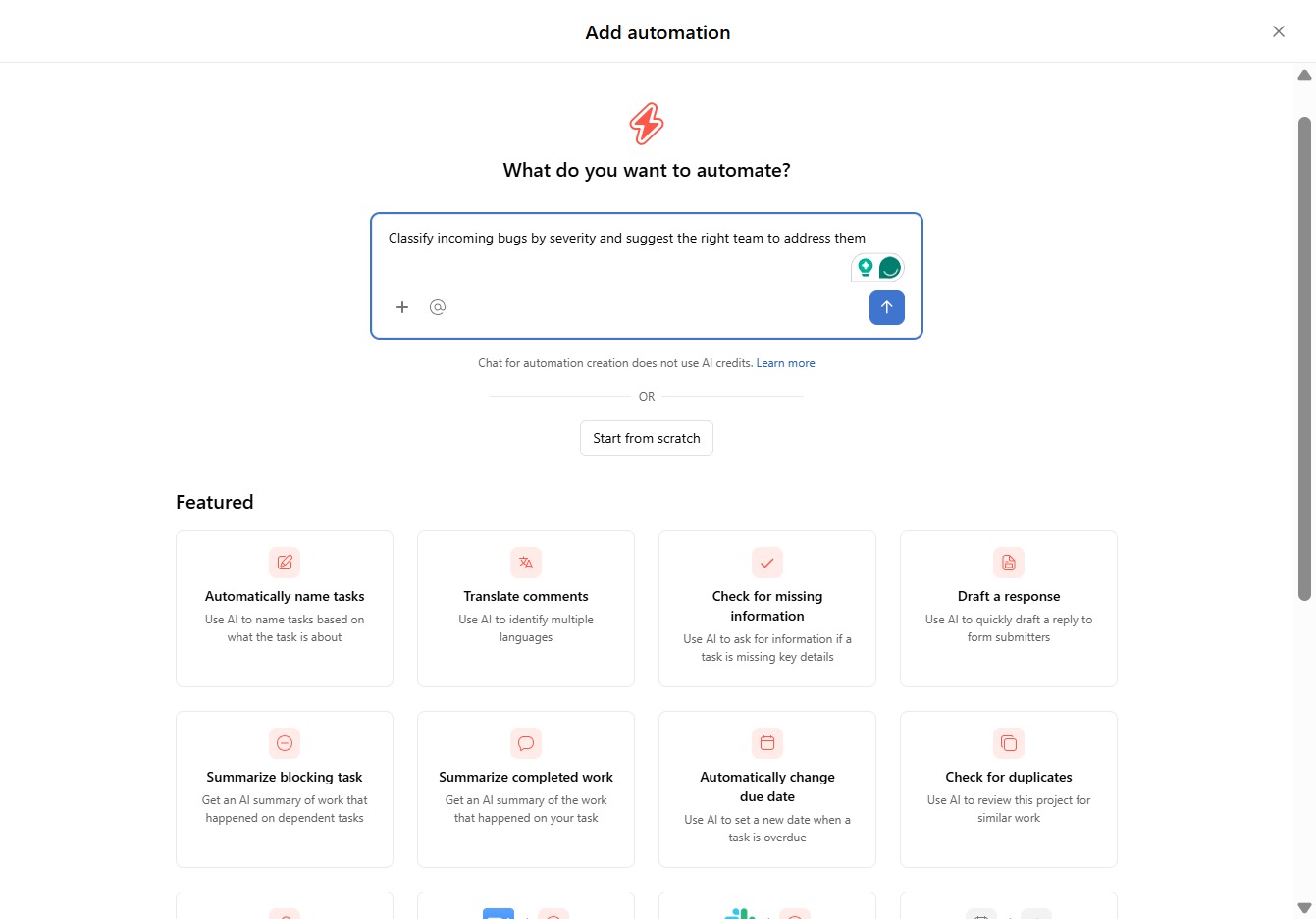
Select the 'Start from scratch' option to begin creating a new automation without any predefined settings.
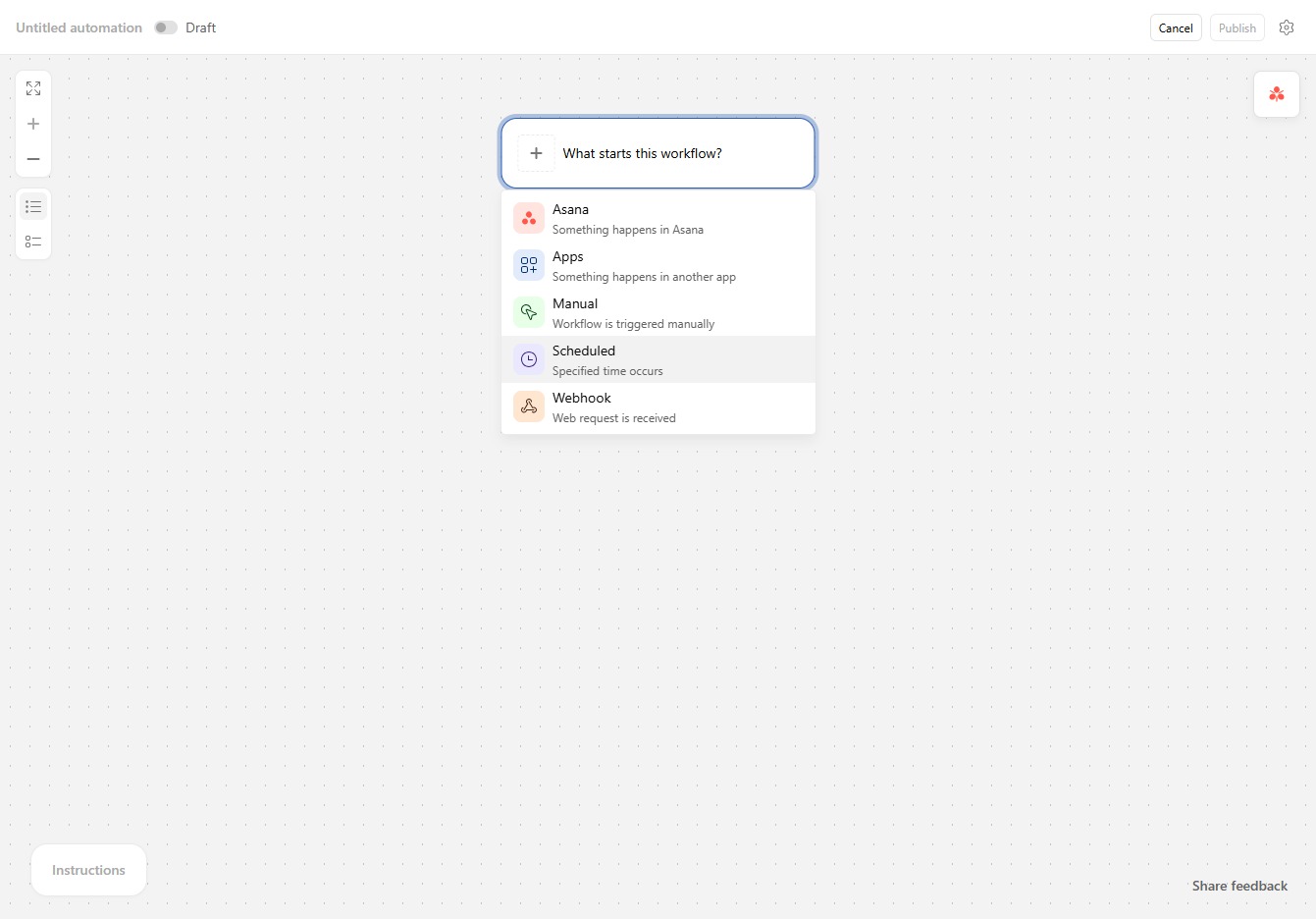
Select 'Scheduled' to choose this automation trigger based on a specified time.
Select the text input field to add your desired information.
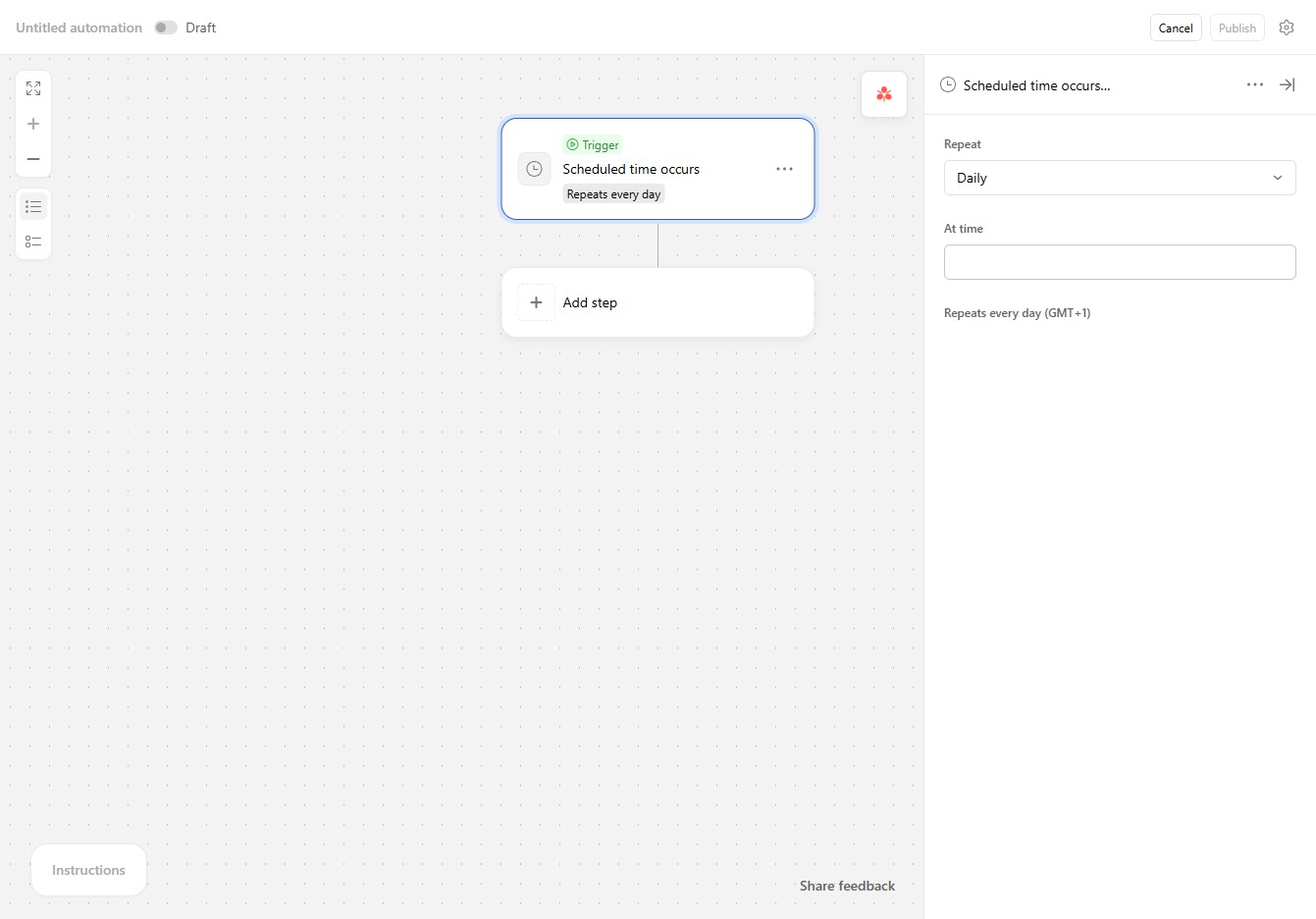
Choose the desired time for the scheduled action to occur.
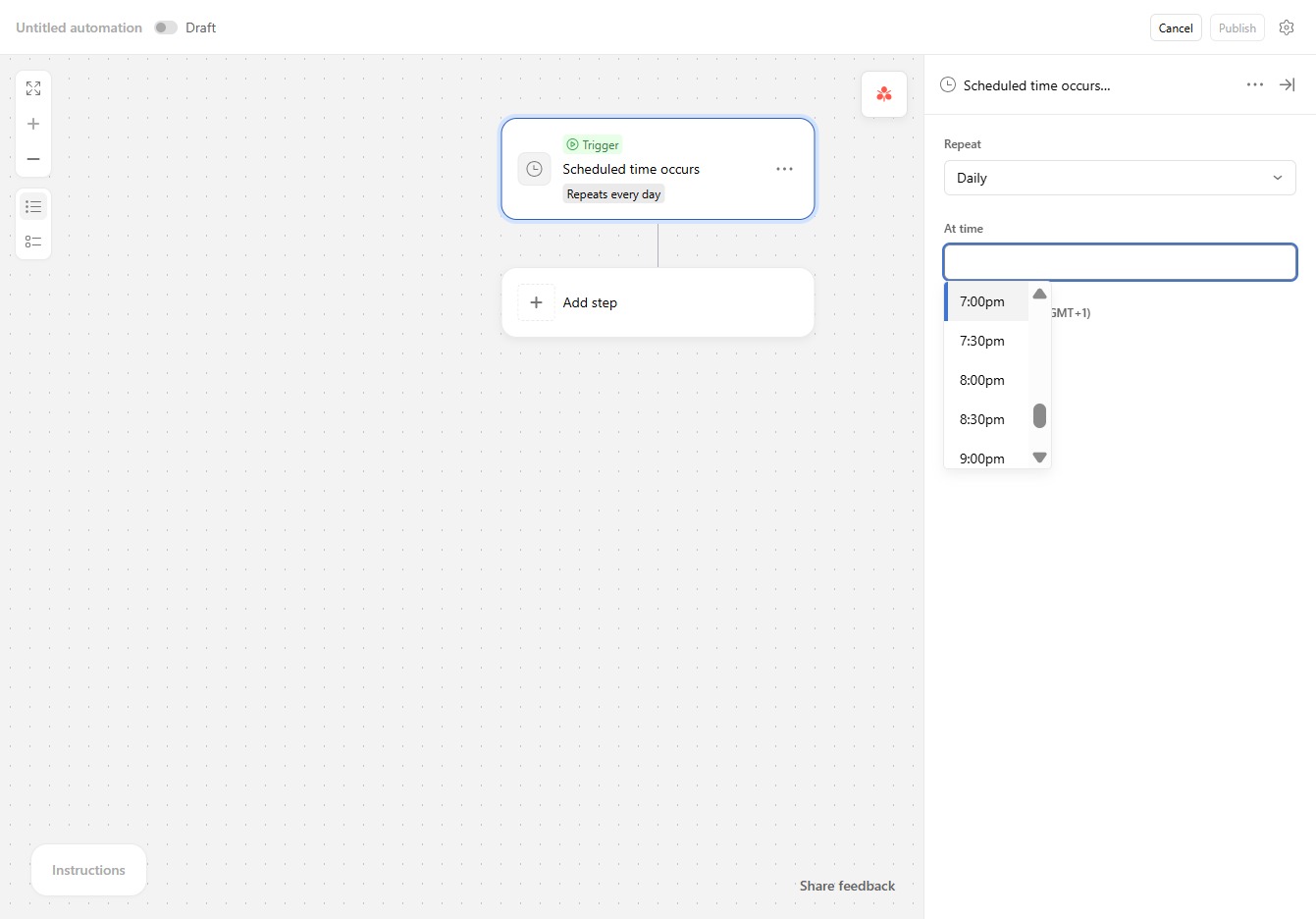
Close the side pane to focus on the main content area.
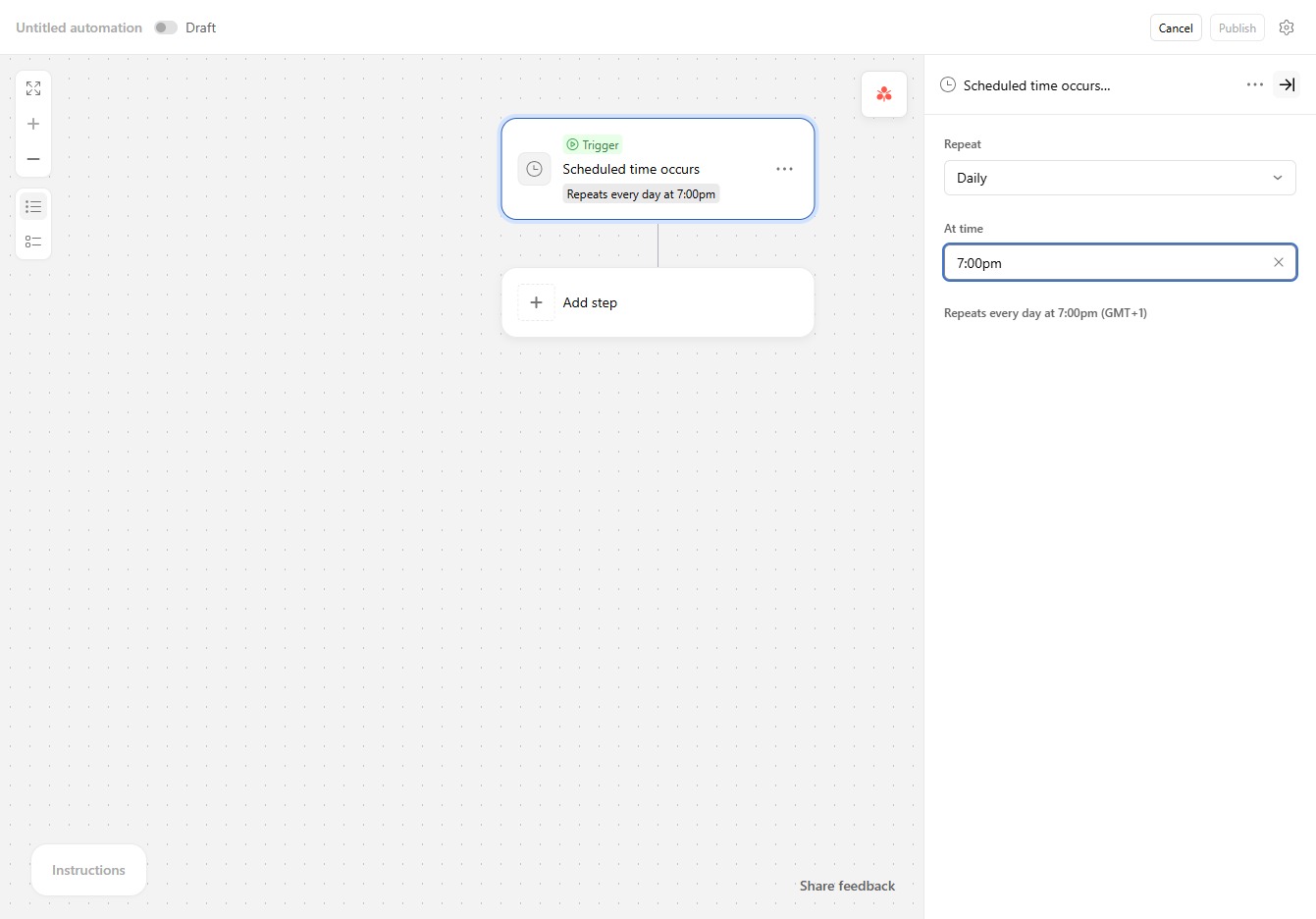
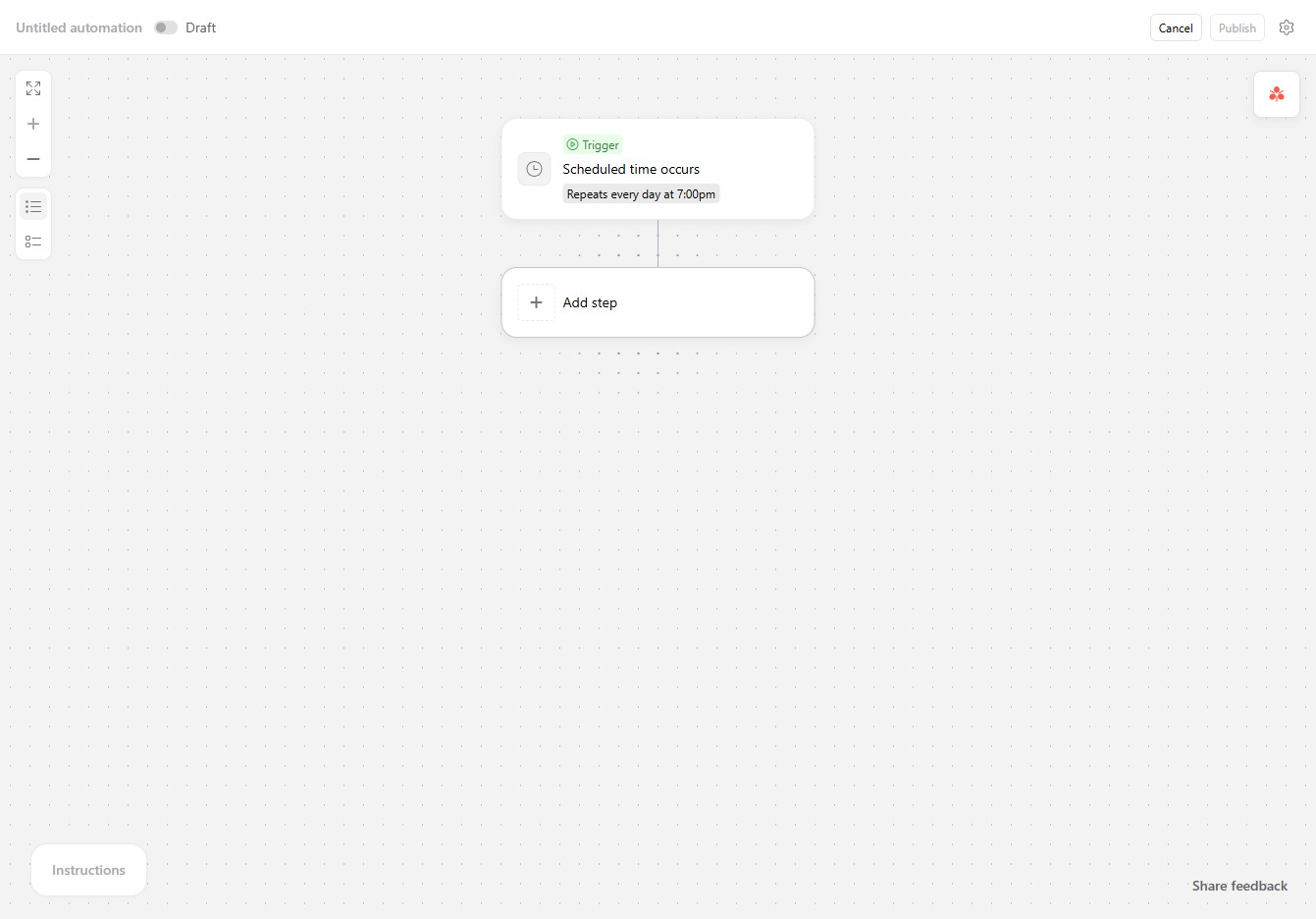
To expand your automation, click 'Add step' and choose the next action you'd like to include.
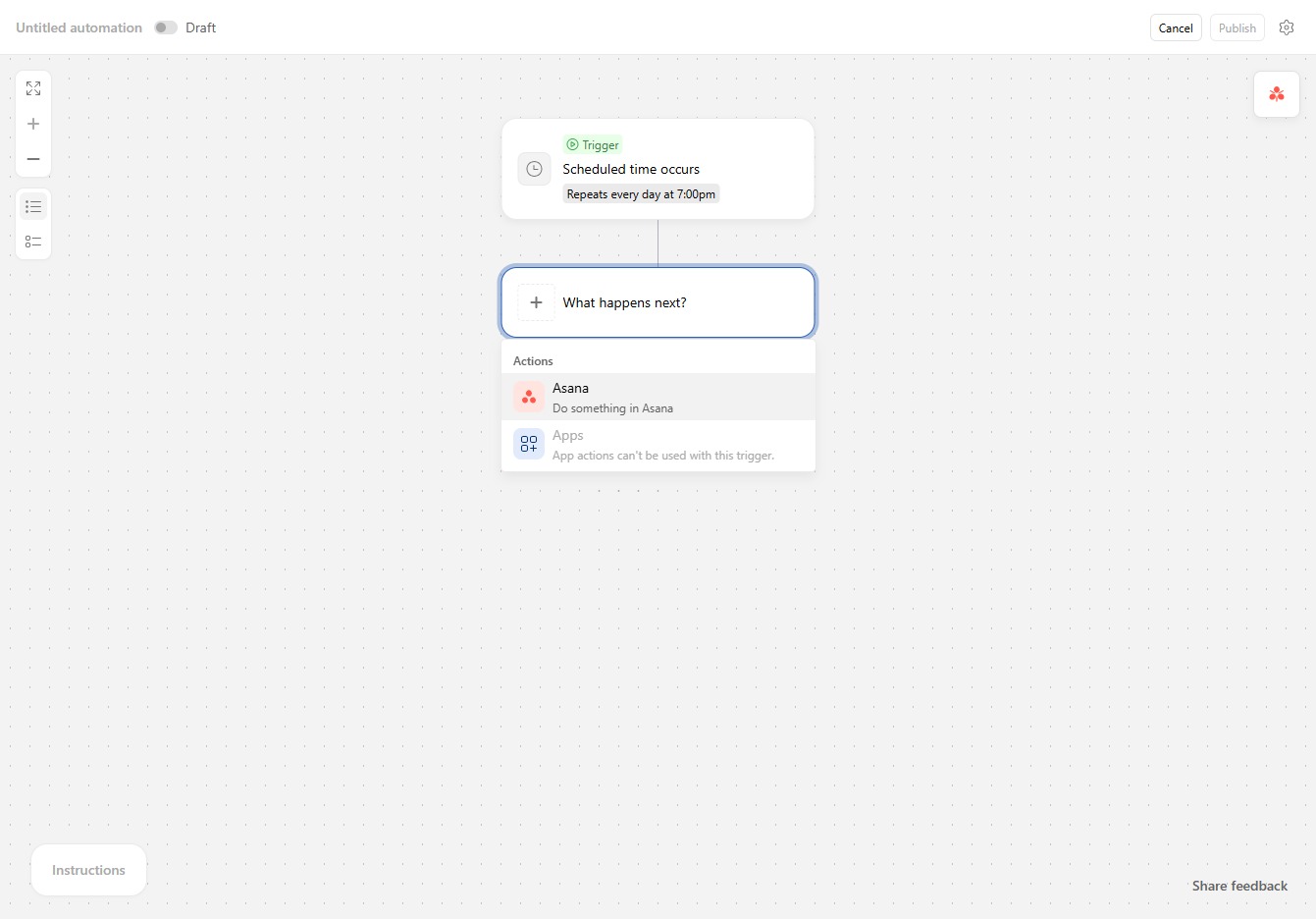
Select 'Asana' to choose an action for your automation in the workflow.
Select the option to specify the type of task you want to create or modify.
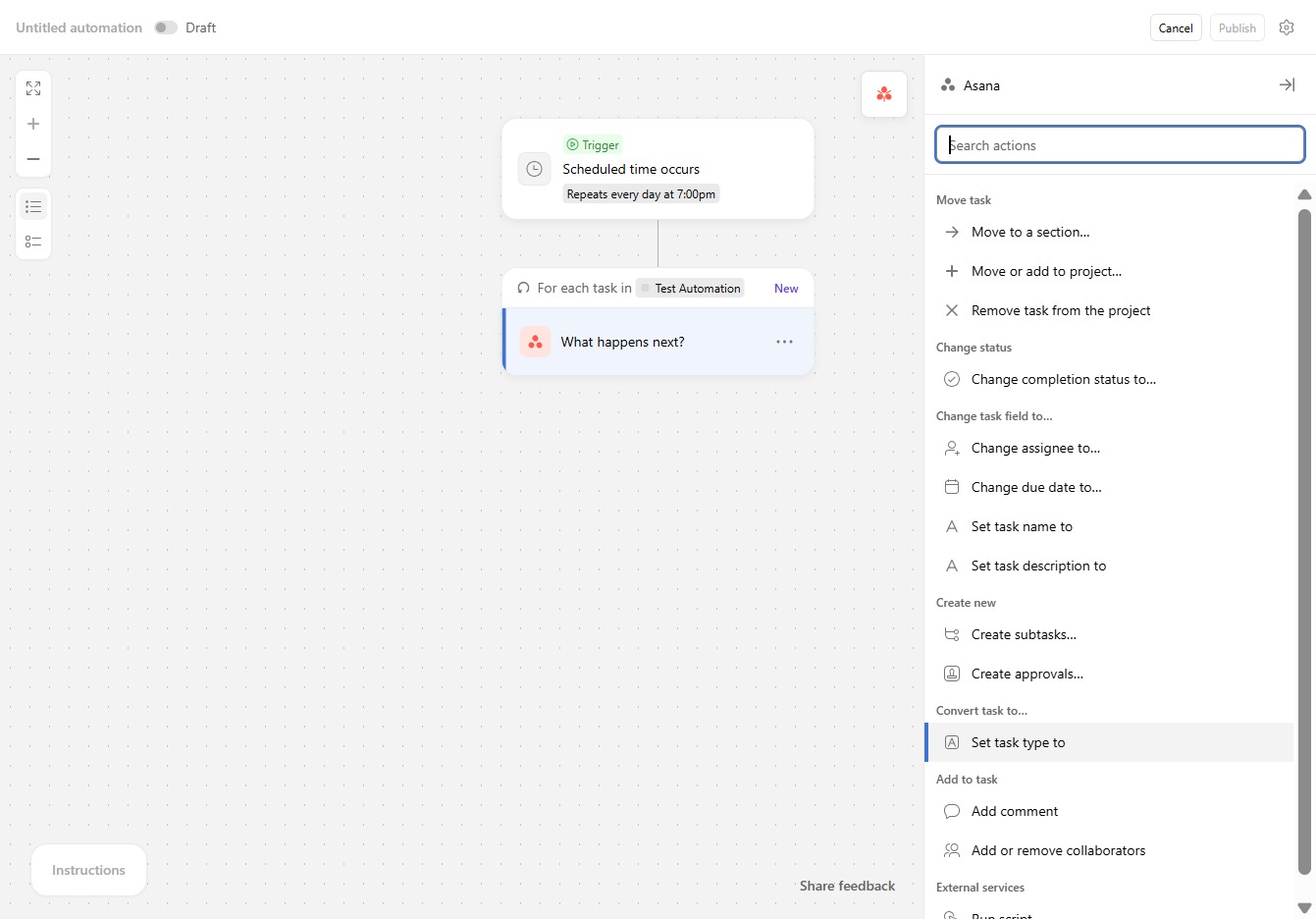
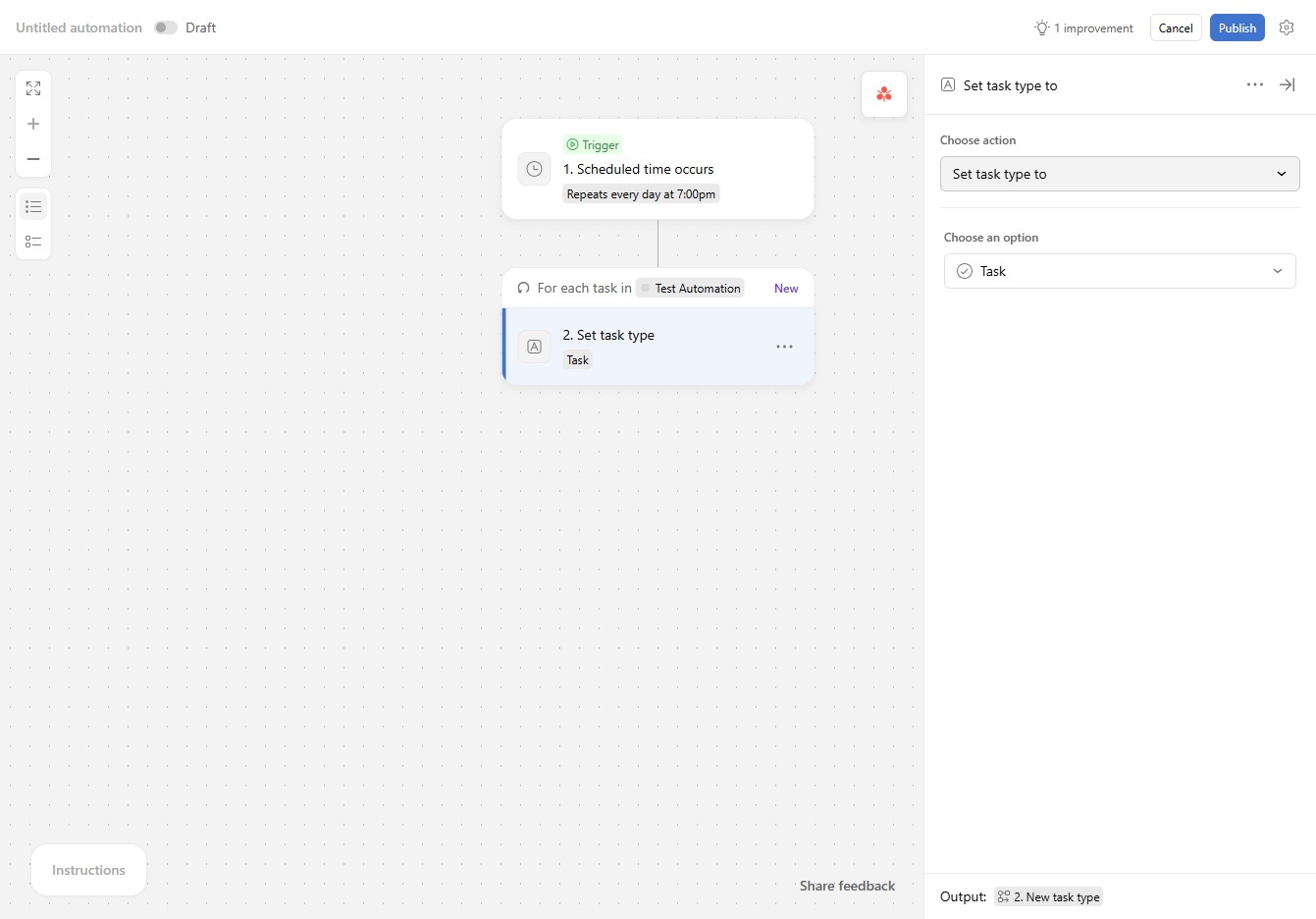
Select the 'Set task type to' option to define the task type for this automation.
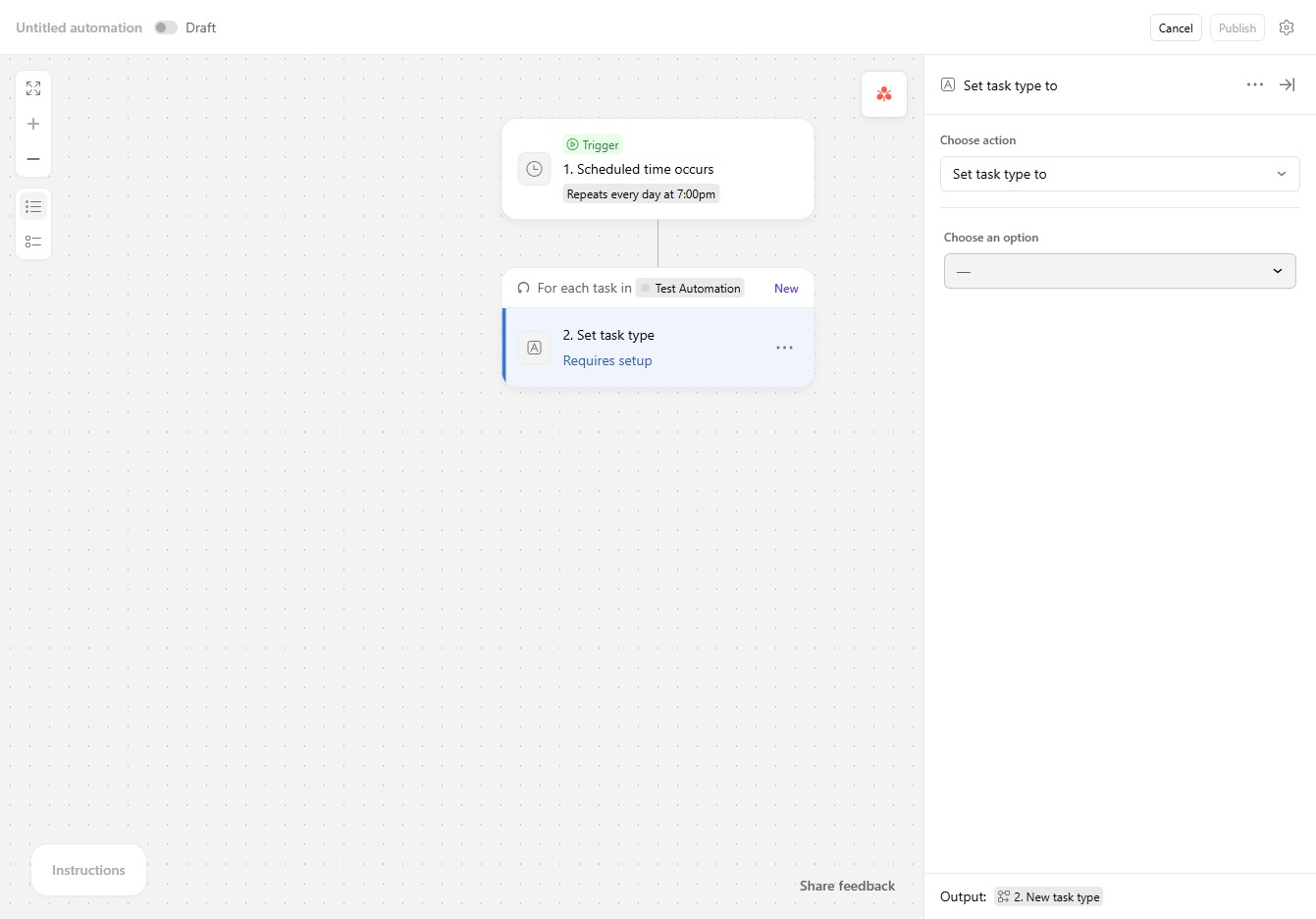
Choose the relevant task type from the options provided to set it for your workflow.
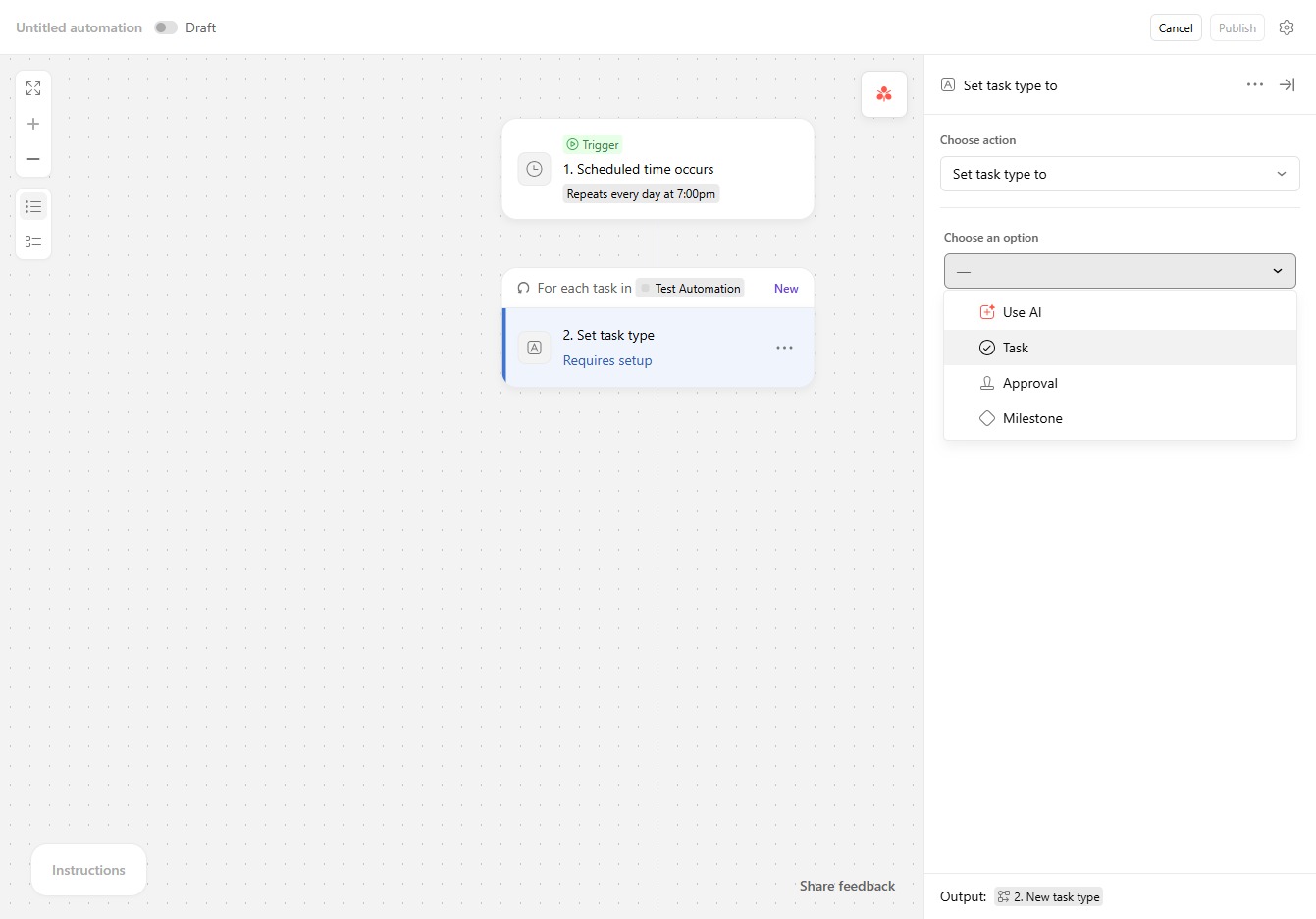
Select the option to set the task type for your automation. This step allows you to categorize the tasks effectively.