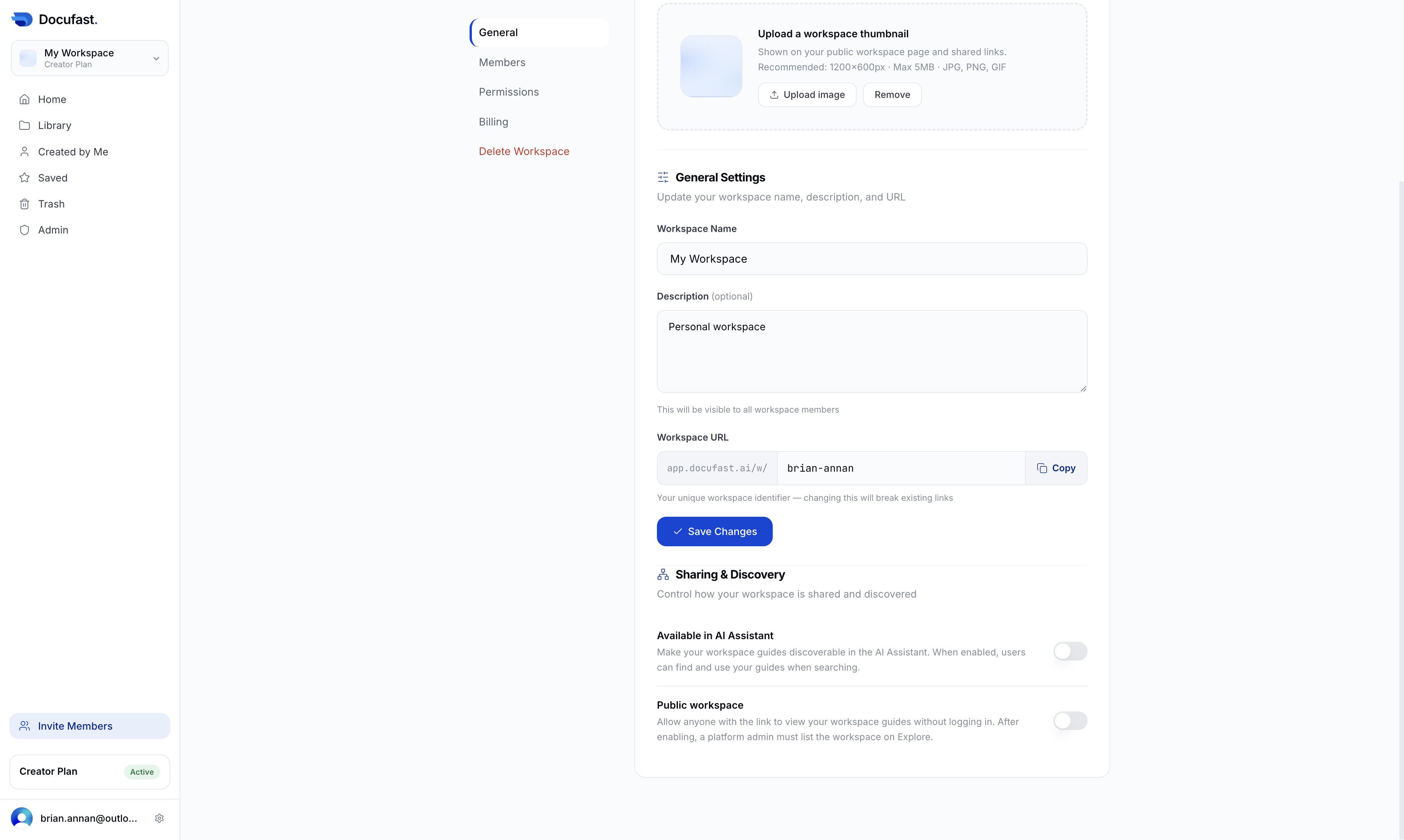
Click the Start Recording button
Clicking this button initiates a new recording session where you can capture your workflow. Make sure to configure your settings before starting the recording.
Loading screenshot…
100%
In this "Admin Explore: Quick Start Guide," you'll learn how to initiate a recording session, configure your workspace settings, and upload a workspace thumbnail.
 brian.annan
In this "Admin Explore: Quick Start Guide," you'll learn how to initiate a recording session, configure your workspace settings, and upload a workspace thumbnail. Follow the simple steps provided to streamline your admin tasks effectively.
Clicking this button initiates a new recording session where you can capture your workflow. Make sure to configure your settings before starting the recording.
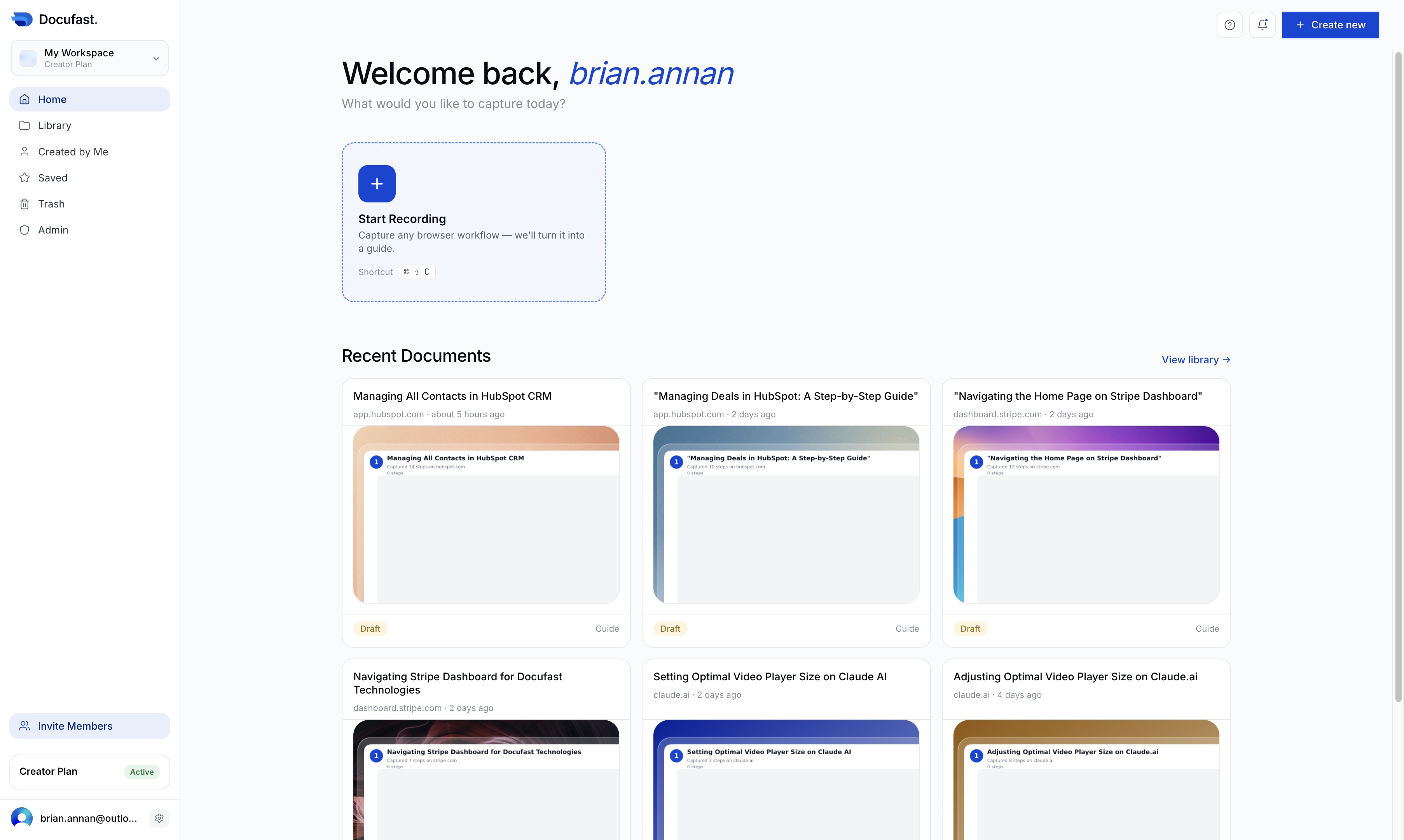
This action opens the Workspace Settings menu, where you can configure various options related to your workspace such as preferences and account settings.
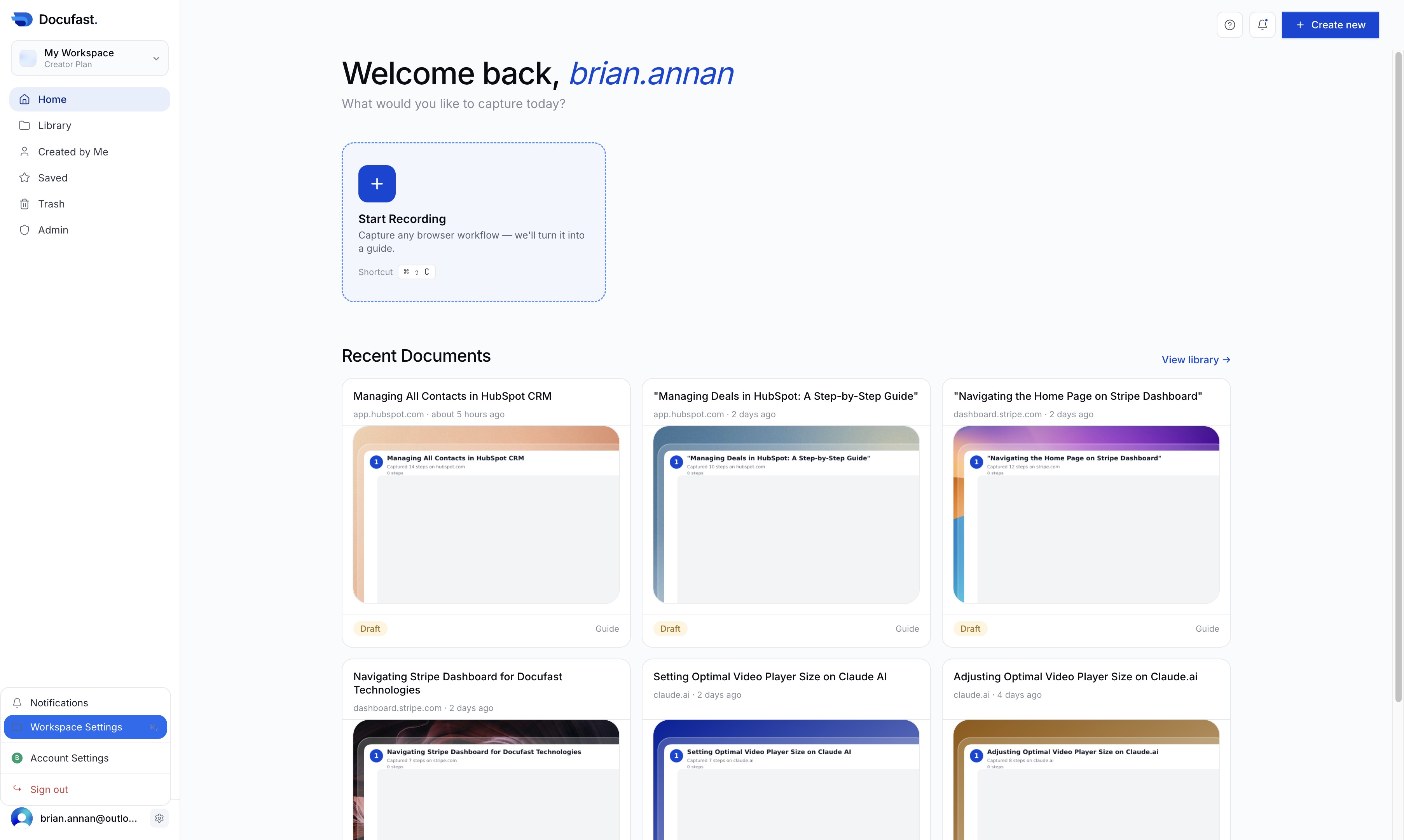
Clicking this button will initiate the upload process for your workspace thumbnail, allowing you to select and add an image from your files.