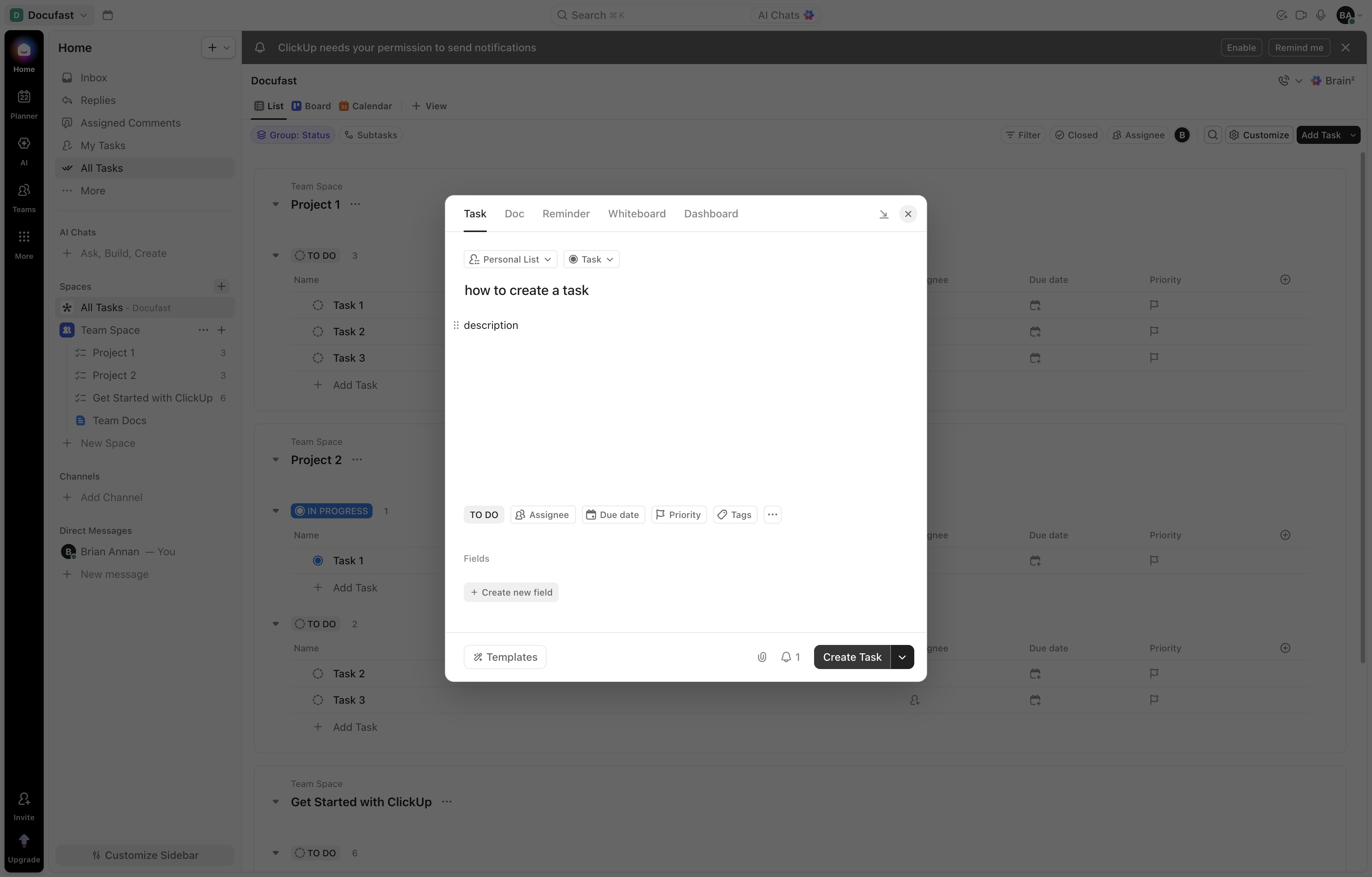
Click the Add Task button
This will open a form where you can enter the details for a new task within your project.

Loading screenshot…
100%
This how-to guide demonstrates the step-by-step process of adding a new task in Docufast on ClickUp, from entering task details and descriptions to selecting appropriate lists…
 alex
alexThis how-to guide demonstrates the step-by-step process of adding a new task in Docufast on ClickUp, from entering task details and descriptions to selecting appropriate lists for organization. Learn how to effectively manage your tasks and collaborate with your team for better project management.
This will open a form where you can enter the details for a new task within your project.
This textarea allows you to enter additional comments or details about the task. Type your notes for collaboration or clarification.

Enter 'how to create a task' in the Task Name field to specify the title of your task. You can also use '/' to access additional commands for task management.
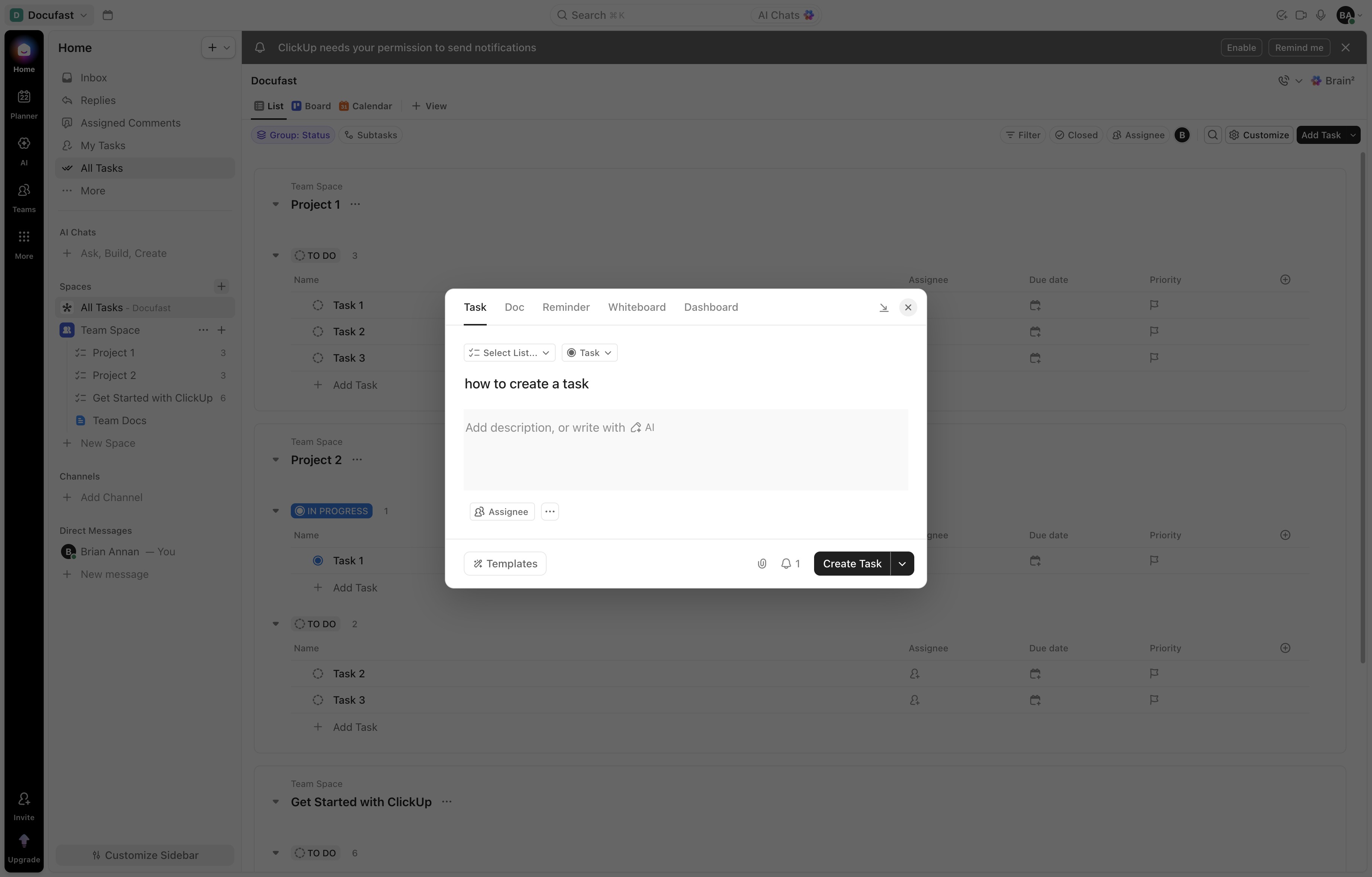
This action opens a text input area where you can add a description for the task you are creating.

Enter a detailed description of the task in the designated field to provide clarity on what needs to be done. This description will help in understanding the task's objectives and requirements.

Choose a list from the available options to categorize or organize your tasks effectively.
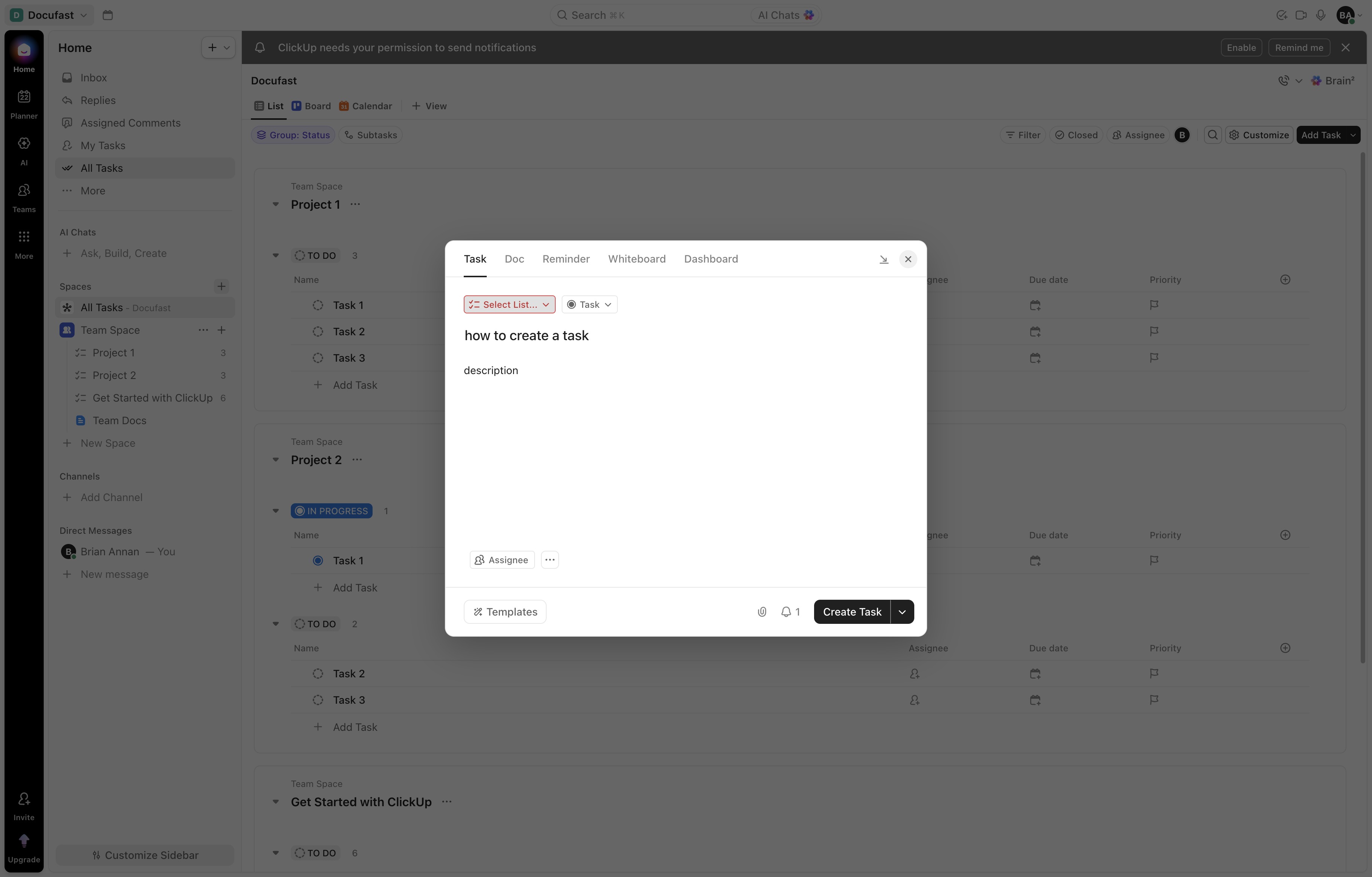
This will select the 'Personal List' for the task, allowing you to manage items within that list. Proceed to configure any additional settings or details related to the task.
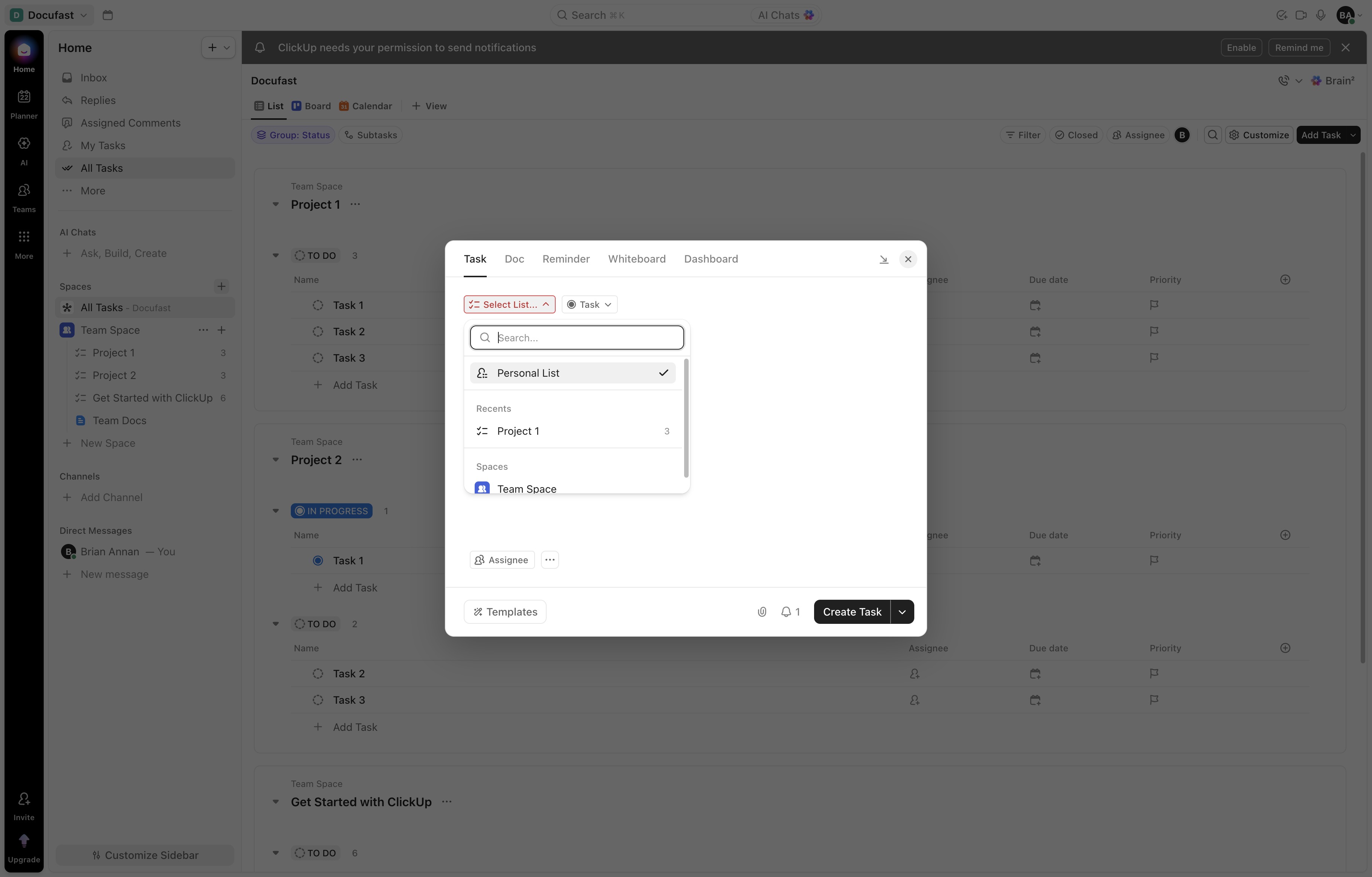
This action will open a task creation window where you can enter details and assign due dates or tasks to team members.