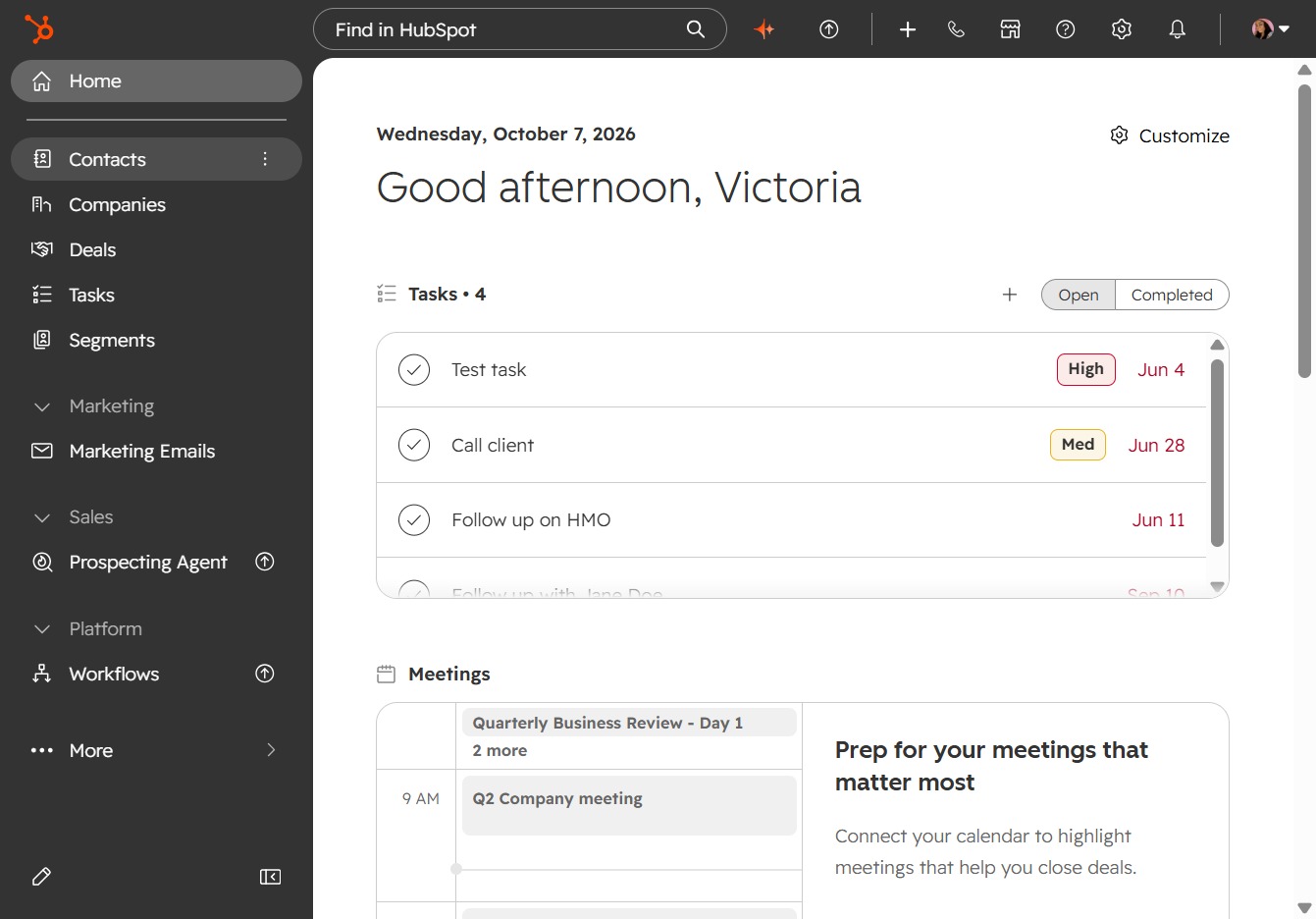
Click Contacts
Navigate to the Contacts section to manage your contact information effectively.
Loading screenshot…
100%
Add a new contact in HubSpot by entering essential information such as the first and last names, email address, and phone number, then save the details for future reference.
 viktoria
Add a new contact in HubSpot by entering essential information such as the first and last names, email address, and phone number, then save the details for future reference.
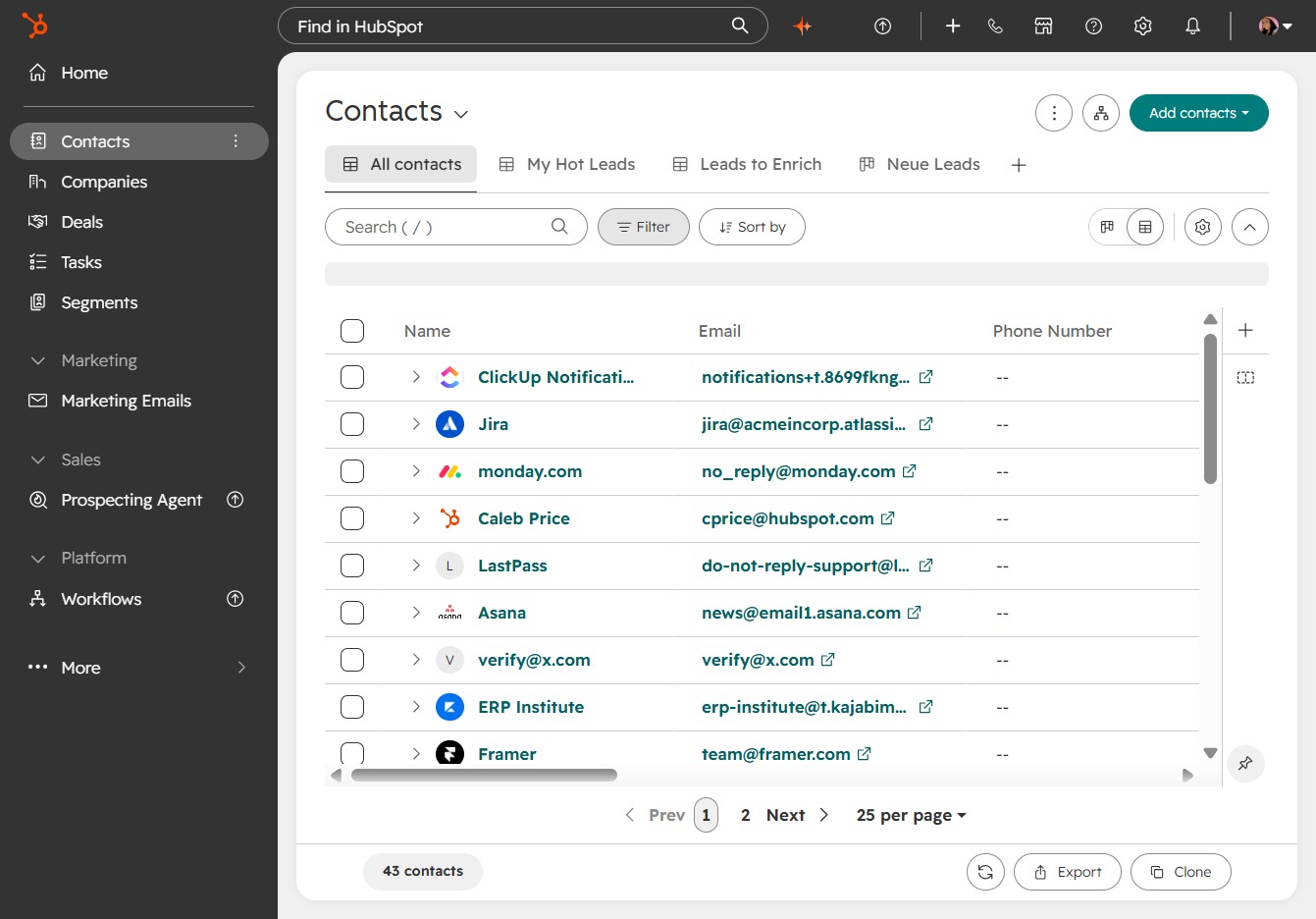
Navigate to the Contacts section to manage your contact information effectively.
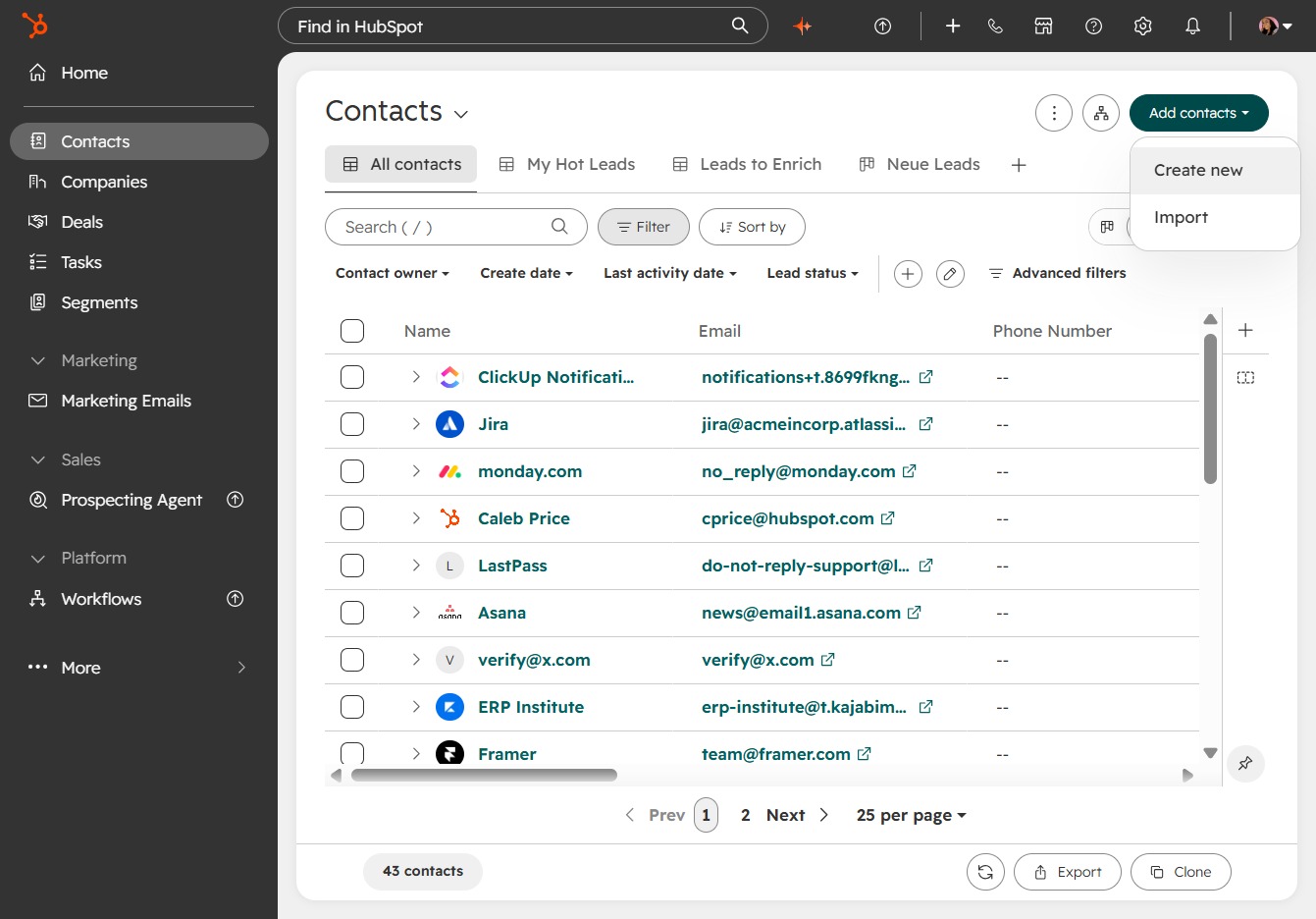
To include a new contact, click the 'Add contacts' button.
Select 'Create new' to start adding a new contact.
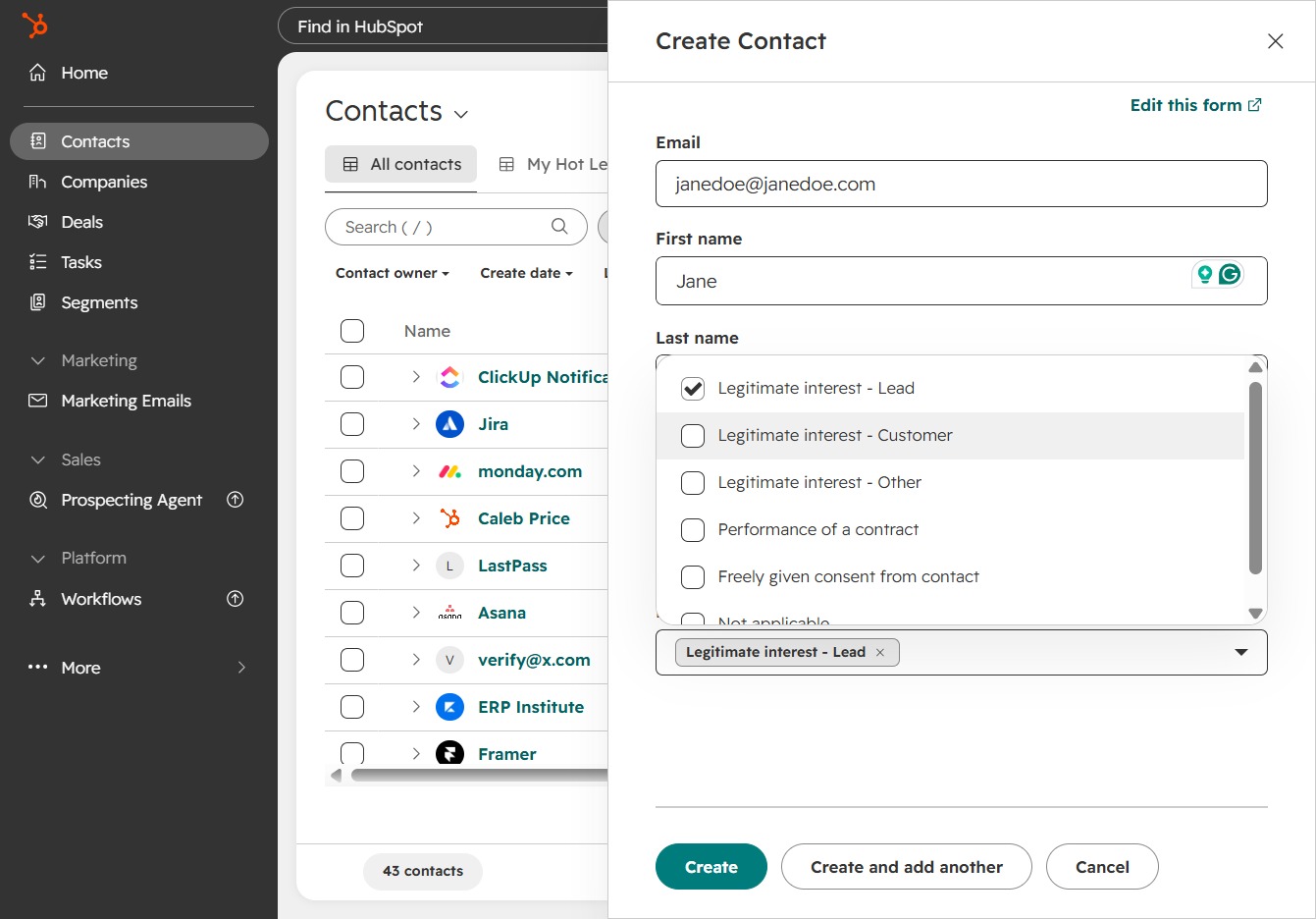
Fill in the contact's first name in the designated field.
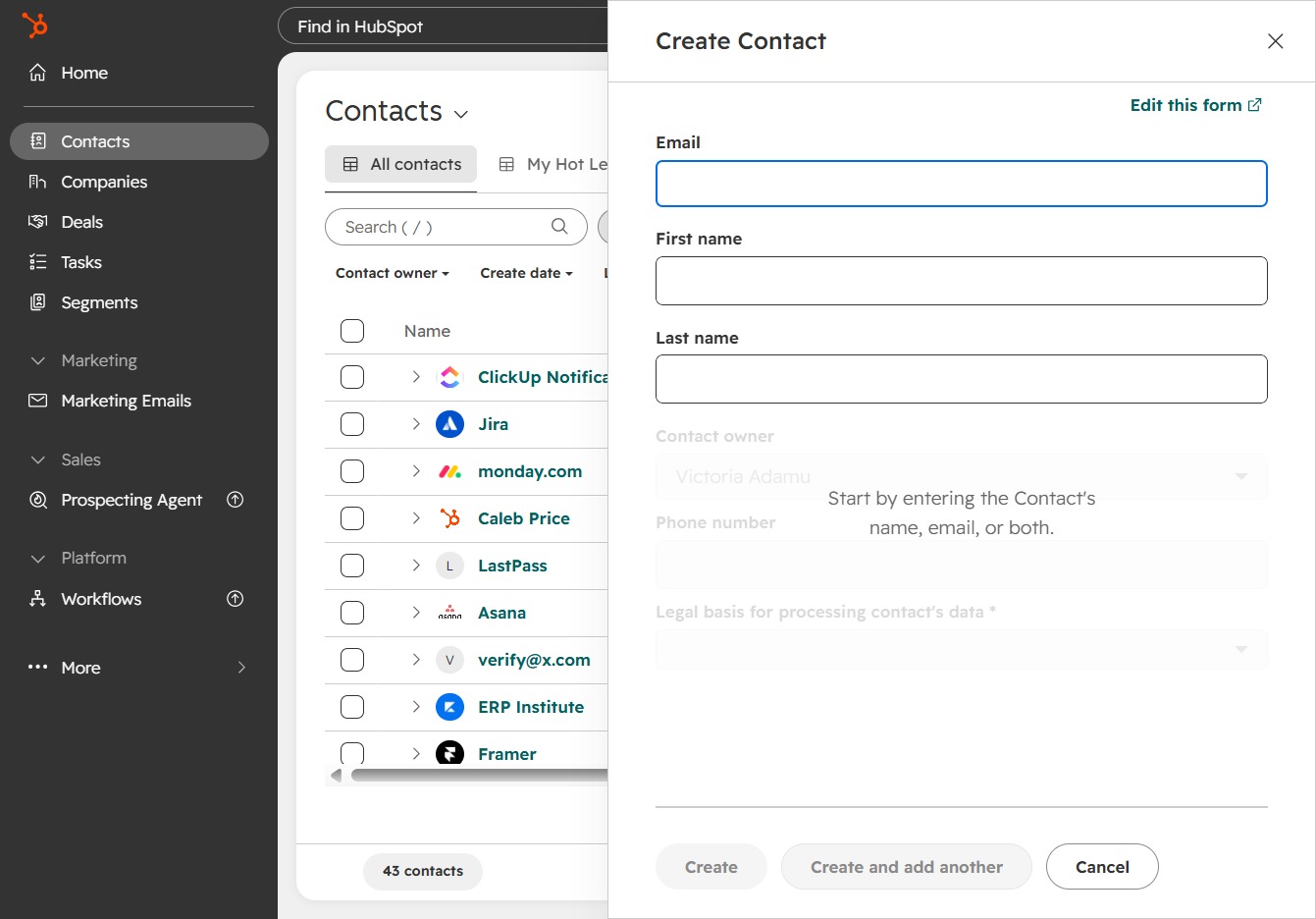
Type the contact's email address here.
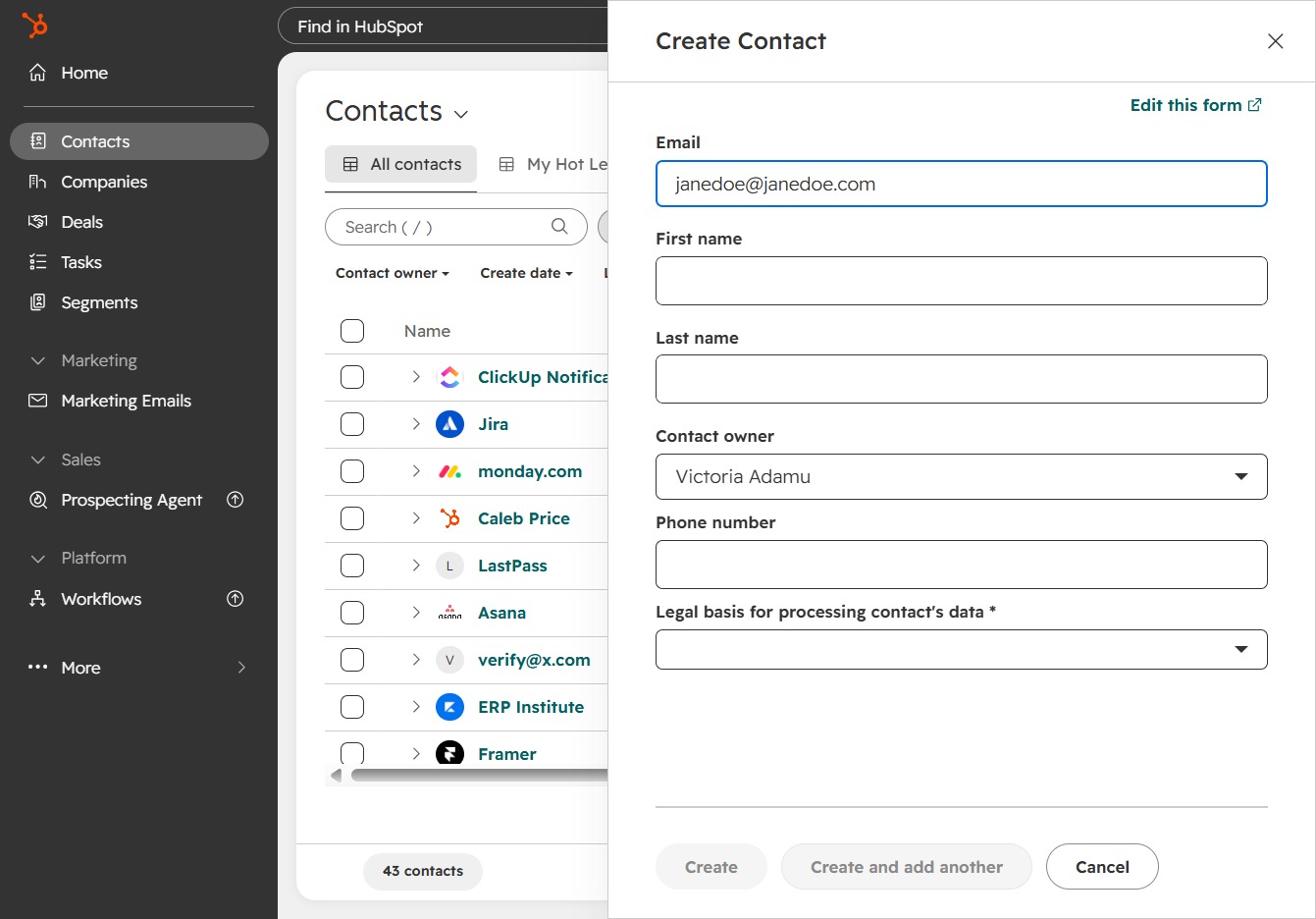
Add the first name of the contact here.
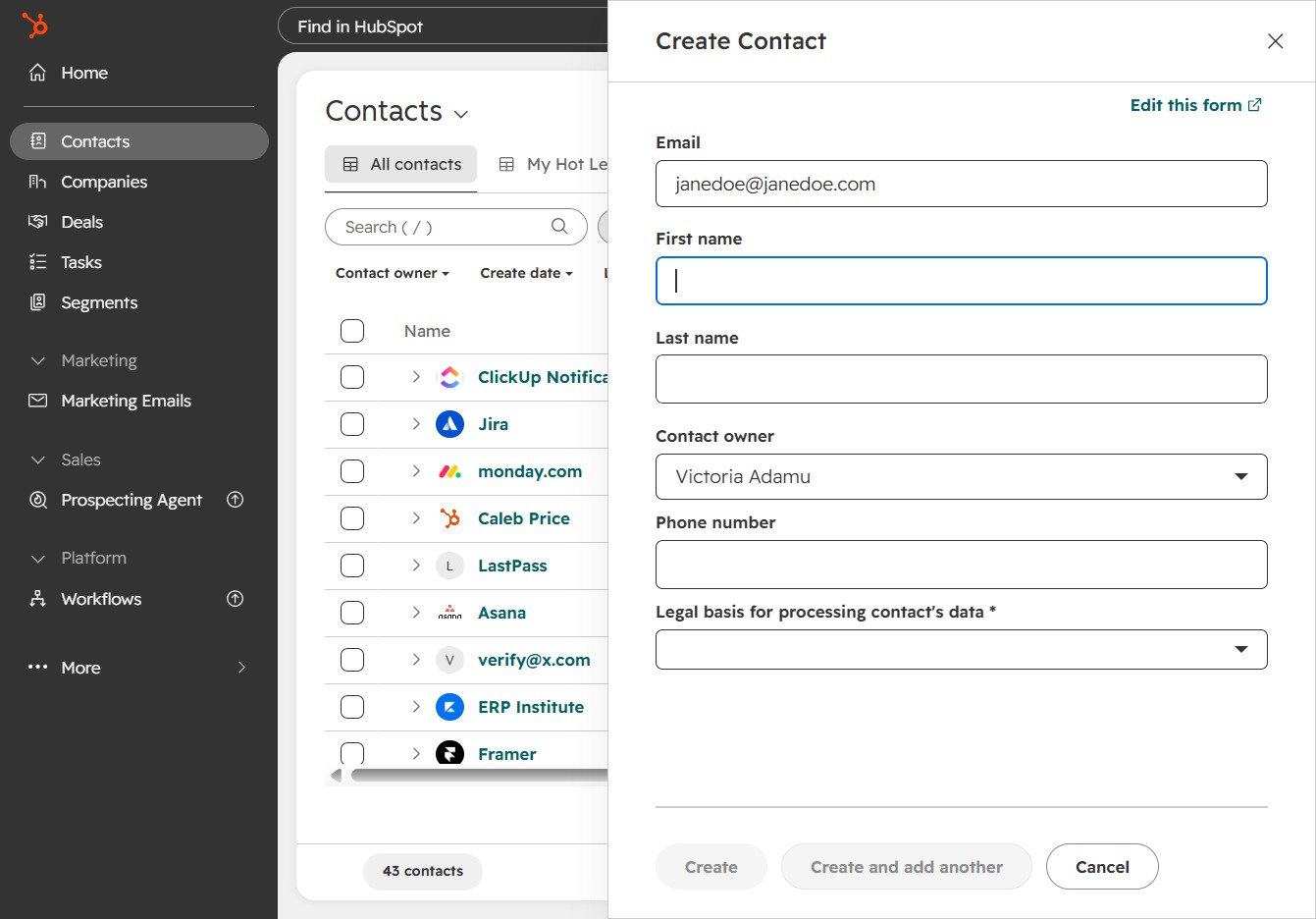
Enter the first name in the provided field.
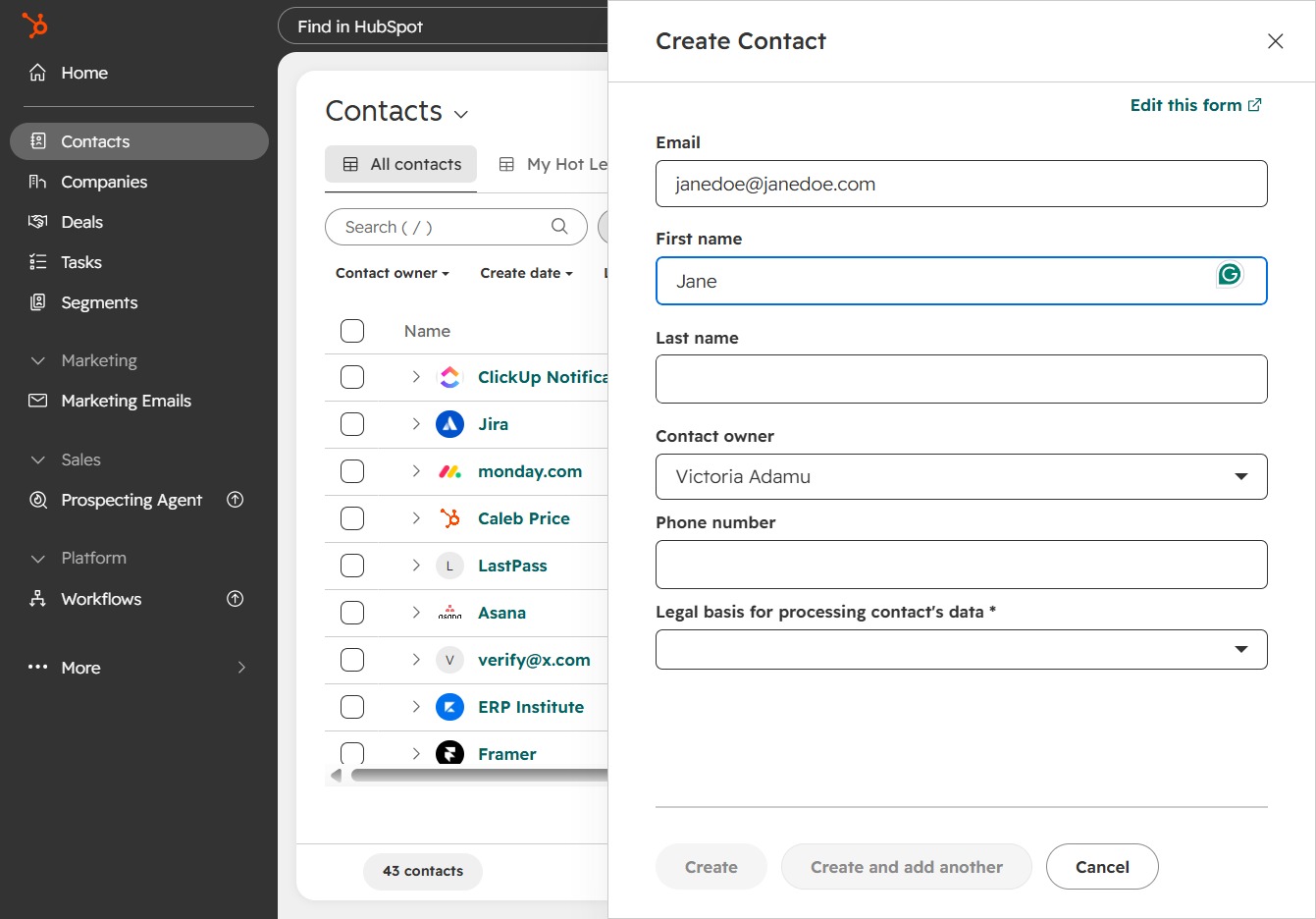
Add the contact's last name here.
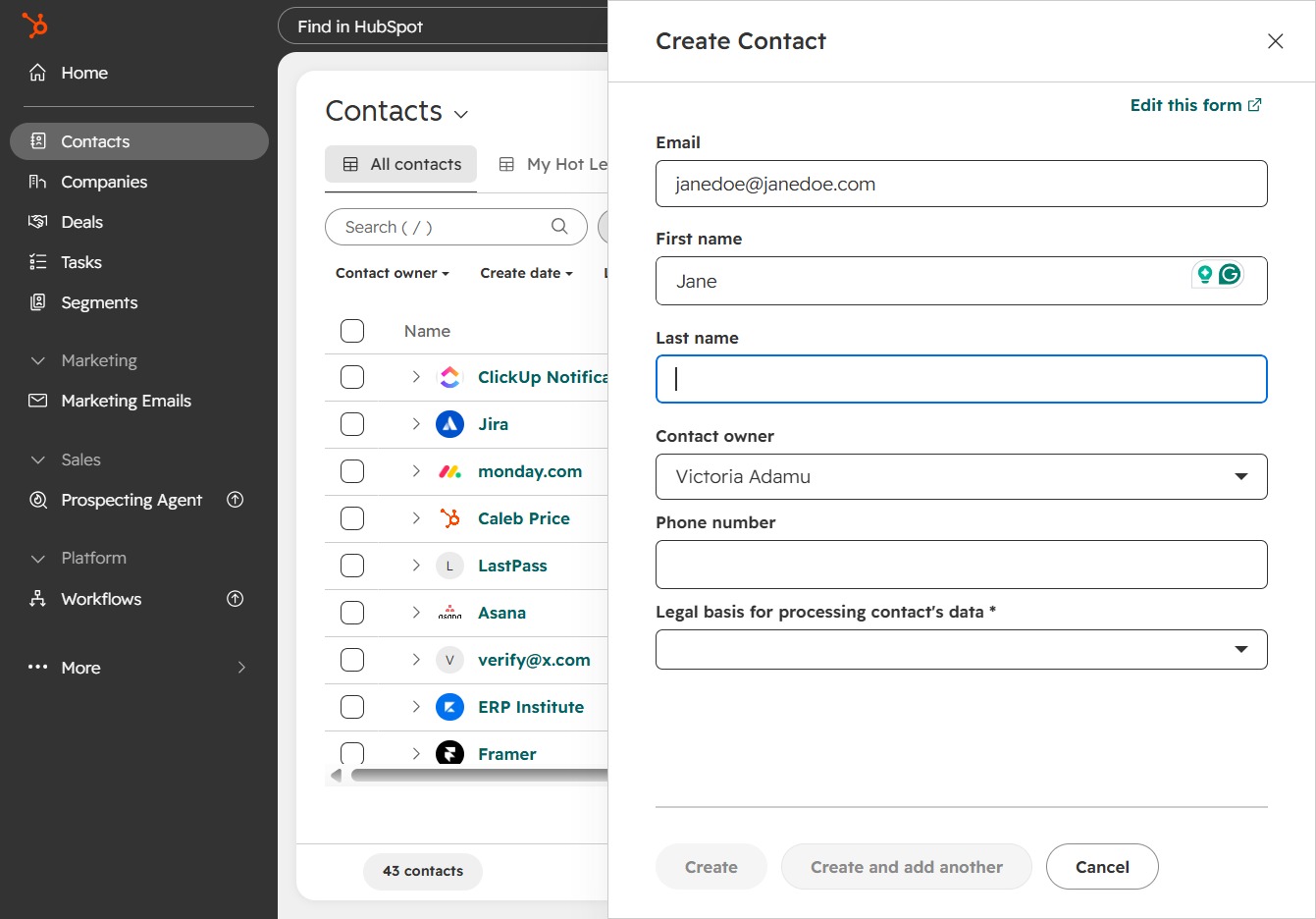
Type the last name in the designated field.
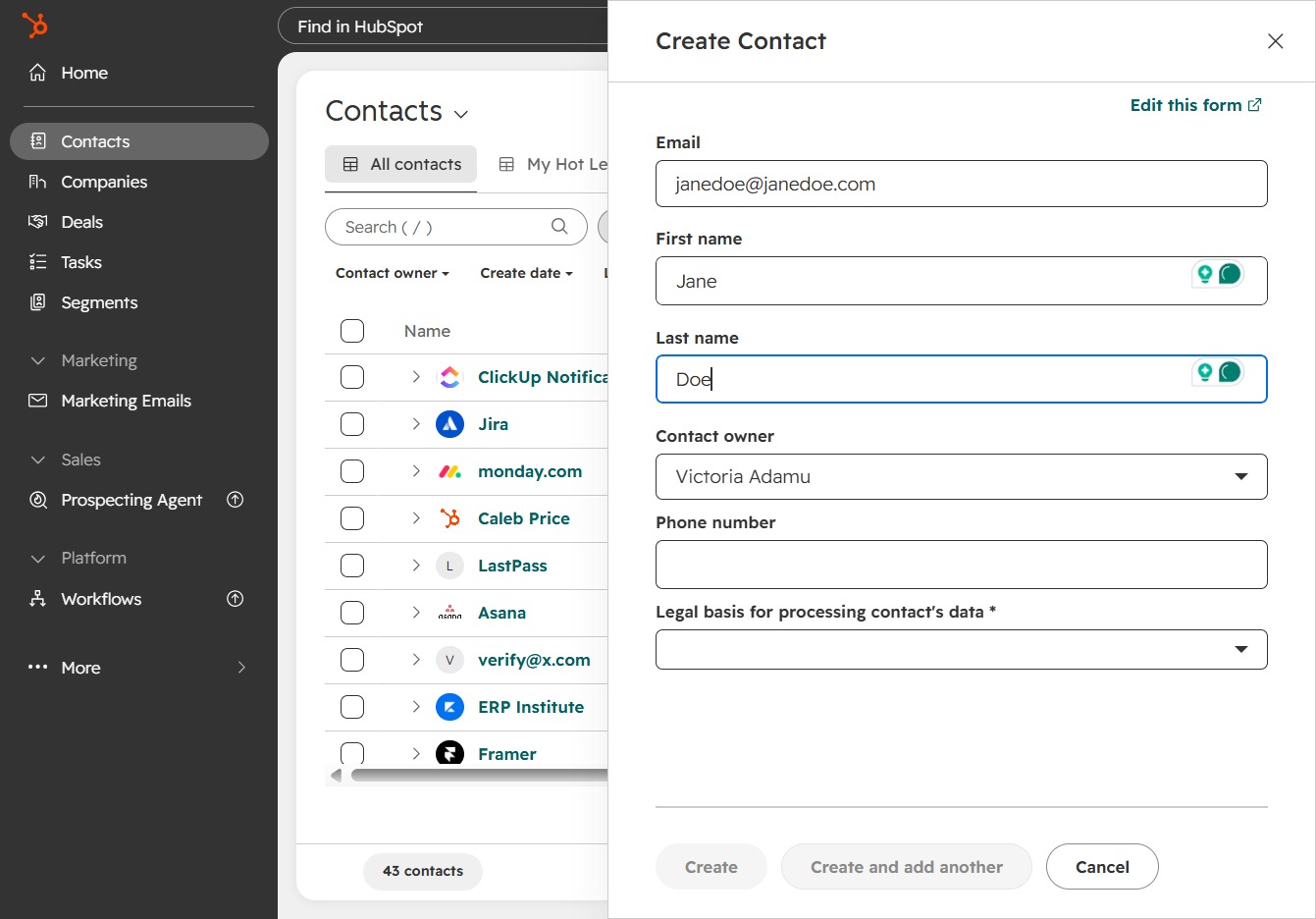
Click in the text input field to enter the contact's last name.
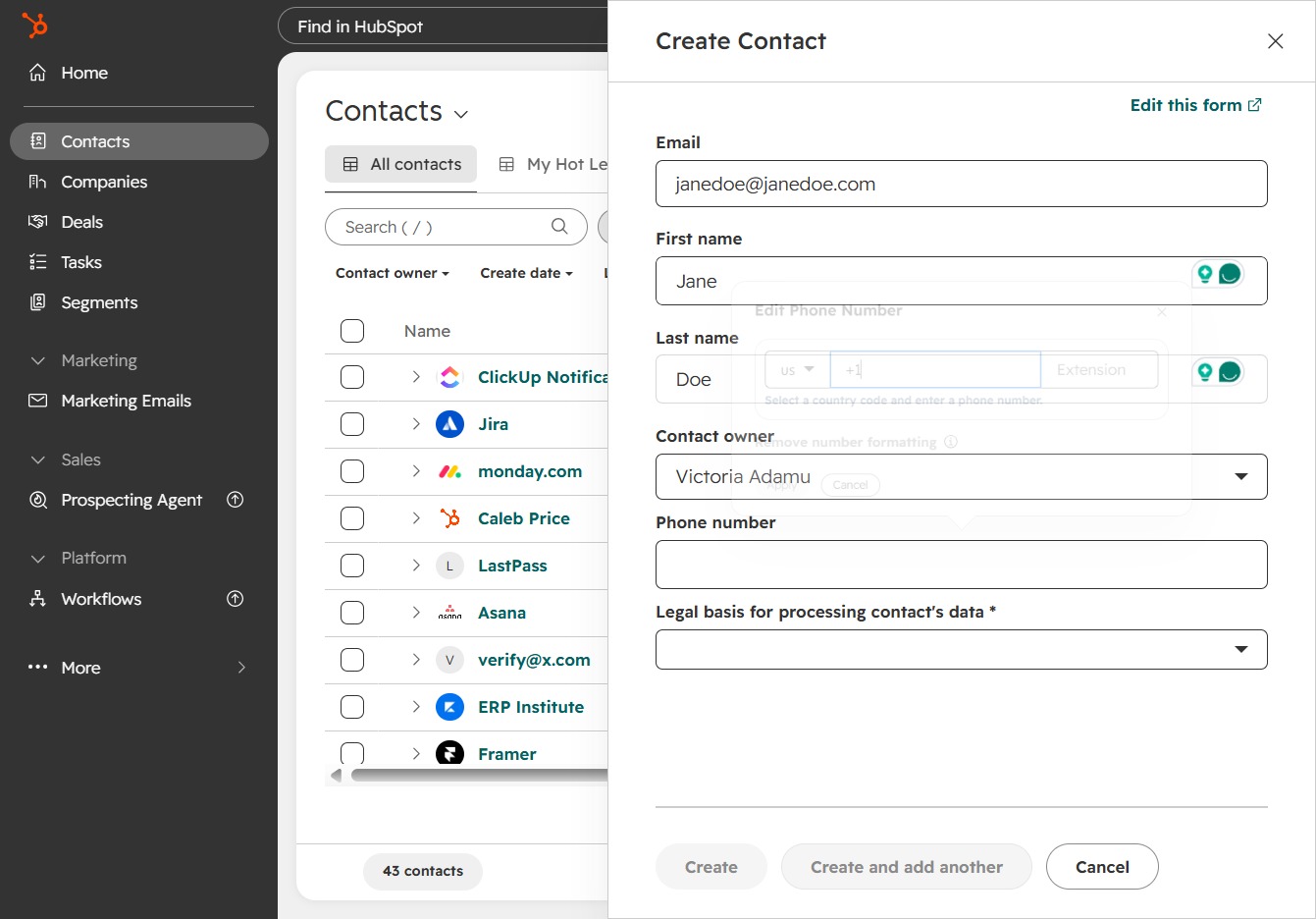
Fill in the contact's phone number in the designated field.
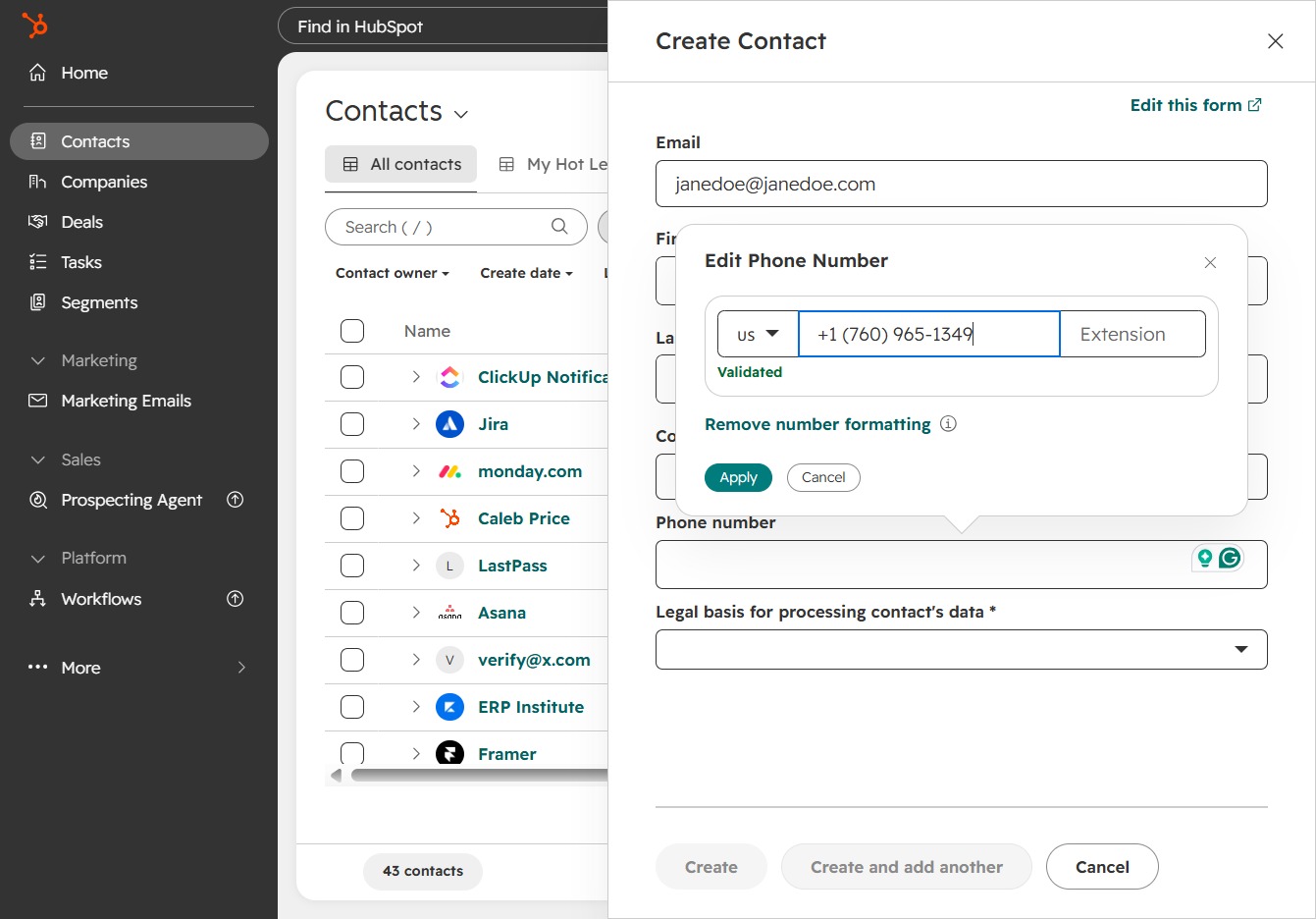
Once you've edited the phone number, click 'Apply' to save your changes.
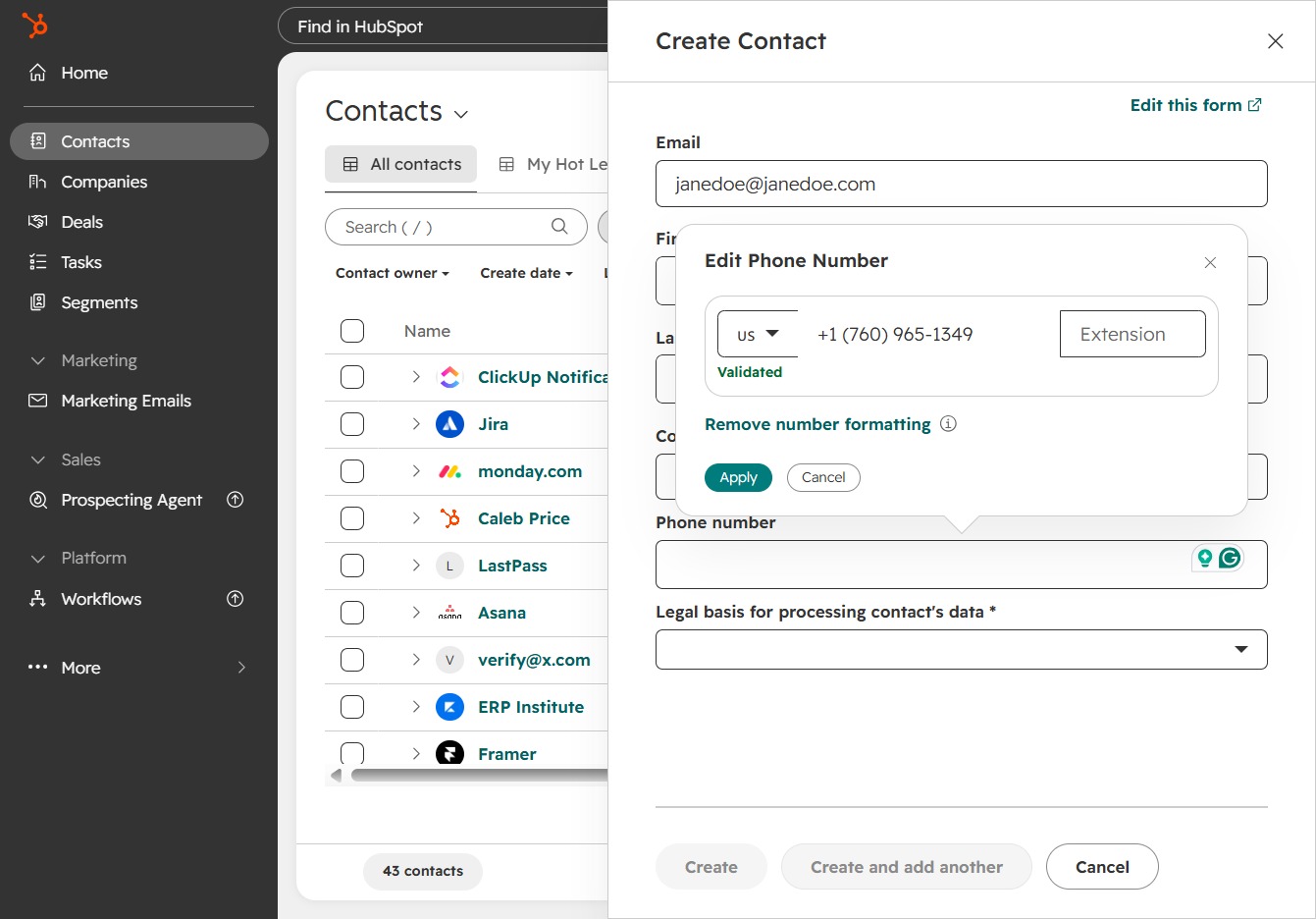
Now, click here to proceed with the workflow.
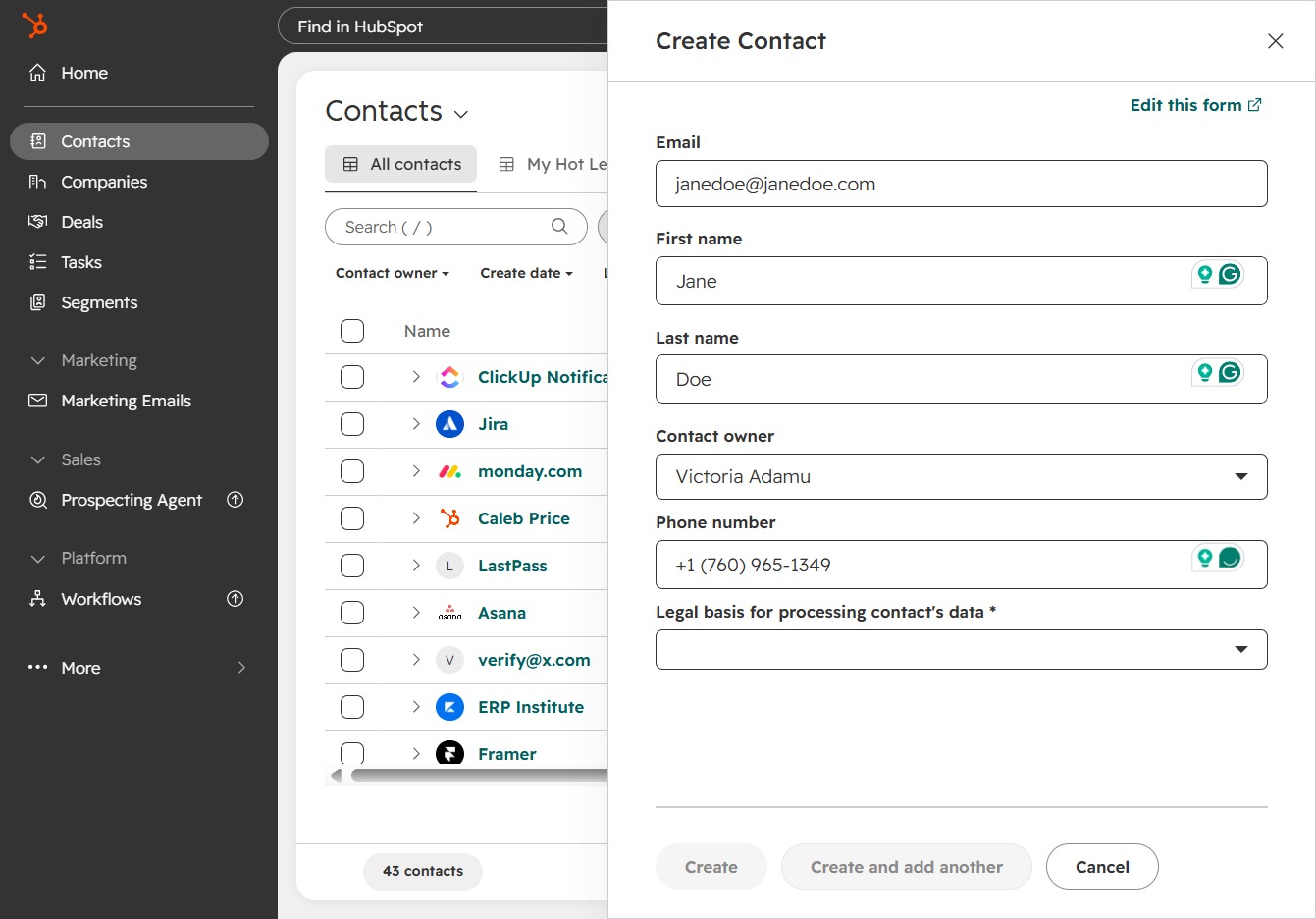
Choose 'Legitimate interest - Lead' as the legal basis for this contact in your workflow.
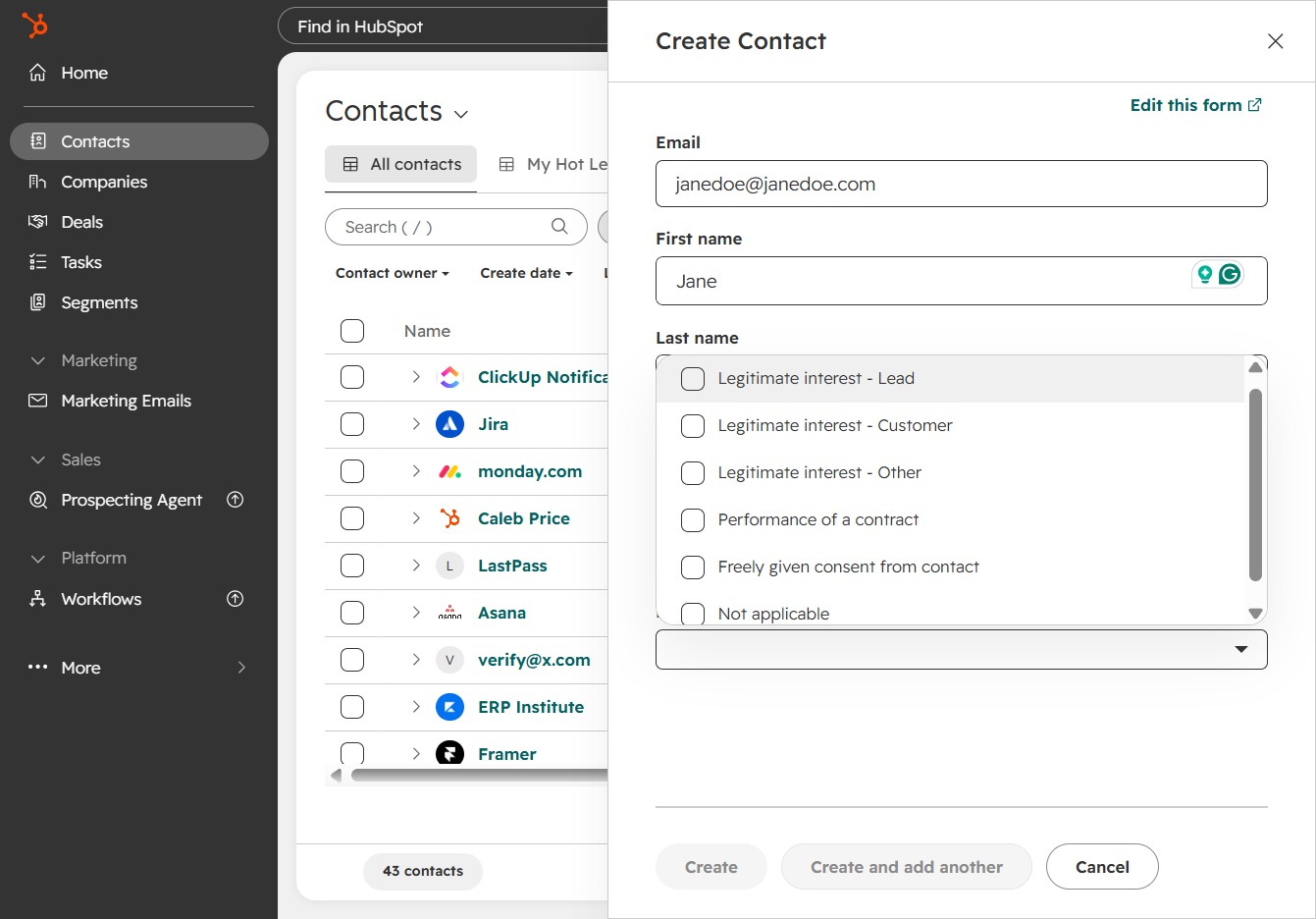
Click Create to add the new contact with the provided details.