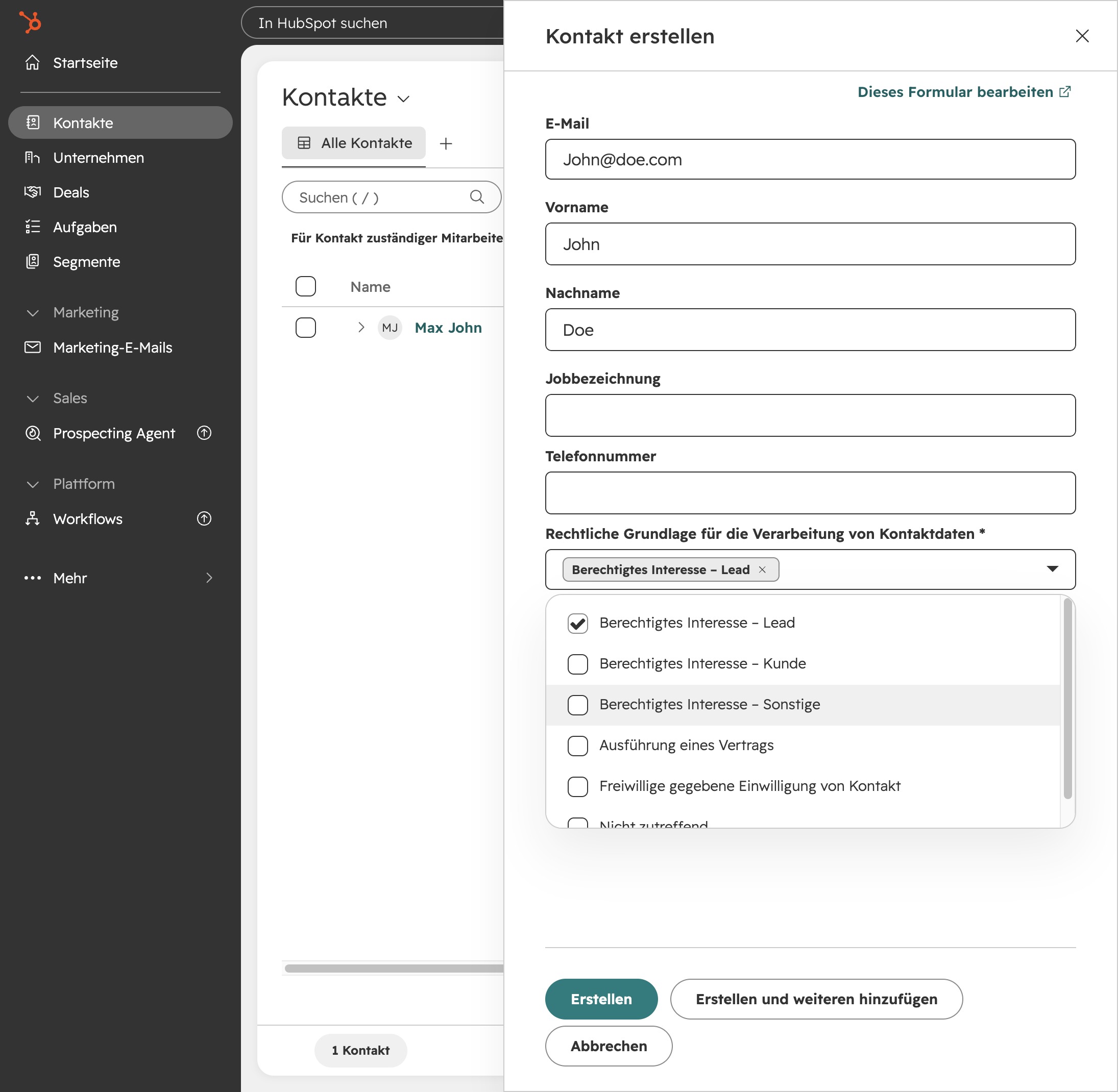
Click Kontakte
By clicking on 'Kontakte,' you access the section where you can manage and view all your contacts, making it easy to keep track of your connections.
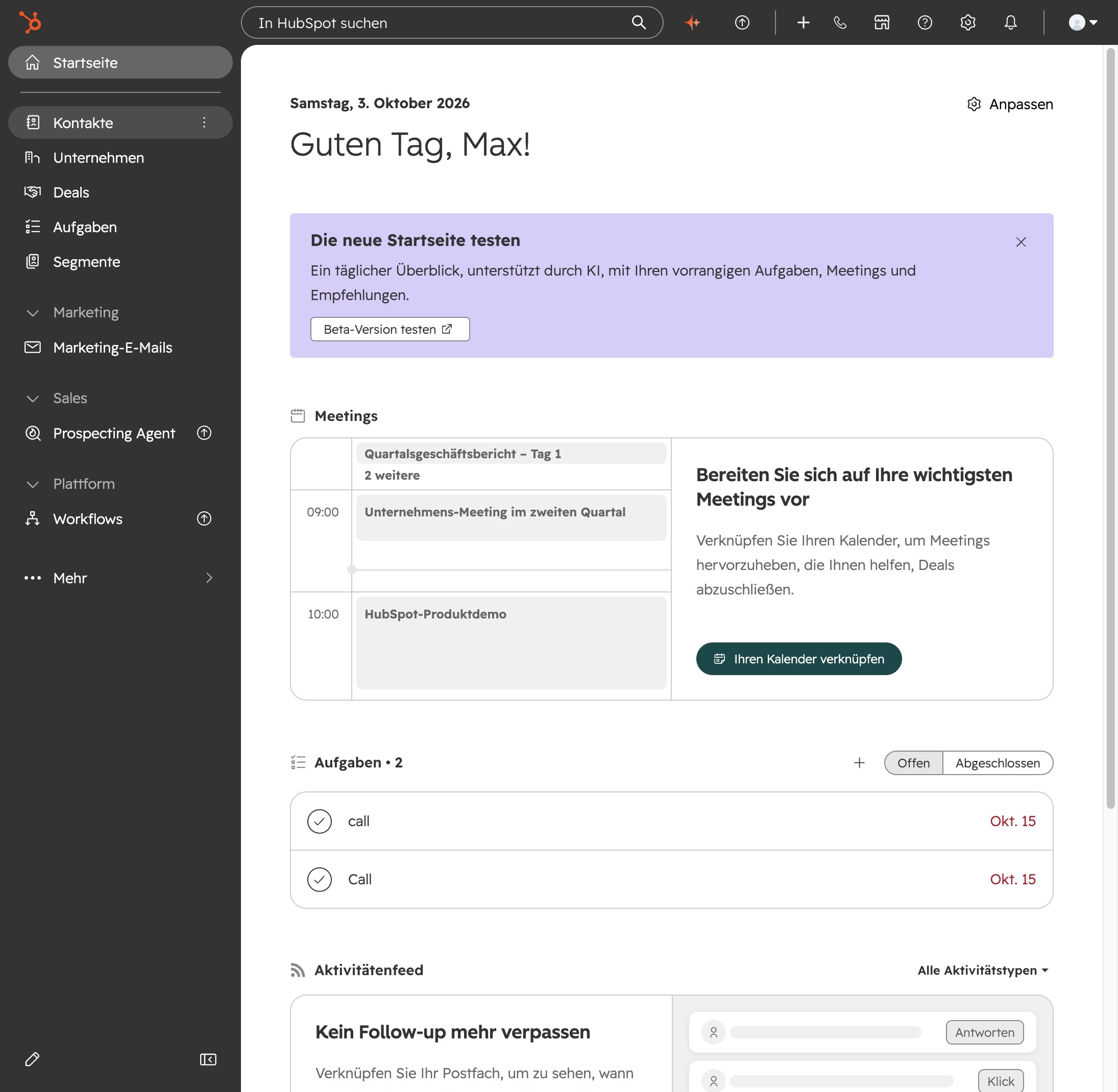
Loading screenshot…
100%
Add a new contact in HubSpot by entering essential details such as email address, first name, and last name in the contact creation form and saving the entry to your records.
 brian.annan142
Add a new contact in HubSpot by entering essential details such as email address, first name, and last name in the contact creation form and saving the entry to your records.
By clicking on 'Kontakte,' you access the section where you can manage and view all your contacts, making it easy to keep track of your connections.
To add new contacts to your list, click on the 'Add Contacts' button. This will allow you to enter the information for the new contacts you wish to manage.
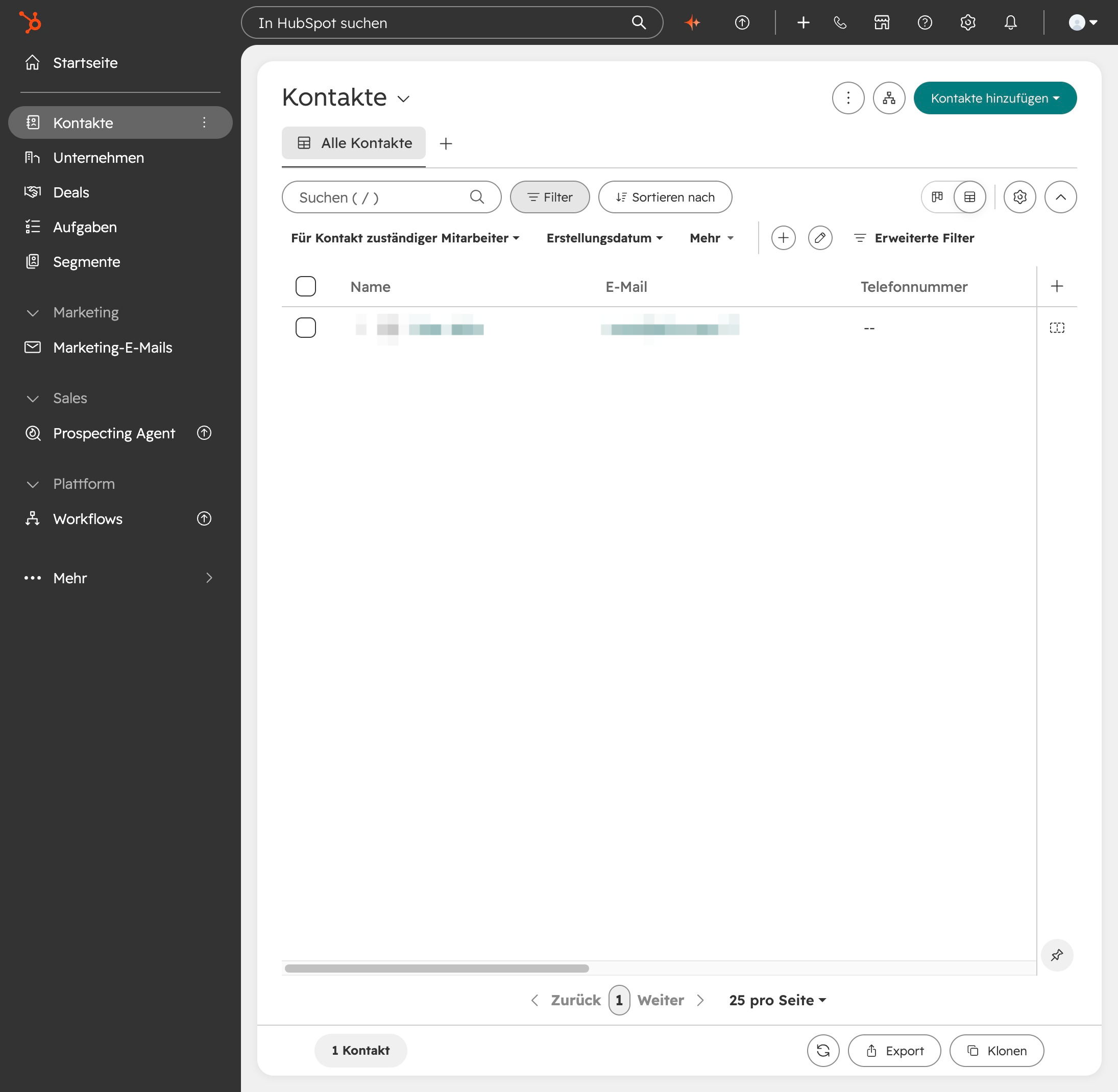
To add a new contact in the Kontakte section, select the 'Neu erstellen' button. This will allow you to enter the details for a new contact.
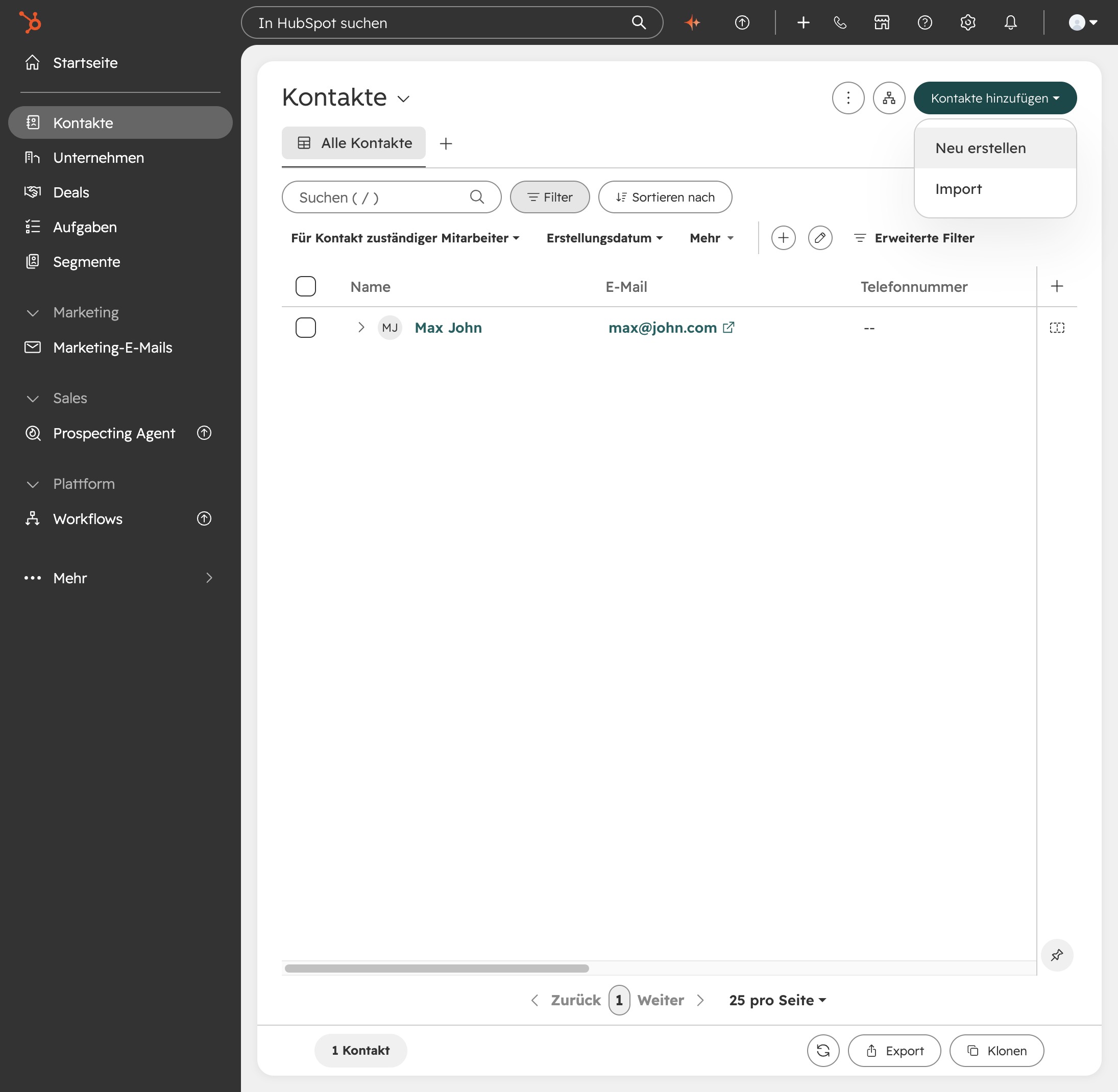
You'll begin by clicking on the Email field in the contact creation form. This is where you'll input the email address for the new contact.
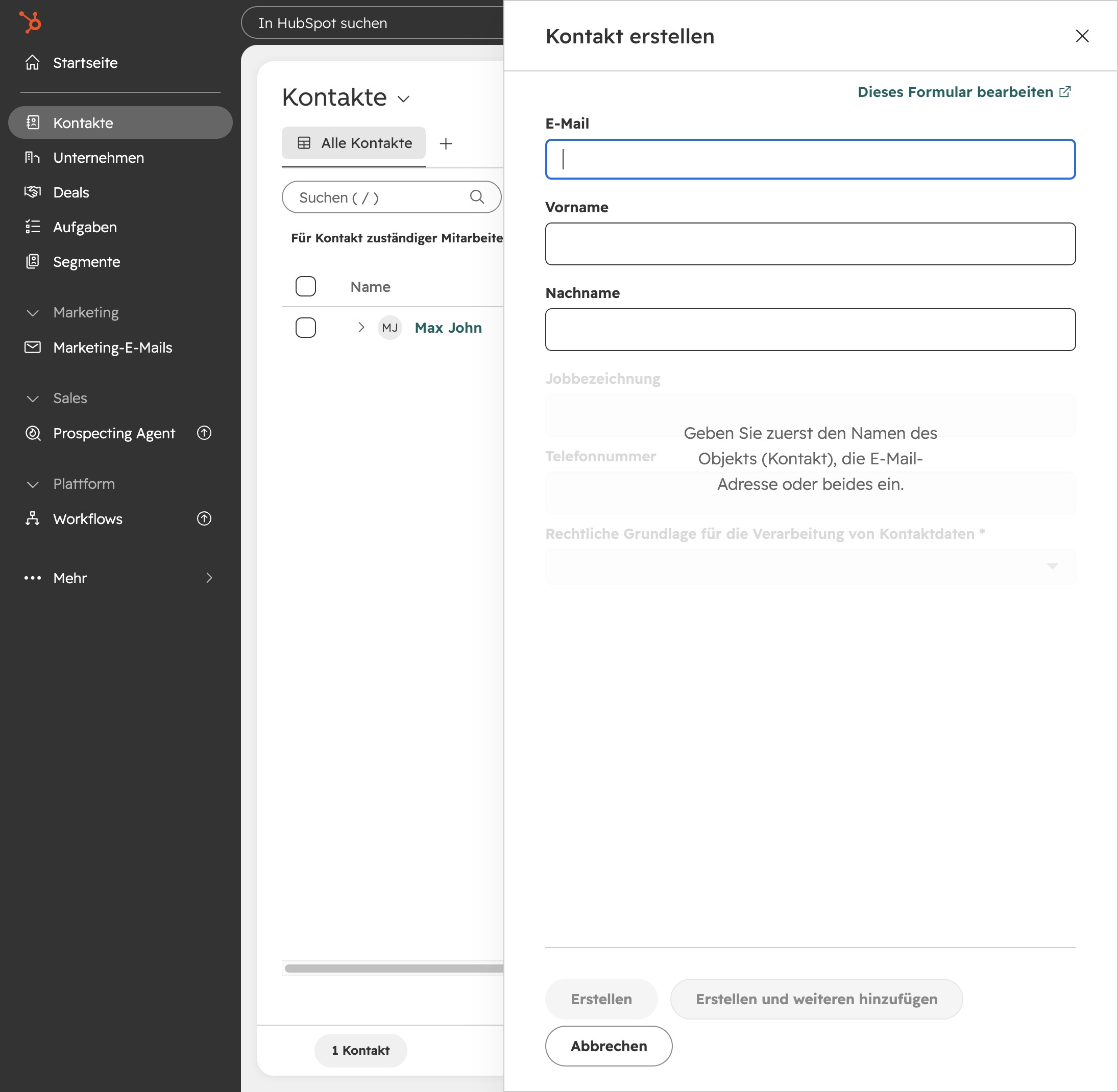
In this step, you'll enter the email address 'John@doe.com' into the E-Mail field. This ensures the contact information is properly saved for future use.
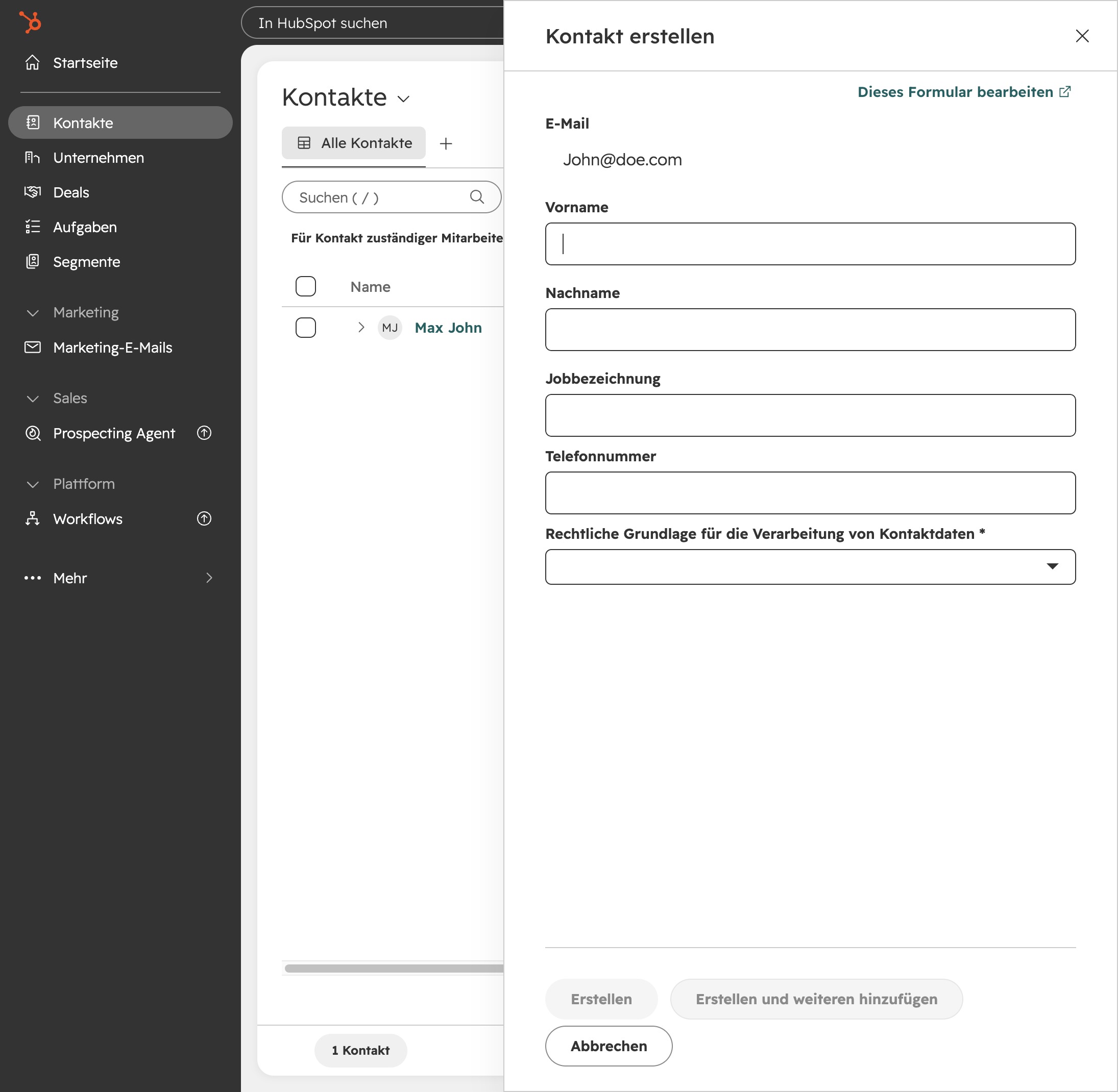
Now, click on the text input field to begin entering the first name for your new contact. This allows you to provide essential information required for the contact creation process.
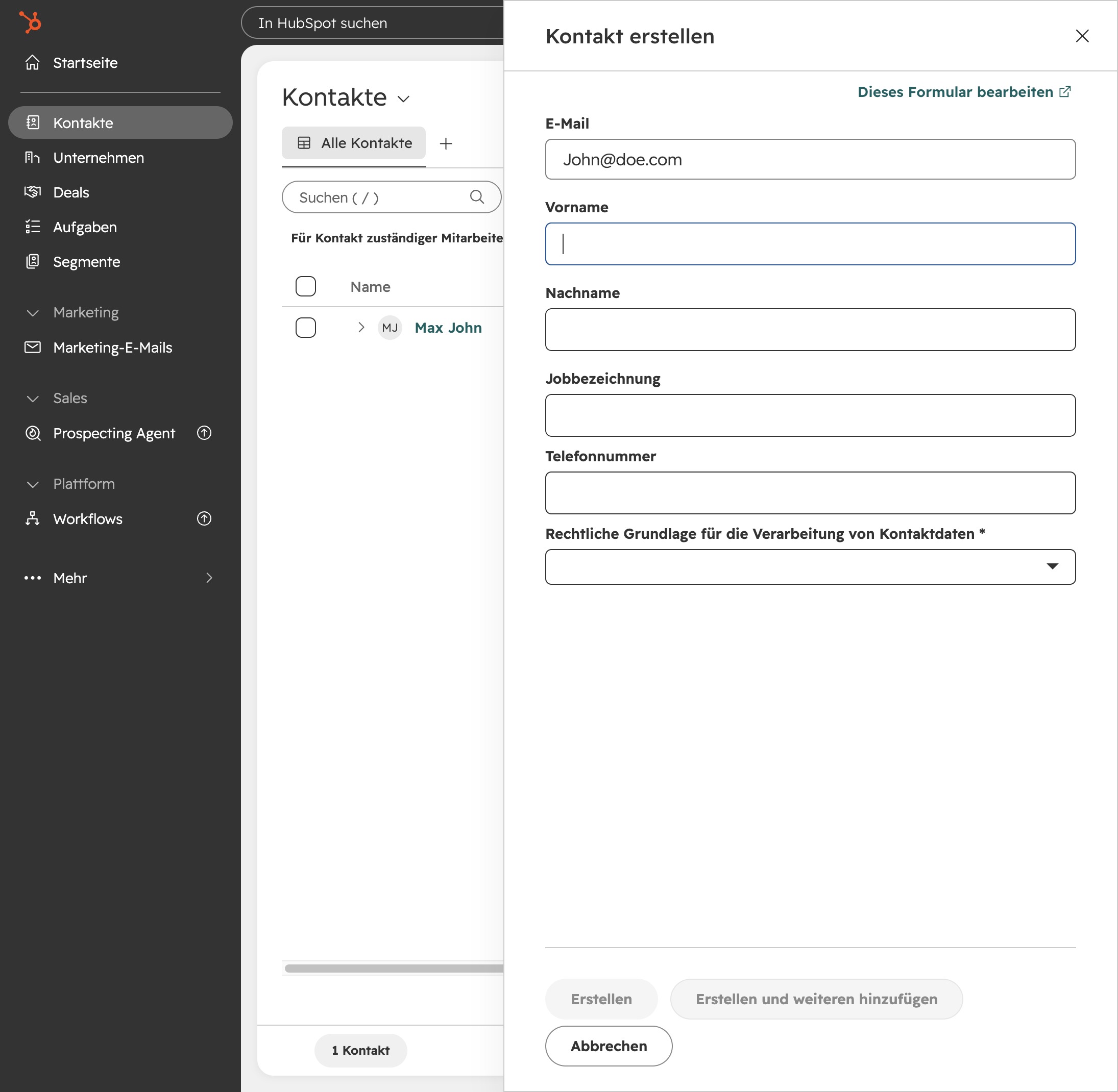
In this step, you'll enter the name 'John' into the Vorname field to provide a first name for the new contact. This is an essential part of creating a contact in the system.
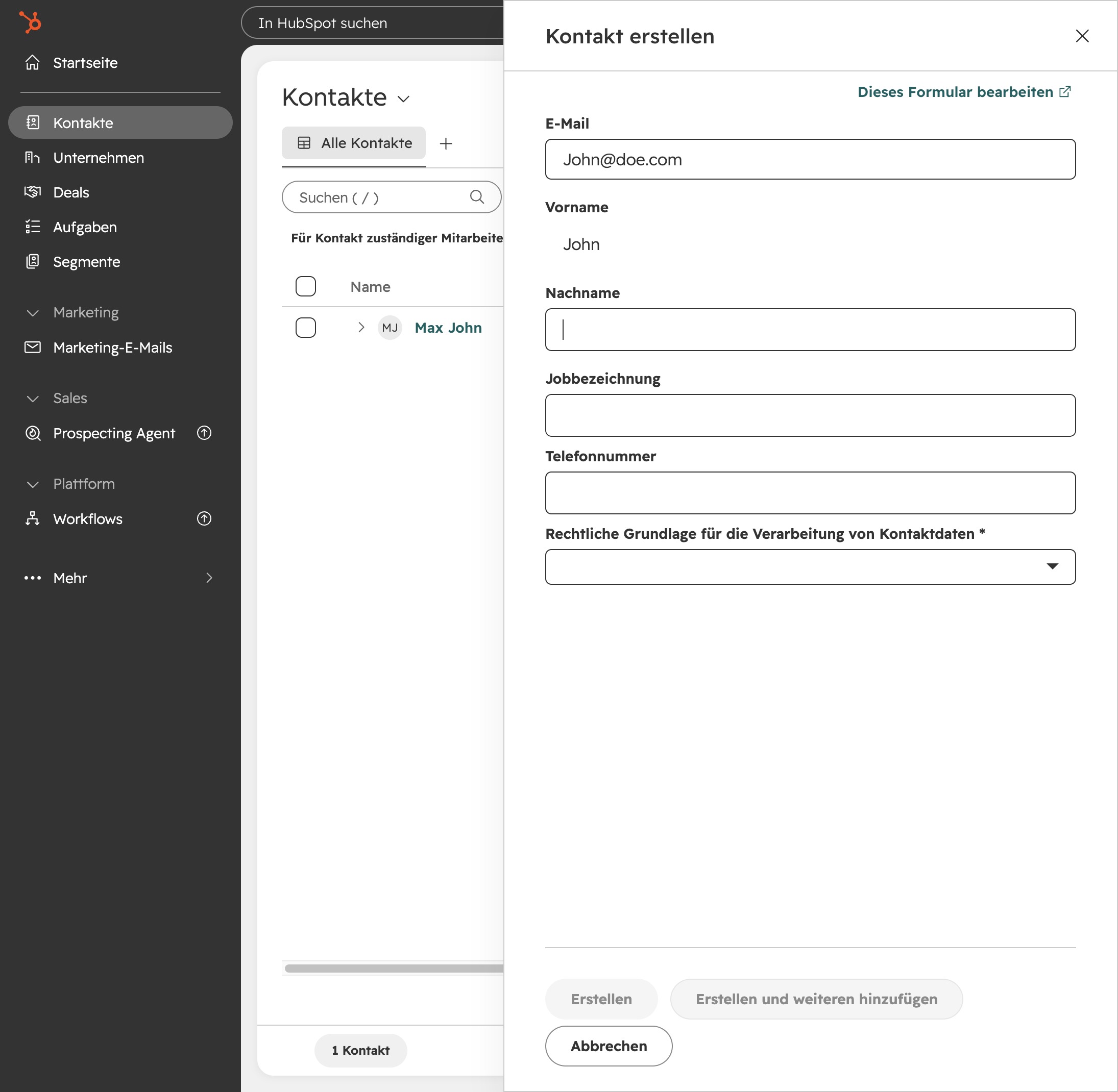
To enter details about the new contact, click on the text input field labeled 'E-Mail'. This area is where you'll type in the email address for the contact you're creating.
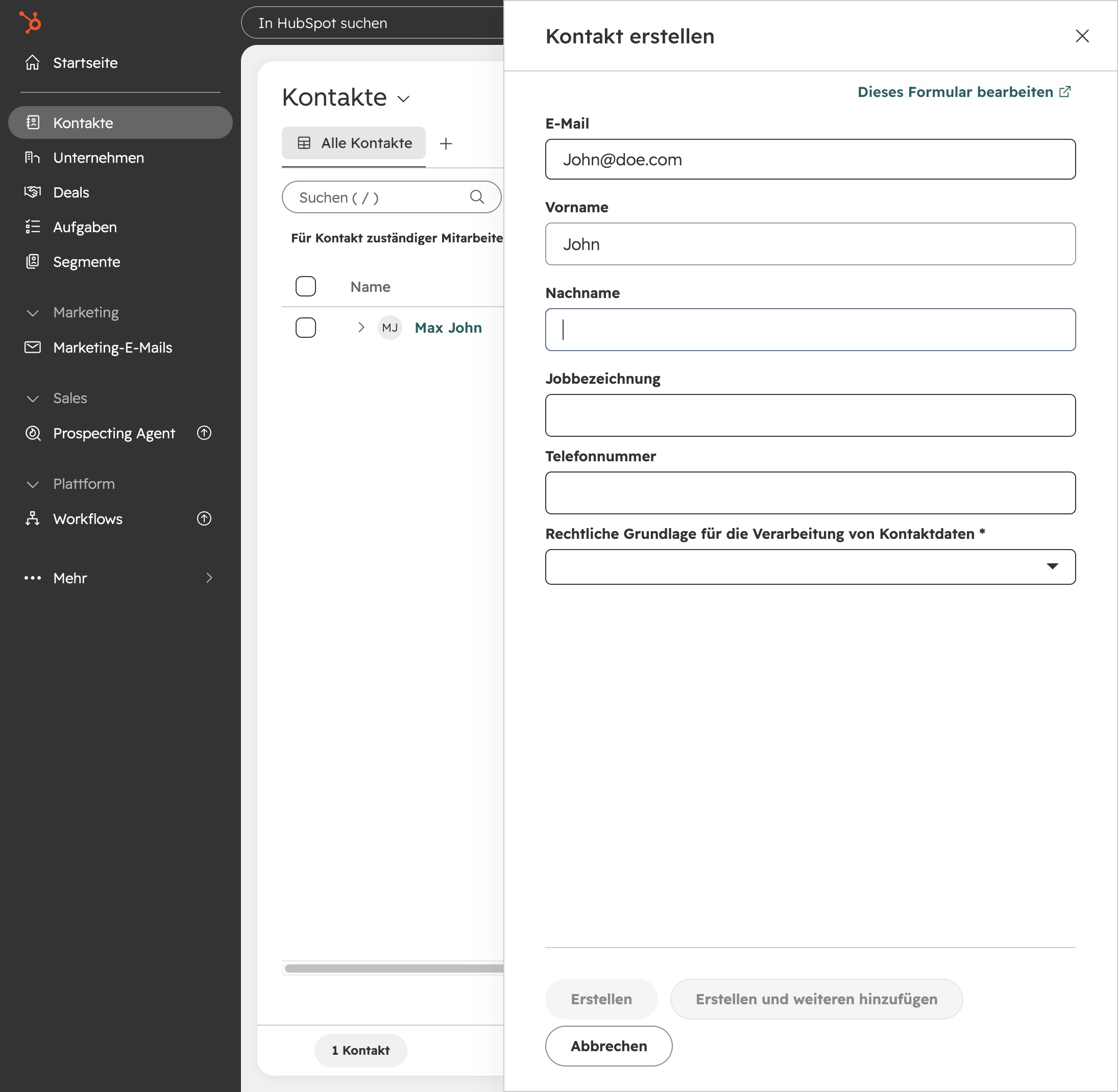
In the contact creation form, enter the last name 'Doe' in the Nachname field to capture the contact's information accurately. Make sure to type carefully for correct data entry.
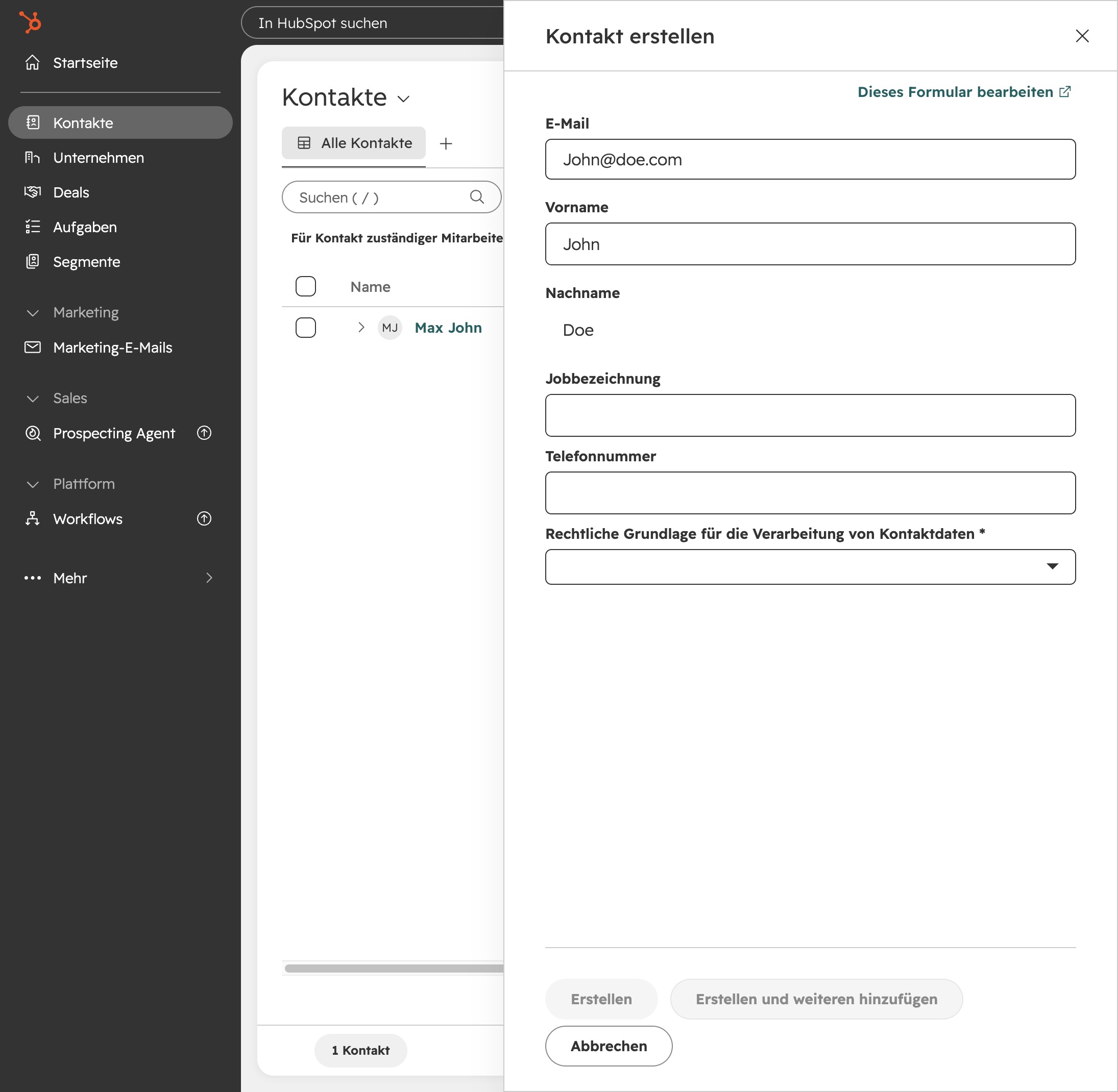
In the contact creation form, you'll need to click this area to proceed with adding details for your new contact. This step is essential for moving forward in the setup process.
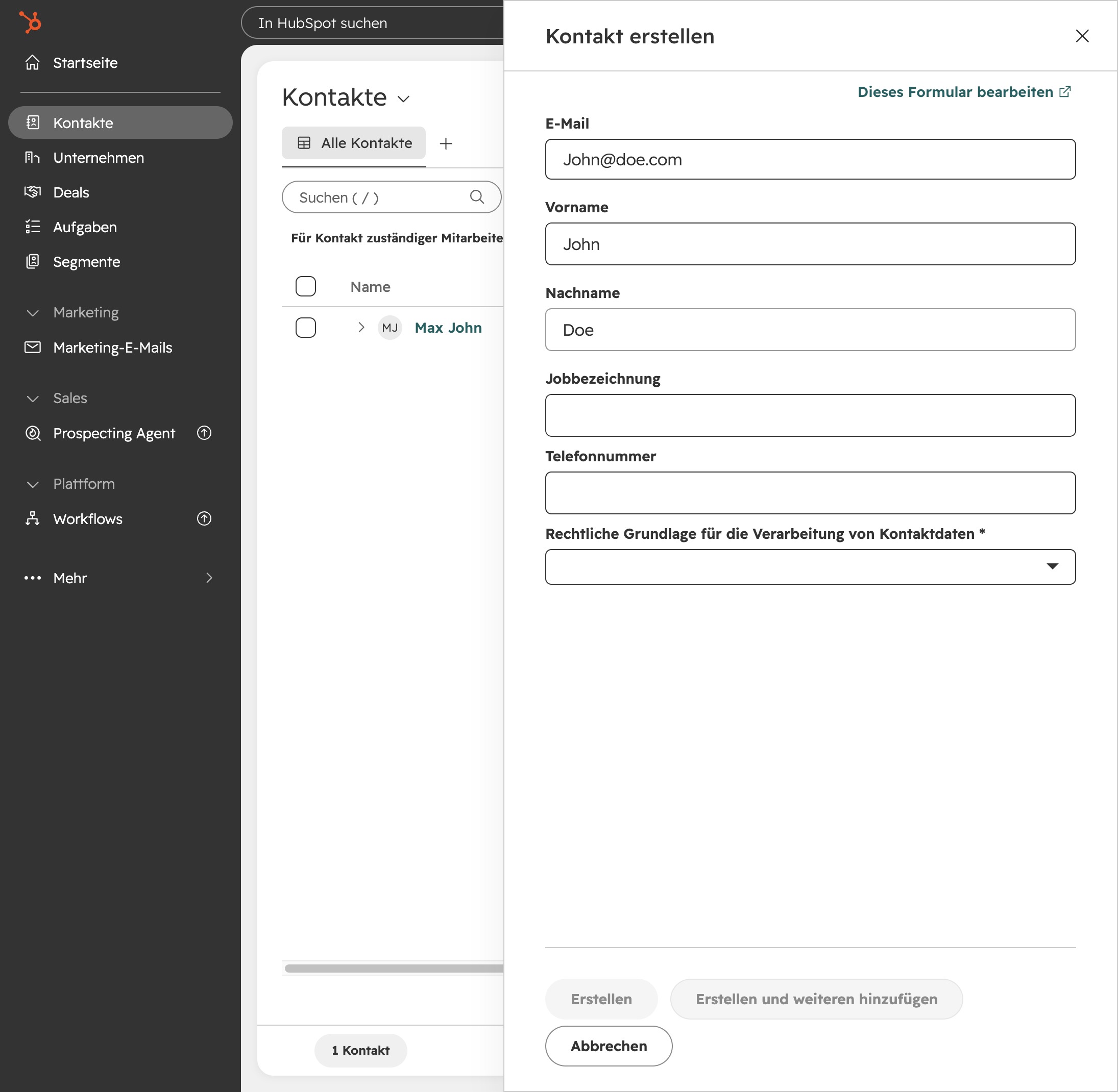
To proceed with creating the contact, click the designated area labeled 'Click here'. This will allow you to access further options related to the contact you're entering.
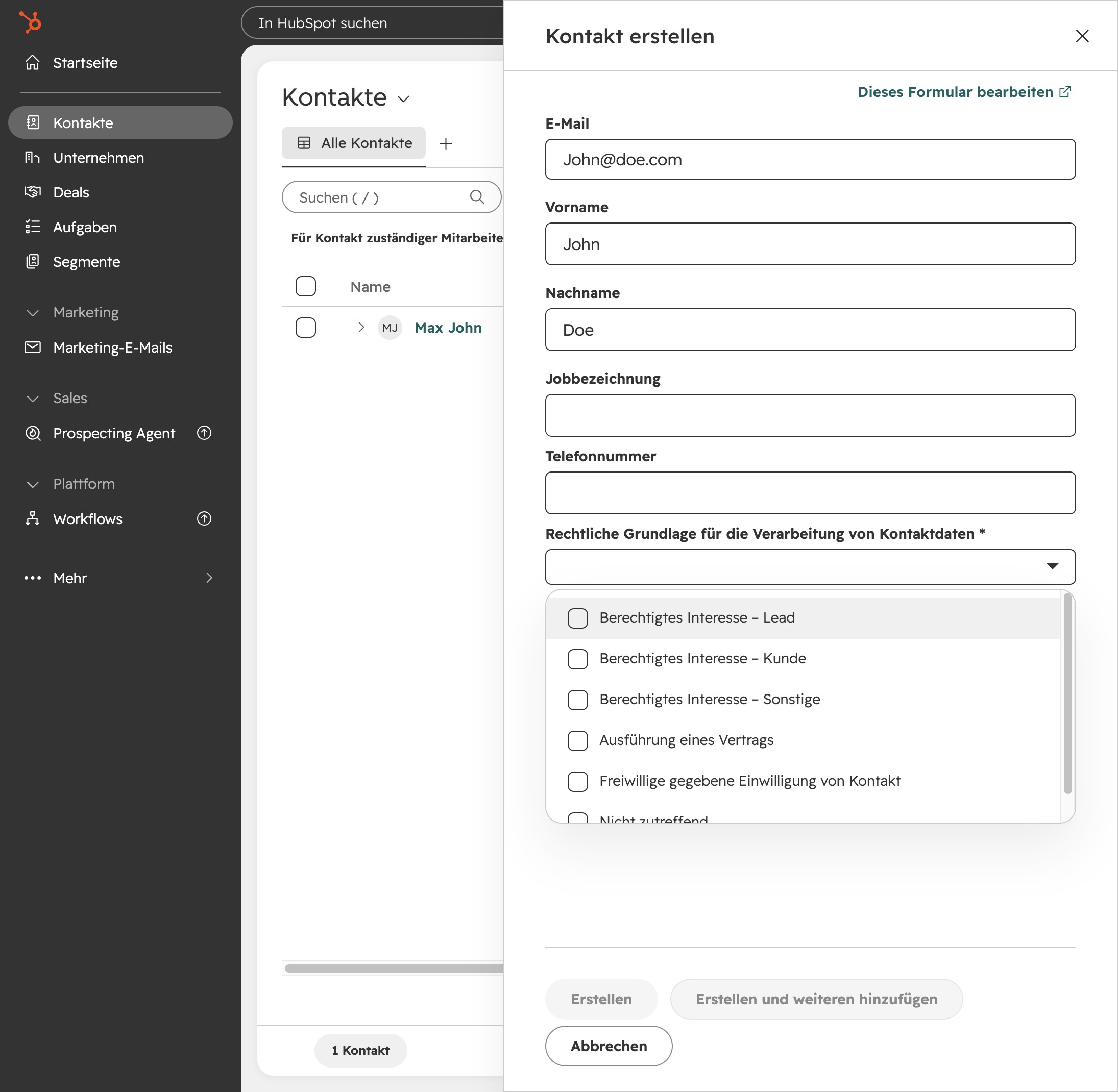
To create a new contact in HubSpot, click the 'Erstellen' button. This action will submit the information you’ve entered and add the new contact to your records.